Write Effective Prompts and Apply Best Practices
Learning Objectives
After completing this unit, you’ll be able to:
- Use the # and @ symbols to access sample prompts and trigger intelligent prompt completion.
- Select and apply sample prompts across key CLAIRE GPT categories.
- Apply best practices to organize conversations and evaluate generative AI responses.
Create Strong Prompts and Get Useful Responses
Once you know how to navigate CLAIRE GPT, the next step is to ask good questions so you get useful answers. A vague prompt produces a vague answer, while a specific, well-scoped prompt delivers exactly the analysis you need.
In this unit, you continue to follow Ana as she picks up two prompt shortcuts that speed up her day-to-day work, learns her way around CLAIRE GPT’s sample prompt categories, and develops a habit of evaluating CLAIRE GPT’s answers rather than accepting them as stated.
Prompt Shortcuts
CLAIRE GPT includes two shortcuts that Ana now uses constantly, both triggered directly from the prompt text box.
When she types # in the prompt text box, CLAIRE GPT lists sample prompts. This is the fastest way for Ana to remind herself what kinds of questions CLAIRE GPT handles well, especially when she explores a new topic like data lineage. She doesn’t have to guess the right phrasing from scratch—instead, she can pull up a relevant sample and adjust it to fit her exact question.
When Ana types @ in the prompt text box, the intelligent prompt completion in CLAIRE GPT offers suggestions based on her conversation history, including assets, artifacts, users, and user groups she has already referenced. She can filter those suggestions by category: All, Assets, Artifacts, Users, or User groups. This shortcut matters most in longer conversations, where Ana might otherwise have to scroll back and retype the exact name of a dataset she mentioned five prompts ago.
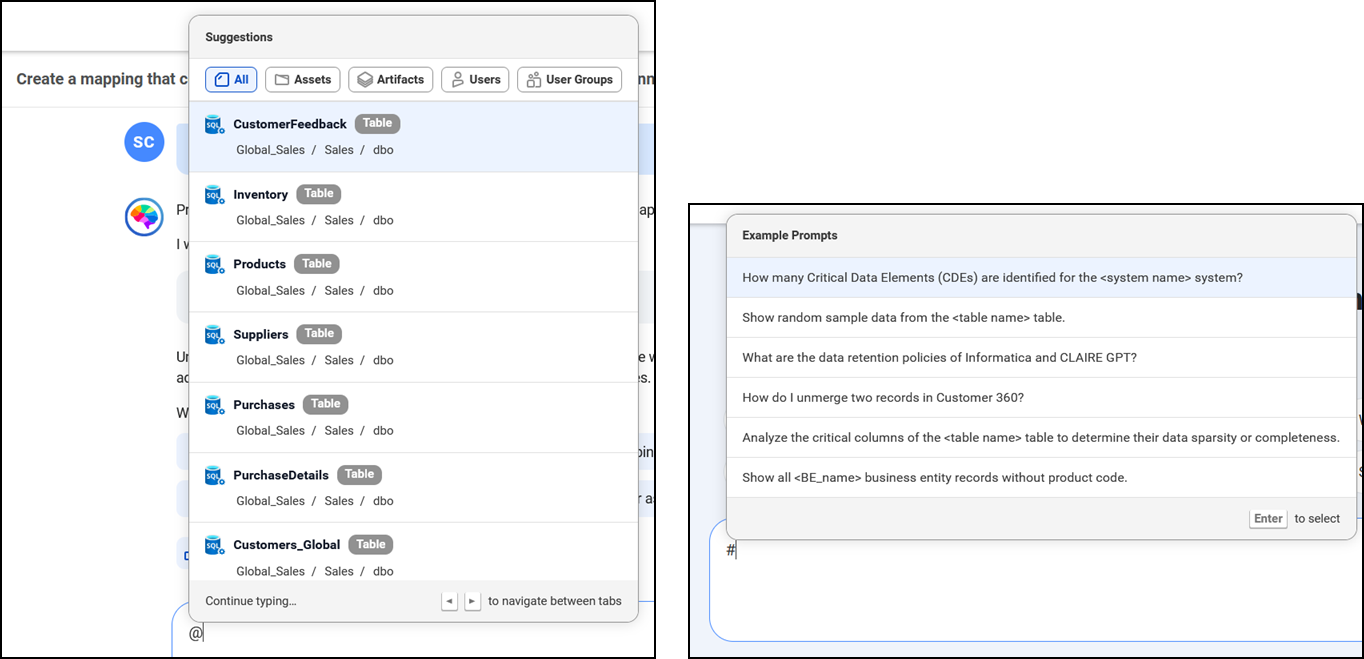
Ana is deep into a conversation comparing sales data across three regional datasets. For her fourth follow-up question, she doesn’t retype the full name of the “West Region Q2 Sales.” Instead, she types @, filters to Assets, and selects it from the list CLAIRE GPT already recognizes from earlier in the conversation.
Ana also relies on the up and down arrow keys to recall prompts she already sent within a conversation, so she can quickly reuse or tweak a prompt without retyping it. If a response is not quite what she needed, she can modify the prompt and type “retry” or “refresh.” If she realizes partway through a response that it’s off topic, she can select Stop generating response.
Sample Prompts Across Categories
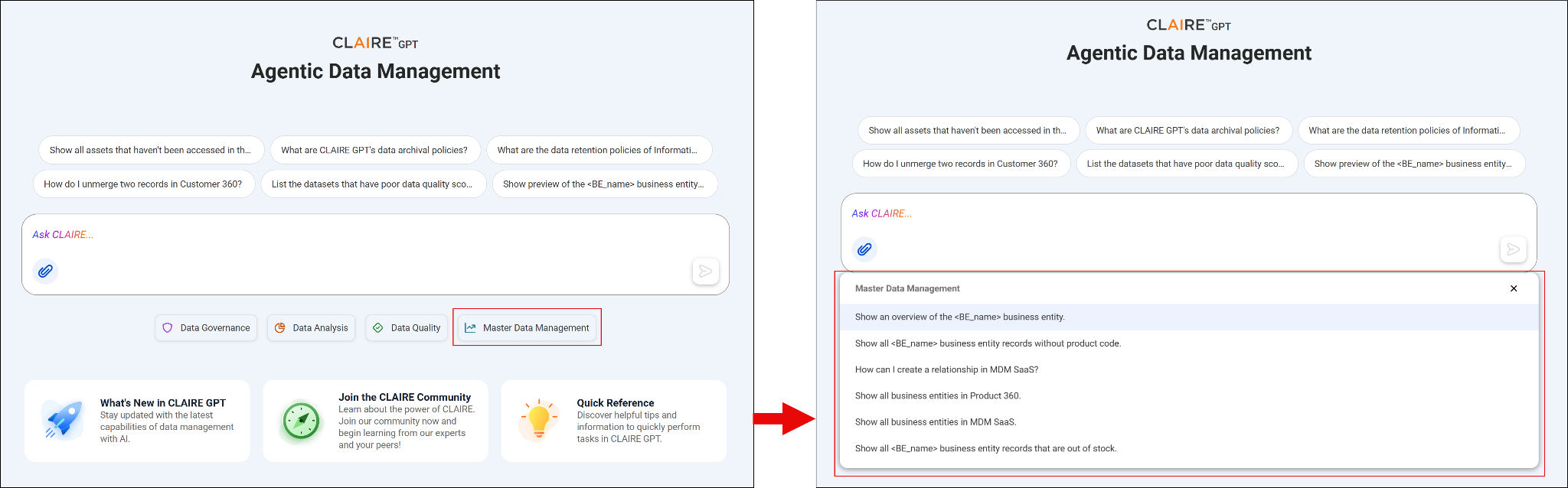
CLAIRE GPT organizes its sample prompts into categories tied to specific parts of Intelligent Data Management Cloud (IDMC), with one additional category focused on security and privacy.
-
Data Governance: This category covers prompts related to metadata exploration, data quality scores, lineage, and discovering trusted assets across IDMC services. Ana turns here when she needs to confirm a dataset is properly cataloged before she builds anything on top of it.
-
Data Analysis: This category includes prompts to help users explore datasets, break down data by segment, and generate reports. Ana spends most of her time in this category, since it matches the kind of work her role centers on.
-
Data Quality: This category includes prompts to diagnose and assess the quality of specific assets. Ana uses them anytime she needs to know how much to trust a dataset before she reports on it.
-
Master Data Management: This category covers prompts related to business entities, match rules, and survivorship rules. Ana uses this category less often but she uses it when her analysis intersects with customer or product master data.
-
CLAIRE Security and Privacy: This category includes prompts that address data access control, compliance, and how CLAIRE GPT handles AI bias and hallucinations. Ana keeps a couple of these in mind for when a stakeholder questions the reliability of an AI-generated finding.
Since Ana knows what lives in each category, she picks the right starting point instead of searching through all of them.
Best Practices to Organize Conversations and Evaluate Responses
Beyond shortcuts and categories, a few habits make CLAIRE GPT more reliable over time.
Rename and pin conversations you’ll revisit. Don’t let titles pile up as vague, auto-generated text. This saves Ana from rerunning analyses she’s already completed.
Treat responses as a starting point, not a final answer. Since generative AI is probabilistic, the same question won’t always produce an identical summary. Ana reads the reasoning section, not just the summary, before she shares a finding with someone else.
Use like, dislike, and comment deliberately. A dislike plus a specific comment records what went wrong. You can comment only once per response and can’t edit the comment later, so word it carefully. Ana uses this to remember what to change next time.
Check discovery explanations before you trust a result. When CLAIRE GPT returns a data asset, it also explains why it matched, such as the keywords, metadata, or quality signals behind the result. Read the explanation first to confirm the asset really fits your analysis question. A result that looks right by name can still be the wrong dataset, so the explanation is how you catch that.
Ana asks CLAIRE GPT for customer data to analyze repeat purchases. It returns Customer_Archive_2019. Before she uses it, Ana reads the explanation and sees the asset matched only on the word “customer.” It's also flagged as outdated and has a low quality score. She skips it and picks Customer_Global, whose explanation cites recent order history and a high quality score.
When CLAIRE GPT excluded a dataset Ana expected to see, she checked the explanation instead of assuming it didn’t exist—it turned out to be uncatalogued. She flagged it to her administrator, and her next attempt returned complete results.
Wrap-Up
With the CLAIRE GPT interface, conversation management, and prompt shortcuts now familiar, you’re ready to move through CLAIRE GPT quickly and confidently. You can spend less time searching for the right button and more time on the analysis you need.