Build Extract, Load, Transform Pipelines for Targeted Analysis
Learning Objectives
After completing this unit, you’ll be able to:
- Create extract, load, transform pipelines using natural language transformation prompts in CLAIRE GPT.
- Explain how to review a generated mapping in the Data Integration service.
- Interpret generated SQL code to validate transformation logic.
Build Your First Pipeline
Manually answering the exact same data queries week after week wastes valuable time that analysts could instead spend on deeper insights.
With the basics in place, Ana is ready to build her first real pipeline. Her goal is to turn a recurring question about customer engagement into a mapping. She can then run it on a schedule instead of asking CLAIRE GPT the same question every week.
Create a Pipeline with a Transformation Prompt
Ana starts with a data exploration prompt to confirm she's working with the right data.
Example prompt: “Show me customers who have a high frequency of engagement using multiple channels based on the data available on customer interactions.”
CLAIRE GPT returns a card summarizing the matching customers. Ana confirms this is the data she wants, and follows up with a data transformation prompt.
Example prompt: “Create a mapping to load these customers.”
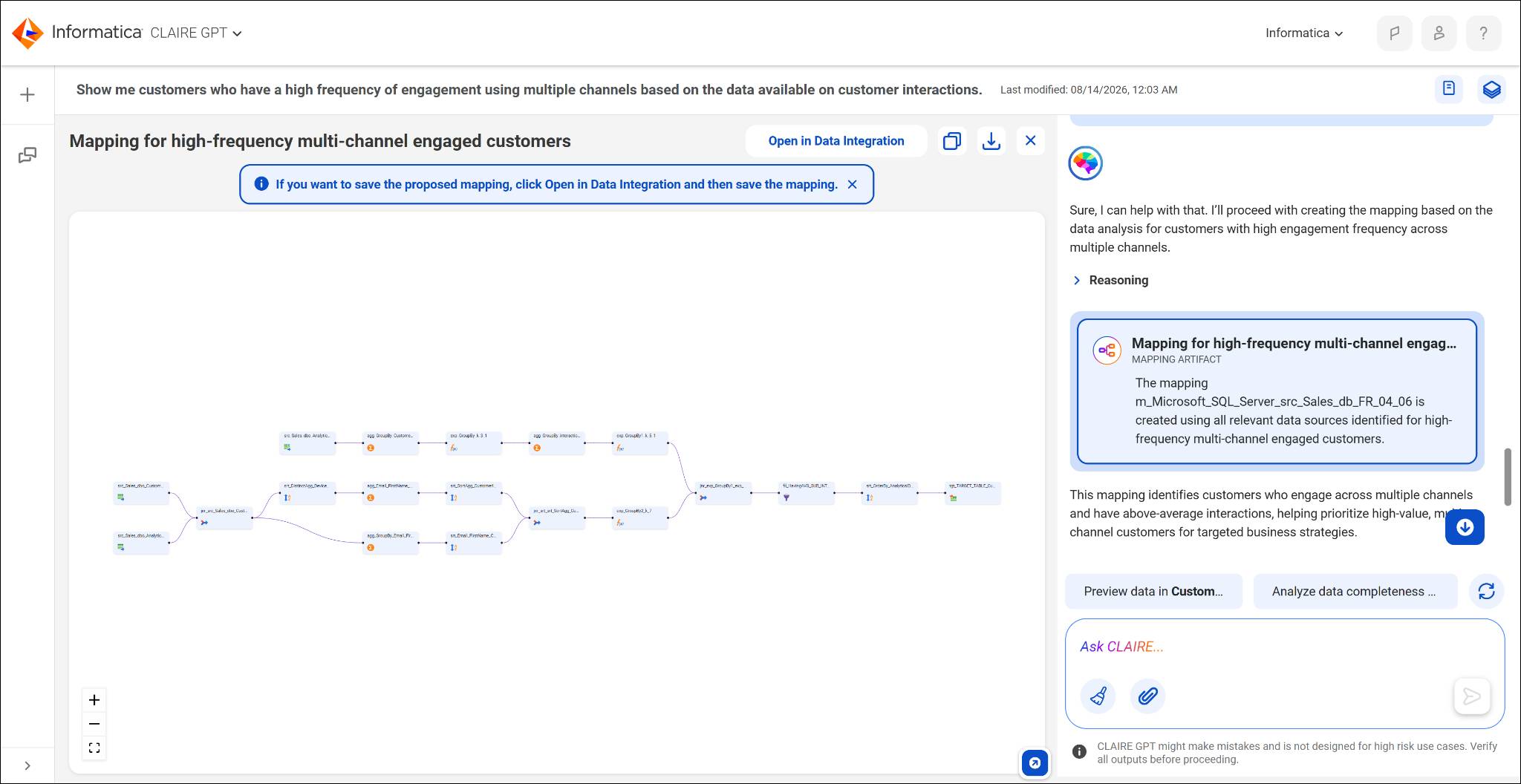
CLAIRE GPT responds with a card representing the new mapping. Because Ana referenced “these customers” rather than restating her whole question, CLAIRE GPT carries the context forward from her previous prompt. This is the same contextual continuity you learned about with the @ symbol in CLAIRE.
Open and Review the Mapping
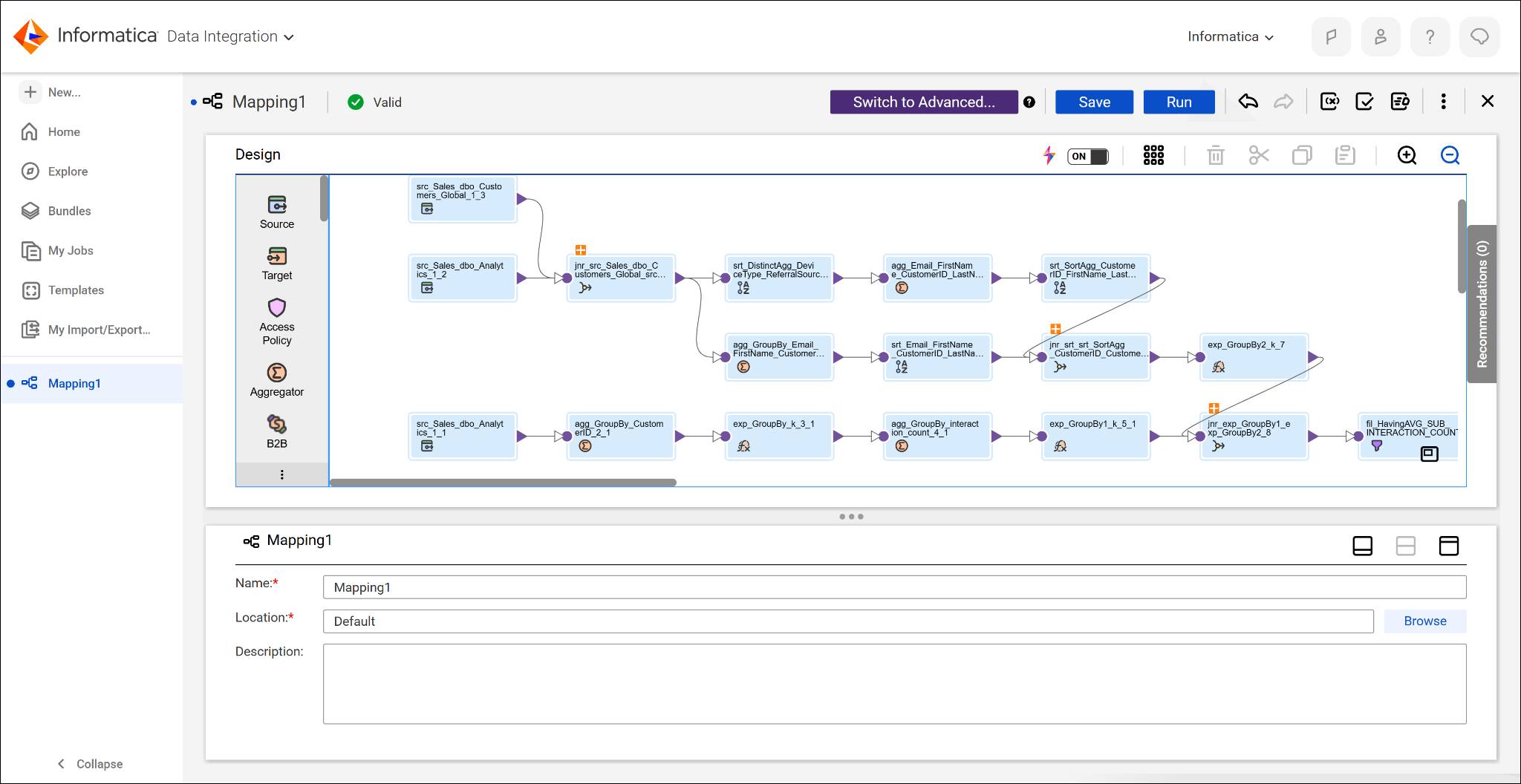
A mapping created by CLAIRE GPT doesn't run on its own. You open it in Cloud Data Integration (CDI) first. Ana selects the card, and then clicks Open in Data Integration to review the full mapping.
The mapping shows the data flow logic as a series of transformations. A source reads from the catalog, one or more steps such as filters or aggregations transform the data, and a target receives the result. Ana can run the mapping as-is, or use SQL extract, load, transform (ELT) optimization for better performance, depending on her needs.

Interpret the Generated SQL
Behind every mapping is SQL code that CLAIRE GPT generates to produce the transformed table. Ana doesn't need to write this SQL herself. But reading it helps her confirm the logic actually matches what she asked for, especially before she operationalizes a pipeline that other reports depend on.
For example, Ana asks for customers with a high frequency of engagement. She can check the generated SQL for a clause that calculates an average and filters below it. This confirms the logic matches her intent instead of assuming it does. If the SQL instead shows a flat threshold with no average calculation, that's a sign you need to refine the prompt.
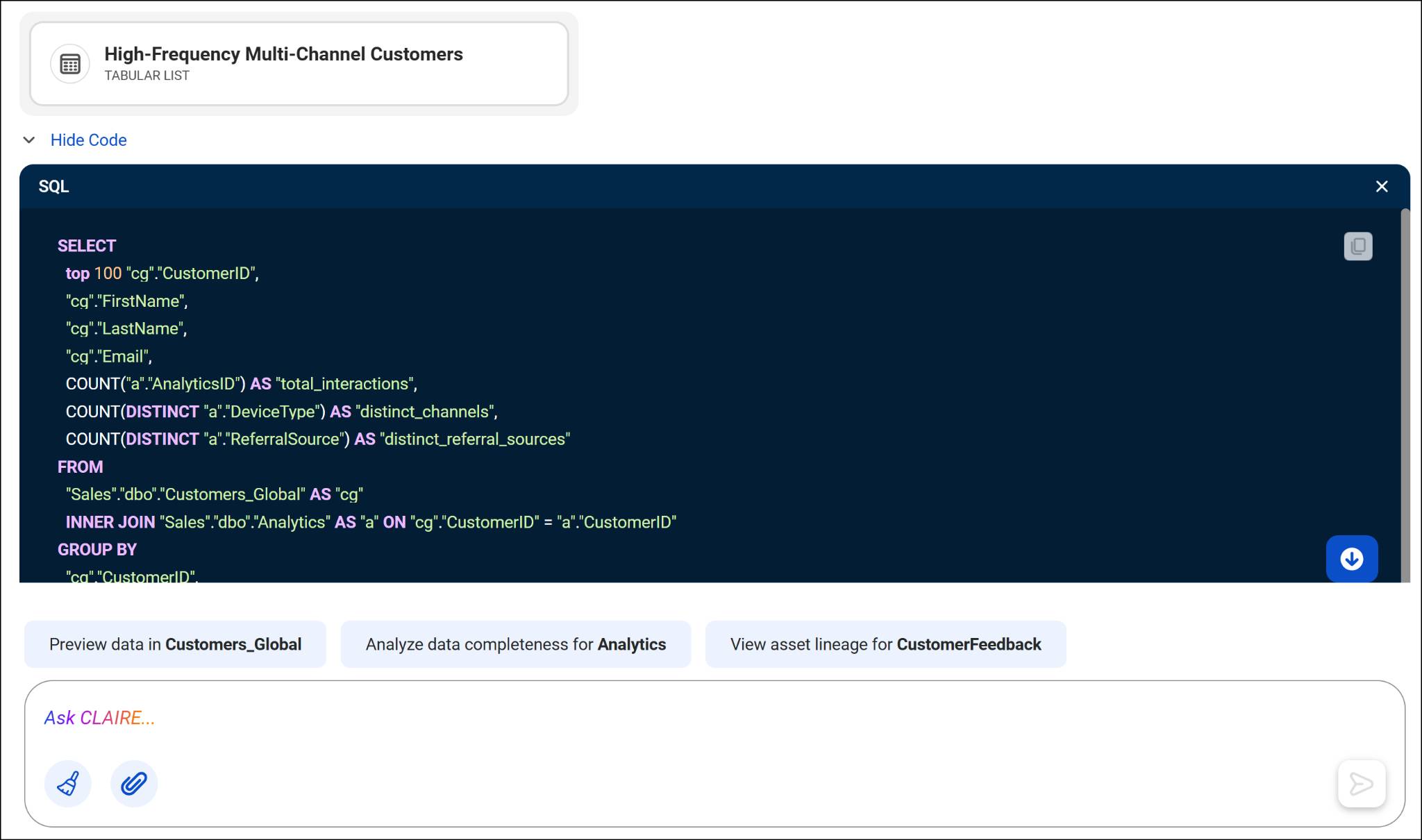
Ana treats this validation step like the explanations CLAIRE GPT gives during discovery. It’s a quick check before she trusts the output, not an afterthought.
Explore how the Data Integration Agent helps you generate a data pipeline.
Best Practices When You Name, Save, and Organize Mappings
As Ana's team builds more mappings, a few habits keep things from turning into clutter.
- Rename mappings with a clear, descriptive title as soon as they're created, rather than leaving the default name in CDI. “Weekly Low-Satisfaction Feedback Report” is far easier for a teammate to find later than an auto-generated label.
- Save a mapping only after you review its SQL, not immediately after generation, because edits after saving require going back into CDI.
- Group related mappings together in CDI using consistent naming conventions. For example, prefix all feedback-related mappings the same way so the team can find every pipeline tied to an initiative.
- Document the original prompt that created the mapping, even briefly, so anyone reviewing it later understands the intent without having to reverse-engineer the SQL from scratch.
When a new analyst joins Cloud Kicks, they’re able to find and understand Ana's existing mappings within minutes. Consistent naming and a short prompt history alongside each one made the difference.
Wrap Up
You built a full pipeline from a natural language prompt, opened it in CDI, and checked the SQL behind it. You're ready to turn everyday business questions into reusable pipelines your whole team can rely on, and close the loop from discovering data to operationalizing it.