Configure Field Service Users and Resources
Learning Objectives
After completing this unit, you’ll be able to:
- Create and edit users for Field Service.
- Assign your users to field service resources (mobile workers).
- Add dispatchers to your org.
Create Your Field Service Users
Before any work can be assigned or scheduled, Salesforce needs to know who's doing it. That's where service resources come in. Service resources represent every mobile worker, technician, or crew member in your field team, and act as the link that your scheduling engine uses to match the right person to the right job, in the right place, at the right time.
You need some helpers to get your mobile services off the ground. Luckily, you already have one–you!
Because only two Salesforce licenses are available in Trailhead playgrounds, you’re going to use your own profile for this exercise. You’ll tweak it to fit the role of a field technician based out of New York, so you can experience Field Service and Operations just like a real tech in the field. Here’s how to do this.
- From Setup, in the Quick Find box, search for and select Users.
- Select your name in the user list.
- Select Edit, then change the following information.
- Select: Knowledge User
- Ensure Service Cloud User is selected.
- Time Zone: Eastern Time (America/New_York) or Eastern Daylight Time (America/New_York). (This label varies depending on if you’re in daylight or standard time.)
- Click Save.
You now have a user profile set up that you can assign as a service resource giving you access to the core field service features.
Create Field Service Resources
The next step is to make yourself a service resource so you can bring service to your customers.
Think of it as creating your field identity. Once you're set up as a service resource, the system knows you exist, where you're based, and what you're capable of. That's what makes it possible to assign you to jobs, include you in schedules, and dispatch you to customers who need help. Use the Salesforce Go setup wizard to do this in a jiffy.
- Navigate back to the Salesforce Go Initial Setup page.
- Under Set Up Your Workforce, select Manage in the Add Your Service Resources section.
- Select New Service Resource in the top left corner.
- For User, use the lookup field to select yourself.
- For Name, enter
James Clifton.
- For Service Territory, use the lookup field to select the New York Area territory you just created.
- Select Save & Close.
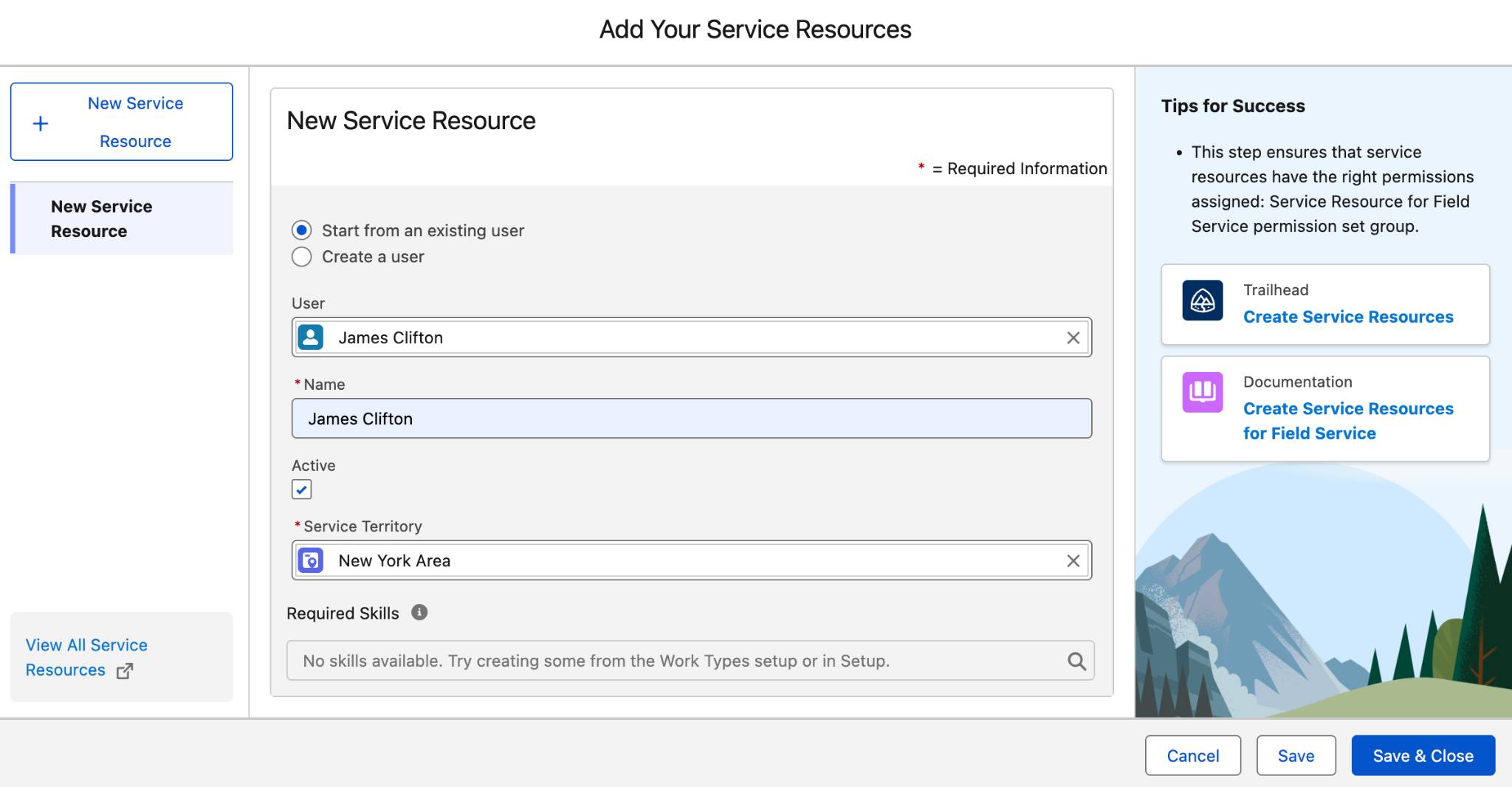
Now you have a service resource record in Salesforce for your mobile worker (in this case, you!).
Create Your Dispatchers
Not everyone in field service is out in the field. Dispatchers are the people behind the scenes who manage the schedule, assign jobs to the right resources, and keep operations running smoothly. Think of a dispatcher like an air traffic controller—they're not flying the planes, but nothing takes off without them.
In Salesforce, a dispatcher is a specific role that gives a user access to the Field Service and Operations dispatcher console and the tools they need to manage their team. A dispatcher might oversee dozens of technicians across multiple territories, making real-time decisions when appointments run over, emergencies come in, or a resource calls out sick. Without the right profile and permissions in place, they won't have access to any of those tools.
Since you have limited licenses in the Trailhead playground, you must use the Salesforce admin's profile (that’s your profile) to create one field service user. Look at all the hats you can wear! Follow the steps below to do that.
- From the Salesforce Go Initial Setup page, under Set Up Your Workforce, select Manage in the Add Your Dispatcher section.
- Select New Dispatcher in the top left corner.
- For User, use the lookup field to select yourself.
- Select Save & Close.
And voila! With your dispatcher profile set up, you now have full access to the scheduling console and everything you need to start coordinating your field team.
What You've Learned So Far
You now have the core of Field Service and Operations in place. The right setup, the right people, and the right territories. A well-configured foundation means your dispatchers know where to send technicians, your technicians know when and where to show up, and your customers get the seamless service experience they expect. That is a real, tangible impact on your organization from day one.
And you’re just getting started. The core platform is powerful on its own, but Field Service and Operations has even more to offer. In the next badge, dive into the managed package you installed with Salesforce Go, and its advanced scheduling capabilities. You will build on everything you’ve set up here to help your organization schedule smarter, reduce travel time, and get the most out of every technician's day.