Manage User Access
Learning Objectives
After completing this unit, you’ll be able to:
- Create and assign a permission set using the Setup agent.
- Update record access through a conversation with the Setup agent.
- Clone a user using Setup with Agentforce.
Enable Your Coral Cloud Resorts Coworkers
To keep the resort buzzing all year long, the marketing team dreams up exciting promotions like Tropical Wellness Week. Coral Cloud Resorts recently created a Marketing Coordinator role to focus solely on these efforts. As the admin, your goal is to get this new team up and running quickly in Salesforce. They need to use campaigns to track these promotions and reach out to guests.
Traditionally, configuring access can be a time-consuming chore in Setup. Fortunately, Setup with Agentforce is here to speed things up. Instead of hunting for the right settings yourself, you can simply tell the Setup agent what the marketing coordinators need. You can use the Setup agent to handle the heavy lifting of user management so you can get back to your own busy day.

Create and Assign a Permission Set
Let’s make sure users are assigned the correct permissions. With Setup for Agentforce, you can complete this task through a quick conversation.
- Start a new conversation with the agent from Setup Home or using the Ask Agent for Setup button (
 ).
).
- Plan what access the new Marketing Coordinators should be granted. These users need to have full object permissions to the Campaign object with the ability to edit all fields.
- Copy and paste:
Create a permission set named “Campaign Access” that gives Create, Read, Edit and Delete permissions for the Campaign object. And give Read and Edit field permissions for the Active, Description, Status, and Type fields.
- The Setup agent replies with a draft permission set for your review. Click View Details to make sure the correct permissions are configured.
- Click Confirm.

Now it’s time to assign the first user in the Marketing Coordinator role this permission set.
- Start a new conversation with the agent from Setup Home.
- Copy and paste the following:
Assign the Campaign Access permission set to Lexie Stevens.
- Click Confirm to confirm the permission set assignment.
Make Record Access Updates
The marketing coordinators are up and running, thanks to the permission set you created. However, Lexie, one of the new coordinators comes to you with some concerns. She wants only other marketing coordinators to see their team’s campaigns, as she’s concerned that well-meaning employees could tell guests about upcoming offers before they’re ready.
You know that you need to adjust record access to fulfill this request. Let’s see how the Setup agent can help you get this work done.
- First, you need to adjust the organization-wide defaults for the Campaign object so that users can only see records that they own. (We’ll open up access later, but we need to first set the org-wide defaults to the most restrictive level). In this case, you need to set the org-wide default to Private.
- In a new conversation with the agent, check the current org-wide default access level. Enter the following:
What’s the org-wide default for Campaign?
- The agent informs you that the Internal Default Access is Public Full Access. To update the org-wide default, enter:
Change the default internal access of Campaign to Private.
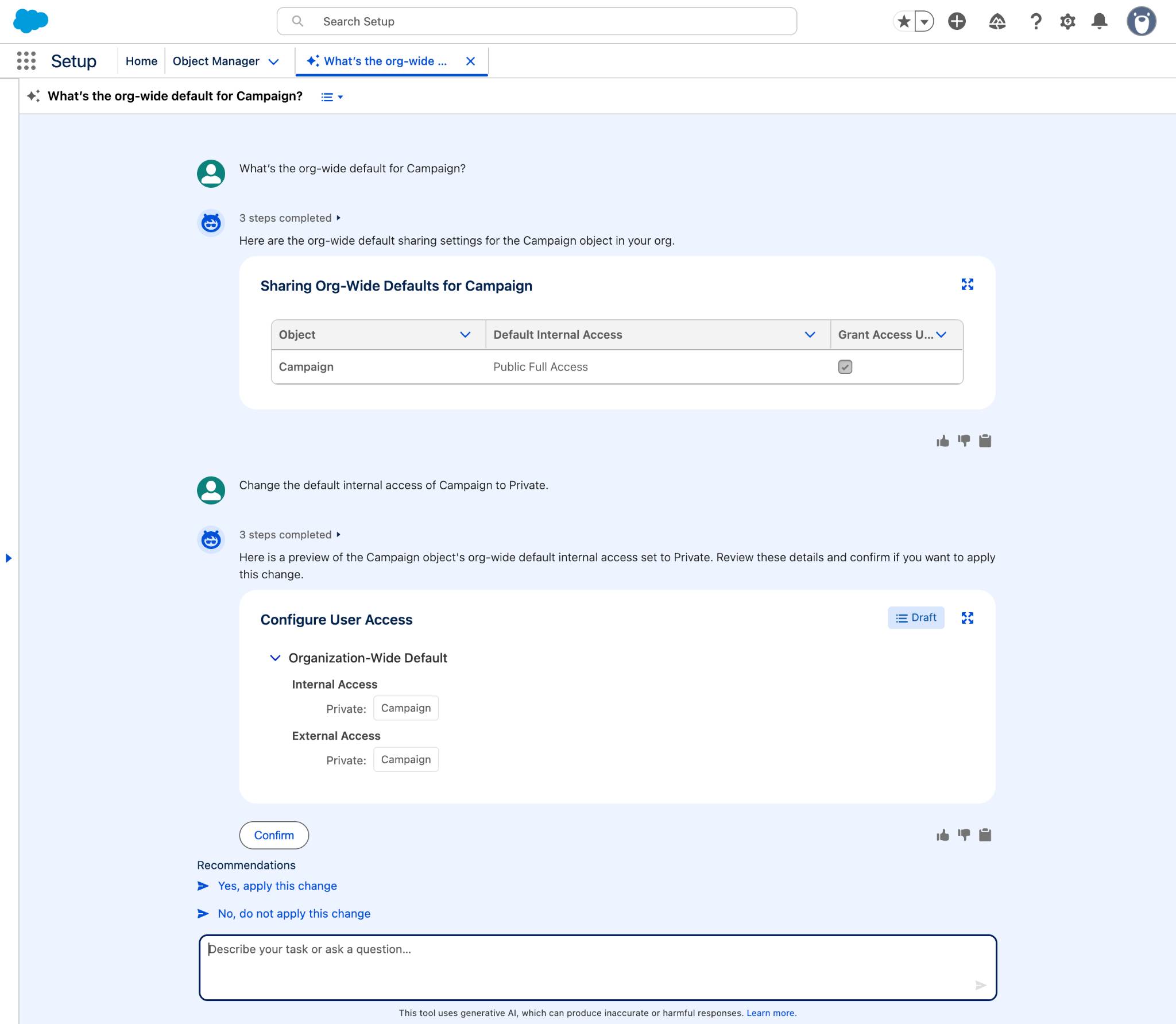
- Click Confirm to make the change.
Excellent! You’ve secured access to campaign records as requested by the marketing coordinators. The final step is to make sure that members of this team can still see each other’s records so they can collaborate. You set this access using a sharing rule.
- Continuing the same conversation with the agent, enter:
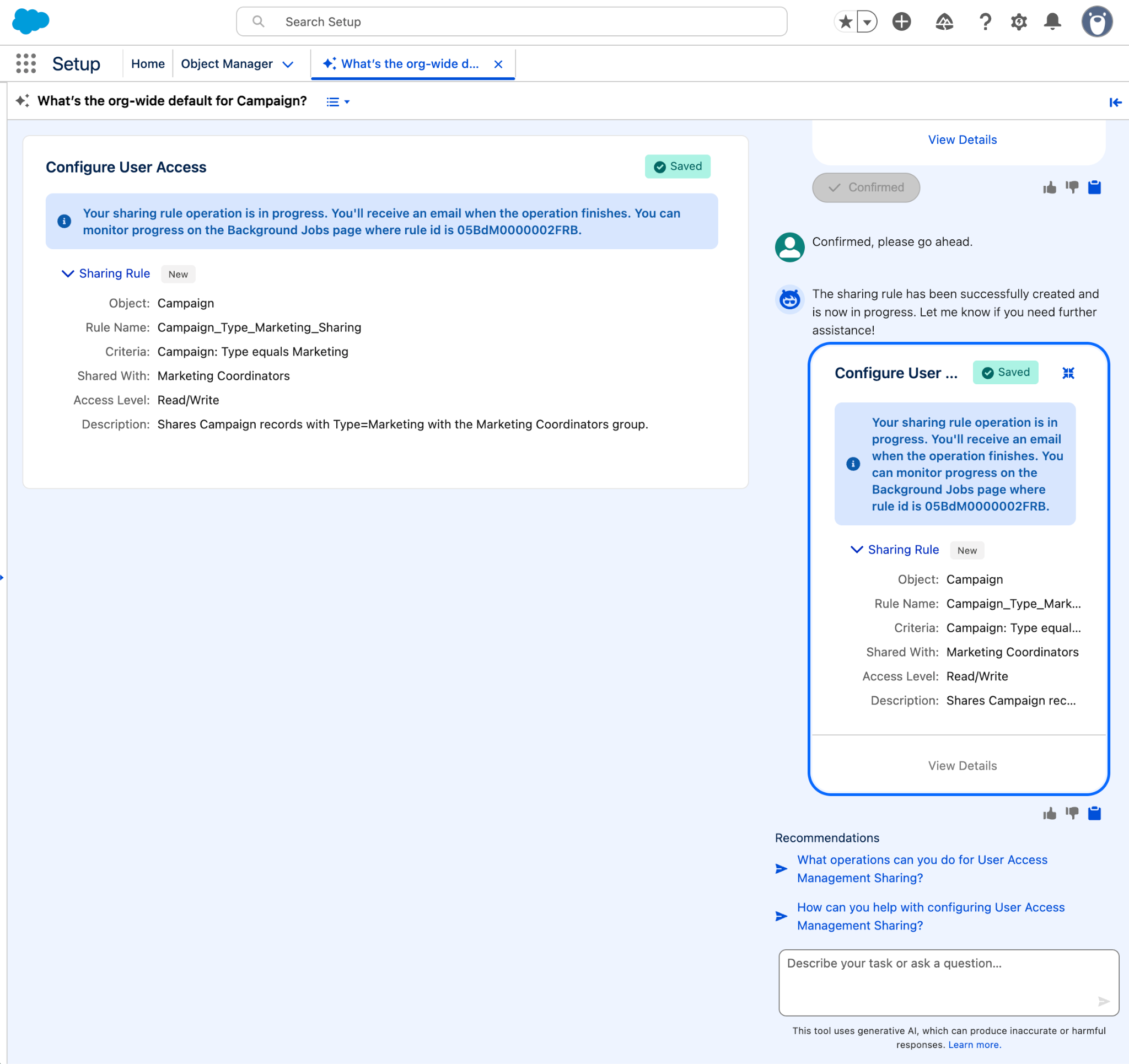
Create a sharing rule that shares Campaign records with Type=Marketing with the Marketing Coordinators group. Give this group Read/Write access.
- The agent proposes a draft sharing rule.
- After you review, click Confirm so the agent can create the sharing rule.
Clone a User
The resort hired an additional marketing coordinator to join the team, and you’re responsible for setting up this new user, Kevin Park, in Salesforce. Usually, getting the user’s account configured and making sure they have the necessary access is a tedious task. But using Setup with Agentforce, you can clone a relevant user and copy all their same access assignments over in a single operation.
- Start a new conversation with the agent and enter:
Clone user Lexie Stevens.
- The Setup agent asks for the remaining required fields for this new user. (The form can take a few moments to load.)
- First Name:
Kevin - Last Name:
Park - Enter a username and email. Note that both of these should be in email format.
- Make sure to select the Clone Assignments option so that Lexie’s permission sets and other assigned access features are copied to the new user.

- First Name:
- Click Submit.
- The Setup agent provides a draft of the user being created. Click View Details to make sure the details look correct and the permission set group and permission sets were copied over, and then click Confirm.
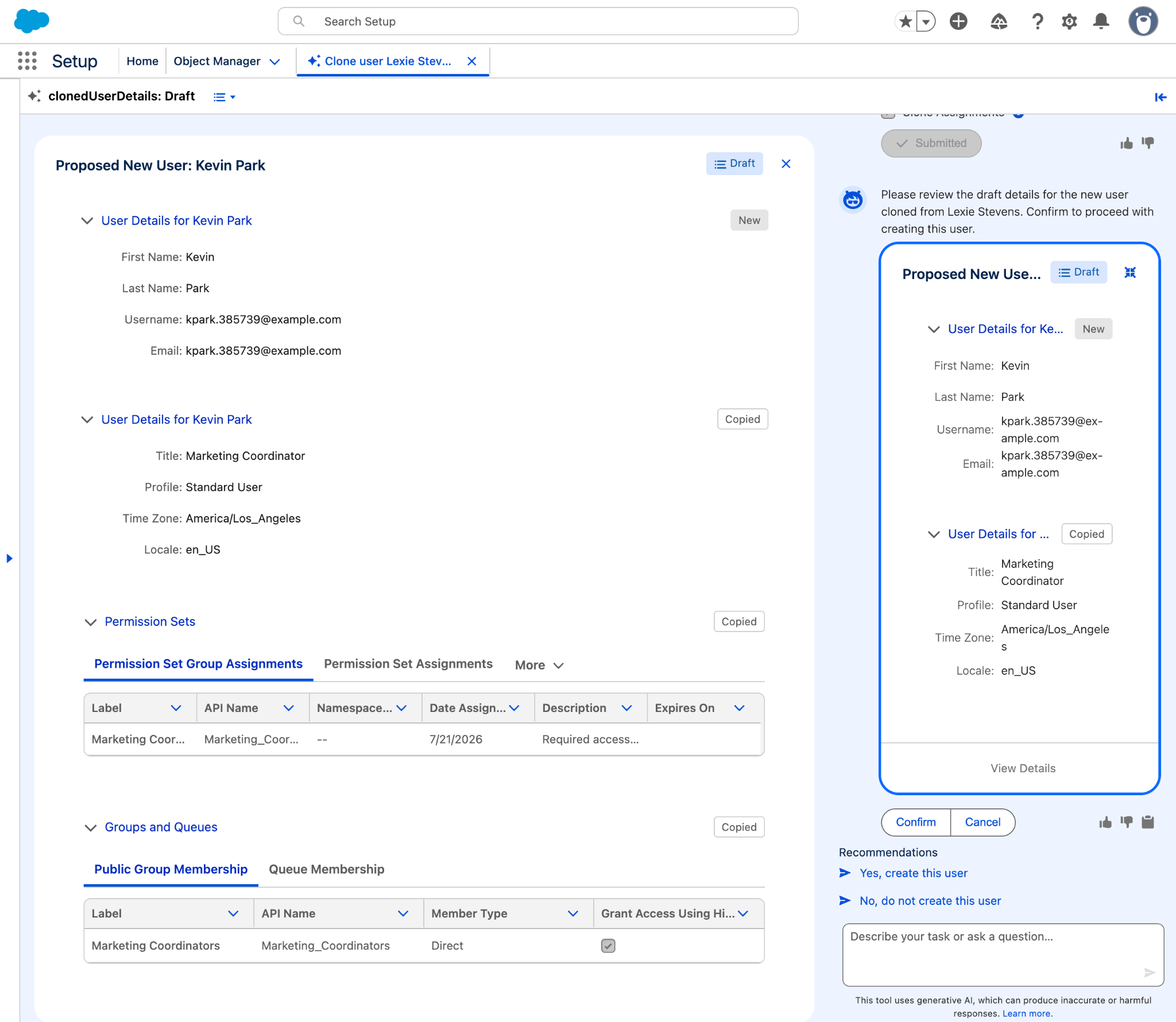
- The Setup agent creates the new user.
Well done! In just a few conversations with the Setup agent, you configured object permissions, fields permissions, org-wide defaults, and sharing rules. And you created a user that’s already set up with the correct access in a flash. Next up, you explore how Setup with Agentforce can help you keep track of what’s happening in your org.