Configure Compliance Guardrails for Sample Distribution
Learning Objectives
After completing this unit, you’ll be able to:
- Differentiate Provider Sample Limits from Territory Product Quantity Allocations.
- Configure an advanced sample limit template for product- and account-based enforcement.
- Explain how sample limit jobs create Provider Sample Limit records at scale.
- Create a Territory Product Quantity Allocation to govern regional distribution budgets.
- Describe how Visit Administration settings control warning and error behavior during sample drops.
Move from Inventory to Guardrails
In the previous unit, you built the inventory hierarchy, defining where samples live, how many units are available, and which batch supplies them. Chain of custody is in place, but one question remains: How much stock can a representative actually hand out?
Two kinds of guardrails answer it, each from a different angle: a Provider Sample Limit at the account level and a Territory Product Quantity Allocation at the territory level. You configure both in this unit, then set how the visit flow responds when a drop breaches either one.
Compare Account Limits and Territory Budgets
Provider Sample Limits and Territory Product Quantity Allocations both shape what a representative can drop during a visit, but they answer different questions.
This data model diagram shows where each guardrail sits and how it connects to the products, accounts, territories, and time periods around it.

A Provider Sample Limit (1) applies to an account and a product. It sets the maximum quantity an HCP or HCO can receive, both per visit and across the configured period. Think of it as the compliance ceiling for a single provider.
A Territory Product Quantity Allocation (2) applies to a product, a territory, and a time period. It sets the quantity available across a whole region, and it can cap how much a representative drops in one visit within that territory.
The checks work together at submission: A drop can clear the account limit but still fail the territory allocation when the region has already spent its budget for the period.
Configure a Sample Limit Template
Sample limit enforcement starts with a template.
Life Sciences Customer Engagement ships with ready-made templates, including a generic template and several country-specific ones. They're convenient, but constrained: You can't edit or delete them, and they enforce only with Error. When a standard pattern fits, they're enough.
Cumulus's rule goes beyond those defaults. The Immunexis 50mg rule sets specific per-year and per-visit caps that the prebuilt templates don't carry, so Cumulus builds an advanced template. Advanced templates handle custom thresholds, custom periods, and the choice between Error and Warning enforcement.
In the Admin Console, open Sample Limits, then Sample Limit Templates, and create a new advanced template. A few settings shape how the template behaves.
- Active makes the template available for product assignments.
- Required by Law locks enforcement to Error; leave it unchecked unless the rule reflects a legal mandate.
- Limit Enforcement Type decides what a breach does: Error blocks the drop, Warning surfaces a caution but the drop can still proceed.
- Rule Operator sets how the rules combine when a template uses more than one.
Then define the rules. A template can hold up to three. Each rule uses the same fields.
- Maximum Quantity per Period caps the total an HCP or HCO can receive during the window.
- Maximum Quantity per Visit caps a single encounter.
- Period Type sets how the window is measured. Choose Calendar Year for a January-to-December cap, or another option for a custom window, such as a rolling period from the first drop.
For Cumulus, the rule is strict: Each HCP or HCO can receive no more than 5 units of Immunexis 50mg per calendar year and no more than 2 per visit. So the rule sets Maximum Quantity per Period to 5, Maximum Quantity per Visit to 2, and Period Type to Calendar Year, with Limit Enforcement Type set to Error.

The template now defines the rule. Next, you connect it to the product and roll it out to the accounts it should govern.
Assign the Template and Initialize Limits
A template defines a rule in the abstract. It becomes enforceable once you connect it to the product the rule applies to and the accounts it should cover.
First, assign the template to the sample product. Still in the Admin Console, switch from Sample Limit Templates to Template Product Assignments. Select the template you just created or a ready-made template, then check the sample products its rule should apply to.
For Cumulus, that means selecting the Immunexis 50mg Tier 1 Annual Limit template and checking Immunexis 50mg in the product hierarchy. With the assignment saved, the system evaluates the rule whenever a rep records an Immunexis 50mg drop.

With the product connected, create the account-level records by running a Sample Limit Job. Limits rarely apply to one account at a time. A launch can call for them across every HCP, every HCO, or a defined segment, so one run applies the template across the chosen population and generates a Provider Sample Limit for each account. Until the job runs, the rule lives only as a template and no account has an active limit for the product.
For Cumulus, the job runs the Immunexis 50mg template against an Account Scope of All Accounts, scoped to HCP and HCO Accounts.

After the job runs, the new Provider Sample Limits appear as account-level records, each one tied to the Immunexis 50mg template.
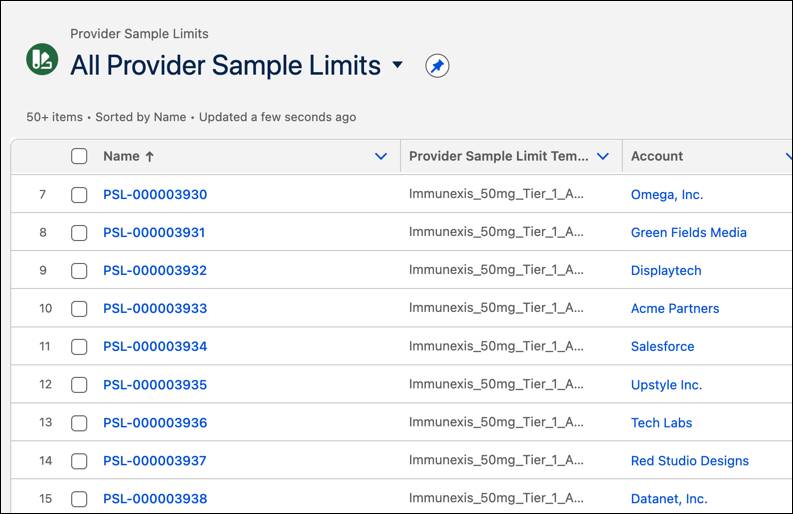
When a rule spans many products, a product assignment job does the same work in bulk, associating the template across a whole product set in one run.
The account-level guardrail is now in place. The rule is defined in a template, assigned to its product, and initialized into a Provider Sample Limit on every account in scope.
Configure Territory Quantity Allocations
Territory Quantity Allocations provide regional guardrails that support commercial and operational planning. Field leadership allocates a fixed number of sample units to a region for a launch period, which keeps any single territory, team, or high-volume week from burning through more stock than planned.
Create a Territory Product Quantity Allocation for the Product, Territory, and Time Period. Three fields carry the distribution logic.
- Allocated Quantity is the total available to the territory for the period.
- Max Disbursement Limit Quantity caps how much a rep can disburse in one visit under that allocation.
- Allocation Type identifies the kind of distribution. Use Drop for direct sample drops during visits.
For Cumulus, the San Francisco North territory gets an Immunexis 50mg allocation for the launch period. It uses an Allocation Type of Drop, an Allocated Quantity of 5,000, and a Max Disbursement Limit Quantity of 50.

As reps submit valid drops, the system debits the territory's remaining quantity. With both guardrails defined, the visit settings decide how strictly each is enforced.
Set Visit Validation Behavior
The provider sample limits and territory product quantity allocations you built hold every rule a drop has to satisfy, and those rules take effect during the visit itself. That's the work of Visit Management, the solution that runs a field visit from planning to submission and applies sampling, consent, and content rules as the rep works. Sample drops happen inside that visit flow, so Visit Management is where each drop meets the guardrails you configured. For a fuller picture of that experience, see Commercial Visit Management with Agentforce Life Sciences.
Visit Administration carries a wide range of visit settings, and a handful govern samples. In the Admin Console, open Visit Settings and find the Samples and Items Settings. An Apply Settings To option scopes what you set to the whole org, a profile, or a single user, so an organization can hold one posture broadly and tune it for specific teams. Turn on the checks that apply.
- Validate Sample Limits tests each drop against the Provider Sample Limit on the HCP or HCO account. Severity still comes from the Limit Enforcement Type you set on each template earlier, so that per-product choice carries straight through to the visit.
- Validate Sample Inventory confirms the representative has enough stock on hand to cover the drop. A Sample Inventory Validation Mode field sets whether a shortfall warns or blocks.
- Validate Territory Quantity Allocation enforces the Territory Product Quantity Allocation budget for the period. A Territory Quantity Allocation Validation Mode field sets whether an overage warns or blocks.
For Cumulus, all three checks are on. Both validation modes are set to Error and the Immunexis template uses Error, so every guardrail is a hard stop for the launch.

With the checks on, every submission is tested against the rules that apply. Sample limit enforcement runs through the SampleLimitTransactionHandler trigger handler, so confirm it stays active in Trigger Handler Administration. From there, a clean drop updates inventory and limit records, and a breach of an Error-enforced rule stops before any record changes.
What’s Next?
In this unit, you configured the compliance guardrails. Here’s a quick recap.
- Provider Sample Limits cap what an HCP or HCO account can receive.
- Sample Limit Jobs create those records at scale.
- Territory Product Quantity Allocations cap regional distribution.
- Visit Administration settings decide whether a breach warns or blocks the rep.
Next, you move into the field workflow and track how these rules behave during a provider visit, and how error-based validation stops noncompliant drops before they touch inventory or limits.