Prepare for Sales Workspace Success
Learning Objectives
After completing this unit, you’ll be able to:
- Identify the administrative requirements needed to activate Sales Workspace.
- Explain how to enable and configure the workspace in Salesforce Setup.
Lay the Groundwork
Sales Workspace functions as a command center, pulling together data from agent activity, accounts, contacts, and forecasts to generate insights and next-best actions directly in the flow of work. To make it effective, you need a solid foundation. You need to configure your agents properly. You need to capture recent customer conversations and updates so the team can use that data to advance the deal. You need reliable forecasts. And you need to ensure the right people have access to the right data at the right time, enabled through data governance in Data 360.
You consider the scope of what laying that groundwork entails. You know it’s not trivial, yet you know that Salesforce Go provides a simple, structured path forward with clear guidance to follow. When you activate Sales Workspace through Salesforce Go, you enable the foundational features and capabilities required for the workspace to function. This includes a common workspace setup process.

-
Turn on smarter List Views: Enable Intelligence Views for Leads, Contacts, and Accounts, which replaces static lists with dynamic workspaces where activity is visible and you can take actions without navigating away.
-
Connect to emails and meetings: Connect email and calendar accounts through Einstein Activity Capture, which ensures that emails and meetings are automatically logged to the correct records and reduces manual data entry.
-
Connect to conversation data: Turn on Conversation Intelligence (formerly Einstein Conversation Insights), which allows you to analyze call recordings and key moments or flag emerging customer trends for review.
-
Enhance your opportunity lists: Activate Pipeline Inspection, which provides a consolidated view of deals and week-to-week changes, with AI signals that highlight opportunities at risk or likely to close.
-
Begin setting up Data 360 security: Create a data governance permission set, which helps you manage user access so the appropriate team members can view sensitive engagement metrics and insights.
-
Create analytics: Install prebuilt data components and sales templates, which populates the workspace with the charts, metrics, and contextual recommendations needed for daily decision-making.
Once these features are enabled, you’re ready to configure the system based on your organization’s specific business requirements.
As an example, review what’s involved when enhancing opportunity lists. When you enable Sales Workspace, you activate Conversation Intelligence. When you click  , you’re taken to the Conversation Intelligence configuration page, which lists all of the setup steps you need to complete. You need to connect the transcription, video, and voice services that your team uses.
 [Alt text: The Conversation Intelligence configuration page within Salesforce Setup, displaying the list of steps to connect transcription, video, and voice providers to enable customer conversation analysis.]
Once connected, customer conversations flow into Salesforce. Salesforce analyzes and transforms conversation content into searchable context and meaningful insights. Those insights surface directly in Sales Workspace, which informs recommendations and shapes the next-best actions that display in the flow of work.
Each feature follows a similar rhythm—enable the feature in Salesforce Go and then configure based on your business requirements. The quality of what displays in Sales Workspace depends on the quality of these decisions.
After completing the automated setup, finish a few final steps to make sure Sales Workspace is ready for your sales reps.
-
Set up Data 360 security: Activate the simple security policy created for you, or configure your own. This step is especially important if you’re new to Data 360.
-
Connect your email and recording provider: This step enables conversation and activity insights.
-
Give users access: Grant your sales reps the appropriate permissions so they can use the new experience.
-
Turn on a forecast type: This step provides your reps accurate attainment projections in Sales Workspace, even if you don’t use Salesforce for forecasting.
Also, consider these optional yet recommended steps.
- Add quotas so reps can track attainment metrics.
- Set up agents that recommend next steps for sales reps.
To learn more about the setup process and Agentforce Sales, including Engagement Agent and Pipeline Management Agent, explore the Resources section in this unit.
Inside the Workspace
After a few days of building, you’re bringing Sales Workspace to life. In that short time, you’ve set up an out-of-the-box analytics dashboard, enabled several agents that work together to support your sales team, and most importantly, introduced a beautiful new experience your reps will soon come to rely on.
A week later, you check in with the seller again to see how the new experience is working. The seller mentions that keeping up with incoming leads has become easier and that getting the right context before meetings takes far less effort. After a few light exchanges, you return to the notes from your first meeting and notice how many of the challenges you originally discussed are now being handled within the new workspace.
Monitor Agent Activity
Sales Workspace removes the uncertainty around AI-driven work by providing a clear, centralized view of what your agents complete. Instead of second-guessing or manually checking multiple records, you instantly see how agents contribute to your pipeline. Click Agent Completed to access a real-time summary of how agents actively support your sales process.

This view helps you quickly assess progress and understand where automation is creating momentum, including:
- Accounts researched to expand context
- Calls transcribed to capture insights and summaries
- Contacts created to accelerate relationship building
- Emails captured to preserve communication history
- Leads generated to sustain pipeline growth
- Meetings booked to drive engagement and next steps
- Opportunities updated to reflect the latest interactions
The activity summary covers the past 14 days, giving you an up-to-date view of how agents are constantly working in the background to help your sales rep succeed.
Track Progress Toward Key KPIs
Sales Workspace places your most critical performance metrics at the top of the page, giving you immediate, real-time visibility into how you’re tracking against your goals. Instead of navigating through multiple reports, you get a consolidated view of the health of your business. This provides data that helps sellers quickly know how they’re doing.

The workspace focuses on three primary areas of performance.
-
Projected Attainment: This metric makes it easy to compare closed-won business against quota for the current period. It includes a revenue forecast based on expected revenue, helping sellers instantly identify any gaps to quota so they know exactly how much additional quota they need to attain before the period ends.
-
Converted Leads: This metric tracks the effectiveness of prospecting effort. It displays the percentage of leads sellers have converted into opportunities over time. A trend line visualizes conversion rates so sellers know whether they’re growing steady or might need to adjust their outreach strategy.
-
Active Accounts: This metric measures seller engagement levels. It displays how many accounts include open opportunities. This prevents sellers from neglecting parts of their territory by highlighting where they have traction and where relationships might be going cold.
What makes these metrics different from standard Salesforce dashboards is that they’re directly actionable. Sales Workspace helps sellers know when they’re behind on their quota attainment and connects performance gaps to specific recommendations. For example, if a projection suggests that a seller might miss a quota, Sales Workspace might suggest opportunities worth enough revenue to bridge the gap.

Similarly, if lead conversion is low, Sales Workspace might suggest pursuing idle leads or assign uncontacted prospects to an agent.

Together, these KPIs transform Sales Workspace from a reporting tool into a decision-making guide.
Identify the Right Next Step
In the bottom section of the Sales Workspace, you find a prioritized feed of AI recommendations that eliminate guesswork and analysis paralysis. This section aggregates context-aware suggestions that highlight exactly what needs attention right now to move deals forward.
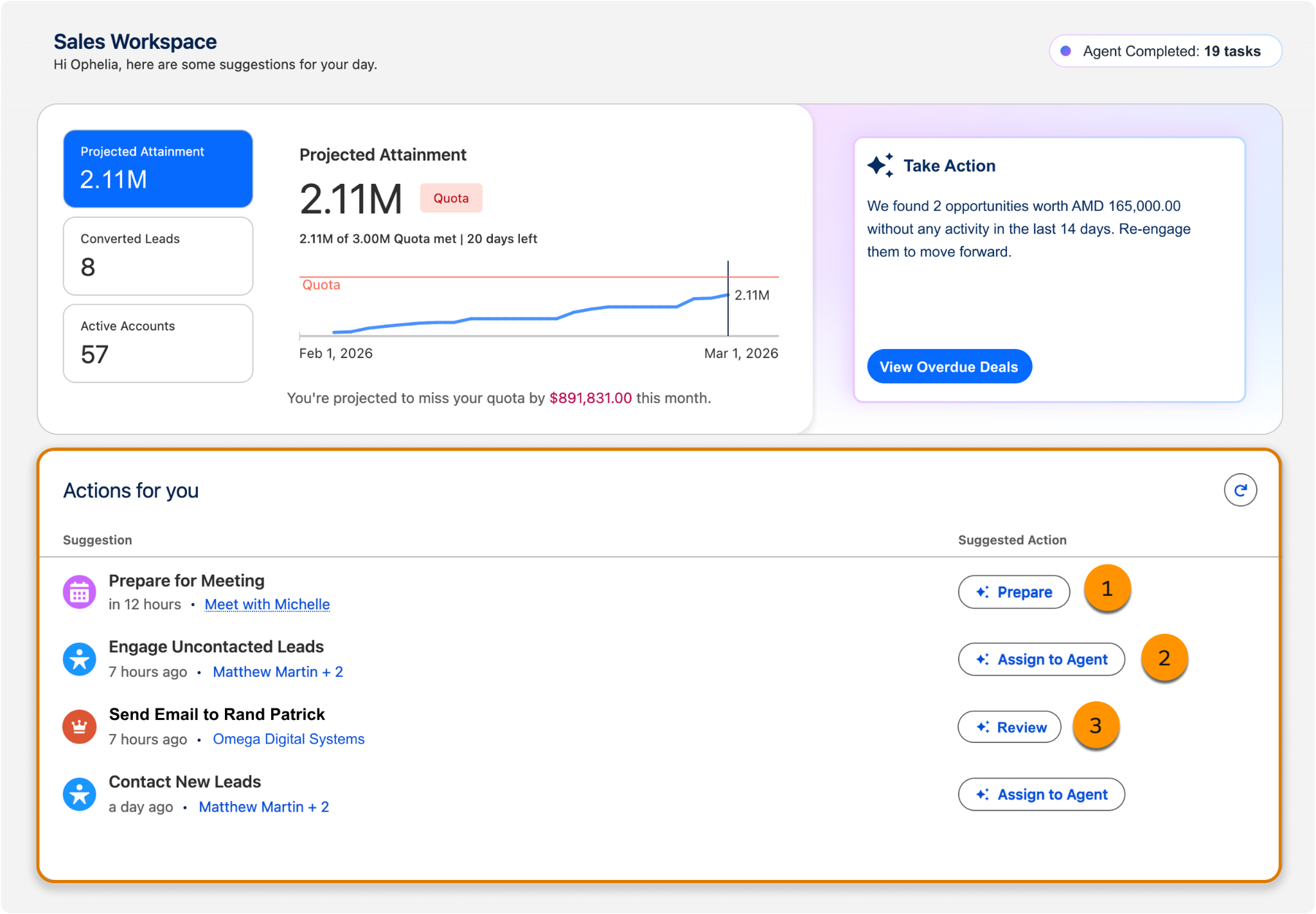
Here are key actions you can take directly from the Sales Workspace feed.
-
Prepare for upcoming meetings: When an event is associated with an opportunity or account, the workspace surfaces a “Prepare for Meeting” suggestion. Sellers select Prepare to access a summary of relevant information and ensure they’re fully briefed before the interaction begins.
-
Assign leads to agents: For new or uncontacted leads that require outreach, the feed suggests actions to engage with the respective leads. Sellers select Assign to Agent to hand off these prospects to the lead nurturing agent which handles the initial engagement automatically.
-
Review updates to opportunities: Based on transcripts from sales conversations and communications, the agent detects necessary changes to pipeline data such as moving a deal to a new stage or updating the next step. Sellers select Review to verify and accept these field updates. This maintains CRM data accuracy and reduces manual entry.
Sales reps do a difficult job. The fast pace of their work makes it a challenge to stay organized and prepare for customer meetings. Sales Workspace brings everything sellers need into one place and makes it easier to stay on top of key activities and focus on what matters most.
Wrap It Up
As you shadow your seller a few more times, you refine the instructions for your agents. You adjust the page layout in Lightning Page Builder, shaping an experience that better fits the way your business operates. Your seller now has clear visibility into how agents work alongside them, easy access to key KPI metrics and selling goals, and intelligent recommendations based on activity across their CRM. Check, check, and check. There is something especially satisfying about translating Salesforce capabilities into tangible improvements for your sellers. As a result of your thoughtful configuration, you’ve helped to create practical impact and satisfied sellers—that’s the admin sweet spot.
A few days later, you decide to check back in with your seller. They report that your solution is working well and they’re spending more time on more strategic work.

Great work! With Sales Workspace, you move beyond basic setup to providing a central hub for seller success. Your team now has the insights it needs to close performance gaps and focus on high-value deals. You’re ready to lead your next monthly review with data that drives real action.