Integrate Slack with CRM
Operate with Trust and Security
Slackbot operates under strict security standards and respects the running user’s existing Salesforce permissions. It only surfaces CRM data the user is authorized to view. To establish this secure connection, you add the Sales Cloud and Service Cloud apps to Slack and authenticate your user account.

Retrieve Your Trailhead Slack Playground
Trailhead is integrated with the Slack Developer Program. This enables us to provide you with a special Slack Playground designed for hands-on learning. When you connect your Trailhead account to Slack for the first time, you’re signed up for the Slack Developer Program, which gives you access to a wealth of Slack development resources.
It’s time to get your Slack Playground up and running.
- Scroll down to the Challenge section of this page, where it says Hands-on Challenge.
- By default, your primary Trailhead email address is selected. If you prefer another email address that’s associated with your Trailhead account, click on the email dropdown and select it.
- Add a check to the box next to “I accept the Slack Developer Terms of Service.” Optionally, you can check the next box to subscribe to the Slack Developer Newsletter.
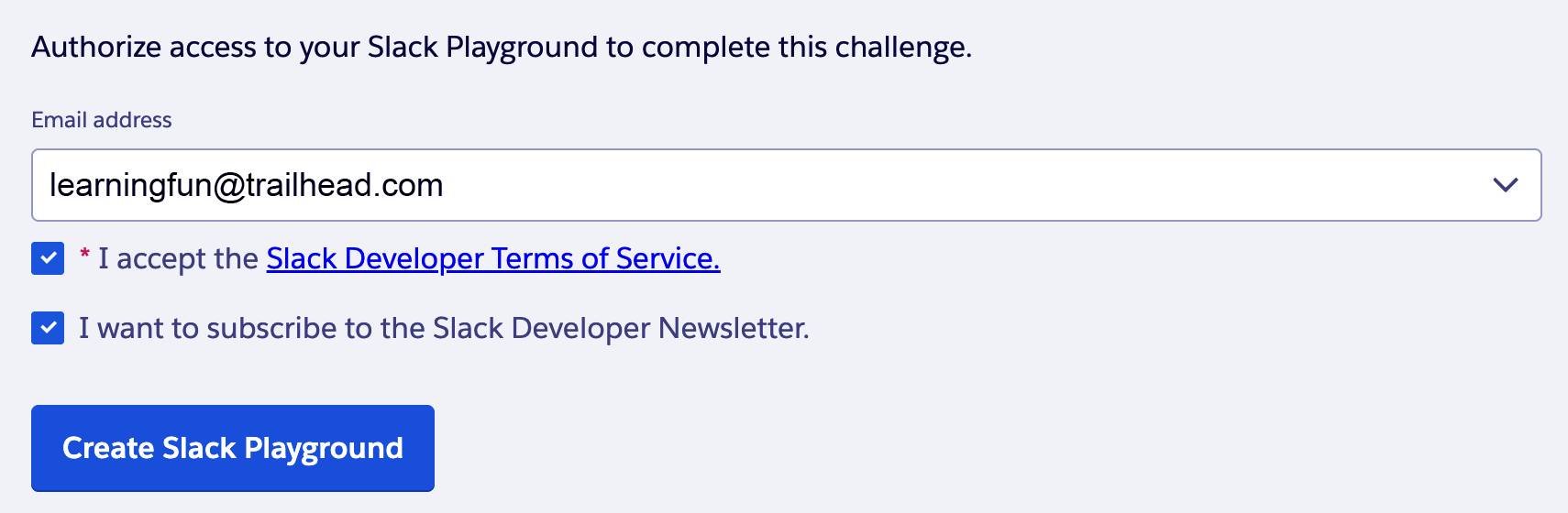
- Click Create Slack Playground. After a moment, you’re taken to the Slack Developer Program terms of service page.
- Click I Agree. You’re then taken back to Trailhead. Your Slack Playground is now connected.
- Scroll back down to the Challenge section. Click Launch to open your playground in a new tab.

You're in!
Request a Connection to Salesforce
Now you can connect your Salesforce org to Slack. When you request a Salesforce connection in Slack, you can choose how your members’ Slack and Salesforce accounts connect. You have the option to automatically configure member accounts using Email or SAML NameID fields. For this badge, you manually configure user accounts using your admin credentials. Remember the domain URL you retrieved from your CRM org in the previous unit? You use it in this section.
- In your Slack Playground, click the down arrow next to your workspace name to view the dropdown menu.

Note: Your workspace name differs from the image.
- Navigate to Tools & settings | Manage Salesforce Organizations. This takes you to the Salesforce organizations page.
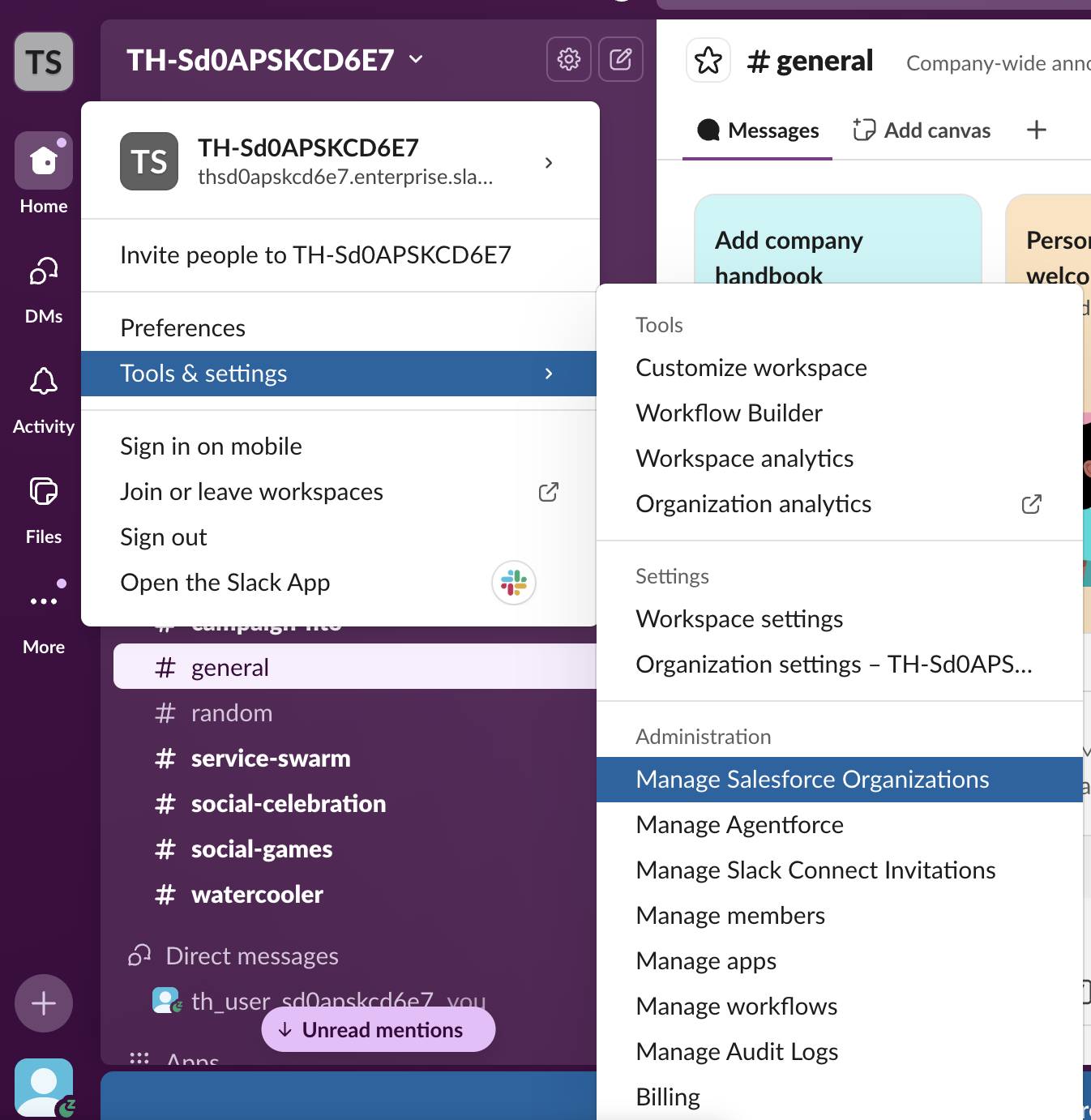
Note: This opens the Slack admin page in an additional tab. Keep both Slack tabs open.
- Click the Connect Salesforce Org button.
- Paste the domain URL into the field for Salesforce org to connect.
Note: If you added your domain URL to the form in unit 1, simply copy the text from the element below. After copying your username, click Clear. You no longer need this information.
- Uncheck the toggle for Map user accounts automatically. Keep all other options as is.
- Click Request Connection. You get a response that the request was sent to the Salesforce admin. That’s you!
- Click Okay.
The integration is now underway. Next, you accept the connection on the Salesforce side.
Accept the Connection
Head back to your Trailhead Playground. Once the request to connect has been made in Slack, a Salesforce admin (in this case, you!) can approve it in Salesforce.
- Return to your Trailhead Playground tab.
- Click
 and select Setup.
- In the Setup Quick Find, search for and select Manage Slack Connection.
- Click the checkbox to the Agree to terms, including the Slack user terms.
- Click Approve. The connection page refreshes, and the Waiting for activation by Slack admin status appears.

Activate the Connection in Slack
Now it’s time to head back to Slack and finalize the connection. Workspace owners and Salesforce admins can activate a pending Salesforce connection.
- Return to the Slack admin tab you have opened from the previous section and refresh the page. Your Salesforce org appears with a Connection status of Ready to activate.
Note: If you closed the Slack admin page tab, open your Slack playground and click Workspace name | Tools & settings | Manage Salesforce organizations to re-open the Slack admin page.
- In the Connection status column, click View details.

- Click Activate.
- In the modal, click Activate.
Stay on this page for the next step.
Add Your Slack User to Salesforce
Next, add your Slack user.
- Click the Users tab.
- Click Add individually.

- In the search bar, type
you, and select the Slack user with “(you)” at the end.
- Click Grant Access to 1 Person.
Under the Users tab, your Slack user is now listed.
Sign Your Slack User into CRM from Slack
The final part of this integration is to sign in using your CRM (Trailhead Playground) org credentials.
- Head back to your Slack workspace (the other Slack tab). If you kept the tab open, refresh.
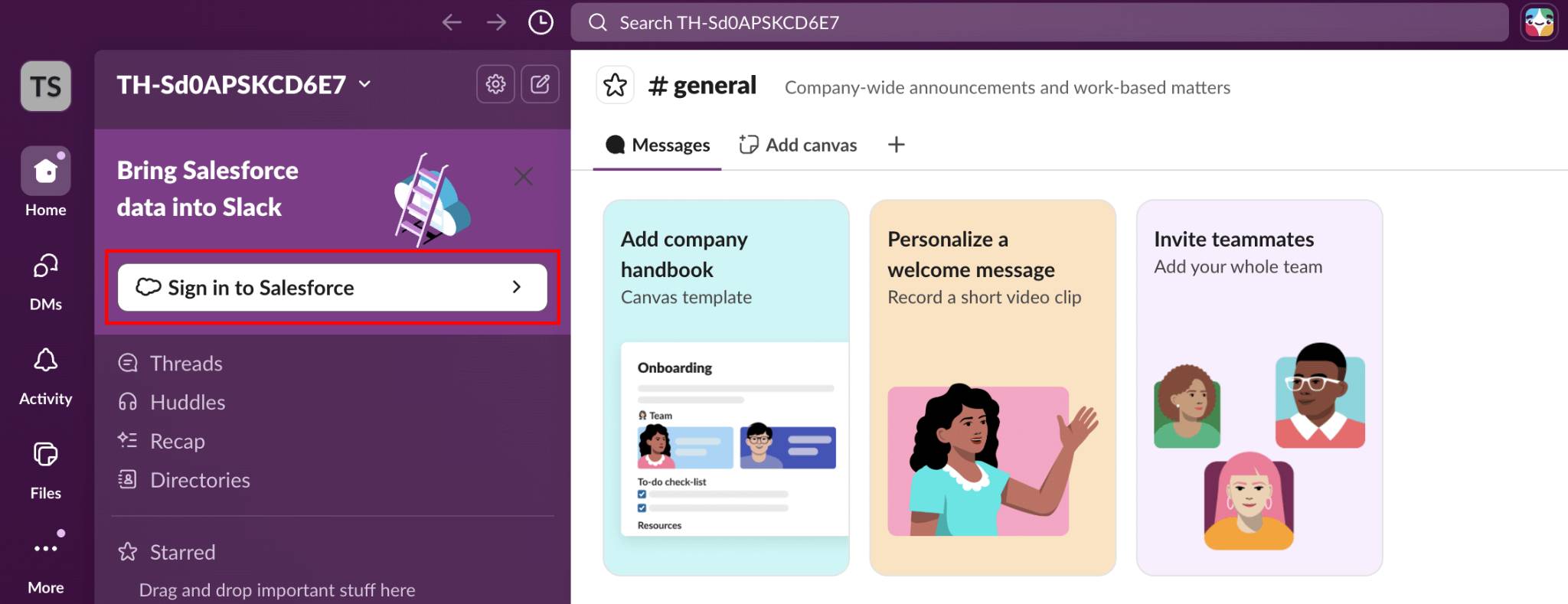
- In the navigation, click Sign in to Salesforce.
- Click Continue.
- Click Continue to Salesforce.
- Enter the username for your Trailhead Playground, and paste it into the Salesforce login username.
Note: If you added your Trailhead Playground username to the form in unit 1, simply copy the text from the element below. After copying your username, click Clear. You no longer need this information.
- Enter the password you created.
- Click Login then Allow.
- Click Done.
You get a message that you successfully connected your account. You can close the OAuth window. Click back into your Slack workspace, and the modal shows that your org is connected. Now that you have successfully connected your Trailhead Playground to your Slack workspace, it’s time to see Slackbot in action.