Get to Know the Slack App Types
Learning Objectives
After completing this unit, you’ll be able to:
- Describe setup and best practices for single-workspace app development.
- Explain how you can distribute an app only for workspaces within a specific Enterprise org.
- Describe the differences between a single workspace app and a distributed app.
Single-Workspace Versus Distributed Apps
Initially, when you create a Slack app, you configure and install it within a single workspace. And for many internal tools and specialized workflows, a single-workspace app is all you need—no extra installation steps or distribution required.
However, if you want your app to be available on more than one workspace—either within your organization or publicly—then you need to distribute it. That’s where distributed (multi-workspace) apps come in. For these, you typically use OAuth 2.0 to authorize installation in additional workspaces.
In this unit, you learn the basics of single-workspace app creation and management, and how to distribute your app for broader use.
Create a Single-Workspace App
When you first create an app, you choose an app name and a workspace in which to create it. At that point, your application is a single-workspace app, which means only users of the workspace where you created it can install it (subject to your app approval process, of course).
Single-workspace apps are great if the application’s functionality is meant to be used only by members of one workspace–whether it’s a Free, Pro, Business+, or Enterprise+ organization.

Single-workspace apps are convenient: You can generate your bot and/or user tokens directly from within the app configuration (on the Install App page) without having to write code to implement the OAuth 2.0 flow. And single-workspace apps can use the full range of app capabilities.
Associate Your App with a Workspace
You’ve learned that when you create your Slack app, you associate it with a workspace. Slack makes this easy. After you add some scopes or enable some features in your app’s configuration, you can install the app to its associated workspace with just a few clicks.
- From the app configuration, select Install App and then Install App to Workspace.
- Once it’s installed, you get a single set of access tokens that can be used to authenticate API calls for the app.
All apps start as single-workspace by default, but sometimes you want to distribute your app to more workspaces. The first step is making it org-ready.
Benefits of Org-Ready Apps
Let's take a look at some of the benefits of org-ready apps for different users within an Enterprise organization.
- Org admins can distribute org-ready apps easily across all workspaces or restrict access to them for any workspace.
- Org admins or developers can set the org-ready app to be automatically installed when a workspace is created.
- Users only have to authenticate with an app once to gain access to it in all workspaces.
You install your organization-ready app once at the organization level. Once it’s installed, the app has a single token that represents the permissions for the app on multiple workspaces, and is authorized once for an entire organization using an OAuth flow. Org admins can then add the app to workspaces in the organization without further authorization. Note that org-ready apps are not automatically added to the workspaces in an organization, nor do they enjoy any additional privileges by being installed at the organization level.
Prepare Your Application for Distribution
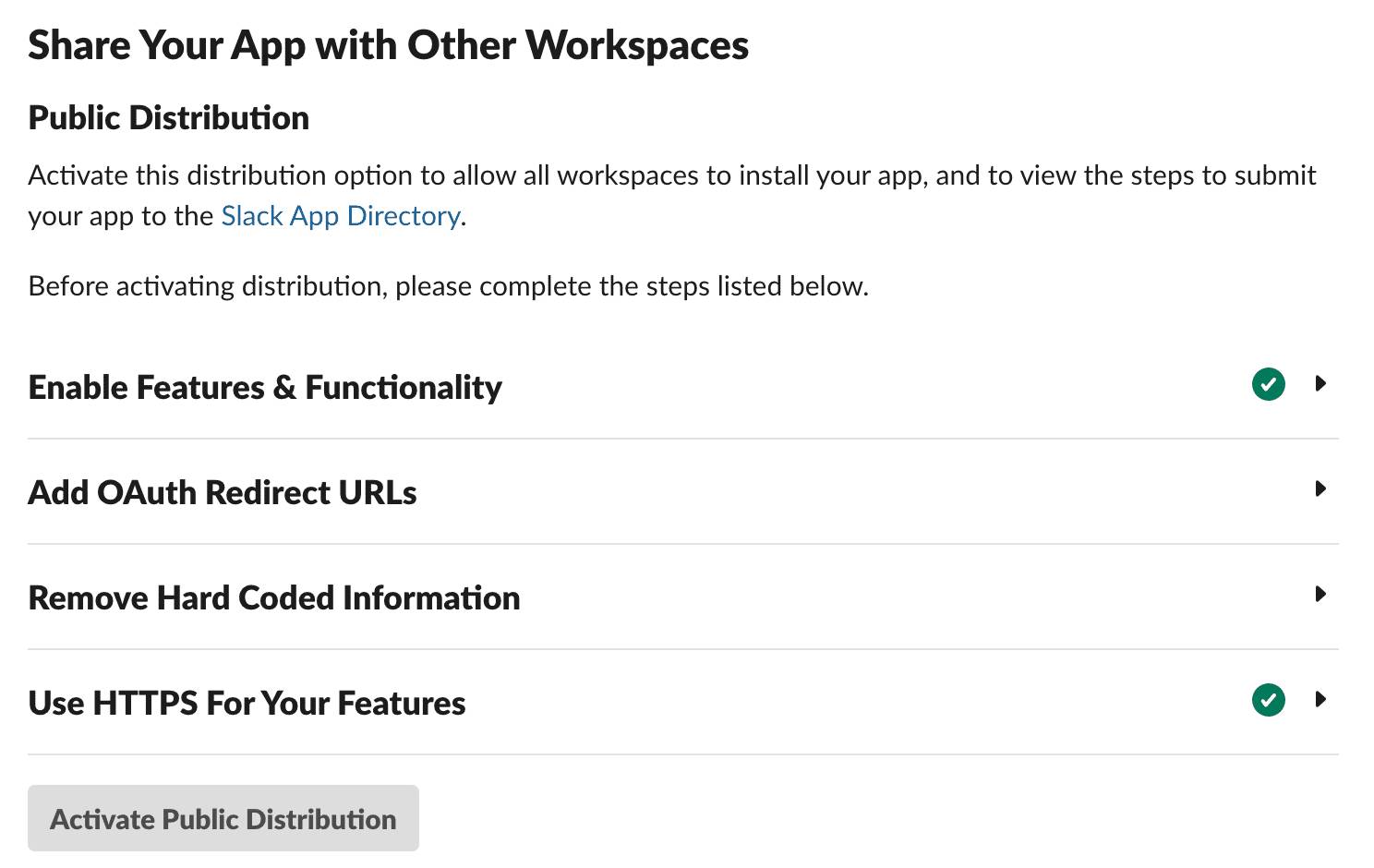
Before you can activate distribution for your app, there are a few things to do first.
- Your app needs to support the OAuth 2.0 installation flow. Since it's moving beyond single-workspace use, you need to handle code-to-token exchanges and store installation metadata (typically in a database). If this is new territory, our OAuth guide and first-party SDKs include examples to help you through it.
- All URLs must use HTTPS. Distributed apps require secure HTTP+SSL for every URL—OAuth 2.0 Redirect, Event Subscriptions, Interactivity, Options Load, and Slash Command Request URLs. Make sure everything starts with https:// before activating public distribution.

Activate Public Distribution
When you’ve completed this preparation, simply go to your app configuration’s Manage Distribution page, and select Activate Public Distribution. That’s it! Note that, in this case, “public distribution” means distribution on the org. If you want to distribute your app to external organizations or list it in the Slack Marketplace, refer to Slack’s public distribution and Marketplace documentation.
Once you enable public distribution, you get access to an embeddable Add to Slack button code, a shareable URL that kicks off the installation process when selected, and an HTML meta tag to enable Slack App Suggestions.
Activate Private Distribution (Enterprise+ Only)
For Enterprise+ plan customers, there’s an additional way to distribute an app: private distribution. For this type of internal-only app, start by creating it on your Enterprise org workspace and then enable Org Level Apps for private distribution via the app settings distribution page. Add at least one bot token scope, follow the steps to install the app at the org level, and then grant workspace access as needed.
Add an App to a Workspace from the Admin Dashboard
Once an app has been installed on the org, admins can follow these steps to add it to one or more workspaces.
- Navigate to the admin dashboard for your org. You can find this by selecting the workspace name in Slack and then Organization Settings. The URL will be something like app.slack.com/manage/<your-enterprise-id-here>.
- Select Integrations in the sidebar, and then Installed apps.
- Find the app you'd like to add, then select the three dots next to its name.
- Select Add to more workspaces.
- Select the workspaces you'd like to add it to, then click Next.
- Review the permissions that the app requires, then click Next.
- In the next modal window, select I'm ready to add this app.
- Finally, select Add App.
Automate Deployment (CI/CD)
Once distributed, maintaining your app across environments (dev/staging/production) requires automation. Use CI/CD with the Slack CLI to move from manual UI configuration to professional lifecycle management via terminal or automation platform.
Integrate Slack CLI deploy hooks into your CI/CD workflow to keep settings and code synced. Before deploying code to production, ensure app settings are synced and the app is reinstalled. Add deploy hooks in your template's .slack/hooks.json file for automated deployment:
{
 "hooks": {
   "get-hooks": "npx -q --no-install -p @slack/cli-hooks slack-cli-get-hooks",
   "deploy": "git push heroku main"
 }
}
This hook tells the Slack CLI to execute the Heroku deployment command whenever the deploy process is triggered. The slack deploy command will:
- Update your app settings if any changes were made to your manifest.json file.
- Reinstall the app if needed based on app settings changes.
- Run the deploy hook to push the application code to Heroku.
You can take this a step further by adding a corresponding GitHub Action to your template that runs slack deploy on merges to the main branch, providing a clear, consistent CI/CD process for every Slack app in your organization. Here’s an example .github/workflows/deploy.yml file.
name: Deploy Slack app
on:
 push:
   branches:
     - main
jobs:
 build:
   runs-on: ubuntu-latest
   timeout-minutes: 5
   steps:
   - uses: actions/checkout@v4
     - name: Install Slack CLI
       run: |
         curl -fsSL https://downloads.slack-edge.com/slack-cli/install.sh | bash
     - name: Install Heroku CLI
       run: |
         curl https://cli-assets.heroku.com/install.sh | sh
     - name: Deploy to Slack and Heroku
       env:
         SLACK_SERVICE_TOKEN: ${{ secrets.SLACK_SERVICE_TOKEN }}
         HEROKU_API_KEY: ${{ secrets.HEROKU_API_KEY }}
       run: slack deploy -s --token $SLACK_SERVICE_TOKEN
When Is a Reinstall Required?
The slack deploy command is smart. It first checks your manifest.json file for any changes that require the app to be reinstalled. A reinstallation is necessary when you change permissions or fundamental capabilities, since existing users must approve the new terms.
Key changes that trigger a reinstall include:
-
Changing scopes: Adding or removing scopes (for example, adding
canvases:create).
-
Enabling org-wide deployment: Setting
org_deploy_enabledto true.
-
Adding or modifying event subscriptions: Subscribing to new events like
member_joined_channel.
-
Adding or removing features: Enabling AI features for your app.
Be sure you understand this behavior to avoid unexpected disruptions for your users.
Let’s Recap
A Slack app starts as a single-workspace installation, perfect for an internal tool where manual token generation simplifies setup. To reach additional workspaces, you need to enable distribution. Public distribution uses OAuth 2.0 for any workspace, while Enterprise organizations can use Org Level Apps for private internal distribution.
Distributed apps require HTTPS URLs and OAuth 2.0 implementation but provide centralized management and single authentication across workspaces. As your app scales, integrate Slack CLI with CI/CD pipelines to automate deployment, sync settings, and manage reinstalls when permissions change to ensure consistent, reliable updates across all environments.