Explore the Agent
Learning Objectives
After completing this unit, you’ll be able to:
- Navigate Agentforce Studio to review deployed agents and their underlying subagents.
- Preview the new agent and subagents.

Check the New Agent
Before you check the agent, if you have an error message in Agentforce Studio, select Take me there. You can also ignore any error messages about content security policies when you test the agent.
Now that the new agent is deployed, check what the agent built for you.
Select the Launch button. This opens your environment in a new tab.
- Select
 to open App Launcher, and search for and select Agentforce Studio.
- Select bookings_help_agent. Note: Your agent might be named slightly different, but should be similar.
Welcome to your new agent.
- Select Subagents to open it and review the different subagents the coding agent added to this agent.
- Select the subagent Reservation Management to expand it. The two actions from your prompt are listed.
-
Finalize Reservation
-
Get Reservation Time Slots
-
Finalize Reservation
- Select the subagent Guest Complaints to expand it and view the Create Case action.
The subagent reservation_management gets reservations for the contact and displays the details to them. It can also create a reservation. You do this next in the Preview section.
Preview the New Agent
Congrats! You built a Salesforce Agent with natural language, updated it, and deployed it. Now review how it performs.
- In the Builder, select Preview.
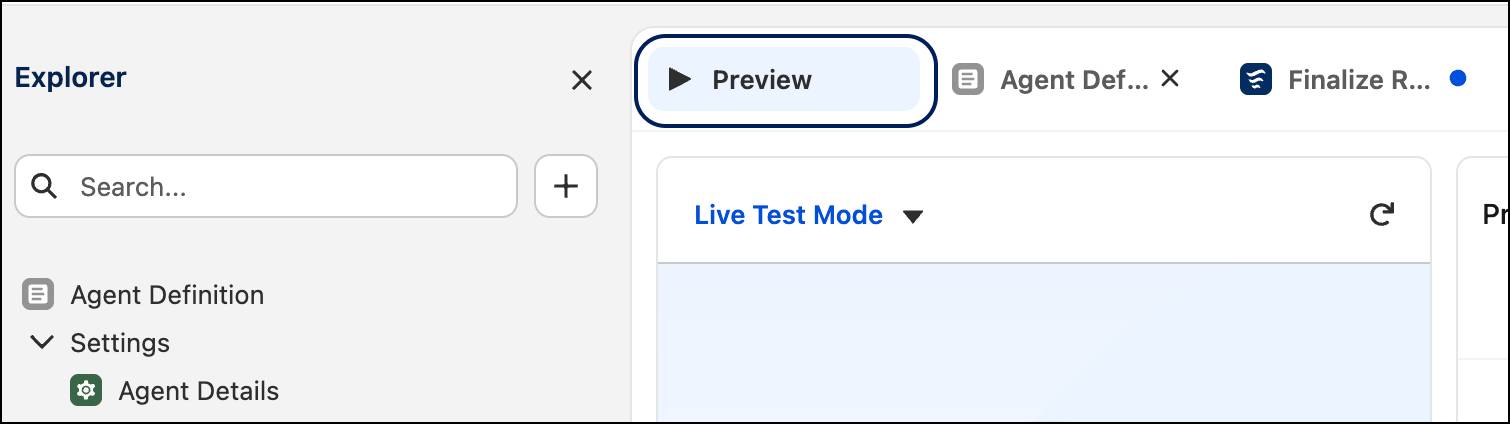
- In the chat box with the Describe your task or ask a question label, enter:
What times do you have for the fine dining restaurant tomorrow?
You might have to ask more than once.
- The agent provides you the available times. Enter:
Will you book the latest one for me?
- The agent asks you for a name, email, or phone number. Enter:
My name is Sofia Rodriguez. My email is sofia@example.com.
- The agent might ask you for the number of guests. Enter
2.
- The agent then gives you the final info and asks you to confirm it. Enter
Yes.
Level Up
Now that you worked with Salesforce headlessly to build your first Agentforce agent, where do you take it from here? The same prompts you used for this agent work to build other agents. All you have to do is modify them for the type of agent you want to build. You can also add to current agents using the same prompt tools. Check the resources for more information on working with prompts.