Access and Use Your Event Log Files
Learning Objectives
After completing this unit, you’ll be able to:
- Describe how Event Log Files capture user activity in Salesforce.
- Identify which Event Log File types are available with your standard Salesforce license.
- Explain how to access and download Event Log Files using the Event Log File Browser.
What Are Event Log Files?
Every time a user logs in to your Salesforce org, runs a report, exports data, or makes an API call, Salesforce records that activity. Those activity records are called Event Log Files (ELFs). ELFs are captured as auto-generated CSV files and give you a detailed history of activity in your org.
Each ELF covers a specific event type. For example, a Login event file contains a row for every login attempt, while a ReportExport event file captures every time a user exports a report.
Why Use Event Log Files?
ELFs answer the kinds of questions admins face every day.
Domain |
Question |
Solution |
|---|---|---|
Security |
Someone’s account might have been compromised. Who logged in, from where, and when? |
Login ELFs give you a time-stamped record of every login attempt, including IP address, login method, and whether it succeeded. This helps you quickly confirm or rule out unauthorized access. |
Compliance |
Who accessed sensitive data? |
ELFs provide auditable records of user activity that you can export and share with stakeholders or include in security reviews. |
Performance |
Users are complaining that pages load slowly–what’s causing slow load times? |
LightningPerformance ELFs capture page load times across your org, so you can identify exactly which pages need attention before users start filing tickets. |
Adoption |
You launched a new feature. Is anyone actually using it? |
LightningPageView and LightningInteraction ELFs show you which pages and components users engage with, and which ones they ignore. |
How Event Log Files Differ from Event Log Objects
If you've worked with the Salesforce Event Monitoring suite before, you may have worked with Event Log Files in the Developer Console. Event Log Objects (ELOs) are the newer counterpart to ELFs; they’re Salesforce objects that store event data and can be queried with SOQL, with data available within 25 to 45 minutes.
ELFs are file-based, delivered daily by default, and accessed via Setup or API. While ELFs and ELOs serve similar purposes, ELFs are often the right starting point because many event types are included at no extra cost with every Salesforce org.
Here's how Event Log File capabilities differ based on your license.
ELF Feature |
Included with Standard License |
Requires Event Monitoring Add-On |
|---|---|---|
File format |
CSV |
CSV |
Generation frequency |
Daily |
Daily or hourly |
File retention |
24 hours |
Up to 1 year |
Event types available |
Select event types |
50+ event types |
Free Features That Pack a Punch
Salesforce includes several event types with every Enterprise, Unlimited, and Performance Edition org at no additional cost. They don't cover everything (that’s what the Event Monitoring add-on is for), but they do give you meaningful visibility into security threats, org health, and integration activity from day one.
These are the event types included with your Salesforce license.
Event Type |
What It Captures |
|---|---|
Login |
Every login attempt, successful or not, including IP address, login method, and timestamp |
Logout |
Every session end, including session duration |
Apex Unexpected Exception |
Unexpected Apex errors encountered by users in your org |
CORS Violation Record |
Cross-origin requests that violate your org's CORS policy |
CSP Violation |
Content Security Policy violations in Lightning Experience |
Hostname Redirects |
Redirects between Salesforce hostnames |
API Total Usage |
Aggregate API call counts across your org |
Here’s how each event type can help you.
Login and Logout
Investigate your users’ session activity. Login events are the first thing you reach for during a security investigation. Every attempt is time-stamped with IP address, login method, and whether it succeeded. Paired with Logout, you can reconstruct session activity for any user: identifying logins from unexpected locations, unusually short sessions, or patterns that suggest a shared or compromised account.
Apex Unexpected Exception
Review code failures. When Apex code fails unexpectedly, users often don’t report it. This event type captures those failures automatically, giving you a view of code health your users might not tell you about. If a critical business process is failing intermittently, this is where you see it first.
CORS Violation Record and CSP Violation
Catch unauthorized access attempts. Cross-origin resource sharing (CORS) violations occur when an external domain makes a request to your org that your policy doesn’t allow, which can signal that something may be probing or attempting to access your API without authorization. Content Security Policy (CSP) violations flag when unauthorized scripts attempt to run within your Lightning pages, which can indicate a cross-site scripting risk. Both are early-warning signals for security teams.
Hostname Redirects
Spot suspicious redirect patterns. This event captures activity when users are redirected between Salesforce hostnames. Unusual redirect patterns can surface phishing attempts or misconfigured integrations before they cause harm.
API Total Usage
Monitor integration health at a glance. You don’t always need granular API call data; sometimes you just need to know if call volume has spiked unexpectedly. API Total Usage gives you that high-level signal. A sudden spike can indicate a runaway integration, a misconfigured batch job, or unauthorized data extraction.

The event types, available at no additional cost, give you meaningful coverage right out of the box. Login events alone can help you detect unauthorized access attempts, identify users logging in from unexpected locations, and track session activity.
Access Your Event Log Files in Setup
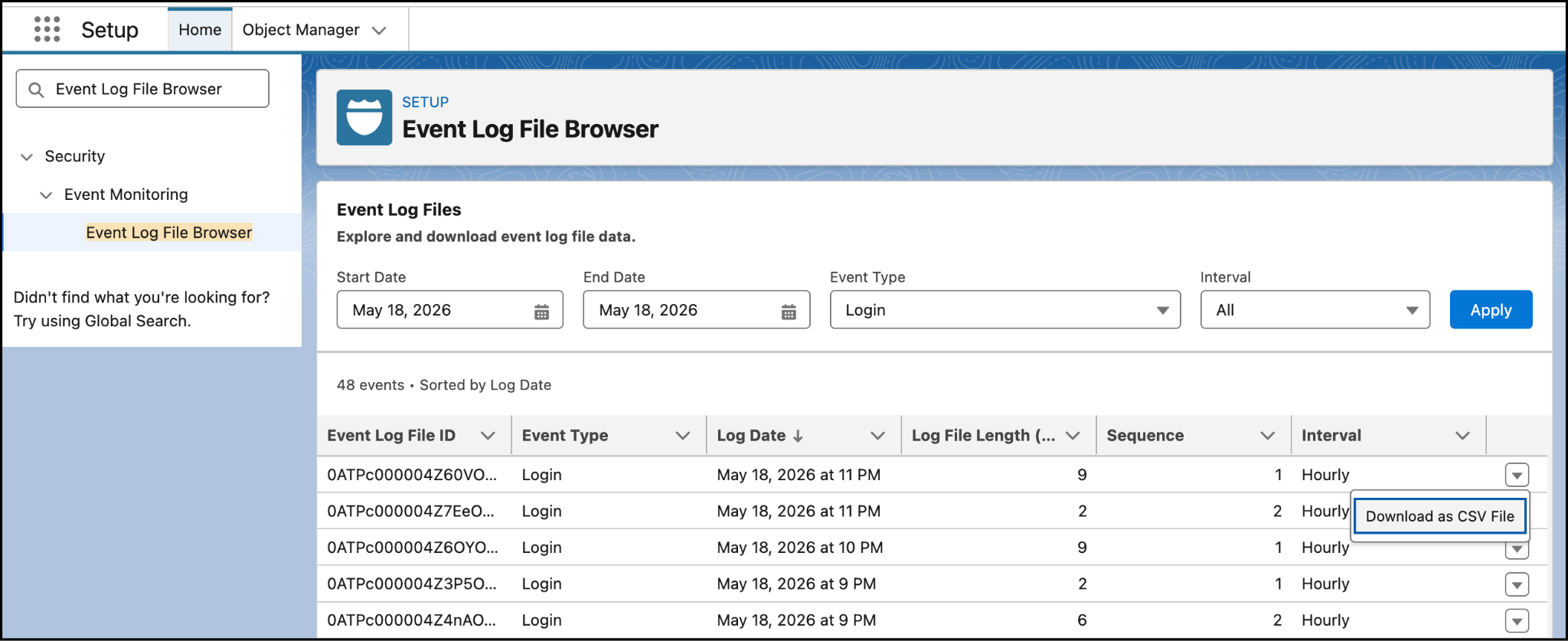
Use the Event Log File Browser to easily access your files, without writing any code.
To access the Event Log File Browser:
- From Setup, in the Quick Find box, enter
Event Log File Browser, then select Event Log File Browser.
- In the Event Type dropdown, select the event type you want to review (for example, Login).
- Use the Date picker to select the day you want to review.
- Click Download to download the CSV file.
- Open the file in Excel, Google Sheets, or another tool to review the data.
Each row in the CSV represents a single event. Column headers vary by event type. For example, the Login event file includes fields likeUSER_NAME, CLIENT_IP,LOGIN_STATUS,and LOGIN_TYPE, while the LightningPageView file includes PAGE_URLand DURATION.
Access Event Log Files via API
For automated or programmatic access, you can query ELFs using the Salesforce REST API. This is useful when you want to pull ELF data into an external tool or build a recurring data pipeline.
SELECT Id, EventType, LogDate, LogFile FROM EventLogFile WHERE EventType = 'Login'
For most admins, the ELF Browser in Setup is all you need to get started.
You now know what Event Log Files are, which types are included with your standard license, and how to access them in Setup. Whether you’re investigating a suspicious login or tracking Lightning page performance, ELFs give you the data you need to keep your org secure and running smoothly.