Use Synonyms and Advanced Search Queries
Learning Objectives
After completing this unit, you’ll be able to:
- Explain how to use synonyms in search queries.
- Build complex search queries using relationship queries, Neighborhood Search, and Intelligent Typeahead suggestions.
- Describe how to save a search for frequent use to share with colleagues.
- Prepare an export of search results as a Microsoft Excel file.
Search Smarter with Synonyms
Arif Setiawan, a sales associate at Infiwave, is learning to use Cloud Data Governance and Catalog (CDGC) for the first time. He needs to find data related to customer accounts for a sales report he’s preparing, but he’s not sure how to search for it. He’s heard terms like data element, column, and field used interchangeably.
CDGC supports synonyms—alternative keywords that return the same results. This means Arif doesn’t have to know the exact technical name of an asset type to find it. For example, the following synonyms all return results for the same asset type.
Search Input |
CDGC Returns Results For |
|---|---|
glossary, bt, business term |
Glossary Business Term assets |
data elements, column, field |
Data element (technical) assets |
technical data set, table, data set |
Technical data set assets |
domain |
Glossary Domain assets |
subdomain |
Glossary Subdomain assets |
policy |
Policy business assets |
metric |
Glossary Metric assets |
CDGC also supports synonym searches for asset attributes. For example, you can type cde to search for assets flagged as Critical Data Elements, or rating to search by asset ratings.
Build Complex Search Queries
When Arif gets more comfortable with the catalog, he wants to find all glossary terms related to a specific table. He switches from keyword search to query search.
Query search lets you build a precise search using combinations of the following techniques.
Relationship queries let you search for connected assets. For example, you can search for all glossary business terms that are associated with a particular table or column. This helps you navigate from a technical asset to its business context—or vice-versa.
Intelligent Typeahead suggestions appear as you enter text in query mode. CDGC analyzes your search terms and suggests relevant query predicates and asset types, which helps you construct accurate queries without having to memorize the query syntax. As you enter text, the search box intelligently adjusts suggestions based on your input.
Neighborhood Search lets you explore the network of assets connected to a specific asset, and surfaces all assets that have a direct or indirect relationship with it. This is useful when you want to understand the full context of a data asset—which policies govern it, which processes use it, and which glossary terms describe it.
You can also combine multiple search terms in one query.
- Use commas to separate multiple search queries.
- Use quotes to search for exact phrases, such as "customer lifetime value".
- Use wildcards for partial terms so you can find results for full or partial asset names.
- Use parentheses to search for connected assets in a relationship context.
Arif uses a relationship query to find all business terms linked to the customer_accounts table. In seconds, he knows how that technical asset connects to the business vocabulary at Infiwave.
Save and Share a Search
If you run the same search regularly, you can save it so you don’t have to rebuild it each time.
To save a search:
- Enter your search query in the search bar.
- Optionally, apply one or more filters and a sort order. These settings are saved with your search.
- Select Save and enter a name and optional description for the search.
- Confirm the search method, phrase, filters, and sort order, and then select Save.
Your saved searches appear on the My Saved Searches page. Saved searches are private by default.
To share a saved search with colleagues:
- Go to My Saved Searches and select the Action menu for the search you want to share.
- Select Manage Sharing.
- Choose to share with specific users, user groups, and roles, or share with all users.
- Assign view or edit permissions as appropriate.
With a shared search, everyone on your team can access the same search and start the week with a consistent view of newly available assets.
Export Search Results
After reviewing your search results, you can export them as a Microsoft Excel file to share with stakeholders.
To export search results as a Microsoft Excel file:
- Run your search and optionally apply filters.
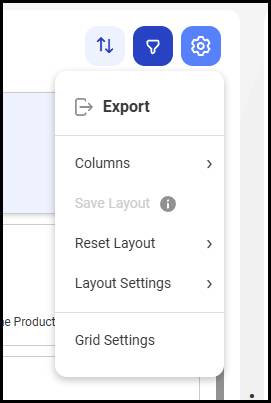
- On the Search Results page, select Settings.
- Select Export.
- In the Export Assets dialog box, enter a file name or keep the system-generated name.
- Optionally, select Include Child Assets, Include Asset Details, or Include Relationships for richer export data.
- Select Start Export.

- After the export job completes, select Download Export File.

Download and share the file with your stakeholders to keep everyone aligned on what data is available.
Resources
- Informatica Documentation: Search for Assets (login required)