Assemble and Embed a Mapplet
Learning Objectives
After completing this unit, you'll be able to:
- Create and configure a mapplet with explicit input and output transformation groups.
- Embed an existing mapplet into a Cloud Data Integration (CDI) mapping.
- Distinguish between active and passive mapplets.
- Isolate and test mapplet logic.
- Manage mapplet interface updates and resolve downstream parent mapping dependencies.
Build the Mapplet
Cassie decides to package AW Computing’s customer enrichment logic into a reusable mapplet named mplt_EnrichCustomerRecord. To create her mapplet from scratch, she follows these steps.
- In the Data Integration interface, select New from the left navigation pane.
- Select Data Integration | Mapplet and select Create.
- In the properties name the asset mplt_EnrichCustomerRecord and save it to the Customer_Data project subfolder.
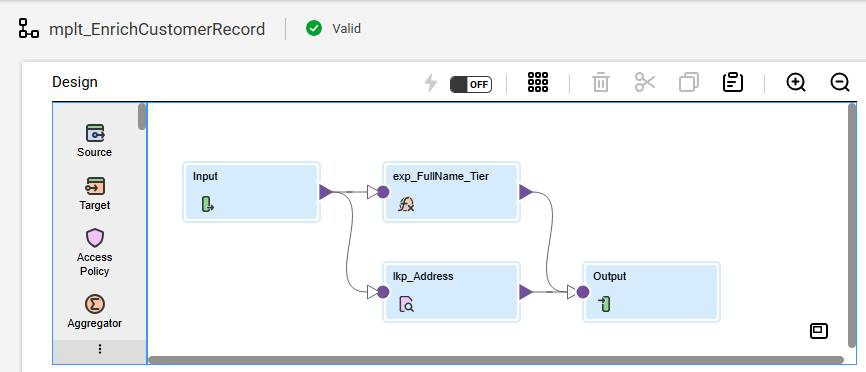
The mapplet canvas looks similar to the mapping canvas, but it starts with two objects.
-
Input: Represents the fields coming in from the calling mapping.
-
Output: Represents the fields going back to the calling mapping.
Cassie configures the input transformation with the required fields: CustomerID, FirstName, Surname, and Order_Total.
Next, she builds her transformation logic between the input and output transformations.
- Add an expression transformation to derive FullName (FirstName || ' ' || Surname) and calculate CustomerTier.
- Add a connected Lookup transformation to include address attributes (Street_Address, City, State) from the reference file.
- Route all original incoming fields plus newly derived fields into the Output transformation.
- Select Save and validate the mapplet.
Understand Mapplet Behavior
As Cassie expands her use of mapplets across AW Computing, she learns a critical architectural rule in Cloud Data Integration (CDI).
Mapplets can be either passive or active.
-
Passive mapplets: The number of rows entering the mapplet exactly equals the number of rows exiting the mapplet. Cassie’s mplt_EnrichCustomerRecord is passive because it only uses an expression and a lookup. One customer row enters, and one enriched customer row exits.
-
Active mapplets: The mapplet contains transformations that change the row count or transaction boundary (such as a filter). If Cassie adds a filter inside her mapplet to drop “Inactive” customers, the mapplet becomes active because 100 rows might enter, but only 80 rows exit.
Embed the Mapplet into a Mapping
With her passive mapplet built and validated, Cassie opens her live customer pipeline to replace her inline transformations with her new reusable asset.
- Open the existing customer mapping on the canvas.
- Delete the standalone inline expression and lookup objects.
- From the Transformation toolbar palette, drag a mapplet transformation object onto the canvas.
- In the Properties panel below, select Mapplet. Click Select, and choose the newly created mplt_EnrichCustomerRecord, and select OK.
- Connect the transformations:
- Route the output from the upstream union object into the mapplet’s input anchor.
- Route the mapplet’s output anchor directly into the downstream database Target.
- Route the output from the upstream union object into the mapplet’s input anchor.
- Select Save and verify the green Valid checkmark appears.
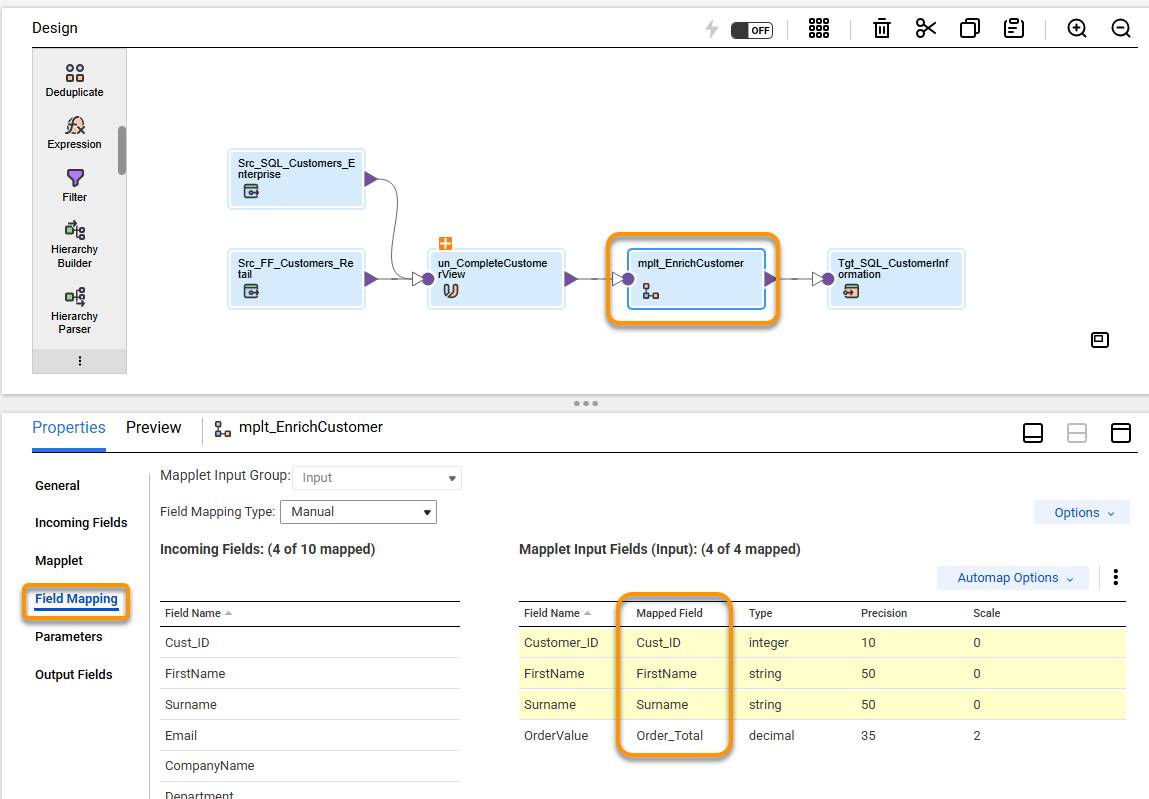
The canvas is clean, scannable, and centrally managed. When Cassie updates the CustomerTier threshold inside the mapplet in the future, every mapping that embeds it inherits the update automatically.
Testing a Mapplet Before Production
Because a standalone mapplet asset does not contain physical source or target connections, it cannot execute on its own. Before embedding mplt_EnrichCustomerRecord into production, Cassie tests her logic in isolation to catch errors early.
She builds a quick, temporary test mapping with the following transformations added and configured.
-
Source: A flat file containing five representative test customer rows.
-
Mapplet: Dragged directly onto the test canvas and connected to the source.
-
Target: A local flat file to capture test output.
Cassie runs a Data Preview on the mapplet transformation within her test mapping to inspect row-level processing midflight. She verifies that:
- FullName is generated correctly across all rows.
- CustomerTier values align with Order_Total conditions.
- Address fields populate properly from the lookup file.
When she selects the mapplet in a mapping and chooses Run Preview, it shows the output of the mapplet.
In case Cassie encounters any errors in the mapplet or the output does not look correct, she can select Preview Mapplet. This opens the mapplet and allows her to preview the output of transformations in the mapplet, using mapping source data. This is very useful when troubleshooting mapplet issues as it shows exactly which transformation is causing problems.
Testing inside an isolated three-object canvas makes troubleshooting fast. If a formula evaluates incorrectly, Cassie fixes it inside a small test workspace rather than debugging a complex multi–transformation production pipeline.
Explore What Happens When a Mapplet Is Updated
When Cassie modifies internal logic within a mapplet—such as adjusting a calculation formula or editing a lookup condition—the change takes effect dynamically on the next run of every parent mapping that embeds it. She does not need to open or re-save those parent mappings.
However, if she alters the input or output group signatures—such as adding a new input field, deleting an existing field, or modifying a field data type—parent mappings cannot resolve the change automatically.
In this scenario, affected parent mappings are flagged as invalid. Informatica Intelligent Data Management Cloud (IDMC) displays a validation error which prompts the developer to update field links. Cassie must open each parent mapping, update the field connections to match the new signature, and re-save.
Preserve interface signatures: Treat your mapplet’s input and output groups like a strict contractual boundary. Keep the input and output field lists stable over time—even as you update internal calculations and lookup conditions. Stable field signatures ensure your downstream parent mappings never break or require manual re-mapping during production updates!
Up Next
Cassie packaged AW Computing’s customer enrichment logic into a reusable passive mapplet, mplt_EnrichCustomerRecord. She embedded it in her live mapping and tested it in isolation with a temporary test mapping. She also learned that changes to a mapplet’s internal logic flow to every parent mapping automatically.
Now that Cassie’s customer data is enriched and consistent, AW Computing wants to do more with it. Different customers need different handling. For example, high-value customers might go to a priority target, while inactive customers go to an archive. In the next unit, you learn how to route data conditionally so each record ends up in the right place.