Calculate the Numbers
Learning Objectives
After completing this unit, you’ll be able to:
- Choose the right return type for number, currency, and percent formula.
- Describe use cases for formulas with the number, currency, and percent types.
- Create a formula using the number return type.
Numbers, Currency, and Percent Data Types
When most people hear the word formula, they imagine something involving numbers. While that’s not always true with formulas in Salesforce, numbers do make up a significant amount of the formula data types. It’s important to know how to work with the different number data types that Salesforce offers.
Numbers
The simplest of the data types, numbers can return a positive or negative integer or decimal of up to 18 digits. Keep the 18-digit limit in mind when you set the decimal spaces. Decimal places are part of the 18-digit limit. Number data types also use the round half up tie-breaking rule for numbers. For example, 12.345 becomes 12.35. Numbers work well for measurements, such as temperatures, lengths, and populations.
Currency
When you’re working with currency, it has its own data type. The main difference between currency and the number data type, is that a currency field adds a currency sign based on the currency of the associated record. Be mindful of this when your organization has multi-currency turned on.
Percent
Similar to currency data types, percent data types are designated by a percent sign. Working with percent return types can be a bit tricky since a percent is stored as a number divided by 100. This means that when a percent data type is displayed as 100% it is actually stored as 1, 90% as 0.9, and so on. Keep this in mind when working with them in calculations.
You can mix and match these three numerical data types in formulas, but be mindful of how to use each type. And remember, no matter which type you’re using, the value your formula returns can’t be more than 18 digits long, including the digits before and after the decimal point.
Common Number, Currency, and Percent Operators and Functions
When you work with numbers, you use certain functions and operators.
Mathematical Operators
You are already using the usual math operators in formulas, add (+), subtract (-), multiply (*), divide (/) and perhaps even exponentiation (^). And, you may have started using the logical operators as well, greater than (>), less than (<), less than or equal (<=), or greater than or equal (>=) to compare two numerical values. Once the formulas calculations start to get big, the order of operations of the formula can get tricky. Parentheses (()) are super helpful and allow you to specify the order by grouping operations. If you are getting errors, adding parentheses might help.
Formulas often use field data in their computations. An issue comes into play when any of the fields are blank. The Advanced formulas option has a Blank Field Handling option to Treat blank fields as zero. This setting treats blank fields as zero. This will keep calculations from erroring but might not give you the result you are looking for. When you need to handle blank fields in a different way, there are a few functions that help.
ISBLANK
When paired with an IF function, ISBLANK allows you to return whatever you need when a field is blank.
(IF(ISBLANK(Maint_Amount__c), 0, 1) +
IF(ISBLANK(Services_Amount__c), 0,1) +
IF(ISBLANK(Discount_Percent__c), 0, 1) +
IF(ISBLANK(Amount), 0, 1) +
IF(ISBLANK(Timeline__c), 0, 1)) / 5For each field, if it’s blank, it returns a 0. Otherwise it returns a 1. The returned values for each field are then added up and divided by 5 to get the percentage of fields that are not blank. This formula needs to have Treat blank fields as blanks set to work correctly.
BLANKVALUE
BLANKVALUE allows you to use the value of the field if it’s not blank, but if it’s blank, allows you to return whatever you like.
Amount * (BLANKVALUE(Discount_Percent__c, 0.05))
If the Discount_Percent__c has a percentage set then BLANKVALUE just returns that value. If it is blank, then it returns a default 0.05 as a percent value. Using BLANKVALUE needs to have Treat blank fields as blanks set to work correctly.
Mathematical Functions
The formula editor also provides some other mathematical functions. The ROUND function rounds a numerical value that you give it. It uses the round half-up rule, meaning that halfway values are always rounded up. For example, 1.45 rounds up to 1.5, and 1.43 rounds down to 1.4.
This currency formula uses ROUND to calculate a discount and round it to two decimal points so that it’s a proper currency amount.
ROUND(Price__c - Price__c * Discount__c, 2)
MIN and MAX functions are similar and return either the minimum or maximum number from a list of numbers.
MIN(Gross__c * Bonus_Percent__c, Performance__c / Number_of_Employees__c)
This returns the minimum option between the employee's gross times the bonus percent or the company's performance amount divided by the number of employees.
MAX(Commission_Percent__c * Price, Price * Account_Discount__c, 100)
This returns the greater of three options. The commission percentage times the price, the price times the account discount, or 100.
You can also use built-in operators to perform several other mathematical functions, like ABS (absolute value), CEILING, or FLOOR. To learn more about mathematical functions, check out, Formula Operators and Functions by Context in Salesforce Help.
Write a Formula to Calculate Lead Scores
You can use the number, currency, and percent types in formulas in many different situations, from calculating the percent commission on a sale to totaling annual revenue or profit.
Let’s take a look at lead scoring. The sales team is looking for an easier way to pinpoint the best leads so they can prioritize them. They currently look at Annual Revenue, Industry, and Phone fields to determine the best leads. Based on if the fields are filled, some leads are better than others. You let the sales team know that you can build them a field to display the score using the following parameters.
- Score 10 points for annual revenue greater than $1,000,000.
- Score 10 points if the Industry field is not blank.
- Score 10 points if the Phone field is not blank.
To build the field, you use three IF functions and add their return value together for a total value of zero to 30. Let’s get started.
- In Setup, open the Object Manager and select Lead.
- Select Fields & Relationships and select New.
- Select Formula and select Next.
- For Field Label, enter
Score. Field Name populates automatically.
- Select Number, 0 for Decimal Places, then Next.
- Select Advanced Formula.
As always, make sure that you’re using the Advanced Formula Editor to enter your formula. The Advanced Formula Editor gives you easy access to a wide range of functions and operators that you use throughout this badge. Let’s continue.
- Insert three IF functions, one for each field.
Your formula should be:
IF(logical_test, value_if_true, value_if_false)
IF(logical_test, value_if_true, value_if_false)
IF(logical_test, value_if_true, value_if_false)
- You’re going to add the return values so insert the + Add operator between the IFs.
Your formula should be:
IF(logical_test, value_if_true, value_if_false) +
IF(logical_test, value_if_true, value_if_false) +
IF(logical_test, value_if_true, value_if_false)
Now for the first IF logical_test you’re going to check that Annual Revenue is greater than 1000000, and if it is, award 10 points to the score.
- Replace the first IF function
logical_testparameter with the Annual Revenue field.
- Insert a > Greater Than operator after the Annual Revenue and then
1000000.
- Now update the
value_if_trueto10andvalue_if_falseto0.
Your formula should be:
IF( AnnualRevenue > 1000000 , 10, 0 ) +
IF(logical_test, value_if_true, value_if_false) +
IF(logical_test, value_if_true, value_if_false)
Industry is next. Because Industry is a picklist field, you use the ISPICKVAL function to access its value.
- In the second IF function replace the
logical_testparameter with the ISPICKVAL function.
- For the ISPICKVAL
picklist_fieldparameter insert the Industry field.
- Replace the
text_literalparameter with blank quotes“”.
- Update the
value_if_trueto0andvalue_if_falseto10.
Your formula should be:
IF( AnnualRevenue > 1000000 , 10, 0 ) +
IF( ISPICKVAL(Industry, "" ), 0, 10) +
IF(logical_test, value_if_true, value_if_false)
Finally, build the last IF function for the Phone field.
- Replace the last IF
logical_testparameter with the ISBLANK function and set theexpressionparameter to the Phone field.
- Update the
value_if_trueto0andvalue_if_falseto10.
Your formula should be:
IF( AnnualRevenue > 1000000 , 10, 0 ) +
IF( ISPICKVAL(Industry, "" ), 0, 10) +
IF( ISBLANK(Phone), 0, 10)
- Select Check Syntax.
- For Description enter
Lead score based on Annual Revenue, Industry, and Phone fields.
- Set Blank Field Handling to Treat blank fields as blanks.
- Click Next, Next and Save.
Congratulations, you successfully wrote a formula to calculate a lead score! The sales team is impressed with your skills and happy you were able to help them out. You can see the Score on the Detail page of a lead.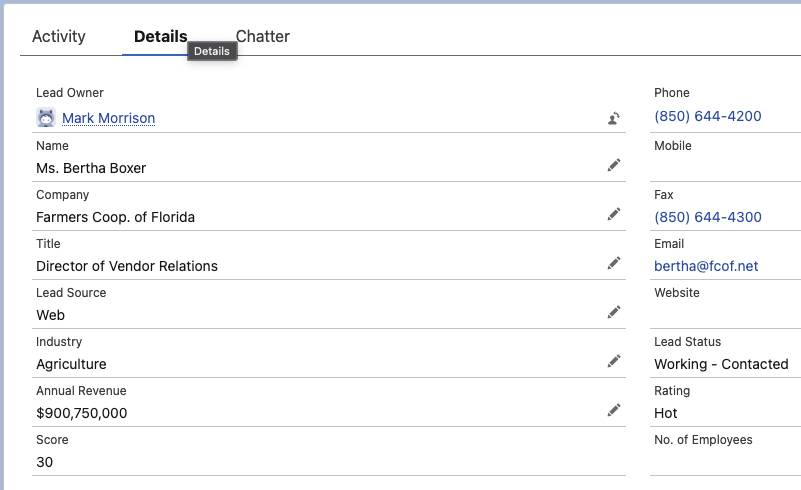
Best Practices with Number Formulas
Avoid Dividing by Zero
The math rules you already know still apply when you write number-based formulas. If your formula divides by 0, you get an error later on. When you’re dividing two numbers, ensure that the denominator is never zero. It’s especially important to think about dividing by zero when you’re dividing by another field whose value can change. If you still want to divide by a number that might be zero, use an IF function to guarantee that you don’t encounter an error. For example, this formula calculates the revenue per employee on an account by dividing Annual Revenue by Number of Employees. If there are zero employees, the formula returns 0, instead of running into an error.
IF(NumberOfEmployees <> 0, AnnualRevenue / NumberOfEmployees, 0)
Handle Null Fields
Use Treat blank fields as zeroes unless your formula uses ISBLANK or BLANKVALUE. Those functions need Treat blank fields as blanks. You can’t use both settings in one formula. Keep this in mind as you build out formulas and need Treat fields as zeroes setting versus Treat fields as blanks.
Numbers are great, but wait ’till you get your hands on text in the next unit!