Run and Monitor Your First Mapping
Learning Objectives
After completing this unit, you’ll be able to:
- Run a mapping directly from the Cloud Mapping Designer interface.
- Create, configure, and schedule a standalone Mapping Task.
- Differentiate between the use cases for My Jobs and the centralized Monitor service.
Run the Mapping
A mapping is an interface design that contains the logic and data flow rules that apply to records moving through your pipeline. However, a mapping itself does not automatically schedule or store environment states. To execute Cassie’s newly built logic immediately and load the first batch of live data, she can run it manually. After she validates the mapping, she can create a mapping task and schedule the mapping to run according to her schedules.
Cassie decides to run a manual test execution of her customer mapping to ensure the field type adjustments she configured in the source metadata function properly under live load conditions.
Trigger a Manual Run: Cloud Mapping Designer Canvas
With her target fields fully connected, Cassie selects Run located in the top-right corner of the Mapping Toolbar panel.
Assign Infrastructure: Runtime Environment Dropdown
In the configuration popup window, she selects the verified Secure Agent Group from the runtime environment menu.
Execute the Pipeline: Dispatched State
Cassie selects Run again. IDMC bundles her mapping logic metadata and safely dispatches the job to your local Secure Agent execution engine.

Check the Execution Status with My Jobs
After selecting Run, Cassie navigates to My Jobs to check the status of her mapping run.
My Jobs is a personal task list that shows all jobs triggered by the current user in their active session. It updates in real time as a job moves from Running to Succeeded or Failed.
My Jobs displays:
-
Task name: The name of the mapping or task that ran
-
Status: Succeeded, Warning, or Failed
-
Start and end time: How long the run took
-
Rows processed: The number of rows read and written
By clicking My Jobs Cassie can see the task status updates in the task list. She sees:
- Status: Running then Succeeded
- Start time / End time
- Rows processed: 140
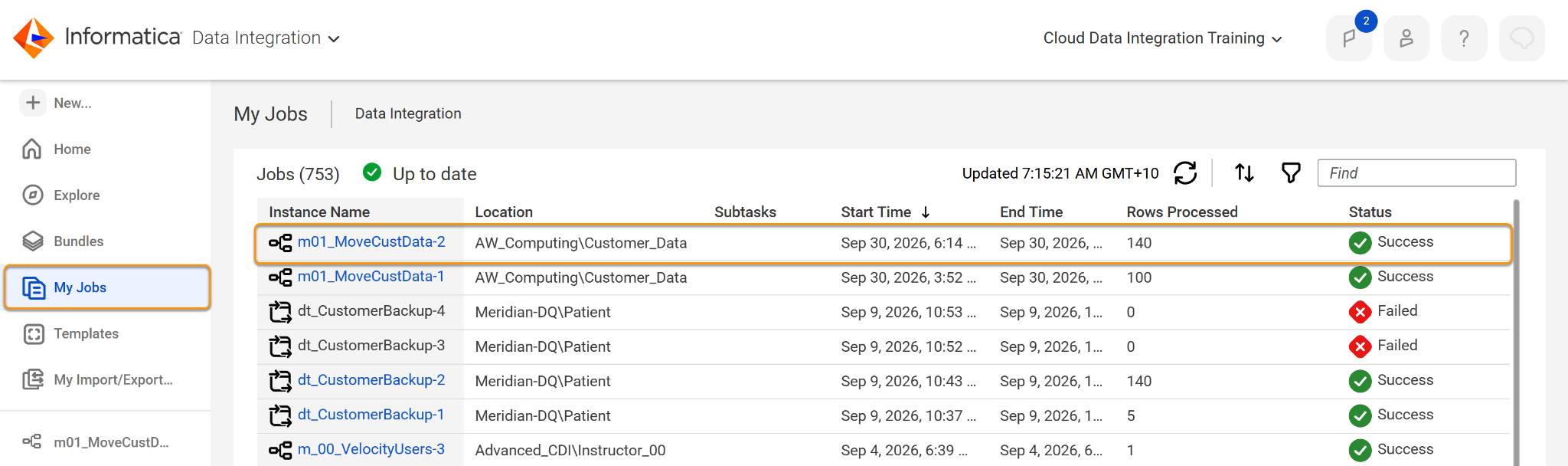
The run is a success.
My Jobs is session-specific. It shows only tasks Cassie has triggered. It’s designed for quick feedback during development and testing, not for production monitoring.
From Mapping to Task
While manual test runs are ideal during development, AW Computing cannot rely on a developer to manually push a button every morning. To meet enterprise requirements, this customer pipeline needs to execute completely automatically every day at 6:00 AM, long before the analytics team logs in.
To add schedules, automation rules, and advanced error policies, you must wrap your layout inside a Mapping Task (mt_). A Mapping Task is an executable container that stores environment choices, parameters, and execution rules for a specific underlying mapping layout.
Cassie’s mapping currently runs manually. To meet AW Computing’s production requirements, she needs it to run automatically every morning at 6 AM. A Mapping Task lets you define runtime settings—including a schedule—so your mapping runs without manual intervention. When your mapping is ready for production, create a Mapping Task to automate the run.
Cassie can create a Mapping Task within her mapping by navigating to the Actions menu and selecting New Mapping Task.

Alternatively if you do not have the mapping open, it is possible to create a task by clicking New | Data Integration | Mapping Task and selecting the required mapping to include in the task.
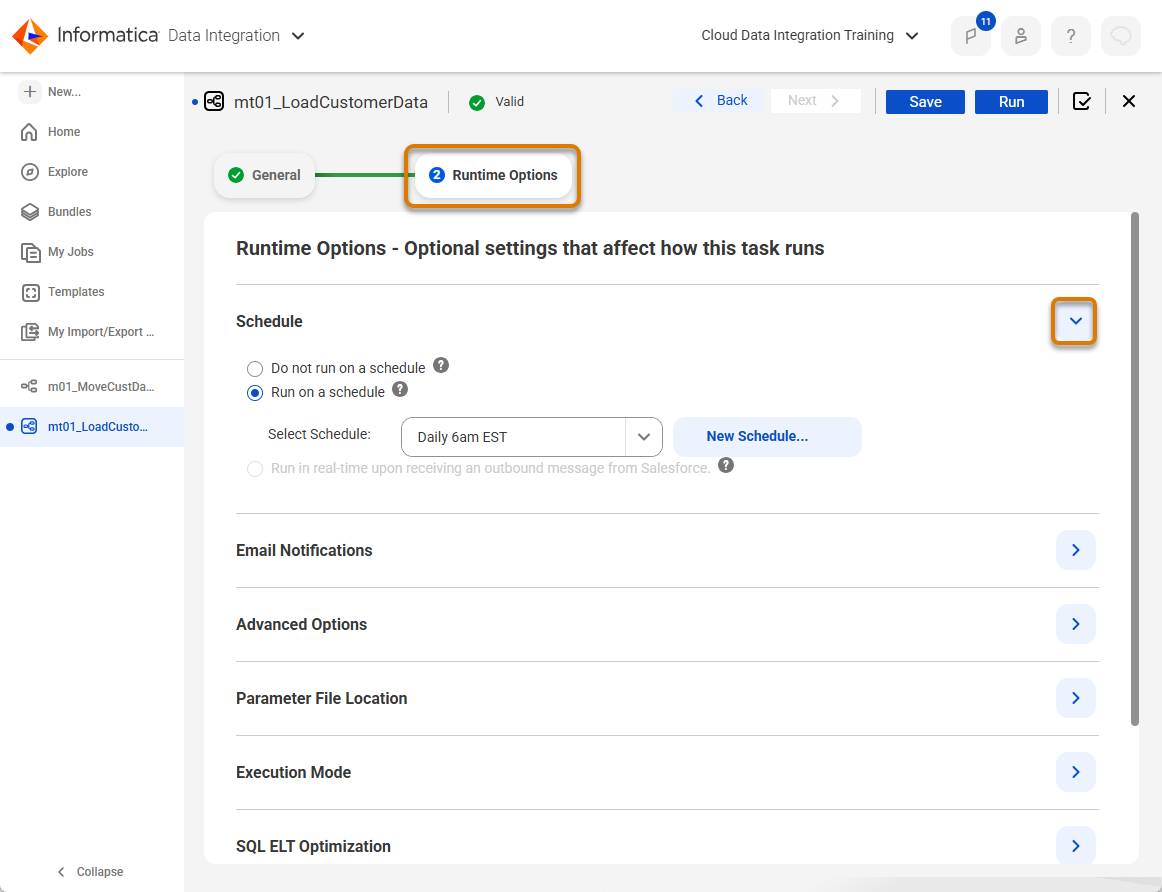
On the General tab she gives the task a name, mt01_LoadCustomerData, (mt to indicate it is a mapping task and 01 to indicate it is the first mapping in a process to be run), selects her Secure Agent as the runtime environment, and saves.

Runtime settings can be configured on the Runtime tab. She expands the Schedule options and can assign the mapping to run on a schedule.
IDMC stores the schedule and triggers the task automatically at the configured time using the assigned Secure Agent. If the agent is offline at 6 AM, IDMC skips the run and logs it as a missed execution in the Monitor service. Users should check for missed runs.
IDMC supports scheduling for all CDI task types including Mapping Tasks, Synchronization Tasks, Replication Tasks, Data Transfer Tasks, and Taskflows. Cassie schedules each task independently for now, and later consolidates them into a Taskflow to manage dependencies between them.
Run the Task
Cassie selects Run on the Mapping Task. IDMC dispatches the job to the Secure Agent. Within a few seconds, the task status updates in the task list. She sees:
-
Status: Running → then Succeeded
-
Start time / End time
-
Rows processed: 140
The mapping task run is a success. From now on it will run daily according to the schedule defined.
Deep Production Insight: The Monitor Service
While My Jobs is perfect for developer feedback, it cannot track automated schedules or jobs run by other members of your team. For comprehensive production visibility, Cassie opens the centralized Monitor service.
The Monitor service is an enterprise-wide operations hub. It displays a long-term historical ledger of every job triggered across your entire organization, regardless of who started it or whether it ran on a schedule.
Field |
What It Shows |
|---|---|
Job Name |
The name of the task that ran |
Status |
Succeeded, Failed, or Warning |
Start Time / End Time |
When the job ran |
Rows Processed |
The number of source rows that were read and written |
Log |
A downloadable session log for troubleshooting |
Cassie views her mt01_LoadCustomersData task and confirms that all rows landed cleanly in SQL Server. She can also select the job to see row-level statistics and any warnings.

Differentiate My Jobs from the Monitor Service
Both My Jobs and the Monitor service show task run results but they serve different purposes. The following table summarises the key differences between the tools.
Feature Area |
My Jobs Panel |
Centralized Monitor Service |
|---|---|---|
Target Audience |
Individual developers. |
System Administrators and Operations teams. |
Visible Scope |
Current user session context only. |
All historical runs across the complete organization. |
Operational Focus |
Fast feedback loops during creation. |
Production tracking and historical audit trails. |
Scheduled Visibility |
Scheduled runs are completely invisible here. |
Captures all automated schedules and Taskflows. |
Log Availability |
Provides standard runtime session logs. |
Delivers full logs, error-row analysis files, and performance metrics. |
Cassie uses My Jobs when she’s building and testing. It gives her instant feedback without navigating away. She uses the Monitor service for everything in production. She reviews scheduled runs, diagnoses failures, and downloads error row files.
Demonstration
In this demonstration, Cassie creates a mapping, configures the source and target transformations, and runs it. She then confirms in My Jobs that the mapping ran successfully and checks that the records were written to the target.
Wrap It Up
Cassie’s pipeline is live and running on schedule—no more manual exports. The nightly CSV export from AW Computing’s legacy CRM now flows directly into SQL Server. There are no manual steps and no back and forth verifying the correct data has been sent. She runs the task twice more with test data to confirm consistency, then adds it to a schedule. Her team has one less manual job to do every morning.
Now you have the skills to do the same from configuring your first mapping, to scheduling it for automated, daily production runs. This is just the beginning for Cassie. CDI’s full transformation library gives Cassie the tools to tackle far more complex data challenges—and she’s already thinking about what to build next.