Navigate the CLAIRE GPT User Interface
Learning Objectives
After completing this unit, you’ll be able to:
- Identify the key UI elements of CLAIRE GPT including the prompt text box, conversation panel, and notifications.
- Demonstrate how to start, rename, pin, and manage conversations.
- Describe how cards and artifacts appear in responses and how to access generated Intelligent Data Management Cloud (IDMC) assets.
Before You Start
Before you start this badge, consider completing this recommended content.
Get to Know the CLAIRE GPT Interface
Once you know what CLAIRE GPT is and what its agents can do, the next step is to get comfortable with the interface. Like any tool you use daily, it becomes valuable when you know how to navigate it: where to type a question, where your past conversations are, and where to find the report CLAIRE GPT just built for you.
Ana, the Cloud Kicks data analyst, has used CLAIRE GPT for a few weeks now, but she is still discovering shortcuts that save her time. In this unit, follow Ana as she gets comfortable with the CLAIRE GPT Home page, learns how to manage her growing list of conversations, and finds out where the reports and tables CLAIRE GPT generates go.
The CLAIRE GPT Home Page
When Ana logs in to CLAIRE GPT, the Home page greets her with a set of sample prompts and a few key panels she now relies on every day.
- The prompt text box is where Ana types her questions or picks a sample prompt to modify. This is the starting point for every conversation, whether she asks a brand-new question or reuses a prompt.
-
Sample prompts and categories sit near the prompt text box. These are prewritten prompts organized into categories like Data Governance, Data Analysis, Data Quality, and Master Data Management. When Ana was new to CLAIRE GPT, she used them often to learn what kinds of questions worked well, and she still clicks into them when she explores a new topic.
- The navigation bar lists Ana’s previous conversations. From here, she can open an old conversation to pick up where she left off or manage that conversation directly
-
Notifications and user settings live in the toolbar. Ana checks her notifications when CLAIRE GPT finishes a longer-running task. From here, she can also adjust her user settings or log out.
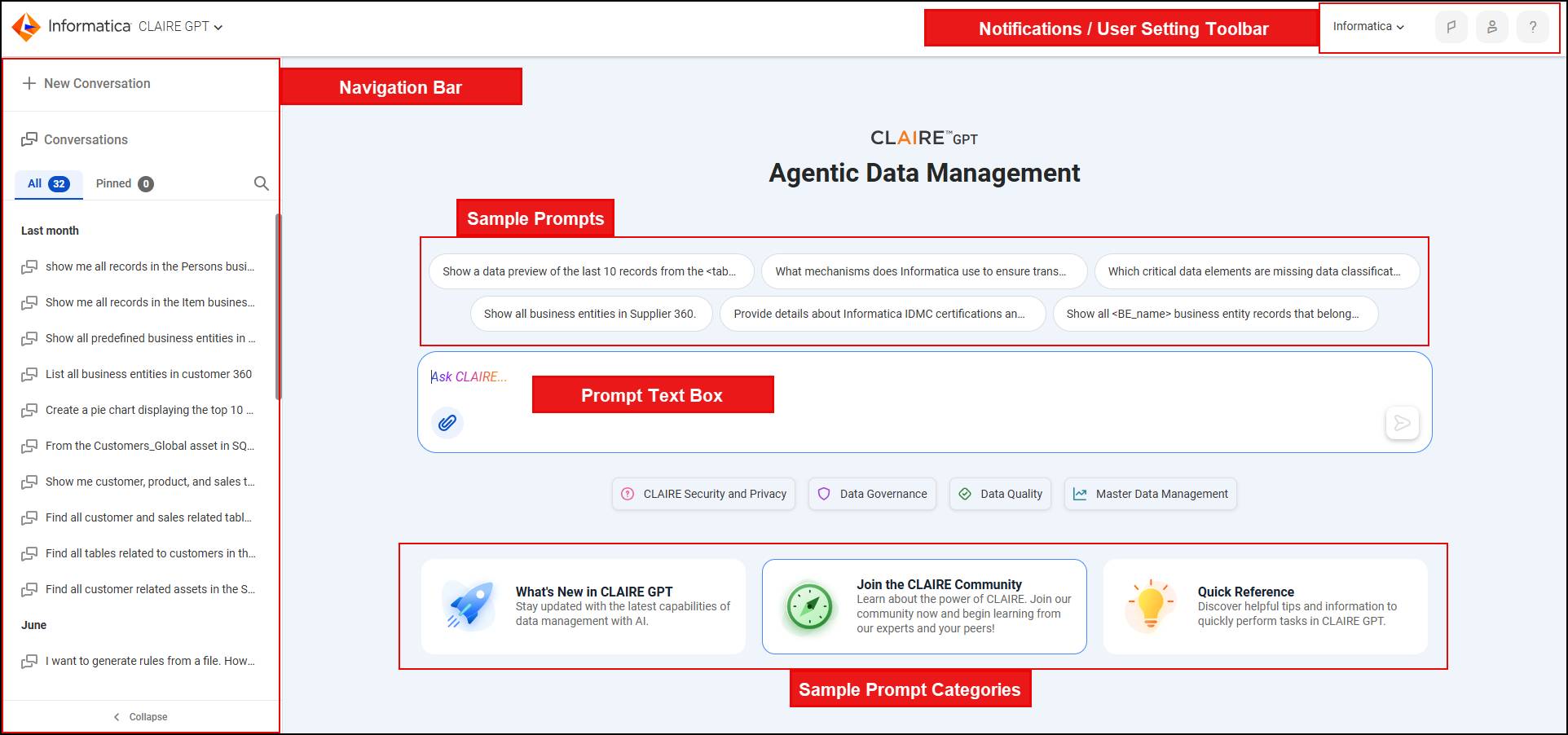
Ana’s first week with CLAIRE GPT was spent almost entirely inside the sample prompt categories. Rather than typing a question from scratch, she clicked a Data Analysis sample prompt, tweaked the wording to match her actual question about seasonal sales trends, and submitted it. That habit shortened her learning curve considerably.
Manage Conversations
CLAIRE GPT saves every conversation Ana starts, using her first prompt as the conversation’s title by default. Left alone, her list fills with vague titles like “What were sales last month,” so she manages conversations directly from the navigation bar.
-
Rename: Hover over a conversation, select Edit, update the name, and confirm. Ana renames anything she expects to revisit, like “Q3 Regional Sales Analysis,” so she can find it later.
-
Pin: Hover over a conversation, and select Pin. Pinned conversations move to the Pinned tab and stay at the top of the list, useful for work Ana isn’t finished with yet.
-
Delete: Hover over a conversation, select Delete, and confirm. This removes the full history, so Ana only does this for conversations she’s sure she won’t need again.
-
Clear conversation memory: Enter
clear memoryor select the icon to reset CLAIRE GPT’s context in an active conversation while keeping the history itself. This helps Ana pivot to other topics without mixing up prompts.
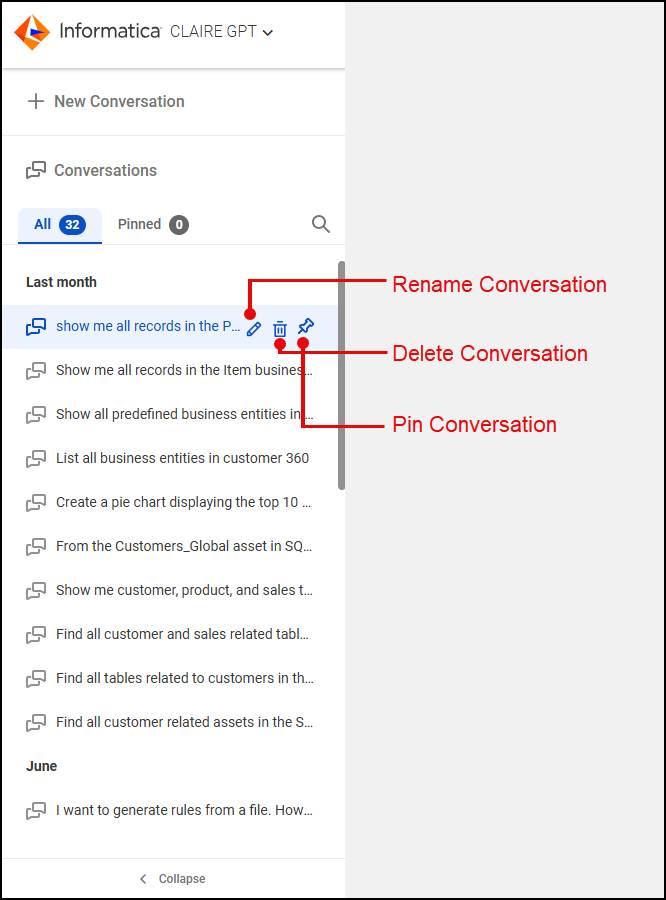
When an unrelated inventory question interrupted Ana’s analysis of shoe returns, she pinned the return-rate conversation. The next day she resumed exactly where she left off—without losing her place.
Ana can also like or dislike a response and add a comment, which lets her easily flag good or poor answers as she works. She can add only one comment per response, and once submitted, she can’t edit her rating or comment.
Cards and Artifacts in Responses
CLAIRE GPT responses are not just a block of text. A typical response includes some or all of these parts.
- Summary and reasoning
- Cards
- Analysis and insights
- Artifacts
Each part helps Ana get more out of every answer.
Summary and Reasoning
Every response includes a summary that briefly states the answer, along with reasoning that explains the approach CLAIRE GPT took to reach it. This reasoning lets Ana explain to her manager how a finding was reached, rather than share a number with no context.
Cards
Many responses include cards: visual components such as tables and charts arranged to display data based on Ana’s prompt. Cards make it much faster to scan a complex response, especially one that touches multiple datasets. When Ana clicks Cards in a response, a canvas opens where she can switch between chart and raw tabular views, compare data side by side, and download what she sees for further analysis.
Analysis and Insights
Some responses also include analysis and insights. The analysis highlights key findings such as the number and type of datasets identified as relevant. The business-friendly insight section translates technical findings into something she can share with nontechnical stakeholders. Neither of these sections appears in every response, since it depends on the type of prompt Ana sends.
Artifacts
CLAIRE GPT can also produce artifacts: generated outputs such as presentations, reports, PDFs, or IDMC assets like mappings and rule specifications. Because CLAIRE agents can reuse these artifacts, Ana can immediately ask a follow-up question about an artifact CLAIRE GPT just generated, without needing to re-explain what it is.
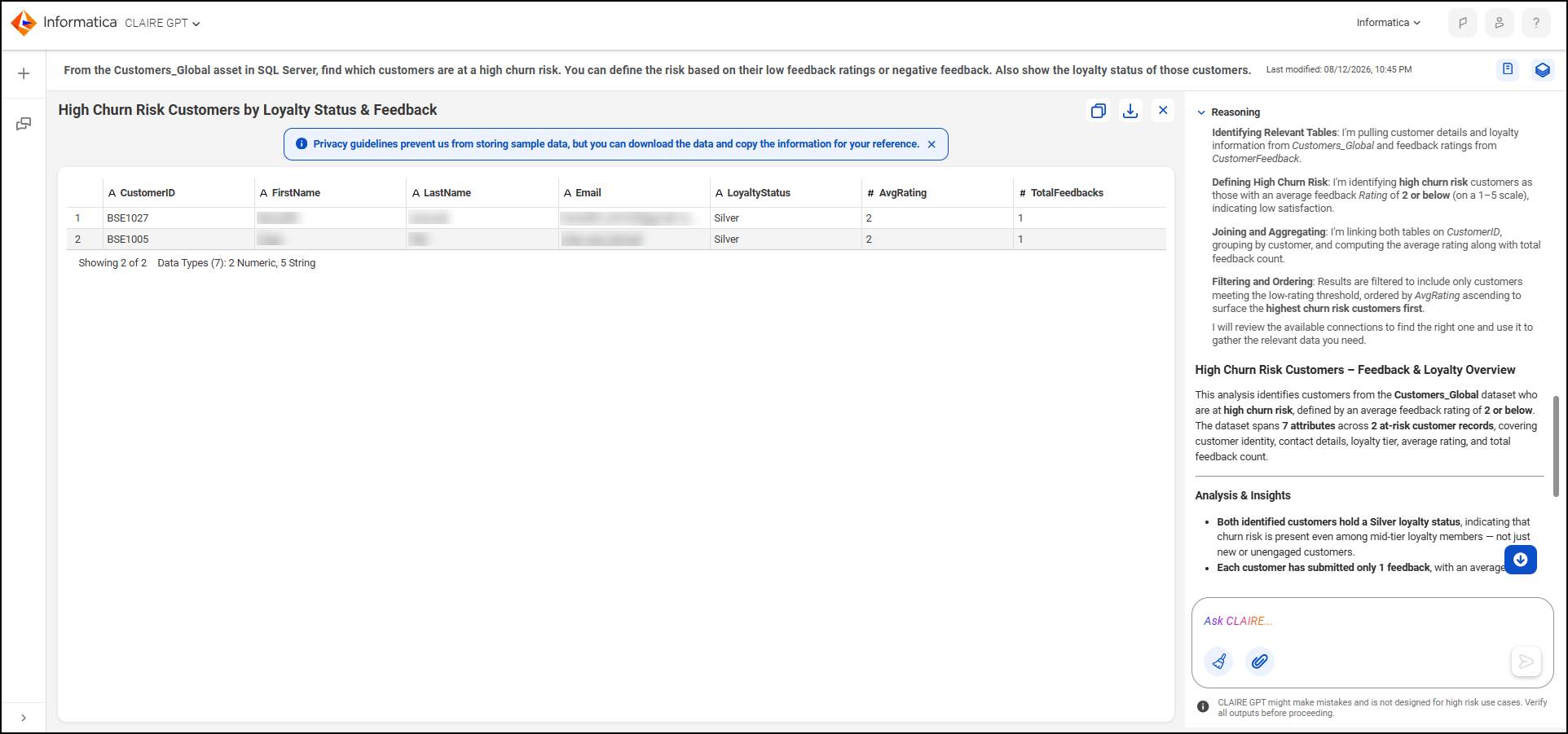
When Ana asked CLAIRE GPT to break down Cloud Kicks’s customers by age group, the response came back with a summary, a chart card showing the age distribution, and an analysis section calling out the largest segment. She opened the card, switched to the raw data view, and downloaded the table directly into her working file, skipping the export step she used to complete manually.
Navigate with Confidence
Check out this video that provides a tour of the CLAIRE GPT user interface.