Learn About Authentication for Subagents and Actions

Learning Objectives

After completing this badge you’ll be able to:

  • Add authentication to a custom subagent.
  • Add authentication to a custom action.
  • Send a verification code to authenticate unverified users.
  • Create custom variables to bind output and inputs.
  • Test authentication functionality.

Introduction to Authentication

Agentforce Agents give you great flexibility with subagents and actions right from the start. You can easily add subagents and actions from an Asset Library or create your own, making it simple to set up your agents quickly.

For example, with the Agentforce Service Agent template, you can include subagents like Account Management, Case Management, Order Inquiries, and Reservation Management, along with the related actions for each.

However, this flexibility comes with a tradeoff—additional configuration is required if you want to add extra security or privacy to these subagents and actions. Consider which actions an agent should be able to perform without customer verification and which should always require it. Every organization has different security standards and policies for protecting customer data and verifying identities. Regardless of approach, Agentforce authentication provides a strong foundation for verifying customers securely.

Public Versus Private Actions

The first and perhaps most important step in adding authentication to your actions in Agentforce is to identify which actions require authentication. Public actions are, well… public. The agent can access subagents and actions without authenticating who the agent is talking to. It could be a known customer or a prospect—it doesn’t matter. And, you guessed it, private actions are private and require authentication. Every organization has different requirements for authentication. For example, a healthcare company might require authentication before most of the agent’s subagents or actions can be accessed, but a car dealership’s agent might not have any authentication.

Actions

Definition

Examples

Public

  • Public actions are actions that an agent can take that do not require authentication.
  • Answer questions with Knowledge action under the General FAQ subagent.
  • Give public company details like the address, phone number, locations, hours, and so on.

Private

  • Private actions are actions that require verifying a user’s identity in a messaging session before an agent can take action on their behalf.
  • The level of authentication can vary based on a company’s preferences and policies.
  • Update personal information.
  • Process payments or purchases.
  • Cancel an appointment.
  • Access sensitive account information.
  • Request a refund.

Pronto and Agentforce

Pronto is a food delivery company on a mission to help restaurants run better and help customers get faster, more reliable deliveries. Pronto is already using Agentforce for Service to manage merchants and storefronts, customer identities, and support interactions. However, they want their agent to execute repeatable business workflows (like verification and refunds) with precision.

Linda Rosenberg, the Agentforce admin for Pronto, is tasked with adding conditional logic + transitions to ensure sensitive actions only run for verified customers.

Here are Linda’s authentication requirements.

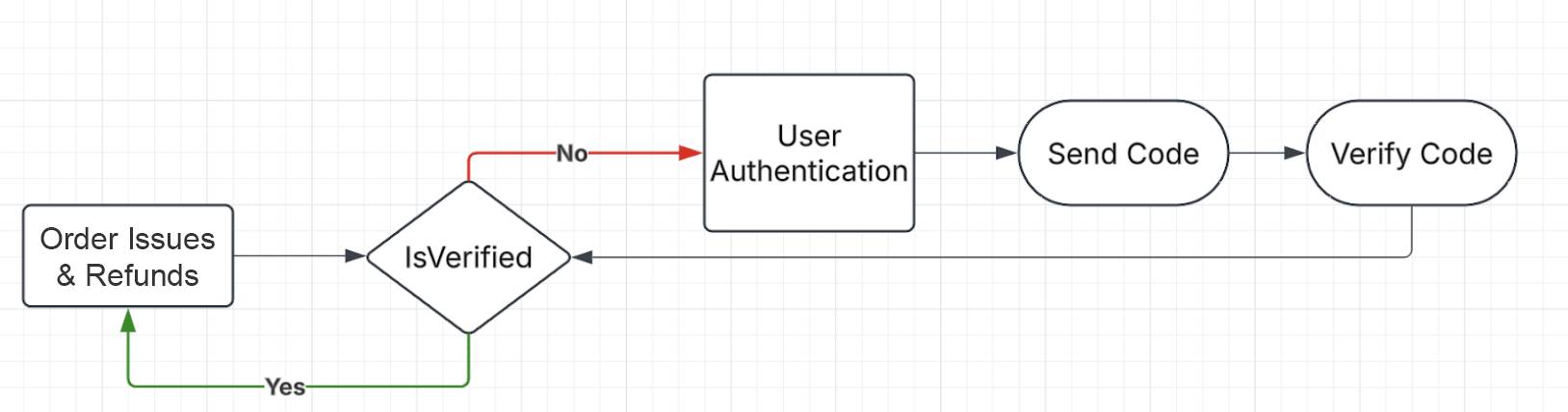
  • If a customer inquires about their order status, the Order Issues and Refunds subagent and verification is triggered.
  • Use two-factor verification; ask customers for their email and send a one-time verification code to that email.
  • The agent can only access actions in the Order Issues and Refunds subagent once the customer is verified (the verification code matches what they were sent).

Diagram of the verification flow.

Note: This is assuming that the user in the messaging session inquiring about their case is not verified and is actively engaged in a messaging session on the Pronto experience site using Agentforce for service.

In this badge, you learn the steps Linda follows to implement authentication to relevant agent subagents and actions. First, follow these instructions to get a Developer Edition org to use for this badge.

Sign Up for a Developer Edition Org with Agentforce Studio

To complete this project, you need a custom playground that contains Agentforce Studio and the Pronto sample data.

  1. Click Create Playground.
  2. Your new org is automatically attached to your Trailhead account.
  3. Make note of your org's expiration date and complete this badge before then.

Enable Agentforce Studio and Email Deliverability

Linda’s first step toward setting up user authentication for Pronto is to make sure Agentforce Studio is enabled. Here is the process.

  1. Click setup icon and select Setup. The Setup page opens in a new tab.
  2. In the Setup Quick Find, search for and select Salesforce Go.
  3. In the Search features... textbox, enter and select Agentforce Studio.

Agentforce Studio toggle set to On.

  1. Click Get Started.
  2. Click Turn On.
  3. Click Confirm.

Linda also needs to adjust the org’s email deliverability settings so an authentication code can be emailed when verifying an user.

  1. In the Setup Quick Find, search for and select Deliverability.
  2. Scroll down to the Email Domain Verification section and add a check to Use a substitute email address for unverified domains.
  3. In the Domain Name input, enter gmail.com.

Completed Email Domain Verification.

  1. Scroll back up to the top of the page and click Save.

Now that Linda has an org with Agentforce Studio turned on and email deliverability adjusted, it’s time to move on to adjusting subagents, actions, and variables.

Resources

在 Salesforce 帮助中分享 Trailhead 反馈

我们很想听听您使用 Trailhead 的经验——您现在可以随时从 Salesforce 帮助网站访问新的反馈表单。

了解更多 继续分享反馈