Establish Compliance Guardrails
Learning Objectives
After completing this unit, you’ll be able to:
- Explain when to use an account product restriction.
- Identify the fields that define a Life Science Product Account Restriction.
- Explain how the Territory field scopes a restriction.
- Describe how restrictions affect product engagement during a visit.
Apply Account-Level Product Controls
In the previous unit, you learned how to align products and guidance to territories and set the priority that orders them in a visit. Those controls govern access to one team at a time. They decide what a whole territory sees and how its products rank.
Access rules reach past the territory line, down to the individual account. Inside a single territory, accounts set their own terms. A hospital withholds a product until its pharmacy board grants formulary approval. A health system holds off on promotion while an internal review is in process. Another account declines a product across all its sites as a matter of policy. Each limit belongs to one account, not to the team around it.
An account-level limit calls for an account-level control. A territory exclusion is too blunt here, because it drops the product for every account in the territory just to stop one. The Life Science Product Account Restriction is the precise instrument. It blocks one product at one account and leaves the catalog, guidance, alignment, and priority untouched, so the launch keeps running everywhere else.
This diagram shows where a restriction sits in the Product Management data model, relative to the objects that govern alignment.
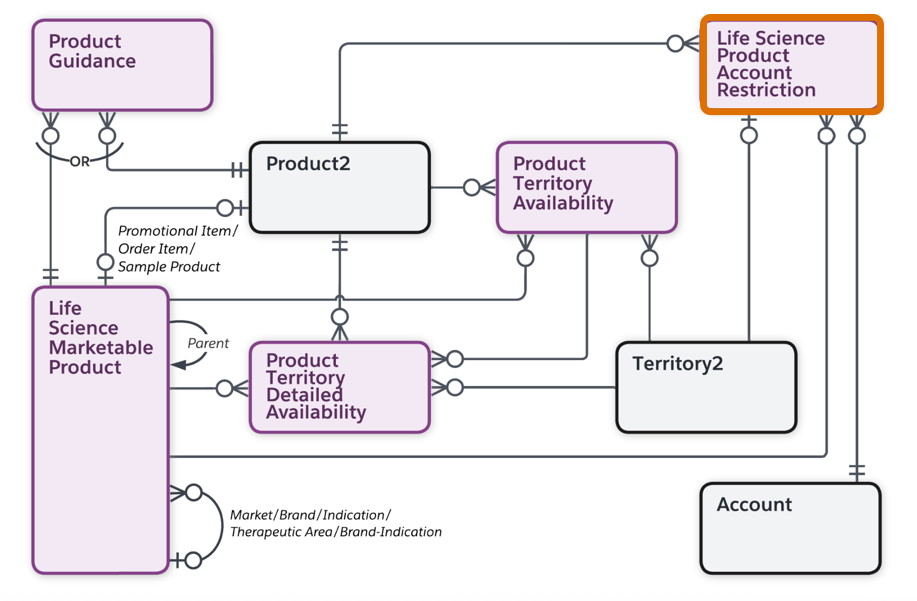
In the data model, the restriction sits on the account-and-product pair, apart from the territory-availability layer that governs alignment. That placement is what lets it override access for one account without disturbing the territory setup serving the rest.
In this unit, you learn about creating a restriction, scoping it with the Territory field, and explore how it affects a representative’s tasks during a visit.
Create a Restriction Record
A restriction record captures one rule, holding a single product back at a single account. Two fields carry that block, and an optional third narrows it.
-
Account is the account that the restriction applies to.
-
Product is the item held back, either a Life Science Marketable Product or a specific Product2.
-
Territory is optional, and it comes into play only when an account belongs to more than one territory.
Account and Product are the block itself. Territory is where the nuance lives, because an account can belong to more than one territory at once. For example, a specialty team and a primary-care team cover the same hospital.
Leave Territory blank, and the block holds for that account in every territory it belongs to. That fits a limit the account enforces outright, such as a formulary hold across the whole hospital. Name a territory, and the block applies only when the account is engaged through that one territory, leaving the other teams' access intact. That fits a limit tied to a single coverage context. For example, one team is held back from promoting the product for an account, while another team that covers the same account still promotes it.
Consider a regional hospital where formulary approval for Immunexis is still pending. The hospital withholds promotion across all facilities, regardless of which field team visits. To configure this outright limit, Cumulus creates a restriction selecting the hospital account and Immunexis, and leaves the Territory field blank. The block covers the account across every territory, keeping Immunexis off-limits at that facility while every other account keeps its access.

Save the record, and the rule goes live. Its effect surfaces the next time a representative opens a visit at that restricted account.
Confirm the Visit Restriction
A restriction proves itself in the visit, the moment a representative works from the live catalog at an account. At an eligible account in San Francisco North, Immunexis behaves exactly as configured. It's available, its approved message is attached, and it sits at the priority Cumulus set. At the restricted hospital, however, the same product meets the account restriction.
When a representative opens a visit at the restricted hospital, Immunexis still appears in the product list for context, but selection is disabled. The representative works through the rest of the visit as usual while the product remains visible yet inactive.
Wrap Up
For Cumulus Pharma, the Immunexis launch is ready for the field. In San Francisco North, field representatives open a visit and find Immunexis at the top of their list with its approved message attached, while the product remains blocked at accounts where hospital formulary approval is still pending.
That readiness reflects the core controls you learned across this badge. You discovered how to build the commercial product hierarchy and behavior mappings, author approved messages and objectives. You also learned how to align products and guidance to territories in priority order, and add account restrictions that implement local compliance limits.
Together, these controls ensure that every downstream workflow—from visits and sampling to intelligent content, inquiries, and orders—draws from a governed catalog. The judgment a representative once carried alone is now built directly into the configuration.
For more on implementing and using Product Management, explore the Resources section.