Analyze User Activity in Event Log Files
Learning Objectives
After completing this unit, you’ll be able to:
- Describe the types of data available in event log files.
- Use the Advanced Search filters in the Event Log File Browser to locate specific user activity.
What Are Event Log Files?
When a security incident occurs, admins need to look backward to investigate. Event Monitoring provides visibility into nearly every action taken in your org, tracking over 70 unique event types, including record views, report exports, and API calls.
Think of event log files as the ledger of your org’s activity. While standard logs are often generated daily, Salesforce Shield allows for hourly log generation, providing a much tighter window for investigation.
When to Use ELFs Versus ELO Dashboards
Before Fatima opens the ELF Browser, she needs to decide whether it’s the right tool. Both Event Log Files and Event Log Object dashboards show user activity, but they’re designed for different moments.
Differentiator |
Event Log Files (ELF Browser) |
ELO Analytics Dashboards |
|---|---|---|
Best suited for |
Targeted forensic investigation. You know exactly what you’re looking for. |
Visual triage. You’re scanning for anomalies you haven’t identified yet. |
Data format |
Raw CSV with every field available for that event type. |
Prebuilt visualizations with key metrics surfaced. |
Typical question |
“Did Rob Burgle export the client list last Thursday?” |
“Has anyone’s export behavior changed this week?” |
Skill required |
Filter by type/date, open CSV, sort/search columns. |
Click through dashboards, interpret charts. |
Latency |
24 hours (daily) or 1 hour (hourly with Shield). |
25–45 minutes. |
Fatima’s approach to choosing her tool is: If she already has a specific user, date, and action in mind, then she opens the ELF Browser. If she’s starting her morning security check and wants to see if anything looks unusual, then she opens the ELO dashboards first.
Today, Fatima has a specific question: “Did Rob Burgle export data before leaving?” That’s an ELF job.
Identify Suspicious Activity in Raw Data
When Fatima opens a ReportExport CSV, she’s not reading every row. She’s scanning for patterns that stand out from normal behavior.
-
Volume spikes: A user whose ROWS_PROCESSED is typically 20–50 suddenly exports 4,000+ rows.
-
Timing anomalies: Exports at 2 AM or 11 PM when the user normally works 9–5.
-
Frequency clusters: The same USER_ID appearing 10+ times in a single hour for the same event type.
-
Object mismatches: A sales rep exporting from objects they don’t normally touch, like Contract or Opportunity with revenue fields.
None of these are automatically bad; a scheduled integration might export at 2 AM legitimately. But they’re the signals that tell Fatima where to focus her investigation.
Use the Event Log File Browser in Setup
Admins no longer need external web apps or third-party tools to view event logs. The native Event Log File Browser is integrated directly into Salesforce Setup. It features an Advanced Search that allows you to filter by Event Type, Date, and User ID without ever leaving the UI.
Filter |
What It Does |
Example Use Case |
|---|---|---|
Event Type |
Narrows results to a specific category of activity. |
Filter for ReportExport to audit data download activity. |
Date Range |
Scopes the investigation to a specific window of time. |
Look at activity from the past 24 hours after a suspected incident. |
User ID |
Focuses the search on a single user. |
Investigate a specific employee’s activity after a security complaint. |
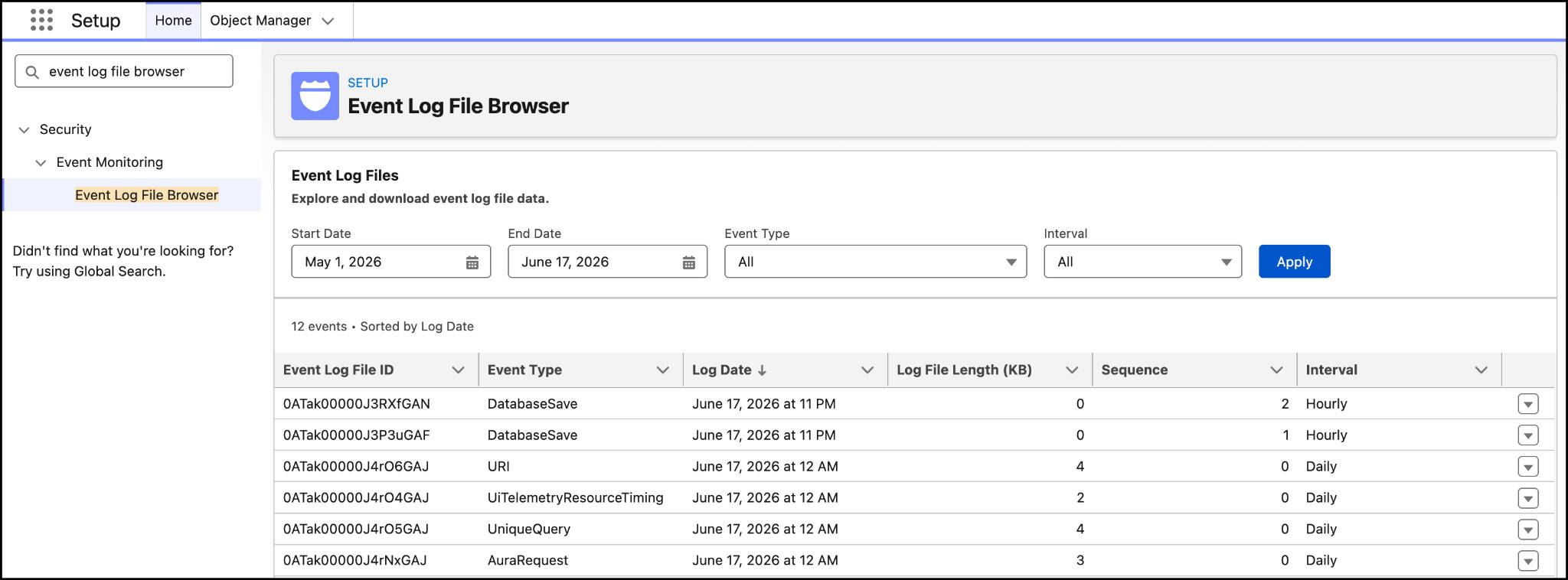
Investigate an Event with Event Log File Browser
It’s Monday morning, and Fatima gets a message from the sales manager at Alpine Group. He suspects that a departing employee, Rob Burgle, may have exported a high-value client list before their last day. Fatima heads straight to the Event Log File Browser. She filters for ReportExport events over the last 24 hours, and finds a file with an unusually large log size. She downloads the CSV, finds the USER_ID column, and confirms exactly who performed the export. In just a few minutes, Fatima was able to pinpoint the issue without writing any code.

In the next unit, learn how to stop security incidents before they happen by deploying real-time guardrails.