Improve Search Recommendations with AI
Learning Objectives
After completing this unit, you’ll be able to:
- Recover lost revenue by using AI search dictionaries.
- Configure personalized product recommendations to drive cross-sells.
- Analyze basket data with Einstein Commerce Insights to build better bundles.
- Accelerate product discovery with Einstein Search Recommendations.
- Personalize product grids automatically by using Einstein Predictive Sort.
Recover Revenue with Einstein Search Dictionaries
Eliminate no results searches by identifying and fixing missing search terms.
When a shopper searches for a term that doesn’t exist in your keyword list, the search fails. A failed search often leads to site abandonment. Einstein search dictionaries analyze site searches to detect terms that shoppers use but your dictionary lacks. It identifies relationships between these user terms and your existing catalog data. For example, if a shopper searches for “salmon blouse” but you use the color pink in your product descriptions, Einstein detects this gap and recommends adding “salmon” to the synonym list for “pink.”
Access the Einstein Search Dictionaries module in the Business Manager Staging instance to review these recommendations. You must actively accept, decline, or edit the suggested synonym groups. By accepting a recommendation, you ensure that future searches for that term yield results immediately.
Opt in to Community Data
You can opt in to Community Data in Business Manager under Administration and pool your search dictionaries with other merchants to form a shared database. By pooling dictionaries, Einstein can generate recommendations based on industry-wide data patterns rather than just your site’s history.
Drive Cross-Sells with Einstein Product Recommendations
Increase basket size by showing the most relevant products to shoppers at specific touchpoints.
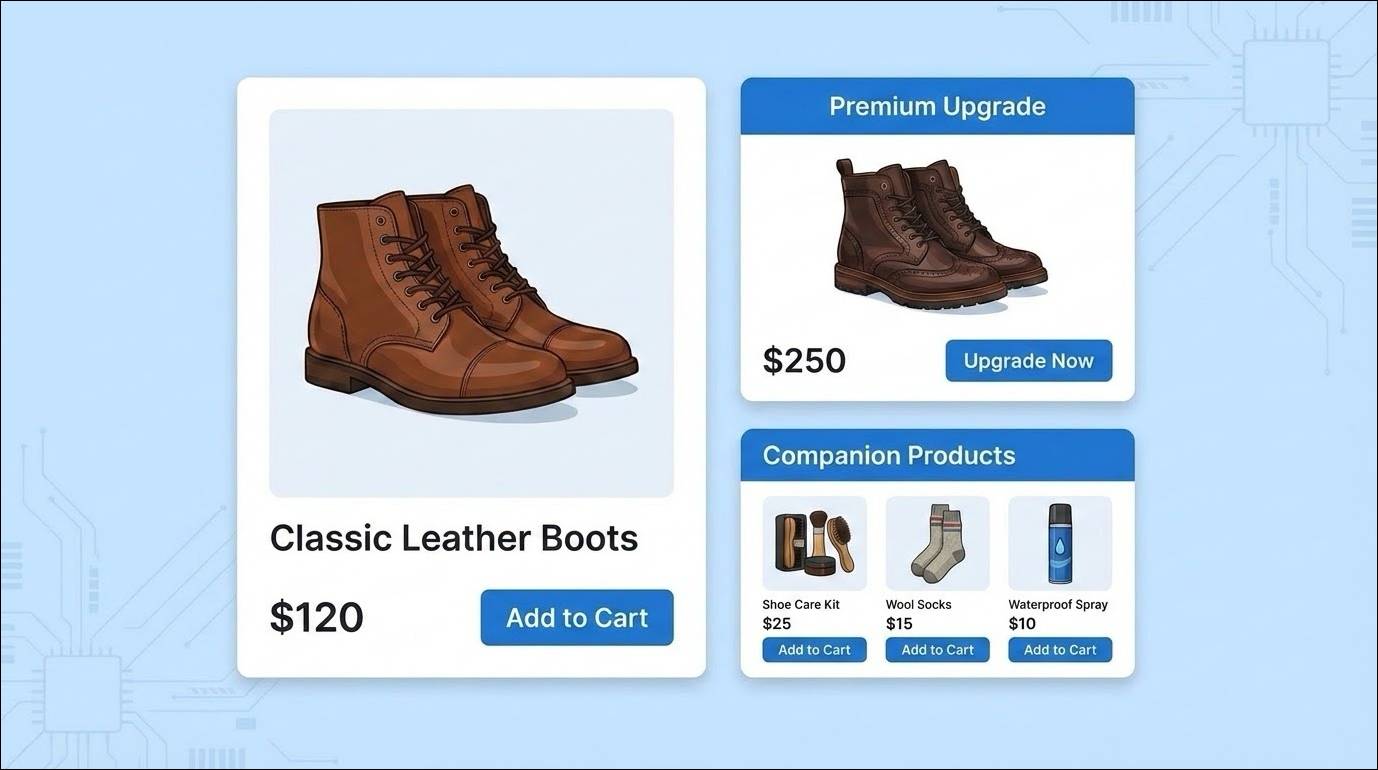
Static product suggestions fail to account for individual user behavior. Einstein product recommendations help you to build recommenders that predict the most relevant products for individual shoppers. A recommender controls the algorithm used to generate the product list and applies rules to filter or order those products.
Create Recommender Strategies
Assign specific strategies to your recommenders based on the page context.
-
Product to product: Use this on product detail pages (PDP) or the cart. It requires a product ID as an anchor. Strategies include "Customers who bought also bought" (buy-to-buy correlations) or "Product affinity algorithm" (similarity analysis).
-
Products in all categories: Use this on the Home or My Account page where no specific product context exists. Strategies include recent top sellers or real-time personalized recommendations.
-
Recently viewed: Display items the customer recently looked at to encourage them to return to a previous interest.
Highlight Products with Rules
Refine these lists by using rules. Create rules to show, hide, promote, or demote items based on specific fields. For instance, create a rule to hide products that are out of stock or promote items from a specific brand. You configure these recommenders in the Einstein configurator tool and then assign them to content slots in Business Manager.
Build Bundles with Agentforce Einstein Insights
Identify product correlations to create high-converting bundles and deals. To increase average order value (AOV), you must understand which products shoppers purchase together. Agentforce Einstein Insights performs basket analysis to reveal these patterns. This tool captures order and product data to show commonly co-purchased items.
How to Use the Commerce Insights Dashboard
Use the Commerce Insights dashboard to view specific product details. The dashboard shows the Commonly Bought With table. The table shows exactly which categories and products shoppers buy alongside the selected item. Use this data to make evidence-based merchandising decisions. If the data shows that shoppers frequently buy a specific coffee maker with a specific brand of filters, create a “complete the look” suggestion or a hard-bundled deal to formalize this behavior and drive sales. The dashboard loads data from the previous week, but you can configure it for analysis of up to the past 30 days.
Accelerate Discovery with Einstein Search Recommendations
Guide shoppers to the correct product before they finish typing with Search Suggestions. Shoppers who struggle to construct a search query often give up. Einstein Search Recommendations improve the search experience by providing AI-driven, personalized type-ahead guidance. Unlike standard auto-complete, this feature personalizes suggestions in real-time based on the shopper’s history and behavior.
Activate Search Suggestions
Here’s how you activate Search Suggestions.
- In Business Manager, click App Launcher, and select Merchant Tools | Search | Search Preferences.
- Check Search Suggestions and click Apply.
When active, the search bar offers personalized term completion and auto-correction. If a user misspells a product name, the system corrects it instantly to ensure that they reach a results page. This creates a direct path from intent to product, reducing friction and keeping the customer engaged. This feature functions independently of the standard recent search and popular search lists, which require separate development.
Personalize Grids with Einstein Predictive Sort
Automatically order category grids and search results to show the products a specific user is most likely to buy.
Manual sorting rules (like "Newest First" or "High-to-Low") apply the same order to every visitor. Einstein predictive sort calculates a specific shopper’s affinity for your products based on their order history and live clickstream data. It then reorders the product grid to place the items with the highest affinity score at the top.
Predictive Sorting Process
Configure predictive sort as a Sorting Rule in Business Manager.
-
Standard attribute: Add predictive sort as an attribute in a standard sorting rule. Set the direction to descend to show the highest affinity items first.
-
Dynamic attribute: Combine predictive sort with other metrics. For example, create a Dynamic Attribute that weighs 50% on predictive sort and 50% on page views.
When you apply this rule to a category or search result, the system personalizes the sort order for each individual session. Because every shopper sees a unique order, this feature turns off the caching of search hit positions in the product grid.
Wrap Up
In this unit, you learned how Agentforce Commerce for B2C AI improves search performance and product recommendations. With these and the other merchandiser tools we covered, you’re ready to start building a storefront that personalizes the shopping experiences of your customers and converts visits into revenue.
Resources
- Salesforce Help: Commerce Cloud EinsteinI
- Salesforce Help: Commerce Cloud Einstein Search Dictionaries
- Salesforce Help: Commerce Cloud Einstein Product Recommendations
- Salesforce Help: Commerce Cloud Einstein Recommender Rules
- Salesforce Help: Commerce Cloud Einstein Insights
- Salesforce Help: Commerce Cloud Einstein Search Recommendations