Create Action Plan Templates and Tasks
Learning Objectives
After completing this unit, you’ll be able to:
- Explain the required and optional setup for action plans.
- Create an action plan template and populate its required fields.
- Configure tasks and dependent tasks in an action plan template.
Set Up Action Plans
In this unit, you dive into an example and get hands-on with action plan templates to understand how they’re configured and how your users experience them.
But first, as an admin, know that action plans require initial setup on your part, such as enabling the feature and assigning permissions. Review the details in Action Plans documentation on Salesforce Help to explore the setup in more detail. In this section, you review a few important considerations for setting up action plans.
Configure Nonwork Days
When you create an action plan task, you assign the number of days to complete it. Your team decides if you skip nonwork days such as weekends and holidays when the system calculates task due dates. Action plans calculate nonworking days based on your Salesforce org’s business hours and nonrecurring holidays, so configure those settings as needed.
Automate Status Tracking
To accurately track and report on action plan progress, set the Status field to Required on the Action Plan page layout. Then sync the action plans’ status with their task’s status by cloning and activating the included Update Action Plan Status flow template.
Page Layouts
To create action plans and monitor their progress, add the Action Plans List component to an object’s Lightning page layout. Check out the Action Plans List component on this account page layout.

With setup considerations in mind, dive into the example.
Put Action Plans Into Action
Imagine your organization’s policy is to hold an annual check-in meeting with each customer. These meetings are standardized with the goal of making sure that each customer is happy, planning for the year ahead, and getting them to sign new annual agreements. The repeatable work involved with these meetings is a great candidate for an action plan template.
In the remainder of this badge, you follow this example to create an action plan template with three tasks and a document checklist item, then create and manage an action plan from that action plan template. You verify your work at the end of each unit.
First, sign up for an org to follow along.
Sign Up for This Free Developer Edition Org with Action Plans
To complete this module, you need a special Developer Edition org that contains Action Plans and our sample data. Get this free Developer Edition org and connect it to Trailhead now so you can complete the challenges in this module. This Developer Edition org is designed to work with the challenges in this badge, and may not work for other badges. Always check that you’re using the Trailhead Playground or special Developer Edition org that we recommend.
- Sign up for this free Developer Edition org with Action Plans.
- Fill out the form:
- For Email, enter an active email address.
- For Username, enter a username that looks like an email address and is unique, but it doesn't need to be a valid email account (for example, yourname@example.com).
- For Email, enter an active email address.
- After you fill out the form, click Sign me up. A confirmation message appears.
- When you receive the activation email (this might take a few minutes), open it and click Verify Account.
- Complete your registration by setting your password and challenge question.
Tip: Save your username, password, and login URL in a secure place—such as a password manager—for easy access later.
- You’re logged in to your Developer Edition.
Now connect your new Developer Edition org to Trailhead.
- Make sure you're logged in to your Trailhead account.
- In the Challenge section at the bottom of this page, click the org name and then click Connect Org.
- On the login screen, enter the username and password for the Developer Edition org you just set up.
- On the Allow Access? screen, click Allow.
- On the Want to connect this org for hands-on challenges? screen, click Yes! Save it. You are redirected back to the challenge page and ready to use your new Developer Edition to earn this badge.
You’re ready to use the org.
Create an Action Plan Template
Back to the scenario. First, create an action plan template for the annual customer check-in meeting.
Each action plan template requires a name, action plan type, and a target object with Activities enabled. The target object in the example scenario is Account because that’s how the organization tracks customers. Create the template.
- From the App Launcher, find and select Action Plan Templates.
- Select New.
- Specify these details.
- Name:
Annual Customer Check-In
- Action Plan Type: Industries, the default
- Target Object: Account
- Name:
- Save your work.
By default, action plans include only your predefined tasks and document checklist items. For flexible processes, select Let users add items to action plans when you create an action plan template so that your users can create and include their own tasks and document checklist items. You don’t do that in this badge, though.
You have the shell of an action plan template, but nothing yet that makes it helpful. Next, create some tasks.
Configure Tasks and Dependencies
Each task you create in an action plan template requires:
- A Subject, or the name of the task
- A Priority, such as High or Low
- Days, or the number of days for an assignee to complete the task
To ensure process compliance, you can mark a task as Required.
You can also make a task dependent on the completion of up to three prerequisite tasks. When you create an action plan from an action plan template, only the tasks without prerequisites are created. Action plans create the dependent tasks only when their prerequisite tasks are completed.
When you create a task in an action plan template, you can also assign the task to a specific person, the user who created the action plan, a queue, or a role if Account, Opportunity, or Case team roles are enabled.
For the example scenario, the first task is to review customer metrics since the previous year’s customer check-in. Create that task.
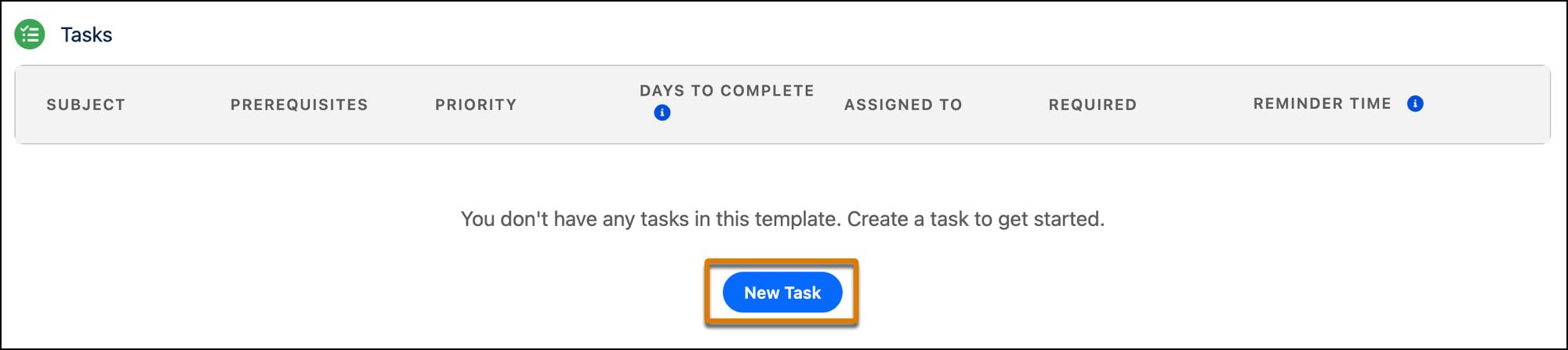
- In the Tasks list, select New Task.
- Specify these details in the Task Details section.
- Subject:
Review customer metrics from the past 12 months - Priority: High
- Days:
5 - Select Required
- Subject:
- In Task Assignment, select Action Plan Creator
- Select Send a reminder to the task assignee on the due date and leave the time as 8:00 AM.
- Save your work.
This task is the basis for the rest of the annual customer check-in, so it’s the prerequisite for the next task. Create that task now.
- In the Tasks list, select New Task.
- Specify these details in the Task Details section.
- Subject:
Present annual report and new agreement to customer stakeholders - Priority: High
- Days:
10 - Select Required
- Subject:
- In the Task Dependencies section, select Review customer metrics from the past 12 months from the Available Tasks list and select
 to move the task to Selected Tasks.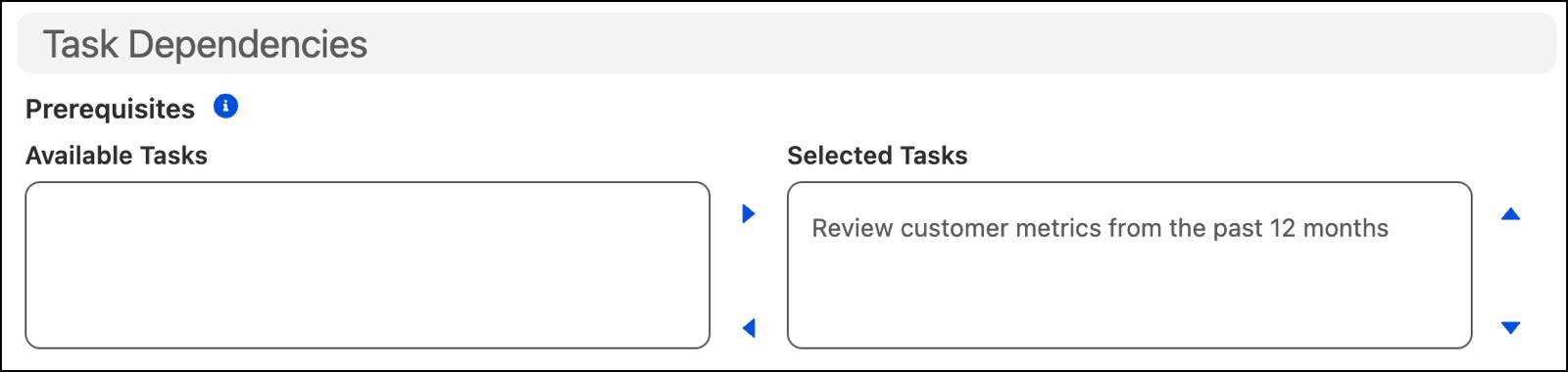
- In Task Assignment, select Action Plan Creator.
- Select Send a reminder to the task assignee on the due date and leave the time at 8:00 AM.
- Save your work.
Finally, create one more task. The example check-in includes a new customer agreement that must be signed and uploaded to Salesforce. Set the presentation task as a prerequisite for this task.
- In the Tasks list, select New Task.
- Specify these details in the Task Details section.
- Subject:
Upload new signed customer agreement - Priority: High
- Days:
5 - Select Required
- Subject:
- In the Task Dependencies section, select Present annual report and new agreement to customer stakeholders from the Available Tasks list and select
 to move the task to Selected Tasks.
- In Task Assignment, select Action Plan Creator.
- Select Send a reminder to the task assignee on the due date and leave the time as 8:00 AM.
- Save your work.
These three tasks cover the basics of the scenario.

Later in this badge, you experience how they work together, when you mark a prerequisite task complete to trigger the creation of each dependent task.
What’s Next?
In this unit, you created an action plan template and three tasks. One thing missing from your template is tracking the required document.
In the next unit, you add a document checklist item to the action plan template and then publish the template to use it to create action plans.