Test Usage Selling and Assetization
Learning Objectives
After completing this unit, you’ll be able to:
- Explain the purpose of Rating Discovery Procedures.
- Add a consumption-based product to a quote.
- Review usage pricing on the quote line item.
- Validate the assets created for usage products.
Rating Discovery Procedures
Before testing usage pricing on a quote, first understand how rating discovery procedures fetch and calculate prices during the quoting process.
A rating discovery procedure is essentially the lookup engine for usage-based pricing in Agentforce Revenue Management. Its primary role is to run silently in the background during quoting and find every single pricing rule associated with a consumption-based product. The system uses this procedure to determine what to charge the customer. Think of it as the mechanism that connects the product being sold on the quote to the specific pricing rules you defined in Rate Management.
When a sales rep adds a consumption-based product to a quote, the rating discovery procedure instantly runs and performs these actions.
-
Gather the Data Sources: The rating discovery procedure searches and retrieves all related pricing components that apply to the product and its associated usage resources. This information includes Rate Cards, Rate Card Entries, and Rate Adjustments by Tiers.
-
Populate the Context Definition: The system then writes the collected rate information into a context definition, which provides a structured repository of all applicable pricing factors. Next, the rating engine uses this information to calculate the final price and provide transparency into the applicable tiers and adjustments.
Rating discovery procedures collect all the data needed for usage pricing by using specific elements as seen here.
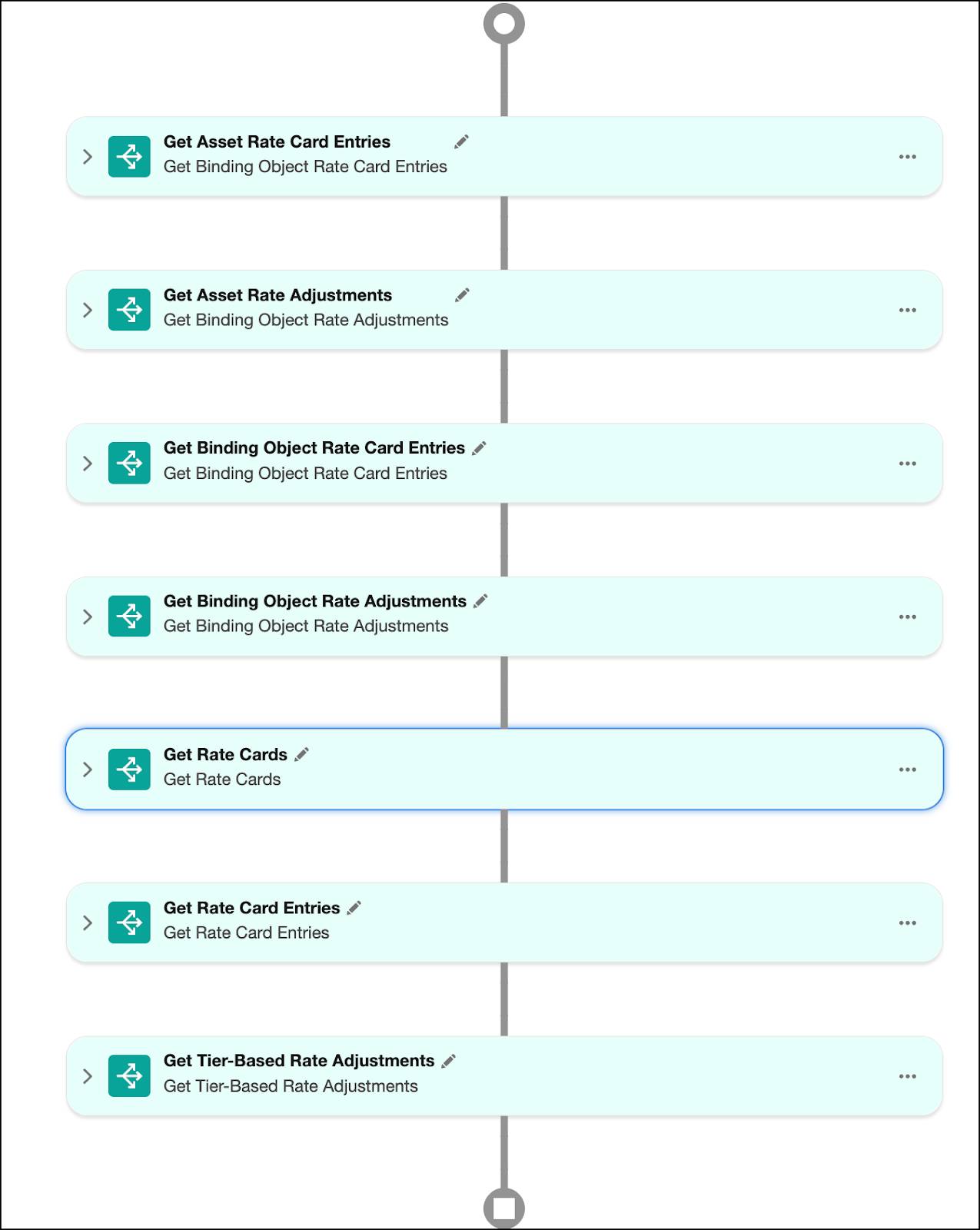
To know more about each element, refer to Elements in a Rating Discovery Procedure. By combining these elements, rating discovery procedures ensure that sales reps have the complete, accurate, and dynamic data needed for even the most complex price calculations.
Your Developer Edition org already includes a Default Rating Discovery Procedure. Before proceeding, make sure this procedure is selected in Revenue Settings for usage pricing to work on a quote.
- From Setup, in the Quick Find box, find and select Revenue Settings.
- Under Set Up Usage Rating, make sure the Usage Rating Procedure is set to Default Rating Discovery Procedure.

With the correct rating discovery procedure in place, you are all set to test usage pricing on a quote.
Test Usage Selling
In Agentforce Revenue Management, usage selling acts as the critical link, transforming the customer's agreement on the quote into a functional order, ensuring accurate usage tracking and future invoicing. It helps sales reps to:
- Discover and select consumption-based products easily.
- View product rate cards specific to usage resources.
- Modify base rates and override tiered rates directly on a quote or an order.
In this section, Usage Admin Liam Hoko plans to add the Cell Phone Plan product to a quote and validate the usage pricing configured in the previous units. Follow along in your Developer Edition org.
- From the App Launcher, find and select Quotes.
- Click New Quote.
- Add these details.
- Quote Name:
Usage Product Selling - Start Date: Today’s date.
- Account for Quote: EdgeMX
- Save your changes.
- From the newly created quote page, click Browse Catalogs.
- In the Choose Price Book window, make sure Standard Price Book is selected, and save your work.
- In the All Catalogs list, select Service Catalog, and click Next.
- From the products list, select Cell Phone Plan, and click Add.
- Click Save Quote.
- From the Cell Phone Plan line item, click
 , and then select Manage Usage Resources. If you don’t see the action menu scroll to the side.

- On the Manage Usage Resources page, review the three usage resources and their grant quantities. Also, check the Applicable Rate for overage pricing for these usage resources. These rates are pulled directly from your Base Rate Card.

- To verify the tiered pricing you set up, click Text Messages. This opens a side panel with all the associated usage information, including grants, rates and resource policy details.
- Click Rates.

The Rates section shows the tiered rates you defined for Text Messages. Review these details to verify they match the configuration you set up in the previous units.
Update Rates
With Usage Management, modify base rates and tiered pricing directly within the quote. Use this flexibility to meet customer-specific pricing needs without altering your primary rate cards.
Say, an InfinitraBytes sales rep decides to offer a valued customer additional discounts on the overage pricing for the Cell Phone Plan product. The rep makes these specific adjustments.
- Lowers the Base Rate for Calls from $1.00 to $0.75
- Updates the adjustment value of the third consumption tier in Text Messages from a flat override of $0.30 to $0.25, as shown here.
Usage Resources
Lower Bound
Upper Bound
Adjustment Type
Adjustment Value
Text Messages
0
500
Percentage
1.1
Text Messages
500
1000
Percentage
1.2
Text Messages
1000
Override
0.25
Follow along using your Developer Edition org to implement these changes.
- On the Manage Usage Resources page, in the Applicable Rate field for Call, click
 .
.

- Update the rate to
0.75
- In the Usage Resources table, click Text Messages. A side panel opens.
- Click Rates.
- For Tier 3, click
 in the Adjustment Value field.

- Update the value to
0.25
- Save your changes. This takes you back to the quote page.
- From the Cell Phone Plan line item, click
 , and select Manage Usage Resources.
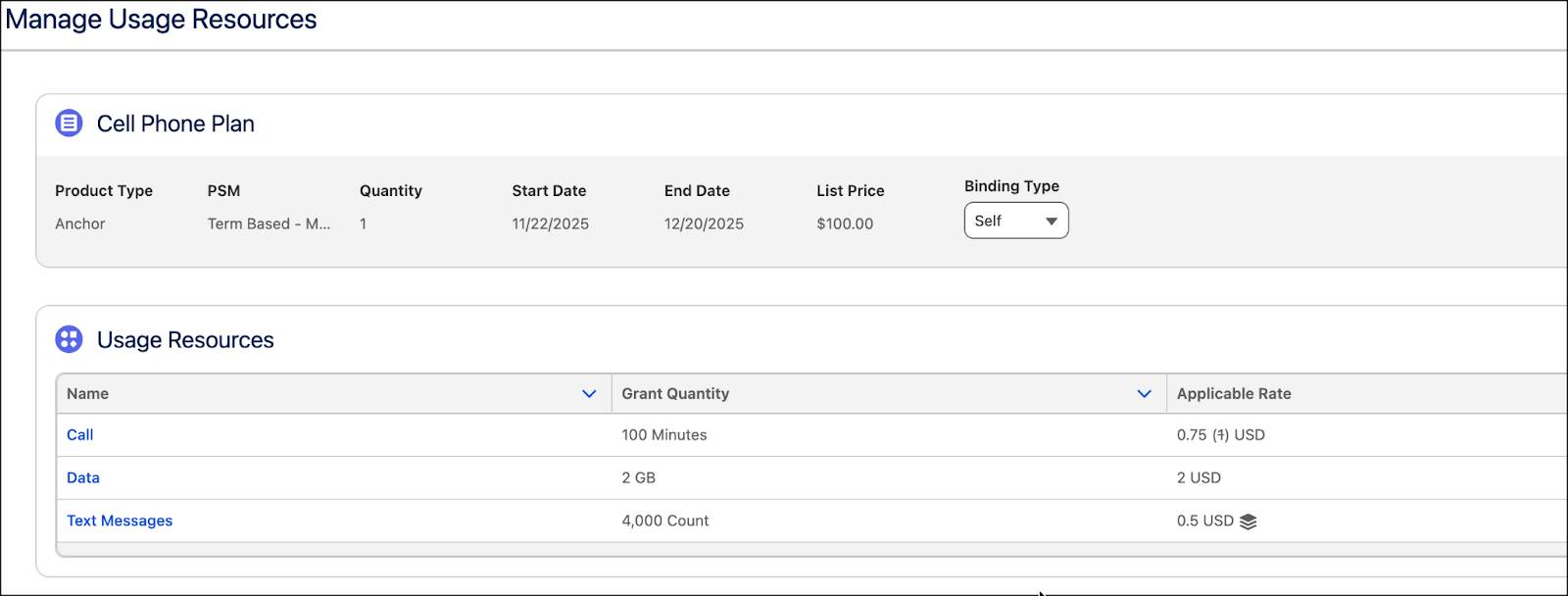
Verify both your changes. The Call resource now displays the updated base rate alongside the struck-through original, confirming how easily you can modify overage pricing on a quote.
Finalize the Order and View Assets
The final stage of the usage selling process is to create and activate the order, which triggers Assetization. Assetization converts the agreed-upon quote terms into tangible Asset records on the customer's account.
Follow along to create the order and view assets.
Create Order
- On the Usage Product Selling quote page, select Accepted from the approval flow.
- Then, click Mark as Current Status.

- In the quote header, click
 , and select Create Order.
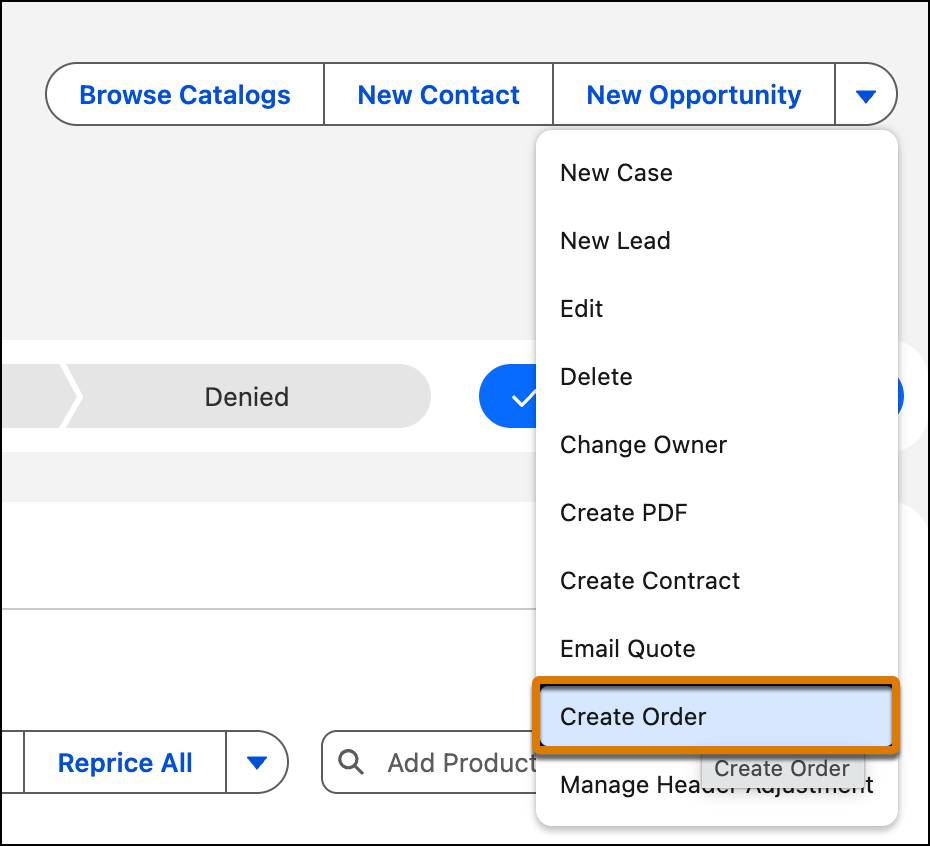
- In the Create Order window, select Create Single Order.
- Click Finish. Hold on! Your order is being generated and will be ready shortly.
- Navigate to the Related tab.
- Under Orders, select the newly created order number.
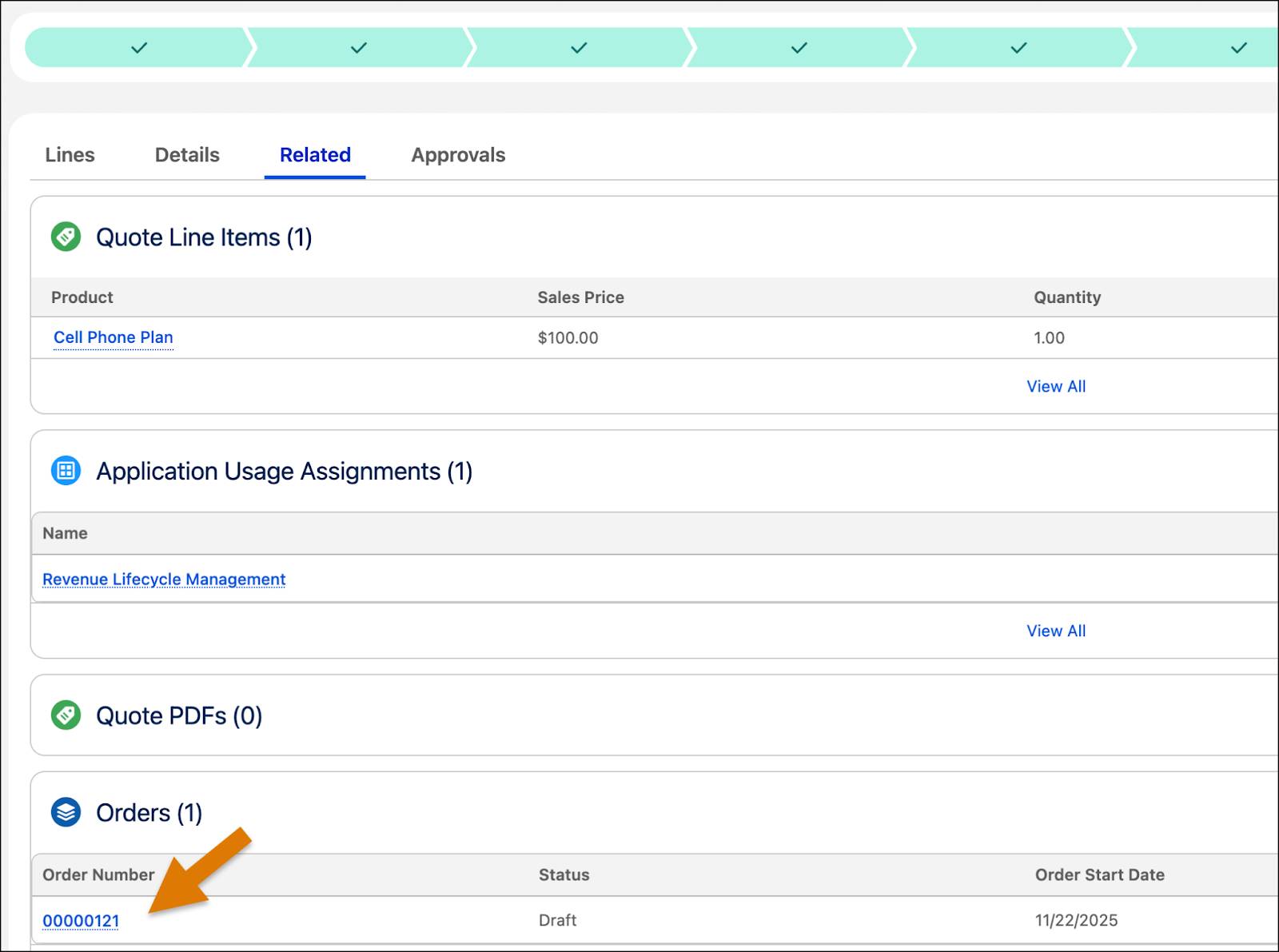
- On the order page, navigate to the Details tab.
- For Billing Address, Shipping Address and Bill To Contact fields, click
 , and add these details.
- Billing Street:
312 Constitution Place, Austin, TX 78767, USA
- Billing City:
Austin - Billing State/Province:
TX - Shipping Street:
312 Constitution Place, Austin, TX 78767, USA
- Shipping City:
Austin - Shipping State/Province:
TX - Bill To Contact: Sean Forbes
- Save your changes.
- In the order approval flow, select Activated.
- Click Mark as Current Status.
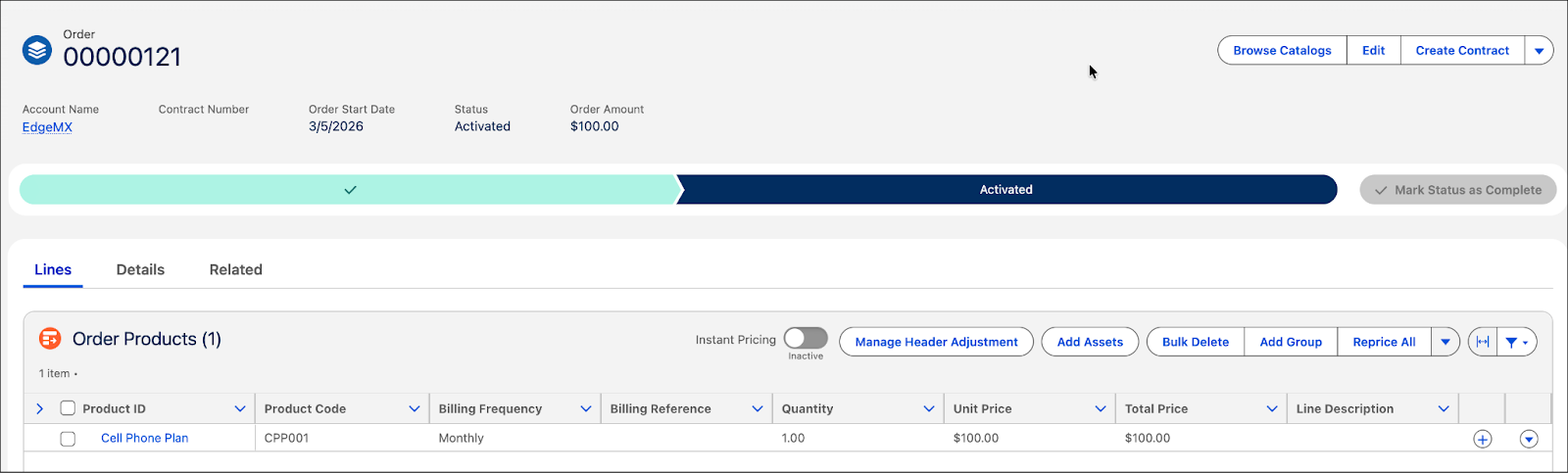
Your order is successfully submitted.
Validate the Assets
With the order now in place, it's time to review and validate the usage assets associated with the account.
- On the newly created order page, under Account Name, click EdgeMX.
- On the EdgeMX account page, make sure you’re viewing the Related tab.
- Scroll to the Assets section and click Cell Phone Plan.
- Navigate to the Usage Rates tab.
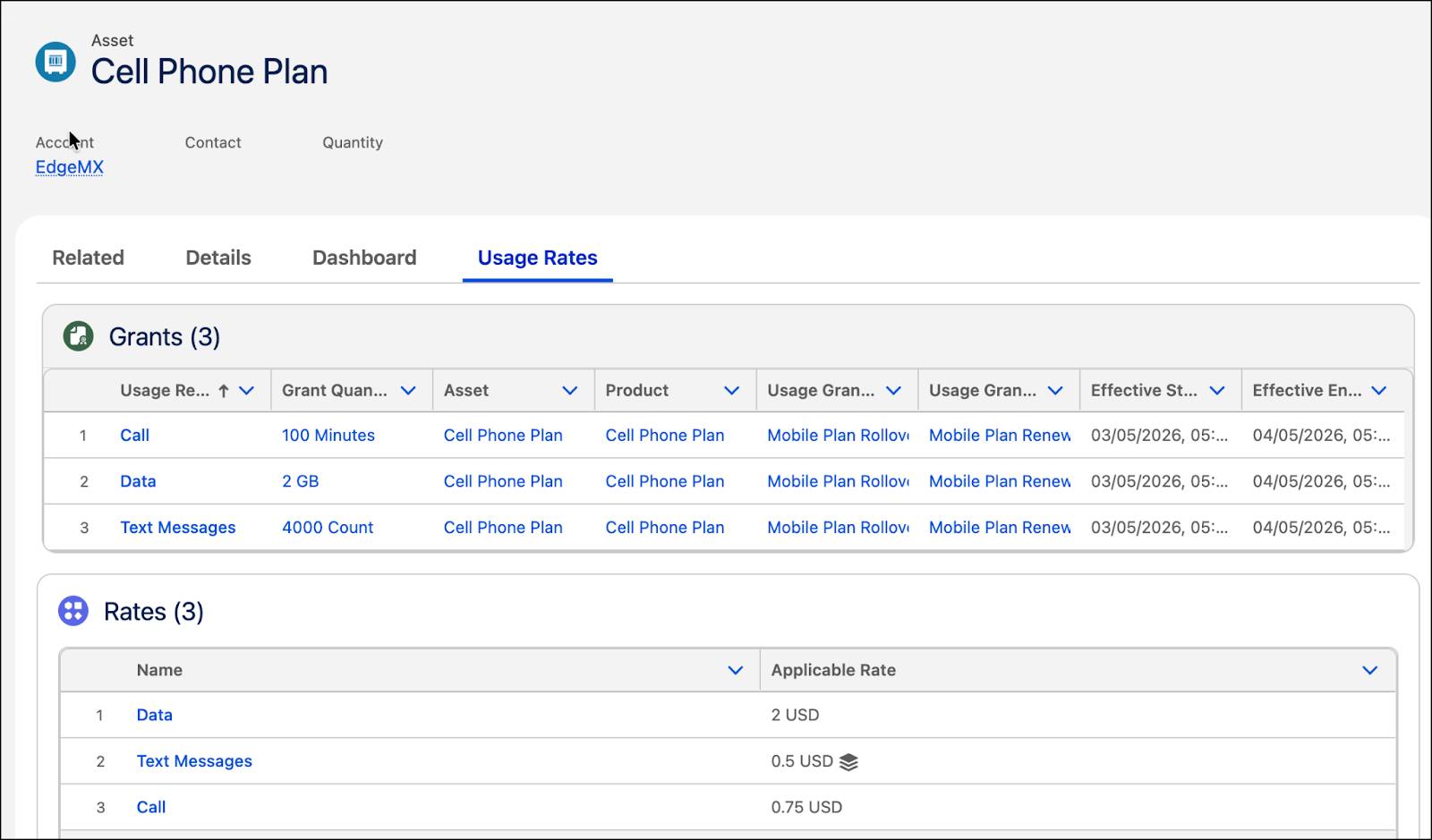
The Cell Phone Plan product is now available as an asset on the EdgeMX account page. You can also view its usage resources, grants, and the associated base and tier rates. This is also proof that your order was processed successfully.
Wrap Up
After successfully configuring and testing the Cell Phone Plan product, Liam has mastered the foundational capabilities of Usage Management. InfinitraBytes is now ready to accurately sell and bill its new consumption-based offerings.
Nice work! You now have the skills to define usage resources, manage rates, and create accurate quotes for consumption-based products, laying the groundwork for flexible and efficient revenue operations. You’re ready to confidently handle consumption-based pricing scenarios for your business.