Send API Calls
Learning Objectives
After completing this unit, you’ll be able to:
- Set up a workspace.
- Import data into Postman.
- Send and retrieve data from an API.
- Update parameters and request methods.
- Inspect API responses.
- Generate code to replicate the API call.
Set Up a Public Workspace
You can set up workspaces to organize your work in Postman, at various levels of privacy. Personal workspaces are visible only to you. Team workspaces can be used to collaborate with others on a project.
For this module, set up a public workspace, which enables you to collaborate with anyone around the world.
- At the top of the Home page, select Workspaces.
- Click the Create Workspace button to create a blank workspace.
- Give your workspace a name. In this example, it’s My First Workspace.
- Set visibility to Public. Ensure your public profile is also enabled. Doing this allows everyone to view your workspace. This is useful if you’re asking for validation on a project, for example. If you are part of a team, your public workspace displays under your team profile.
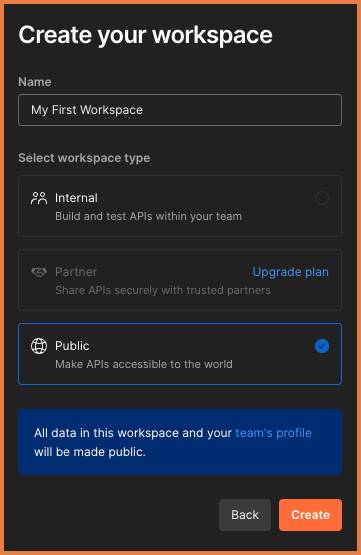
- Then click Create.
Import Data into Postman
In this unit, let’s use Postman as an API client to send and retrieve data from NASA. You can manually build an API call in Postman. But for this module, let’s import some data.
- At the top of your workspace navigation, click the New button.
- Select HTTP to open a new tab to build your first API request.
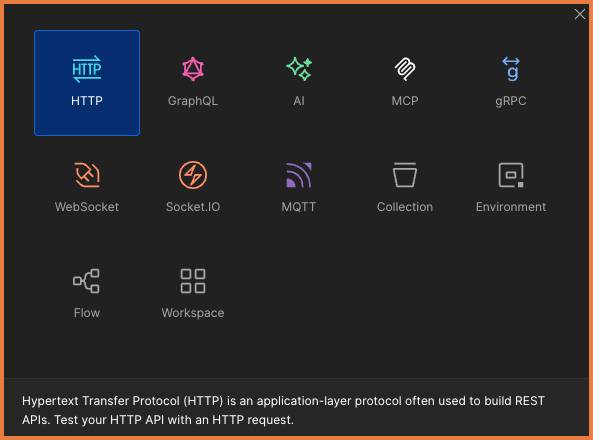
- Copy and paste the following cURL command into the URL field, where the placeholder text reads “Enter URL or describe the request to Postbot”,
curl --location --request GET 'https://api.nasa.gov/planetary/apod?api_key=DEMO_KEY' - Notice how Postman instantaneously transforms this cURL command into an API request.
You can also import data of different formats from different channels into Postman using the Import button at the top.
Navigate the API Client
Now that you’ve imported a request into your Postman workspace, take a look at the various parts, including your HTTP method and request, as well as query parameters.
- Click the Send button and inspect the response received from the server. In one place, you’ll find the response Body (1), Headers (2), Status (3), Time (4), and Size (5).
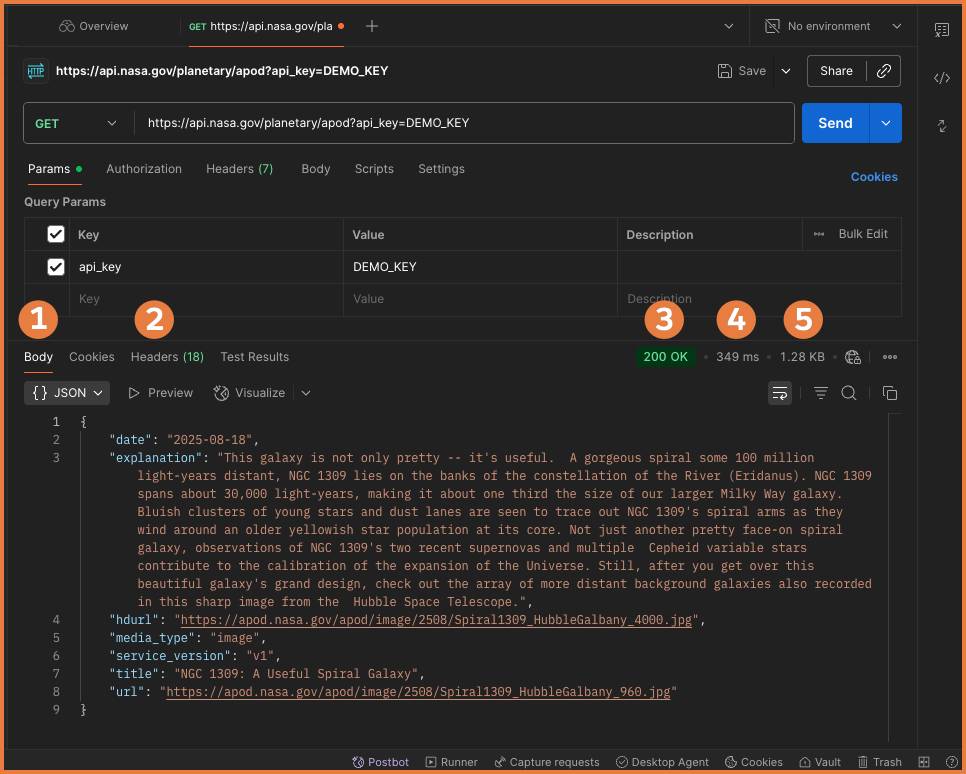
Let’s update your parameters.
- Ensure you are in the Params tab.
- Add another query parameter
- KEY:
date - VALUE:
2025-02-20
- Click Send.
- Inspect the response received from the server. You see that the image comes from February 20 as you’ve set out in the parameters.
Review the NASA Astronomy Picture of the Day API documentation to see what other parameters are supported by the API.
Generate Code
Once your API call is working the way you want it, you can generate code to copy and paste into your own client codebase. The code snippet generated by Postman allows you to make the same API call in the language of your choice, including C#, JavaScript, and Python.
- In the context bar on the right, click Code
 .
.
- In the dropdown, select a programming language and framework like JavaScript - Fetch.
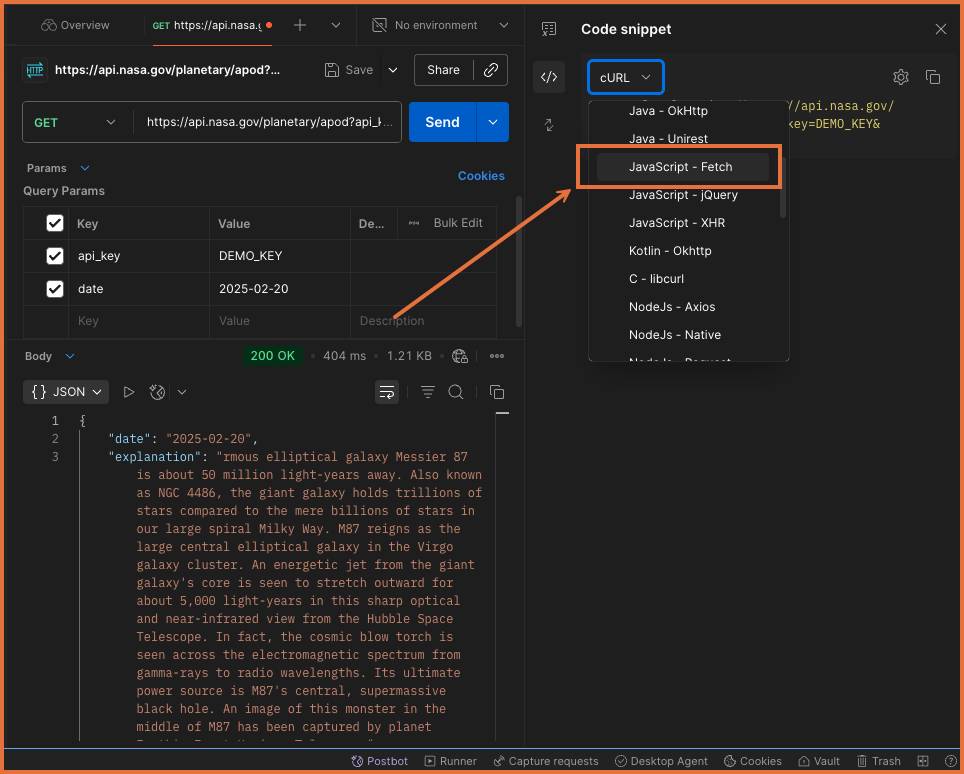
The code is automatically generated.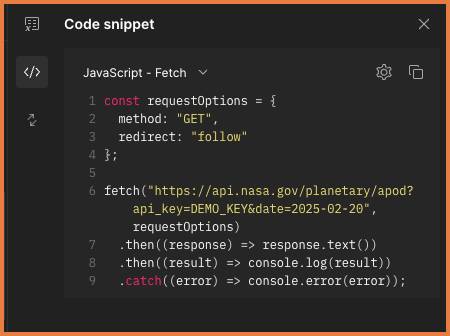
If the generated code isn’t formatted the way you like, additional settings can be tweaked under  . You can also make inline edits to the code snippet. When you’re ready, this is code that can be copied and pasted into your own applications.
In the next unit, let’s test in Postman to assert what we’re getting back from the server is what we expect.
Resources
- Postman Docs: Public workspaces
- Postman Docs: Importing and exporting data
- Postman Docs: Building requests
- Postman Docs: Generating client code