Execute Server-Side Processes with Integration Procedures
Learning Objectives
In this badge, you’ll:
- Build and configure an Integration Procedure to retrieve and update data.
- Create and configure an Integration Procedure to get data from an external source.
Before You Start
Before you complete any steps in this badge, make sure you complete the hands-on checks and hands-on challenges (HOCs) in Order and Country Data Management with Omnistudio Data Mappers using the same Omnistudio Developer Edition org. The work you do in the HOCs here builds on the work you complete in that badge.
Badge Series Recap
By completing the Data Mappers prerequisite badge, you took the first steps to configure a custom dashboard-style order record page layout for customer service reps. Remember that you are working to build Flexcards to give reps a 360-degree view of customer order details. You’ll also configure an Omniscript in the Flexcard for the rep to update the shipping details of an order.
In the previous badge, you created these data mappers to extract, transform, and load data.
-
DMExtractOrderDetails: A Data Mapper Extract that fetches order information.
-
DMTransformOrderAndCountryData: A Data Mapper Transform that restructures and maps order and country data to a format that can be used by other components.
-
DMLUpdateOrderDetails: A Data Mapper Load that updates shipping address information on an order.
In this badge, you create Integration Procedures that use these Data Mappers to process and manipulate order data. You also use an HTTP action to fetch country data from an external source.
Later in this badge series, you invoke these Integration Procedures in Flexcards to show the order and country data. You also use Integration Procedures in an Omniscript to update the shipping details and show the updated country details. These Integration Procedures will in turn call the data mappers that execute the data operations in the Order object.
Note that you use the same Omnistudio Developer Edition org across all the badges in the series, with each subsequent badge building on the last one.
Get Started with Integration Procedures
You create two Integration Procedures in this badge: Process Customer Order and Fetch External Country Details.
Before you create them, let’s get familiar with how they work. Here’s the structure of the Process Customer Order Integration Procedure. It has six action elements that are configured in a sequence: Data Mapper Extract Action, HTTP Action, Data Mapper Transform Action, Response Action, Data Mapper Post Action, and Response Action.
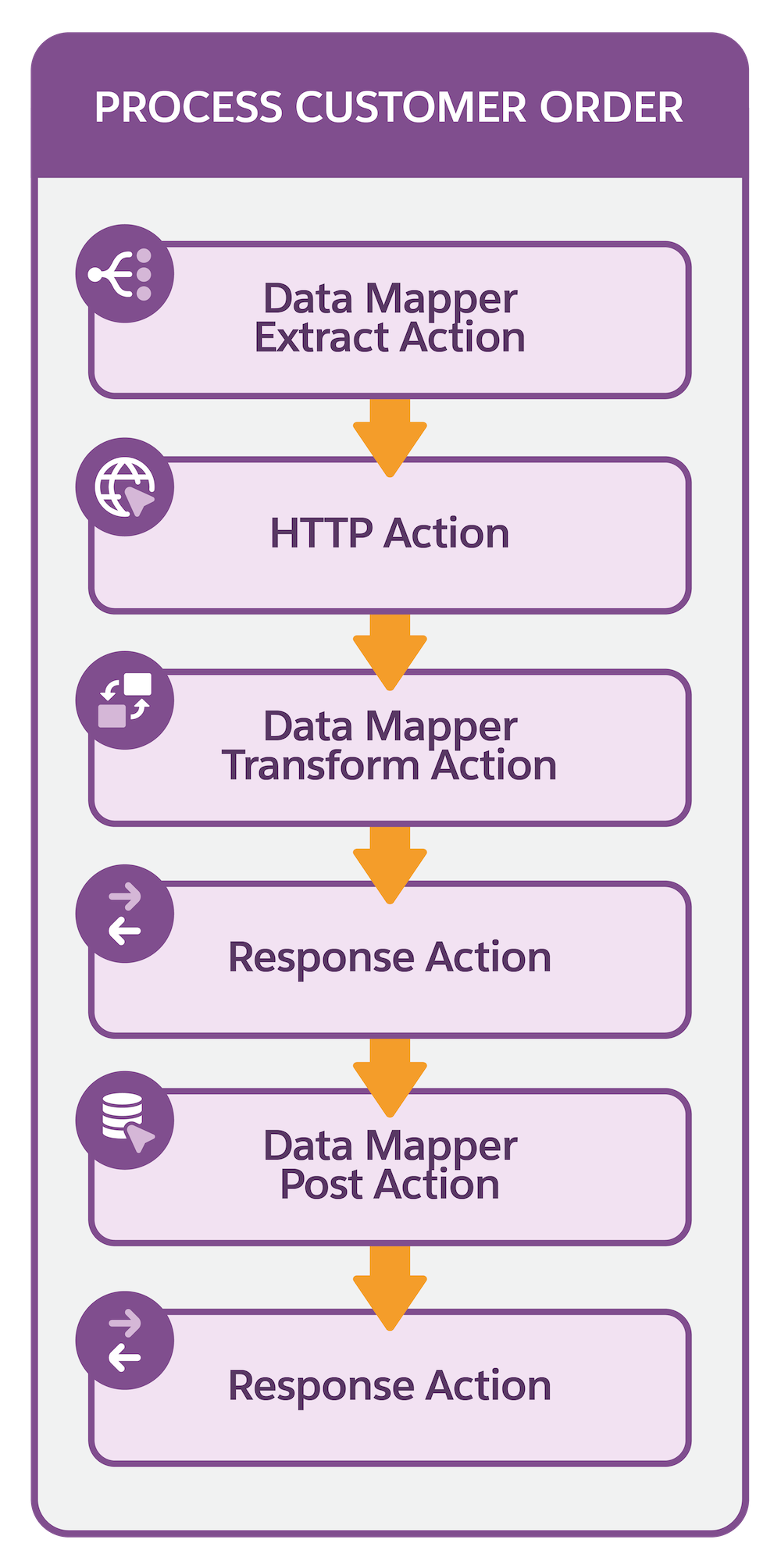
The Process Customer Order Integration Procedure uses conditions to divide the process into two workflows—fetch and update.
The fetch workflow retrieves the order details from the Order object and country details from an external website. It then passes this data to Flexcards to display the information.
The update workflow runs when you open the Omniscript from the action button in the Customer Order Information Flexcard. The workflow updates the shipping details in the Order object based on user input provided through the Omniscript guided process.
Here’s the structure of the Fetch External Country Details Integration Procedure. It has four action elements that are configured in a sequence: Data Mapper Extract Action, HTTP Action, Data Mapper Transform Action, and Response Action.

The Fetch External Country Details Integration Procedure fetches the updated country details and provides it to the Omniscript. The Omniscript uses this Integration Procedure to show the updated country information on a confirmation page.
You build the Omniscript and Flexcards in the next two badges of the badge series.
Create an Integration Procedure to Retrieve and Update Data
Let’s create the Process Customer Order Integration Procedure to fetch data and serve it to the Flexcards.
- Click
 , then find and select Integration Procedures.
- Click New.
- On the New Integration Procedure window, enter these details.
- Integration Procedure Name:
Process Customer Order
- Type:
Order
- Sub Type:
ProcessOrder
- Integration Procedure Name:
- Click Save.

The Integration Procedure opens in the Integration Procedure Designer in a new tab. In the next section, you configure this Integration Procedure to update order shipping details.
Before you move on, note the Type and Sub Type names when you create an Integration Procedure. When you configure an Integration Procedure in a Flexcard or Omniscript designer, it appears with the Type_SubType name format. For example, the Process Customer Order Integration Procedure shows up as Order_ProcessOrder in the Integration Procedure selection field.
Add Data Mapper Extract Action to Fetch Order Data
Add elements to configure your Integration Procedure structure. Start with the extract action element to fetch order data.
- In the Integration Procedure designer, click
 , then find and select Data Mapper Extract.
- A data mapper extract action element is added to the canvas and a panel appears on the canvas where you can edit the details of the element.
If you don’t see the panel or closed it accidentally, click on the element and then Details to open the edit panel.
- Enter these details in the DataMapperExtract panel.
- Element Name:
DMGetOrder
- Data Mapper Name: DMExtractOrderDetails.
- Execution Conditional Formula:
%actionType% == 'fetch'
- Element Name:
- Click
 to close the panel.
- Save your work.
Your Data Mapper Extract Action element is ready.
Add HTTP Action to Fetch External Data
Next, add and configure an HTTP action element to fetch the external country data.
- In the Integration Procedure designer, click
 after the Data Mapper Extract Action, then find and select HTTP.
- Enter these details in the HTTP Action panel.
- Element Name:
HTTPGetExternalCountryDetails
- Request URL:
https://th-hoc-earthnations-e1403d711d73.herokuapp.com/name/%DMGetOrder:OrderOutput11%OrderOutput11 is the ShippingCountryNoSpace custom field data coming from the DMExtractOrderDetails data mapper.
- HTTP Method:
GET
- Execution Conditional Formula:
%actionType% == 'fetch'
- Element Name:
- Click
 to close the panel.
- Save your work.
Your HTTP action element is ready.
Add Data Mapper Transform Action to Structure Data
To restructure and format the order and country data, add and configure a data mapper transform action element.
- In the Integration Procedure designer, click
 after the HTTP Action, then find and select Data Mapper Transform.
- Enter these details in the Data Mapper Transform Action panel.
- Element Name:
DMTProcessOrderAndCountryDetails
- Data Mapper Name: DMTransformOrderAndCountryData
- Execution Conditional Formula:
%actionType% == 'fetch'
- Element Name:
- Under the ‘Additional Input, Additional Output, and Failure Response’ section, for Additional Input, click + Add Key Value Pair.
- Enter these details.
- Key:
Input
- Value:
%HTTPGetExternalCountryDetails%
- Key:
- Click
 to close the panel.
- Save your work.
Your Data Mapper Transform Action element is ready.
Add Response Action for Fetch Process
A response action ends the current flow sequence and sends the data back to the calling component. Let’s add one.
- In the Integration Procedure designer, click
 after the Data Mapper Transform Action, then find and select Response.
- Enter these details in the Response panel.
- Element Name:
ResponseInitialData
- Execution Conditional Formula:
%actionType% == 'fetch'
- Element Name:
- Under the Send and Response Transformations section, for Send JSON Path, enter
DMTProcessOrderAndCountryDetails.
- Click
 to close the panel.
- Save your work.
The fetch condition workflow ends here.
What's Next
In this unit, you learned how to build and configure an Integration Procedure to fetch order and country data. In the next unit, you add the update workflow condition steps to the Process Customer Order Integration Procedure.