Create Job Shifts and Assign Volunteers
Learning Objectives
After completing this unit, you’ll be able to:
- Create volunteer shifts.
- Assign volunteers to shifts.
- Reconcile volunteer hours when the event is over.
Create Shifts
So far, we’ve created the first two levels of our volunteer record structure:
- Our campaign, the top level of the structure. For our (fictional) nonprofit No More Homelessness (NMH), that’s the Welcome Home event.
- Volunteer jobs, the second level of the structure. In our example, those were for the setup crew, wait staff, bartenders, and cleanup crew.
The last thing to do is create the structure’s third level: the volunteer shifts.
Volunteer shifts are the dates and times that your volunteers are needed. Here are the shifts for NMH's Welcome Home event.
Job |
Shifts |
Number of Volunteers |
|---|---|---|
Setup Crew |
4–6 p.m. |
2 |
Wait Staff |
6–8 p.m. and 8–10 p.m. |
2 for each shift |
Bartenders |
6–8 p.m. and 8–10 p.m. |
1 for each shift |
Cleanup Crew |
10 p.m.–12 a.m. |
2 |
In Volunteers for Salesforce (V4S), shifts are found within their associated volunteer job records, so let’s open a job record to create our first shift.
- From the Campaign record, click the Related tab to see the Volunteer Jobs related list.
- Click Welcome Home - Setup Crew in the related list.

- Click the Related tab on the volunteer job record.
- Click New on the Volunteer Shifts related list.

- Fill out the required fields. You can use Volunteer Coordinator Enoch’s choices if you’re following along.
- Start Date & Time: 4:00 p.m. on the day of the event
- Duration (Hours):
2.00 - Desired # of Volunteers:
2. This value determines the number of people who can sign up for this shift on your website and rolls up to the volunteer job and campaign records.
- Click Save.
The setup crew volunteer shift appears in the Volunteer Shifts related list on the volunteer job record. Click it to check out the shift details.

We’ve created our first shift! Now let’s create the rest of the shifts for our event.
Create More Shifts
We’ll create each of the two wait staff shifts (6–8 p.m. and 8–10 p.m.) separately.
This time, instead of finding the volunteer jobs on the campaign detail page, let’s find them on the Volunteer Jobs tab. Either route is available to you for navigating to the jobs.
- Click the Volunteer Jobs tab in the Volunteers app. The jobs you created are listed in the Recent Volunteer Jobs list view.
- Click the Wait Staff volunteer job.
- Click the Related tab.
- Click New in the Volunteer Shifts related list.
- Fill out the required fields. Here’s Enoch’s information.
- Start Date & Time: 6:00 p.m. on the day of the event
- Duration (Hours):
2.00 - Desired # of Volunteers:
2
- Click Save.
Now, for the second shift from 8–10 p.m., we’ll clone the volunteer shift just like we did for the volunteer jobs.
- Click the volunteer shift record you just created in the related list on the volunteer job record.
- Click the menu arrow (
 ) in the Quick Actions bar and click Clone.
- Change Start Date & Time to 8:00 p.m. on the day of the event.
- Click Save.
To see the shifts you created, go back to the wait staff volunteer job and click the Related tab.
Nice work! Enoch follows the same process to create two bartender shifts and one cleanup crew shift.
Confirm Your Shifts on the Shift Calendar
After we create all of the shifts for the Welcome Home event, we can review them on the shift calendar in the Volunteers app. The calendar is a handy way to see all of your volunteer shifts in one place. Let’s check it out.
- In the Volunteers app, click the Shift Calendar tab.
- Use the arrow buttons to scroll to the month for the shifts you created.
- Click the day button to get a closer view of the shifts.

- Hover over the different shifts to see the number of confirmed volunteers and the number of volunteer positions still available. Because we just set up these volunteer shifts, the confirmed volunteers are all 0.
Congratulations! You created records to track your fundraising event, volunteer jobs, and shifts. Now it’s time to find volunteers.
Assign Volunteers to Shifts
You can use V4S to advertise jobs and shifts on your website so that volunteers can sign up by themselves. We cover how to do that in the Website Integration for Volunteer Management in V4S module. For now, let’s look at how to enter volunteers manually.
When you assign a volunteer to a shift, Salesforce creates a volunteer hours record related to the volunteer shift and contact records. You can use the volunteer hours record to track a volunteer’s time, including whether the volunteer actually showed up—rather important information.
NMH has such an amazing group of volunteers that shifts tend to fill up immediately. Before NMH even announces the Welcome Home event on the website, it already has the following volunteers:
- Setup crew: Peter Delauranti and Tiffany Chan
- Wait staff: Jan O’Toole, Chris O’Toole, Mario Gonzales, and Dylan Fernandez
- Bartenders: Claire Henry and Mitch Krohn
- Cleanup crew: Shin Shin Hsia and Nathan Booker
Now we need to assign these wonderful volunteers to shifts with volunteer hour records. Let’s use the Mass Edit Volunteer Hours functionality to sign these people up. If you’re following along with Enoch, you can use his volunteers’ names or enter volunteers from your own organization.

- On the Shift Calendar, click the Setup Crew volunteer shift.
- On the Setup Crew volunteer shift record, click the Related tab.
- Click Mass Edit Volunteer Hours in the Volunteer Hours related list.

- You’re now on the Mass Edit Volunteer Hours page. Let’s enter our setup crew. In the first row of the contact column, enter the name
Peter Delauranti. You can also click the search icon to look for Peter or any other contact. Remember, if you don’t already have contact records for your volunteers, create them first.
- Change Peter’s status to Confirmed. NMH uses the Confirmed status for anyone who signs up to volunteer. After the person has completed volunteering, NMH changes the status to Completed.
- In the next row, enter—or find and select—the name
Tiffany Chan.
- Change Tiffany’s status to Confirmed.
- Click Save. Remember to click Save each time you finish your edits.

Our setup crew is assigned! Now it’s time to enter the wait staff. Mass Edit Volunteer Hours can also help you assign hours for different shifts without leaving the window. Let’s check it out.
- From the Volunteer Job dropdown list, select the Wait Staff job.
- From the Volunteer Shift dropdown list, select the 6:00 p.m. shift.

- In the first row of the contact column, enter—or find and select—the name
Jan O’Toole.
- Change Jan’s status to Confirmed.
- In the second row of the contact column, enter—or find and select—the name
Chris O’Toole.
- Change Chris’s status to Confirmed.
- Click Save.
- From the Volunteer Shift dropdown list, select the 8:00 p.m. shift.
- Repeat these steps to add
Mario GonzalesandDylan Fernandezas volunteers for that shift with a status of Confirmed.
- Click Save when you’re finished.
Now assign the bartenders (Claire Henry and Mitch Krohn) and the cleanup crew (Shin Shin Hsia and Nathan Booker). Use everything you’ve learned so far about Mass Edit Volunteer Hours to select the appropriate jobs and shifts from the dropdown menus. Remember to click Save when you’ve finished entering volunteers for a shift.
The volunteers are in. Now we can host the Welcome Home gala!
Reconcile Volunteer Hours
Let’s fast forward. The event is over and it was wildly successful. The guests had a great time, and NMH raised tons of money.

Now Enoch needs to reconcile the hours volunteers worked so that he has an accurate record of their efforts.
Follow along using Enoch’s info or enter your own data. Once again, let’s use V4S’s helpful Mass Edit Volunteer Hours functionality.
- In the Volunteers app, click the Shift Calendar tab.
- Click the Setup Crew shift. The Setup Crew Volunteer Shift Detail page opens.
- Click the Related tab.
- Click Mass Edit Volunteer Hours.
- Make adjustments to hours actually worked. For example, if a volunteer worked
2.25hours instead of2.00—like our friend Peter Delauranti did in this example—make that change.
- Change the status of the volunteers who showed up to Completed.

- Click Save.
Repeat the process for the other volunteer jobs and shifts. Click Save as you update each.
And We’re Done!
Before you log out, let’s check out the campaign to review all of the awesome volunteer hours associated with the big event.
- In the Volunteers app, click the Campaign tab.
- Select your campaign from the Recent Campaigns list. Enoch chooses the Welcome Home Gala record.
- Click the Details tab and scroll to the Volunteers section to check out the roll-up of volunteer jobs, shifts, and completed hours for the whole campaign.

- Click the Related tab.
- In the Volunteer Jobs related list, click View All to review the number of completed hours per job.

- To see details about a particular job, click that job. The record includes the number of shifts, number of volunteers, and number of completed hours.
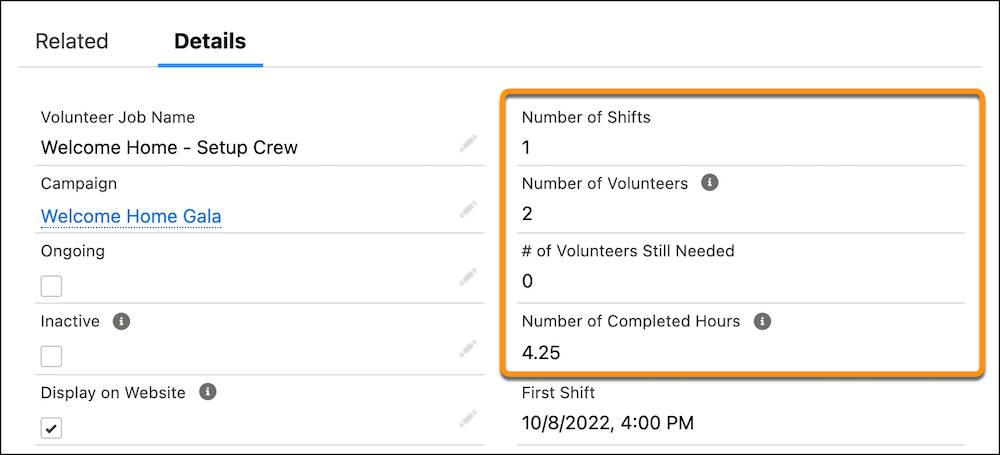
Now that you understand the basics of managing V4S campaigns, volunteer jobs, volunteer shifts, and volunteer hours for a one-time event, let’s explore another way the app can help you: managing recurring volunteer events.
We’ll do that in the next unit.
Resources
- Salesforce Help: Create Job Shifts
- Salesforce Help: Track and Identify Your Volunteers
- Salesforce Help: Manage, Track, and Assign Volunteers
- Trailhead: Website Integration for Volunteer Management with V4S