Find the Right Volunteers
Learning Objectives
After completing this unit, you’ll be able to:
- Search for volunteers with specific skills.
- Assign a volunteer to a shift.
- Verify a volunteer is signed up for a shift.
Search for Volunteers
Our (fictional) nonprofit No More Homelessness (NMH) has a problem: The volunteer who regularly cooks at its Bullard House short-term housing facility will be out sick for their next weekday shift.
NMH’s volunteer coordinator, Enoch, knows he has other volunteers with cooking skills, but he can’t remember who they all are or which are available for weekday mornings.
Time to use the volunteer search capabilities of Volunteers for Salesforce (V4S)!
(If you haven’t entered volunteer skills and availability data for any contacts, do that now so you can follow along with Enoch’s search.)
- In the Volunteers app, click the Find Volunteers tab.
- Notice that you can search using the volunteer-specific custom fields: Volunteer Status, Volunteer Availability, and Volunteer Skills. Select your search criteria. Enoch searches for volunteers with these criteria:
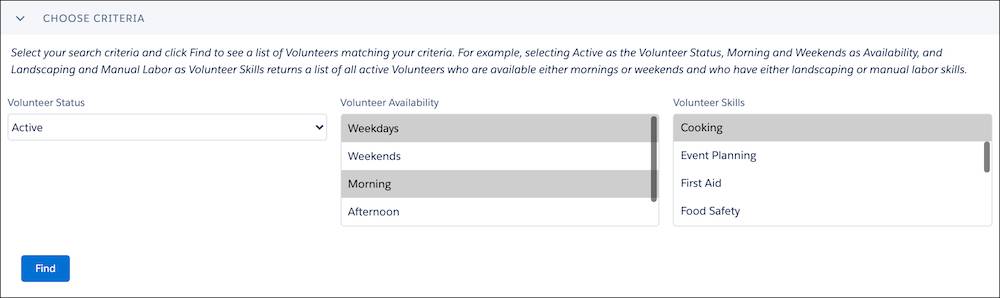
- Volunteer Status: Active
- Volunteer Availability: Weekdays, Morning
- Volunteer Skills: Cooking
- Click Find to see a list of matching contacts. Enoch sees contacts who cook and are available on weekday mornings. Hurray for our friend, Peter Delauranti!


Assign a Volunteer from the Search Results Page
Now that Enoch has found the right volunteer, he can assign him to the Bullard House Meal Service volunteer job.
We saw how to enter campaigns, volunteer jobs, and volunteer shifts in the Volunteer Registration in V4S module, which is linked in Resources. (If you haven’t entered the same campaign, job, and shift information as Enoch at NMH, you can use your own data and assign a volunteer to the job of your choice.)
- In the Volunteers section, select your chosen volunteers by checking the box next to their name. Enoch selects Peter Delauranti.
- In the Assign to a Job or Shift section, select the Campaign, Volunteer Job, Volunteer Shift, and Status from the picklists. Selecting them in this order will filter the next list to related records—just one benefit of nicely structured data! These are Enoch’s choices:
- Campaign: Food Services
- Volunteer Job: Bullard House Meal Service
- Volunteer Shift: The shift scheduled for the next Thursday
- Status: Web Sign Up. We’re cheating a bit here now to make sure that the automated Thank You email is sent. The default workflow rule for the automated Thank You email requires this value, and we’re using that default to demonstrate how it works. Your admin can—and should—set up workflow rules and statuses to make this cheat unnecessary. (If you’re using a real contact, take care that you don’t send them an email now!)
- Hours:
3
- Click Assign.
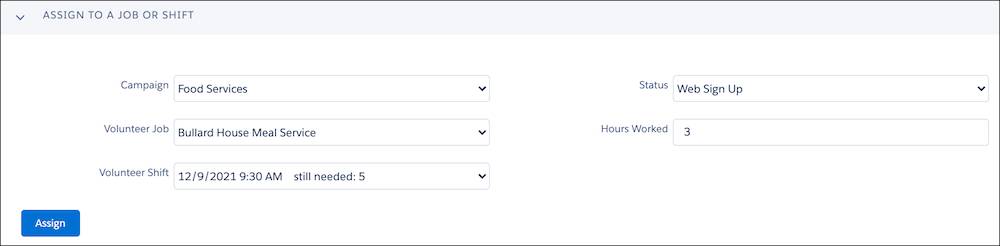
Enoch signed Peter up to fill in for the regular cook at Bullard House on Thursday. Crisis averted!
And because Enoch is using V4S’s automated email functionality, he knows Peter is immediately notified of his new volunteer shift. But we’ll get to that in a bit.
Verify the Sign-Up
To verify that Peter is signed up for the shift, let’s check out the Volunteer Hours related list on Peter’s contact record.
- On the Find Volunteers page, click the contact’s name. Enoch clicks Peter’s name.
- On the contact record, click the Related tab.
- Scroll down to the Volunteer Hours related list. The shift you just added should appear on the related list. Great work!

Now that Peter is signed up for the shift, let’s explore how we can stay in touch with him and other volunteers. We’ll start there in the next unit.
Resources
- Salesforce Help: Track and Identify Your Volunteers
- Salesforce Help: Volunteers for Salesforce (V4S) Documentation
- Trailhead: Volunteer Registration in V4S
- Trailblazer Community Group: Volunteers for Salesforce (V4S) App