Enroll Members at Scale
Learning Objectives
After completing this unit, you’ll be able to:
- Explain how enrollment executes a group contract using an enrollment census.
- Load and validate member plan selections for enrollment.
- Apply group class contributions to split premiums between employer and employee.
- Run enrollment in bulk and verify the issued policy and coverage results.
Execute a Contract Through Enrollment
By the time enrollment begins, an employer offering has already been modeled, priced, and captured in contract records. Enrollment works from that approved offering to issue coverage for the people who are actually enrolling.
Digital Insurance supports more than one enrollment pattern. Some implementations use individual enrollment, where members review eligible plans, compare costs, and submit selections directly. Others collect selections through a broker, benefits administrator, or enrollment team and load them in bulk. In both cases, the same contract terms still govern what can be selected, who is eligible, and how the premium is shared.
In this unit, you follow the bulk enrollment path: creating an enrollment census tied to the contract, loading and reviewing member selections, applying contribution rules, and running enrollment to create issued policy records at scale.
Track Enrollment Records
Enrollment turns an employer’s agreed offering into issued member coverage through a focused set of records. These records connect the sponsoring employer, the enrollment population, member plan selections, contribution rules, and the issued policy records created when enrollment runs.
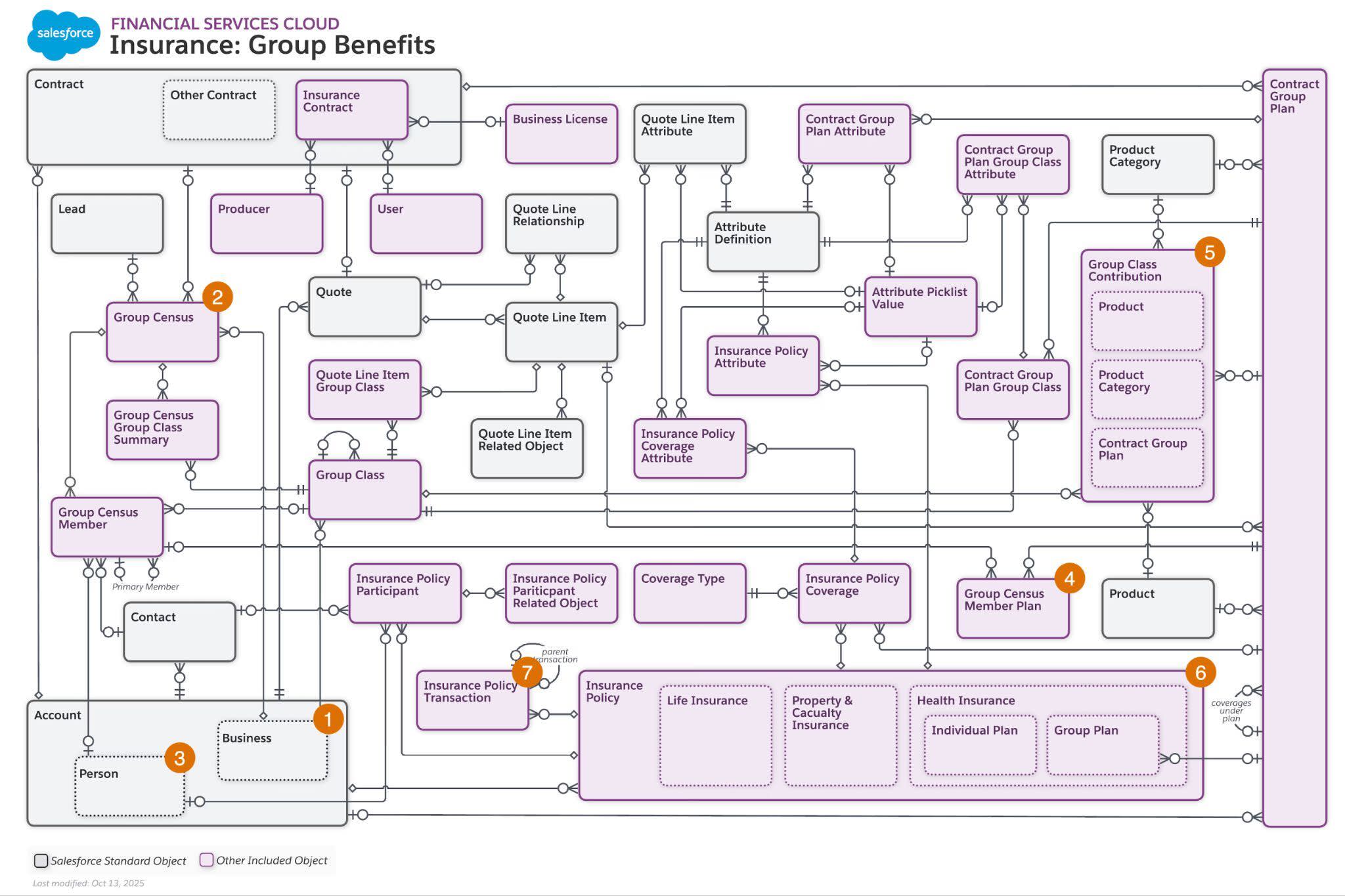
This table places some key enrollment records in context.
Object |
What It Represents |
Purpose |
|---|---|---|
Account (Business) (1) |
The employer sponsoring the group offering |
Provides the employer context for the contract, enrollment population, and issued group coverage |
Group Census (2) |
The enrolling population and their plan selections for a contract period |
Anchors enrollment to a specific contract when the record’s Type is set to Enrollment |
Person Account or Contact (3) |
The identity record for an enrolling employee or dependent |
Gives each enrolled person a durable record that issued policies and downstream processes can reference |
Group Census Member Plan (4) |
A member’s selected plan under the enrollment census |
Represents the specific enrollment selection the platform evaluates and issues into policy records |
Group Class Contribution (5) |
The contribution rules for how costs are shared for a class and plan context |
Applies the employer and member cost split used during enrollment and premium calculation |
Insurance Policy (6) |
The issued policy record created from validated enrollment selections |
The output of enrollment that downstream servicing, billing, and claims depend on |
Insurance Policy Transaction (7) |
The enrollment event record that tracks issuance activity |
Provides an audit trail of when and how each policy was created |
Taken together, these records show how enrollment executes the employer agreement at the member level. The contract defines what can be offered, the enrollment census and member plan records capture who is enrolling and in what, and the issued policy records preserve the result for servicing, billing, and claims.
Review the Enrollment Process
After the enrollment census is loaded, reviewed, and ready, a specialist starts enrollment from the census record. From the specialist’s perspective, this is a bulk action. The platform takes the validated member selections, applies contribution rules, and creates the issued policy records.
Behind that action, Digital Insurance processes enrollment asynchronously through the Insurance Group Enrollment API and the Group Enrollment flow. The default flow runs a defined sequence for each primary member and plan combination.
-
Eligibility check confirms that the member’s selection is eligible for processing and has not already been enrolled.
-
Dependent retrieval retrieves dependents associated with the primary member so enrollment can process the household together where appropriate.
-
Identity creation creates Contact or Person Account records, and optionally portal users, based on the org’s configuration.
-
Member rating and contribution calculates rates and applies employer and employee contribution splits.
-
Process member enrollment creates the issued policy records from the validated selections and calculated premiums.
A specialist doesn’t work through these steps one by one. These steps run after enrollment is triggered. But knowing the sequence makes it easier to interpret the records that are created and to investigate results when something needs review.
Salesforce admins can extend this flow to support business-specific validation and processing requirements. The Resources section includes more detail on flow configuration.
Run Bulk Enrollment
Explore how this works by continuing the example scenario from earlier units. A group benefits specialist at Cumulus creates an enrollment census tied to the approved contract, loads member selections through a CSV file, reviews the results, configures contributions, and runs bulk enrollment. Follow along with the process.
Create an Enrollment Census Linked to the Contract
Enrollment begins with a new Group Census record with Type set to Enrollment. The specialist links the census to the approved contract and sets effective and expiration dates within the contract period.

That link keeps enrollment aligned to the approved employer offering. It ensures that plan selection and validation work from the contract group plans associated with the contract.
Load Selections
For bulk enrollment, the group benefits specialist uploads a CSV containing the enrolling population and their plan selections. The file includes a column for each product category, such as Medical, Dental, or Vision. Within a category column, the selected root plan and coverages appear together, separated by pipe characters (|).
To pass validation, the file’s root plan and coverage names must match the contract's associated group plan names. Selections must also be valid for the member’s group class when classes are used.
After uploading the file, the specialist maps its columns to the census fields defined for the org’s enrollment model.
Those mappings determine how member records and plan selection data populate into the enrollment census for processing.
Review and Adjust Selections
After processing completes, the enrollment census page shows a workbench where the specialist can review and edit selections. They can open a member row, review selections by category, and adjust plan choices before enrollment runs.
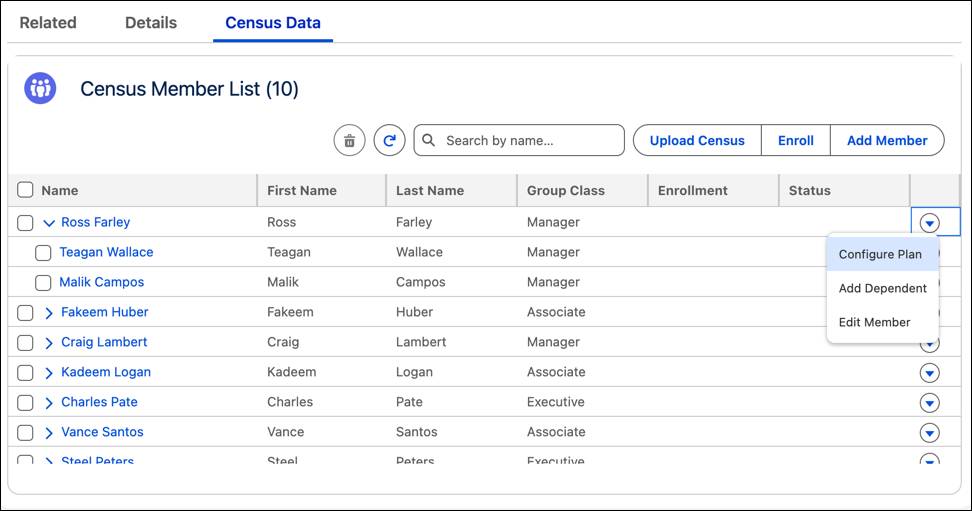
For each member, the Configure Plan action shows the product categories and plans available to that member based on group class and contract group plans. The specialist can opt members in or out of plans, select optional coverages, and review mandatory coverages with their configured attributes.
If a primary member opts out of a product category, dependent members cannot opt into that category. Dependents also cannot choose a plan the primary member did not select, though they can choose a different set of optional coverages.
This is the final review point before enrollment runs. The goal is to confirm that the census is complete and that selections align to the contract.
Configure Group Class Contributions
When the employer pays part of the premium, specialists configure contribution rules before running enrollment. This ensures the platform calculates the correct employer and employee shares during policy creation.
Each Group Class Contribution record defines who it applies to, the contribution type, the amount, and the level it targets. Specialists can associate a rule with a Contract Group Plan, a Product, or a Product Category.
When multiple rules are applicable, Digital Insurance resolves them by specificity. In practice, the pattern is straightforward with more specific rules overriding broader ones.
Priority |
Match Logic |
Example |
|---|---|---|
1 (highest) |
Coverage contract group plan matches the rule’s contract group plan |
A rule targeting the Preventive Care coverage under Dental Silver. |
2 |
Coverage product matches the rule’s product |
A rule targeting the Preventive Care product directly. |
3 |
Parent contract group plan matches the rule’s contract group plan |
A rule targeting the Dental Silver root plan. |
4 |
Product associated with the parent contract group plan matches the rule’s product |
A rule targeting the Dental Silver product. |
5 (lowest) |
Product category of the parent product matches the rule’s product category |
A rule targeting the Dental category. |
For dependents, the system first evaluates dependent-specific rules in that same order. If none apply, it falls back to subscriber rules. When more than one record matches at the same level, the most recently modified record is selected.
Run Enrollment and Review Results
With the census validated and contributions configured, the specialist runs bulk enrollment from the enrollment census.
The platform processes enrollment asynchronously through the Insurance Group Enrollment API. It can handle up to 10,000 census members across 30 distinct plans and 10 product categories in a single run. The specialist receives a notification when processing completes. If any records fail, the platform generates a CSV file with error details for correction and reprocessing.
After enrollment completes, the specialist validates the results by tracing the contract forward into the issued records. They open the contract, confirm the contract group plans, and then review the related insurance policies created for members. Opening a policy shows the issued coverage, participants, premium amounts, and contribution outcomes created from the enrollment run.
In many implementations, the flow also creates Contact or Person Account records for members during processing. You can also extend it to provision portal users for self-service access.
Wrap Up
Nice work! Across this badge, you followed Cumulus from plan design to issued coverage. A product administrator modeled reusable group plans, and a group benefits specialist turned an employer's census into a priced quote and a signed contract. Bulk enrollment then issued individual policies for the employer's members and dependents.
At that point, the core group insurance lifecycle is in place. Products define the offering and census records define the group. Quotes and contracts capture employer terms, and enrollment turns those terms into issued coverage that servicing, billing, and claims carry forward.
You are now prepared to successfully deliver scalable group benefits with modeled plans, census quoting, and enrollment for your own organization. Use the Resources sections in each unit to keep exploring!