Design an Orchestration Plan
Learning Objectives
After completing this unit, you’ll be able to:
- Design orchestration plan based on decomposed technical products.
- Implement specific step types.
Create a Fulfillment Workspace
Now that the order has decomposed into technical products, Julian defines how to fulfill each technical product by creating an orchestration plan. He starts by creating a new fulfillment workspace, which contains the orchestration steps—also known as swimlanes—for invoicing, inventory, activation, and subscription.
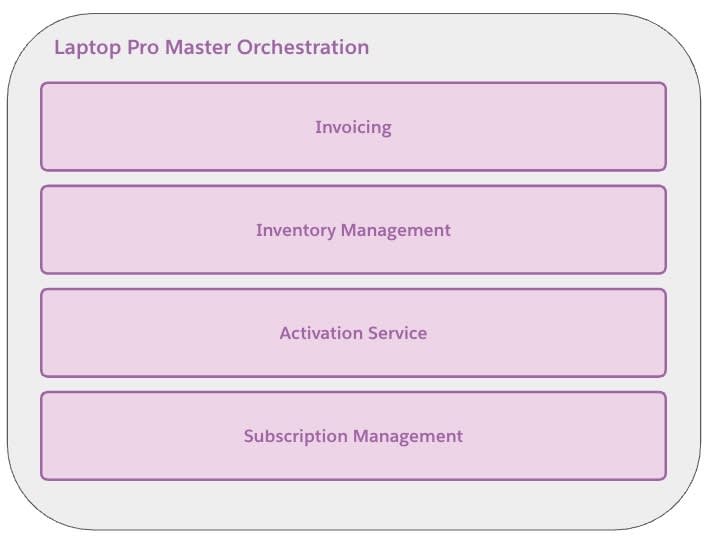
Follow along in your Developer Edition org to create this orchestration plan.
- From the App Launcher, find and select Fulfillment Workspaces.
- Click New.
- Enter the name as
Laptop Pro Master Orchestration.
- Save your work.
Next, Julian adds step groups to this plan.
Create Step Groups and Steps
Julian creates separate step groups for each fulfillment area and adds the steps for each.
Invoicing
The primary purpose of the Invoicing lane is to generate and send the customer's invoice. This lane includes steps such as Items Delivered, a callout task, Generate Invoice, an automated task to create the invoice, and Email Invoice, a milestone to mark sending.

Follow along to create the step group. As you created this lane in the Simple Order Orchestration with Agentforce Revenue Management module, reuse it.
- On the Laptop Pro Master Orchestration workspace, click Import Step Group.
- Select Step Definition Groups and click Next.
- In the Search box, find and select Invoicing.
- Save your changes.
This step group holds all invoice-related fulfillment steps that you created earlier. Now, add one more step to deliver the items.
- In the Invoicing group section, click + Add Step.
- In the New Fulfillment Step Definition window, add these details.
- Fulfillment Step Definition Name:
Items Delivered
- Step Type: Callout
- Integration Definition Name: DROShipping
- Fulfillment Step Definition Name:
- Save your work.
The invoicing lane now contains all the necessary steps.
Inventory Management
Now create a step group that handles the physical fulfillment process for Laptop, Printer, and Mouse from the Laptop Pro Bundle. It includes steps such as Pick and Pack, a manual task, and Create Shipping Order, a callout to a shipping system.

Follow along in your Developer Edition org.
- On the Laptop Pro Master Orchestration workspace, click New Step Group.
- In the New Fulfillment Step Definition Group window, for Fulfillment Step Definition Group Name, enter
Inventory Management.
- Save your work.
- In the Inventory Management step group section, click + Add Step.
- In the New Fulfillment Step Definition window, add these details.
- Fulfillment Step Definition Name:
Pick and Pack
- Step Type: Manual Task
- Assigned To: Your user record
- Fulfillment Step Definition Name:
- Click Save & New.
- In the New Fulfillment Step Definition window, add these details.
- Fulfillment Step Definition Name:
Create Shipping Order
- Step Type: Callout
- Integration Definition Name: DROShipping
- Fulfillment Step Definition Name:
- Save your work.
The inventory management lane now contains all the steps.
Activation Service
Now, create a step group to handle general activation processes. This lane focuses on triggering and managing activation processes for relevant components within the bundle. It contains the Warranty Activation step, a callout.

Follow along in your Developer Edition org.
- On the Laptop Pro Master Orchestration workspace, click New Step Group.
- In the New Fulfillment Step Definition Group window, for Fulfillment Step Definition Group Name, enter
Activation Service.
- Save your work.
- In the Activation Service group section, click + Add Step.
- In the New Fulfillment Step Definition window add these details.
- Fulfillment Step Definition Name:
Warranty Activation
- Step Type: Callout
- Integration Definition Name: DROShipping
- Fulfillment Step Definition Name:
- Save your work.
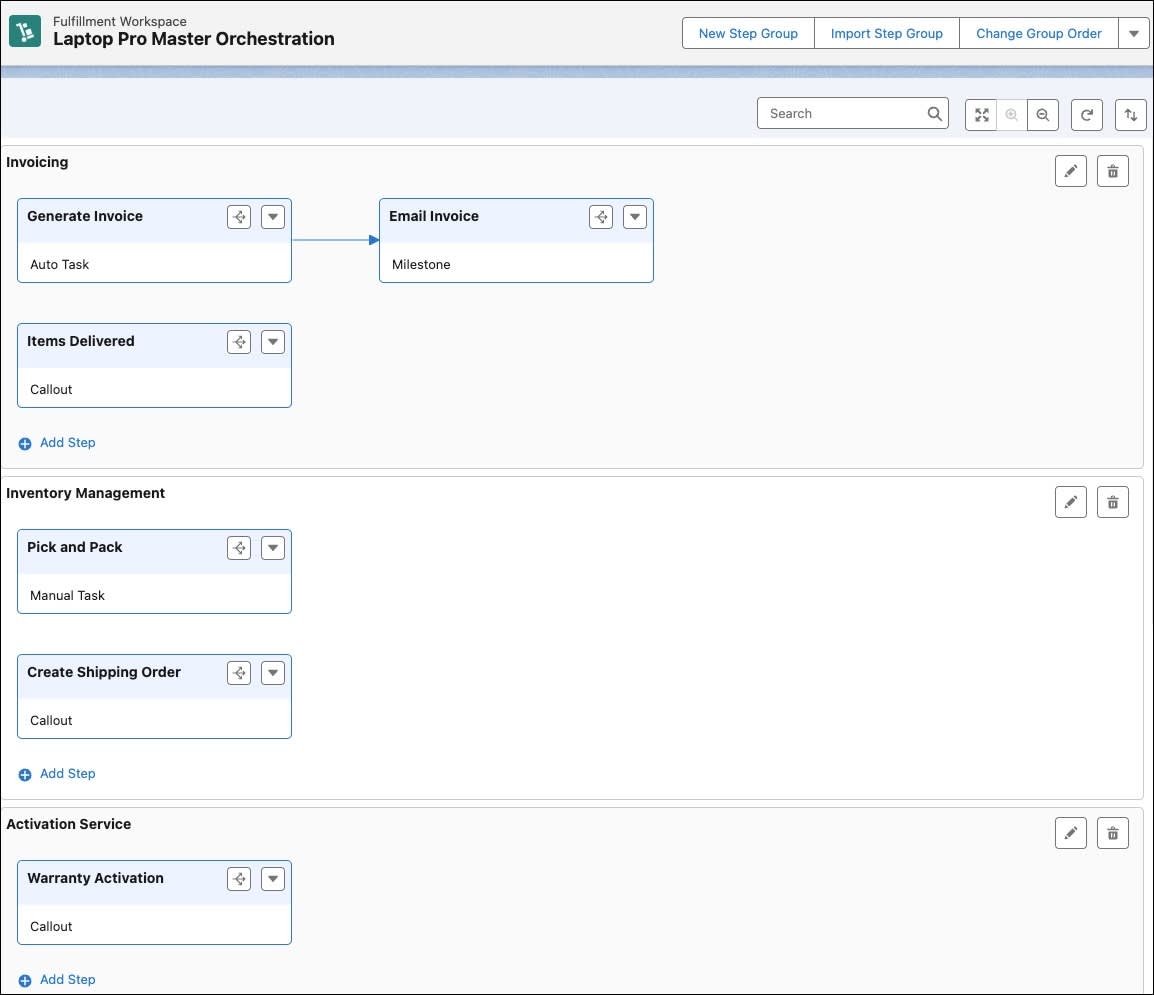
This image highlights the Laptop Pro Master Orchestration workspace, organized into three swimlanes such as Invoicing, Inventory Management, and Activation Service.
Subscription Management
Now, create a step group to handle subscriptions. This lane handles the specific activation or management of subscription-based services, particularly those with conditional triggers. It contains the Activate Subscription step, a manual task.
Follow along in your Developer Edition org.
- On the Laptop Pro Master Orchestration workspace, click New Step Group.
- In the New Fulfillment Step Definition Group window, for Fulfillment Step Definition Group Name, enter
Subscription Management.
- Save your work.
- In the Subscription Management group section, click + Add Step.
- In the New Fulfillment Step Definition window add these details.
- Fulfillment Step Definition Name:
Activate Subscription
- Step Type: Manual Task
- Assigned To: Your name
- Fulfillment Step Definition Name:
- Save your work.
Each swimlane groups related fulfillment steps, making it easy to visualize how different parts of the process work together.
Next Steps
In this unit, you learned how decomposition enables flexible orchestration for complex bundles. So far, you've mapped commercial products to technical ones, created decomposition rules, and built a workspace with swimlanes for each fulfillment stream.
Follow Julian in the next unit, and learn how to define step dependencies and execute the orchestration.
To pass the challenge and move on to the next unit, make sure to click Check Challenge to Earn Points.