一般的な管理者リクエストを管理する
学習の目的:
この単元を完了すると、次のことができるようになります。
- リクエストフォームで取得する必要のある重要なデータポイントを挙げる。
- チャンネルとアクセスリクエストのトリアージについてのベストプラクティスを適用する。
管理プロセスの基本を知る
管理プロセスは、クライアントのポリシーと設定に基づいて、ガバナンスチームかガバナンス担当者によって構築されます。一般的なプロセスと、その処理方法のベストプラクティスを紹介します。
一般的なチャンネルリクエストを管理する
Slack でセキュリティとオーガナイゼーションを管理するには、チャンネルとゲストアクセスを効果的に管理することが極めて重要です。前の単元では、例として、#plz-admins チャンネルと、チャンネルに関する一般的な管理者リクエストを処理するためのワークフローを取り上げました。
一般的なチャンネル管理
Slack での作業中、エンドユーザーはポリシーと設定でロックされている特定の一般的なチャンネルアクションを実行するために管理者のサポートを必要とする場合があります。たとえば、次のようなものがあります。
- パブリックチャンネルからプライベートチャンネルへの変換
- チャンネルの復元
- チャンネル内の投稿権限の制限
- ユーザーグループの作成または変更
チャンネル管理リクエストをサポートするワークフローを作成する
#plz-admins チャンネルには、ユーザーがこうしたアクションに必要な情報を送信するためのワークフローリクエストを設定できます。
規制の厳しい業界のお客様には、どのようなことを推奨すればよいでしょうか?
- #plz-admins に、ようこそメッセージとチャンネルの使用方法に関する指針を投稿する。
- 以下のリクエストに対応するワークフローを構築し、上記のタスクを遂行するために必要な情報をユーザーが入力できるフォームを用意する。

ゲストアクセス用の Slack コネクトチャンネルを管理する
Slack コネクトを使用すると、オーガナイゼーションの従業員がチャンネルと DM で外部のオーガナイゼーションやパートナーと安全に共同作業を行えます。これは無効にできますが、外部オーガナイゼーションとの共有チャンネルを作成する場合、Slack コネクトのデフォルト設定では OrG 管理者と OrG オーナーの承認が必要です。
Slack でこうした承認リクエストを管理することにより、管理者は各リクエストのデータと詳細を 1 つの場所で追跡できます。Slack コネクトのチャンネルリクエストを管理するワークフローを作成すると、管理者の負担を最小限に抑え、セキュリティとコントロールをより徹底し、Slack コネクトを利用するユーザーのイネーブルメントを自動化するのに役立ちます。
クライアントが Slack コネクトのチャンネルリクエストとレビュープロセスを設定できるようにするには、まず Slack Connect Checklist (Slack コネクトのチェックリスト) の項目について、いくつかの重要な意思決定を行い、アクションを実行する必要があります。
ゲストアクセスリクエストをサポートするワークフローを作成する
#plz-admins または #plz-slack-connect チャンネルには、ユーザーが Slack コネクトのチャンネルリクエストを送信するためのワークフローを含めることができます。こうしたリクエストには、次の情報を含める必要があります。
- 緊急性
- 承認するマネージャーの名前
- 外部のオーガナイゼーションの名前
- ワークスペース名
- 外部のオーガナイゼーションの Slack ドメイン URL
- 外部のオーガナイゼーションの管理者の名前とメール
- リクエストされたチャンネルの名前
- チャンネルの目的
チャンネル内のワークフローを使用してリクエストの詳細を標準化すると、管理者の仕事がより簡単になります。管理者がリクエストの処理に必要な詳細を取得すると、通常、その作業の割り当てと振り分けに関して調整を行う必要があります。管理者がプライベートチャンネルでリクエストについて議論できる標準化されたバックエンドレビュープロセスをクライアントが作成できるようサポートすることも極めて重要です。
ワークフローを使用したリクエスト管理の主な目標は、クライアントがより速く結果を出すのに必要な情報を常に取得できるように、標準リクエストプロセスを作成することです。
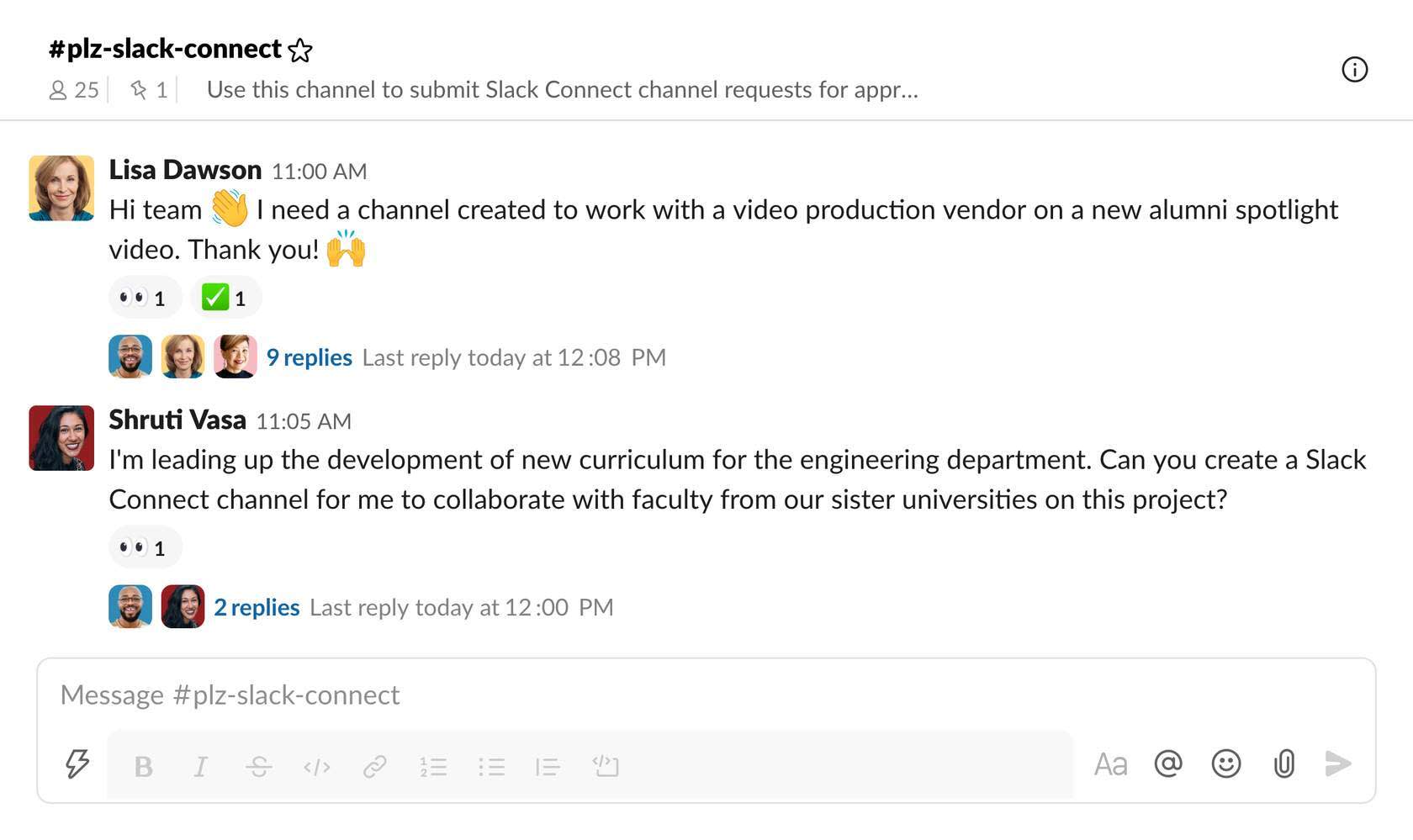
誰かがリクエストを行うと、フォームを開くワークフローがトリガーされます。

バックエンドでは、フォームの入力が完了すると、送信された情報に基づいて追加のステップがトリガーされます。

ゲストアクセス管理
オーガナイゼーションの設定に基づき、ユーザーは Slack チャンネルでコラボレーションするために、請負業者やインターンなどのゲストを招待できます。セキュリティへの懸念により、このアクションは通常、管理者による審査と許可が必要です。管理者はゲスト管理情報を確認して、使用可能なゲストの種別と権限を把握することができます。
シングルチャンネルゲストは、1 つの Slack チャンネルにアクセスできます。マルチチャンネルゲストは、指定された複数のチャンネルにアクセスできます。シングルチャンネルゲストは無料ですが、マルチチャンネルゲストは通常ユーザーとして請求されるため、どちらを使用するべきかを把握しておくことが重要です。
#plz-admins にゲストリクエストを管理するためのワークフローを構築して、ゲストアクセスリクエストを管理できます。管理者は、次のような標準的なリクエストの詳細を収集できます。
- 緊急性
- 承認するマネージャーの名前
- ゲストの名前
- アクセス権が必要なチャンネルの名前
- ゲストの追加期限
マルチワークスペースチャンネルについて学習する
Enterprise+ オーガナイゼーションでは、チャンネルを複数のワークスペースに追加できます。Slack の推奨設定は、この権限を Slack のオーナーと管理者に制限することです。その場合、エンドユーザーはマルチワークスペースチャンネルを作成するための管理者リクエストを送信する必要があります。マルチワークスペースチャンネルでは、オーガナイゼーション全体のユーザー (部門が異なるユーザーなど) が個別のワークスペースから同一チャンネルで連携できます。これにより、異なる Slack ワークスペースで作業しているユーザーが共有プロジェクトでコラボレーションしたり、同じお知らせを参照したりすることができます。
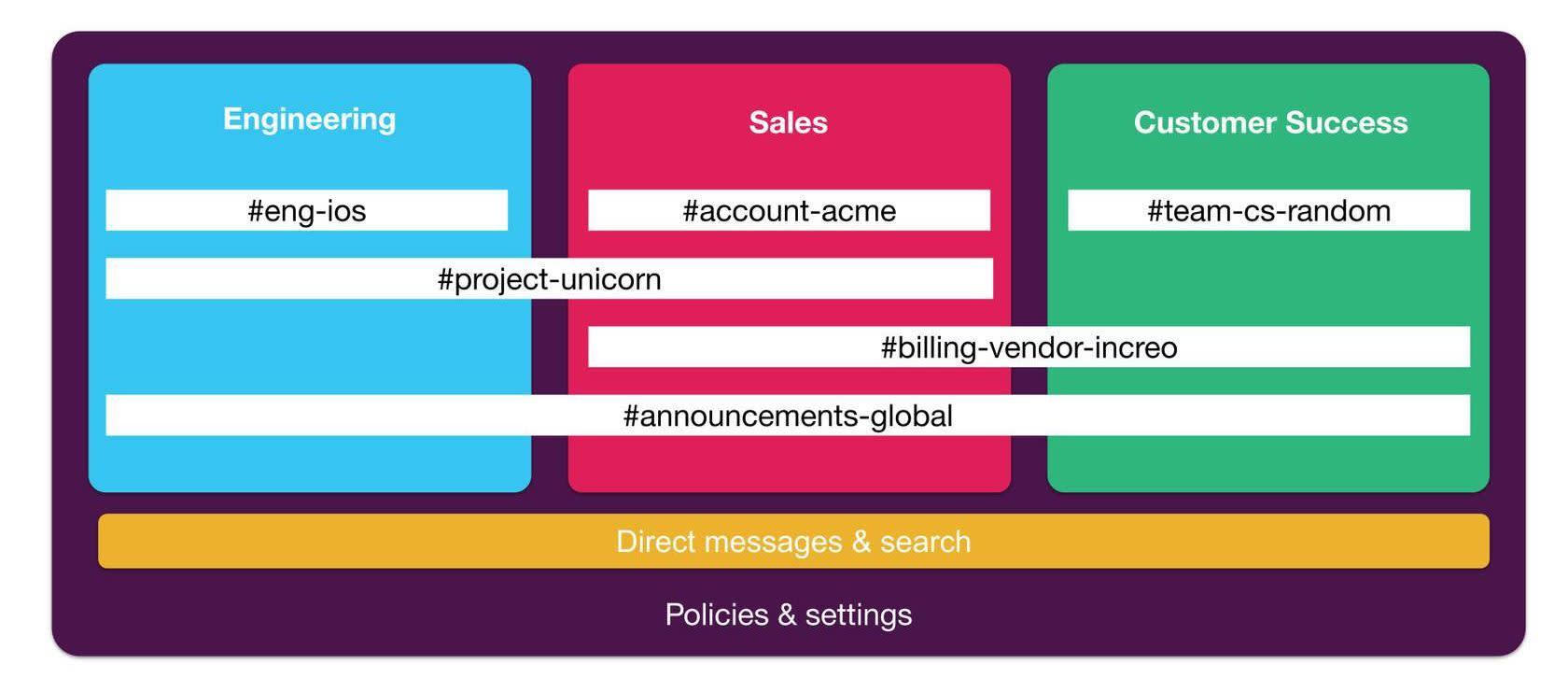
コンサルタントの役割は、クライアントがマルチワークスペースチャンネルへのリクエストをトリアージするのに適したプロセスを提案することです。Slack のベストプラクティスは、OrG 管理者が #plz-admins チャンネルでマルチワークスペースチャンネルへのリクエストを受信し、管理することです。
マルチワークスペースリクエストをサポートするワークフローを作成する
マルチワークスペースチャンネルへの標準的なリクエストの詳細を収集するワークフローを #plz-admins に作成する場合は、次の情報を含めることをお勧めします。
- リクエストの緊急性
- 承認するマネージャーの名前
- 共有するチャンネルの名前
- チャンネルが現在含まれているワークスペース
- チャンネルを共有するワークスペース
- チャンネルを共有する目的
アプリとオンボーディングへのリクエストを管理する
この単元では、効果的なチャンネルとゲストアクセス管理によって Slack 内のセキュリティとオーガナイゼーションを管理する方法を学習しました。パブリックチャンネルからプライベートチャンネルへの変換、チャンネルの復元、外部ゲストの招待などの一般的な管理タスクのために #plz-admins チャンネルとワークフローを設定することなどを学びました。次の単元では、アプリ管理とワークスペース管理を詳しく見ていきます。
リソース
- Slack ヘルプ: チャンネル管理ツールを使用する
- Slack ヘルプ: チャンネルをプライベートチャンネルまたはパブリックチャンネルに変換する
- Slack ヘルプ: チャンネルへの投稿権限を管理する
- Slack ヘルプ: 外部のオーガナイゼーションとの連携
- Slack リソース: Slack Connect Checklist (Slack コネクトのチェックリスト)
- Slack ヘルプ: Slack コネクトチャンネルの承認設定と招待リクエストを管理する
- Slack ヘルプ: Manage who can join channels owned by other organizations (ほかのオーガナイゼーションが所有するチャンネルに参加できるメンバーを管理する)
- Slack ヘルプ: チャンネルへの招待設定と権限を管理する