Integrate Agentforce IT Service with Microsoft Teams
Learning Objectives
After completing this unit, you’ll be able to:
- Describe the steps to connect Microsoft Teams with Agentforce IT Service.
- Explain how to use Agentforce IT Service in Microsoft Teams.
Create the Connection
Now that you know how the Agentforce IT Service integration with Microsoft Teams provides a unified IT service experience, it’s time to dive into how to set up this connection. In this unit, learn the basic integration steps and how to test out using Agentforce IT Service in Teams.
Once you’ve completed the one-time setup and configuration, your organization will enjoy a seamless solution that connects to all your Salesforce data and service processes. So, let’s get started!

 and searching for and selecting Salesforce GO in Setup.
 Connect Microsoft Teams with Agentforce IT Service
Before setting up the connection between platforms, you need to complete a few prerequisite steps. These include enabling Einstein Generative AI and Agentforce in your Salesforce org. This is also a good time to review the system requirements and learn which features are available in the desktop and mobile versions of Microsoft Teams. Then, create the necessary record types for each object, and configure your unified catalog and service catalog item templates for your specific IT use cases.
Now you’re ready to set up the connection. Using Salesforce GO, configure the necessary feature sets, and then turn on Microsoft Teams for Employee Service, which automatically installs important integration features. Here’s a quick rundown of the installed features.
-
External client app: Enables third-party applications to integrate with Salesforce using APIs and security protocols.
-
Auth provider: Delegates authentication to an external identity provider, in this case, Entra ID.
-
External credentials: Centralizes the credentials required for accessing the Microsoft Teams application.
-
Named credentials: Simplifies the process of making authenticated callouts from Salesforce to Microsoft Teams.
Don’t worry if that all sounds like jargon. You only need to worry about replacing a few placeholder values in the Microsoft Teams for Employee Service feature set: namely the Tenant ID, Client ID, and Client Secret credentials.
Next, enable Cross-Origin Resource Sharing (CORS) for OAuth endpoints, and create a new allowed origin using a URL. Finally, configure your session settings for Lightning Out to ensure that embedded Lightning web components display correctly.
For detailed instructions and guidance for this setup, visit the Connect Salesforce and Microsoft Teams for IT Services article in Salesforce Help.
Set Up Agentforce IT Service Apps in Microsoft Teams
Once you’ve completed the initial integration, your next step is to configure the Salesforce IT Service and Salesforce IT Desk apps in Teams. This setup includes enabling features, installing the apps, assigning permissions, and connecting your Microsoft Entra ID to ensure a secure connection.
If you haven’t done so already, configure your service catalog so that employees can view your available services and resources, and set up employee enablement so they can access training materials and HR programs from Teams. Also, don’t forget to create knowledge articles to ground your AI agents with the foundational data needed to provide support, and service processes to complete common multi-step IT tasks.
View the links in the Resources section to complete your app configuration, which also includes defining object settings, notifications, and approval workflows.
Work with Agentforce IT Service in Teams
After completing the integration, take a moment to celebrate! Then, we recommend testing out your new IT service experience. Take on the role of the end user and create some test tickets, incidents, and requests, and explore using AI to answer questions and get solutions.
Here are some ways that you can test out your integrated system.
Request Support
From the Salesforce IT Service App, create a ticket by clicking New, selecting a ticket type, and entering a subject and description. After you’ve submitted the ticket, you can view the ticket from the My Tickets tab, which displays the ticket number, subject, priority, status, and when it was last updated. Search and filter tickets, or click into tickets to view details and see a related conversation history.
For example, an employee creates a new ticket to request support for a VPN connection issue.
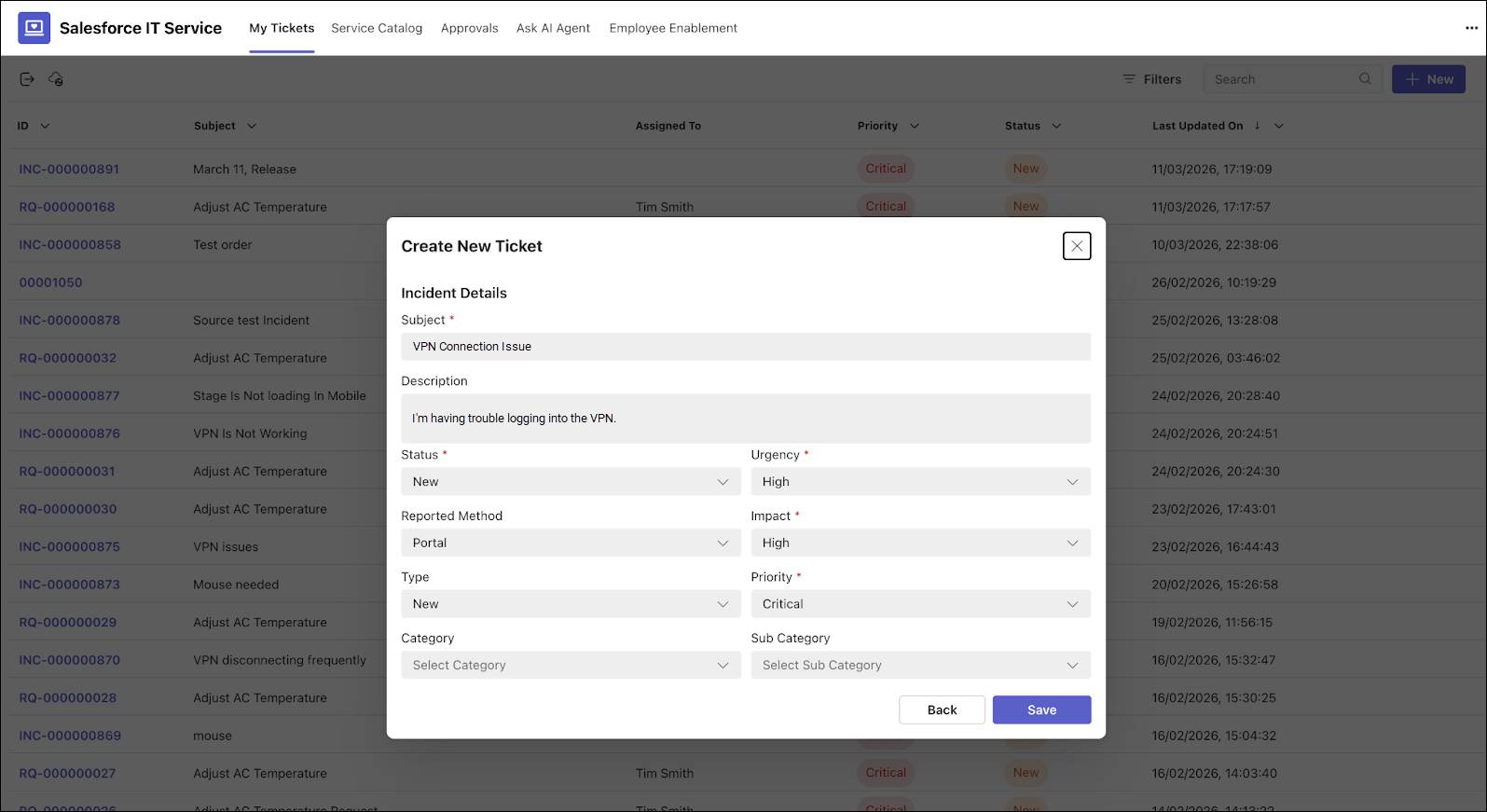
On the New Ticket window, the employee can enter a subject, description, and note the urgency, impact, and priority to help the IT team categorize and prioritize the ticket.
On the Service Catalog tab, employees can view available products by category, and click a button to quickly submit a service request through a form.

Service catalog requests appear on the My Tickets tab to help the employee track the progress towards fulfillment.
As you learned earlier, employees can also chat with the AI assistant to troubleshoot common issues, get updates, or create tickets.
Provide Support
Now, check out the Salesforce IT Desk app to understand how your IT teams manage their work.
By clicking the Fulfiller Hub tab, you can manage tickets, use AI to gather insights, and collaborate with team members and employees who request support to resolve issues.

The hub organizes work into different ticket types depending on your configuration, and might include incidents, problems, cases, and change requests.
Each team member can use filters to see the work that’s assigned to them, or find tickets by status or priority. They can also create tickets on behalf of employees.
Like employees, IT teams can use an Agentforce AI assistant to make their work more efficient. Try asking your assistant to summarize a ticket, investigate a problem, and surface the right solution to troubleshoot and resolve issues. For example, you can ask the agent to summarize all of the recent tickets related to VPN issues.
For more complex issues, create a Teams channel to collaboratively swarm and combine the expertise of multiple IT experts. For example, here’s a channel where IT staff can collaborate to resolve a widespread VPN outage.
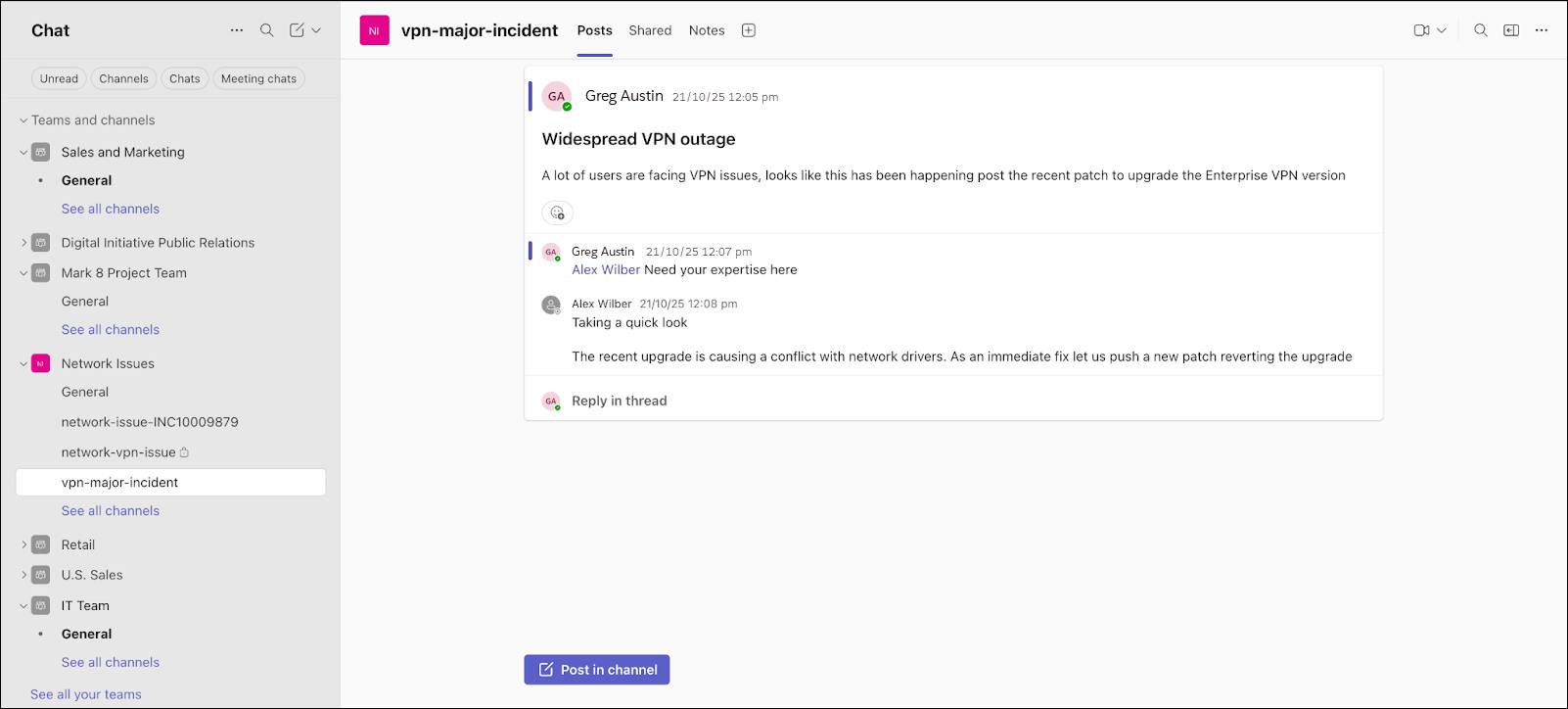
To create a swarm channel, simply click Start Swarming from a submitted ticket. Then, select a team and a public or private channel and add additional team members as needed.
Wrap Up
In this badge, you learned how integrating Agentforce IT Service with Microsoft Teams gives your organization a unified, AI-powered, and collaborative workspace that simplifies IT service delivery for both employees and IT teams. By combining these systems, you can ensure that every employee has the support they need, and every issue or request is resolved with maximum efficiency.
Don’t forget to check out the Resources section for more information about setup steps, Agentforce agents, and other tools and components to help your employees get the most out of this integrated system.