Create Your First SLA Policy
Learning Objectives
After completing this unit, you’ll be able to:
- Create an SLA policy using the simplified setup.
- Add and configure milestones within the policy.
Create an SLA Policy
It’s a typical morning at Ursa Major Solar, and the support team is already deep into a busy queue of customer cases. As Maria Jimenez settles in, she gets a message from Roberto Alvarez, Ursa Major Solar’s COO and cofounder, asking for a quick chat.
Roberto shares that the company is ready to roll out a new service standard, the Happy Customer policy. After reviewing recent case trends, he wants clearer targets so the team can stay consistent and customers know what to expect. According to the new policy, all high-priority cases must be responded to within 2 hours, and all other cases must be responded to within 4 hours.
Maria knows the simplified SLA setup in Salesforce will make this easy to implement. With the details now confirmed, she decides to start by creating a new SLA policy for these updated standards. Let’s follow along with her as she goes through the steps.
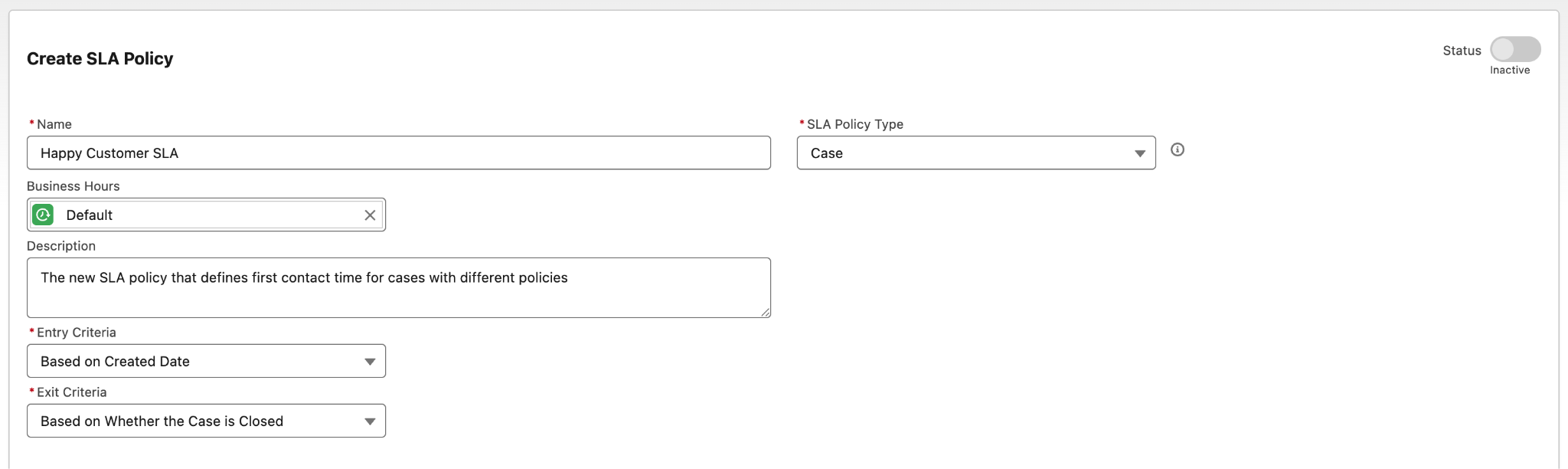
- From Setup, in the Quick Find box, search for and select SLA policies.
- Click New SLA Policy.
- Name the new policy:
Happy Customer SLA.
- Select the appropriate policy type. Since Maria wants this policy to apply to all support cases that her reps create, she selects Case.
- In the Business Hours field, select the Default.
- Enter a brief description if you’d like.
- Keep the other fields as is.
- Click Save.

Add Milestones to an SLA Policy
With the basic framework in place, Maria is ready to give her new SLA policy some structure. An SLA policy is just a container—the real work happens inside it. Milestones define the key timing goals reps need to hit, making it clear what needs to happen and when.
To bring Ursa Major Solar’s Happy Customer standards to life, Maria needs to add these milestones to the policy she just created. This ensures every case follows the same timed checkpoints based on its priority, helping reps stay on track and customers stay confident.
Follow along as Maria adds her first milestone and builds out the rest of the policy. We check your work at the end of this unit so make sure you are completing all the steps.
- From Setup, in the Quick Find box, search for and select SLA Policies.
- Click Happy Customer SLA.
- Click New Milestone.
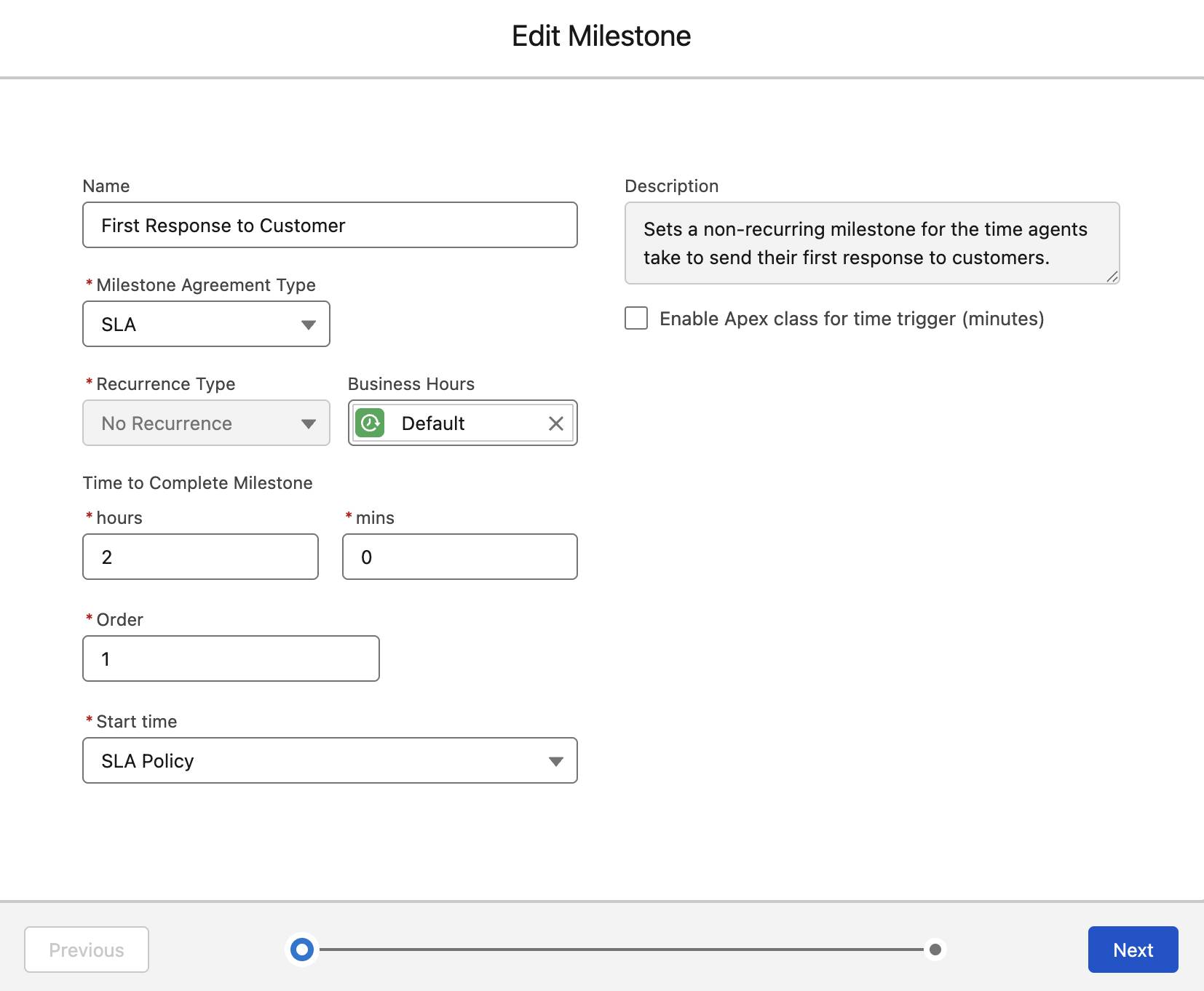
- Click on the name field, and select First Response to Customer.
- Since this milestone is based on a customer facing policy, select SLA in the Milestone Agreement Type field.
- In the Business Hours field, select Default.
- In the Time to Complete Milestone, enter 2 in the hours field. Keep 0 in the mins field.
- Set the milestone order as 1 since it is the first step that needs to be completed.
- Keep the Start Time as is.
- Click Next.
- Keep the Activation Criteria set to Rules. Configure the rule to execute when all conditions are met, and select the following conditions:
- Field: Case: Priority
- Operator: Equals
Value: High
- Field: Case: Priority
- Click Save.
With her first milestone in place, Maria adds a few more to manage case escalations and resolutions. Together, these steps give the policy a clear flow from the initial response all the way to final resolution. Now Ursa Major Solar has a fully defined SLA policy for high-priority cases that matches the new Happy Customer standards.
Currently, the milestones only describe what needs to happen and when. They do not notify anyone on their own. To make the policy truly effective, Maria needs to set up milestone actions, which include alerts, updates, and escalations that help reps stay on track.
In the next unit, you follow Maria as she creates these actions so service agents receive timely warnings and cases continue moving forward even when deadlines are approaching.