Optimize LWCs for Mobile Offline
Learning Objectives
After completing this unit, you’ll be able to:
- Set up your workspace and enable the MCP server.
- Refactor modern LWC directives into legacy formats required for offline use.
- Combine automated static analysis with AI-driven reviews for a comprehensive optimization report
Set Up Your Workspace and the MCP Server
To use Agentforce Vibes and the Mobile MCP tools, you need an environment where the agent can interact directly with your code and your Salesforce organization. For this module, you use a specialized Agentforce Vibes Connected Org that automatically provisions a pre-configured cloud development workspace.
Sign Up for a Developer Edition Org with Agentforce Vibes IDE
To complete this badge, you need a special, limited-time custom playground that contains the Agentforce Vibes IDE and our sample data.
- Select Create Playground.
- Your new org is automatically attached to your Trailhead account.
- Make note of your org's expiration date and complete this badge before then.
Enable Agentforce Vibes IDE in Your Trailhead Playground
Follow the steps below to activate it in your playground, assign the right permissions, and get everything ready for use.
- Select
 and select Agentforce Vibes.
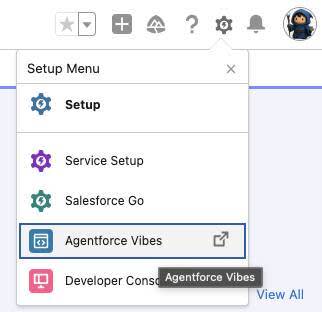
- On the Terms & Conditions, select Accept.
- Since you have to navigate back to your playground later, keep both tabs open.
- The first time you launch Agentforce Vibes it runs through a setup process that takes some time. The following message appears: “Agentforce Vibes is loading…”. It may take a few minutes to load your workspace.
Configure your AI Coding Partner
- If prompted to trust the authors of the files in your folder, select Yes, I trust the authors.
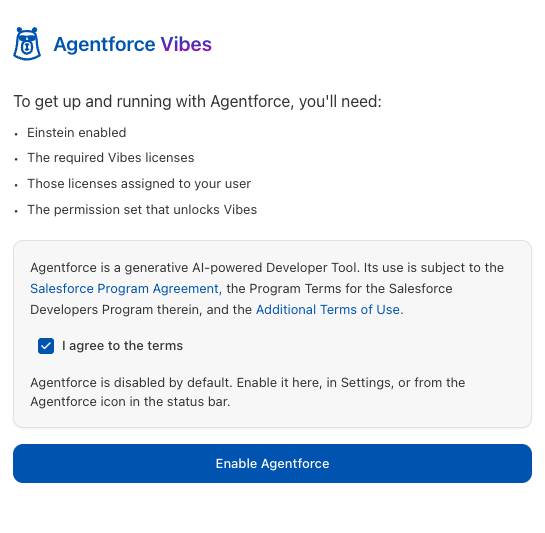
- Select the Agentforce icon
 in the Activity Bar. You may have to select it again to expand the menu bar.
- Add a check to the box next to: I agree to the terms and select Enable Agentforce.

Configure the Salesforce DX MCP Server (Optional)
If you’re using a local IDE, such as VS Code, MCP servers must be installed and enabled manually.
- In your workspace's file explorer, navigate to the root directory and open or create a file named
.vscode/mcp.json.
- Copy and paste the following configuration block into the file:
{
  "mcpServers": {
    "Salesforce DX": {
      "command": "npx",
      "args": [
        "-y",
        "@salesforce/mcp@latest",
        "--orgs", "DEFAULT_TARGET_ORG",
        "--toolsets", "orgs,metadata,mobile,mobile-core",
        "--allow-non-ga-tools"
      ]
    }
  }
}
Specifying the mobile and mobile-core toolsets exposes the Nimbus guidance and Komaci analysis tools to Agentforce Vibes.
Verify the Connection
- In the Agentforce Vibes Chat panel, enter the following initialization prompt to test the configuration:
Verify my environment configuration and confirm which toolsets are active. - Agentforce Vibes parses the environment, validates access to the target org metadata, and responds that the mobile and mobile-core toolsets are fully operational.
Expert Guidance and Analysis
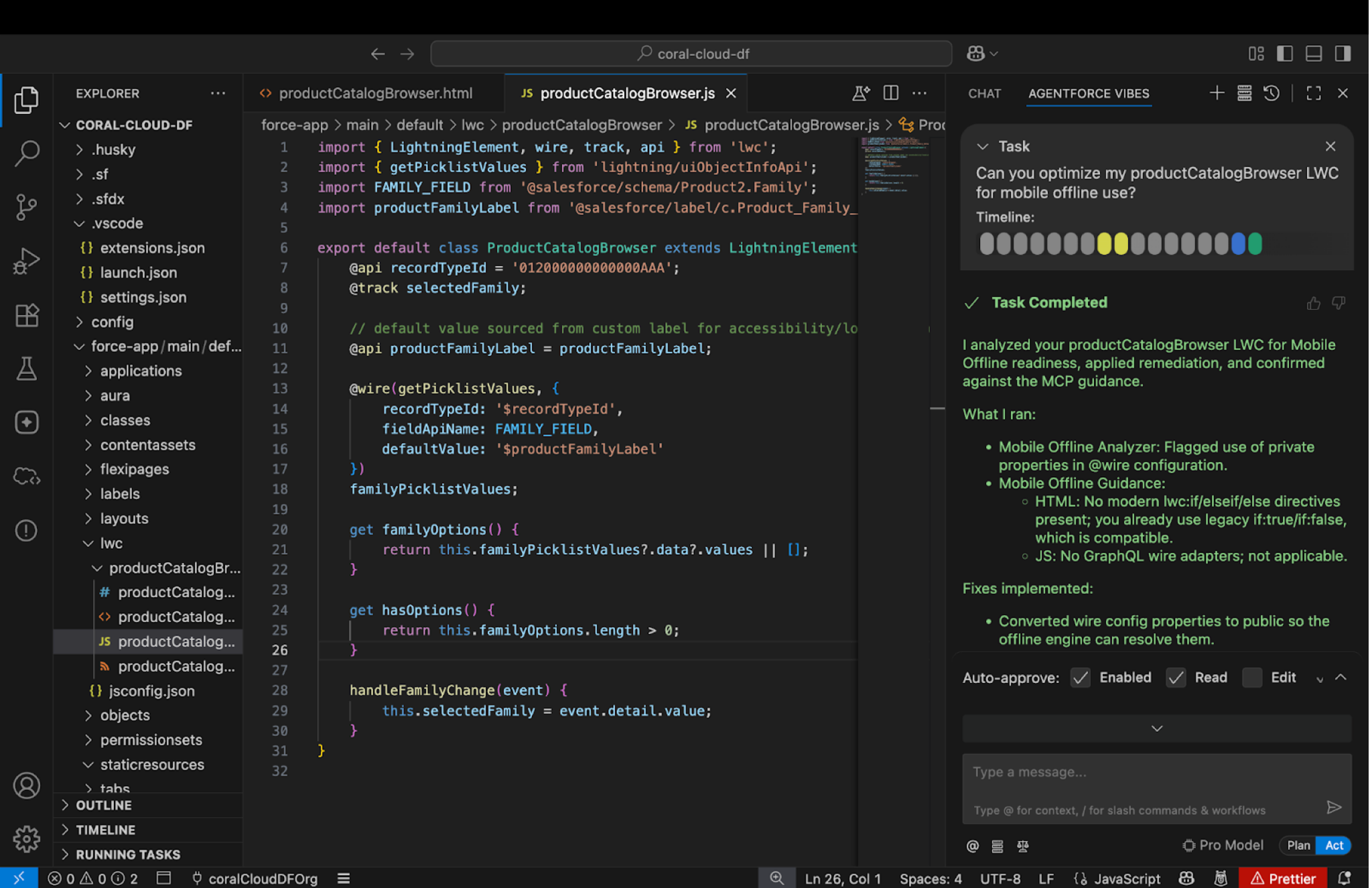
Agentforce Vibes uses a dual-tool approach to ensure your Lightning web components are ready for the Komaci offline static analysis engine, which powers apps like Salesforce Mobile App Plus.
Mobile Offline Guidance (get_mobile_lwc_offline_guidance)
This mobile offline guidance tool generates a structured set of instructions for the AI to review your code for complex, pattern-based issues that automated scanners might miss. Key focus areas include:
-
Conditional rendering: Identifying modern lwc:if directives and guiding their conversion to the legacy if:true/if:false format required for offline compatibility.
-
GraphQL refactoring: Detecting GraphQL queries written directly inside @wire adapters and refactoring them into separate getter methods.
Mobile Offline Analysis (get_mobile_lwc_offline_analysis)
This mobile offline analysis tool performs an automated static analysis of your LWC bundle. For every issue found, the tool provides:
- The precise location (line and column numbers)
- A description of why the code is an issue for offline use
- A detailed action plan to fix the violation
You have learned the workflow for building offline-ready Lightning web components with Agentforce Vibes. From configuring the Salesforce DX MCP Server to optimizing your code for offline persistence, you’re now prepared to build sophisticated, native-integrated mobile applications for your users.