Validate Token-Based Selling
Learning Objectives
After completing this unit, you’ll be able to:
- Refresh decision tables to ensure the latest pricing data is available.
- Create a quote and order.
- Use the Manage Usage Resources feature on a quote to validate your usage-based configurations.
Test Your Token Economy
Now for the moment of truth! Liam has configured the usage resources, grants, and rates. In this unit, he refreshes decision tables, creates a quote, adds the AI Services Plan product, and uses the Manage Usage Resources feature to verify that his configurations work.
Refresh Decision Tables
Here’s how you refresh the relevant decision tables to ensure that the latest pricing data is available.
- From Setup, in the Quick Find box, find and select Decision Tables.
- From the available decision tables list, select Price Book Entries V2.
- Click Refresh.
- Similarly, refresh these five decision tables.
- Pricebook Rate Card Entries
- Rate Adjustment by Tier Entries 2
- Rate Adjustment by Tier Resolution Entries
- Rate Card Entries 2
- Rate Card Entry Resolution Entries 2

For each decision table, make sure the Last Refreshed Date updates to your current date and time. Refresh the page if you don’t see the update.
Create a Quote
Now you’re all set to test your token-based selling on a quote. Follow along.
- From the App Launcher, find and select Quotes.
- Click New Quote.
- Add these details.
- Quote Name:
Token based selling - Start Date: Today’s date.
- Account for Quote: EdgeMX
- Save your work.
- From the newly created quote page, click Browse Catalogs.
- In the Choose Price Book window, make sure Standard Price Book is selected, and save your work.
- In the All Catalogs list, select Service Catalog, and click Next.
- Select the All Products list under Categories, then AI Services Plan, and click Add.
- Click Save Quote.
- From the AI Services Plan quote line item, click
 , and then select Manage Usage Resources. If you don’t see the action menu, scroll to the side.
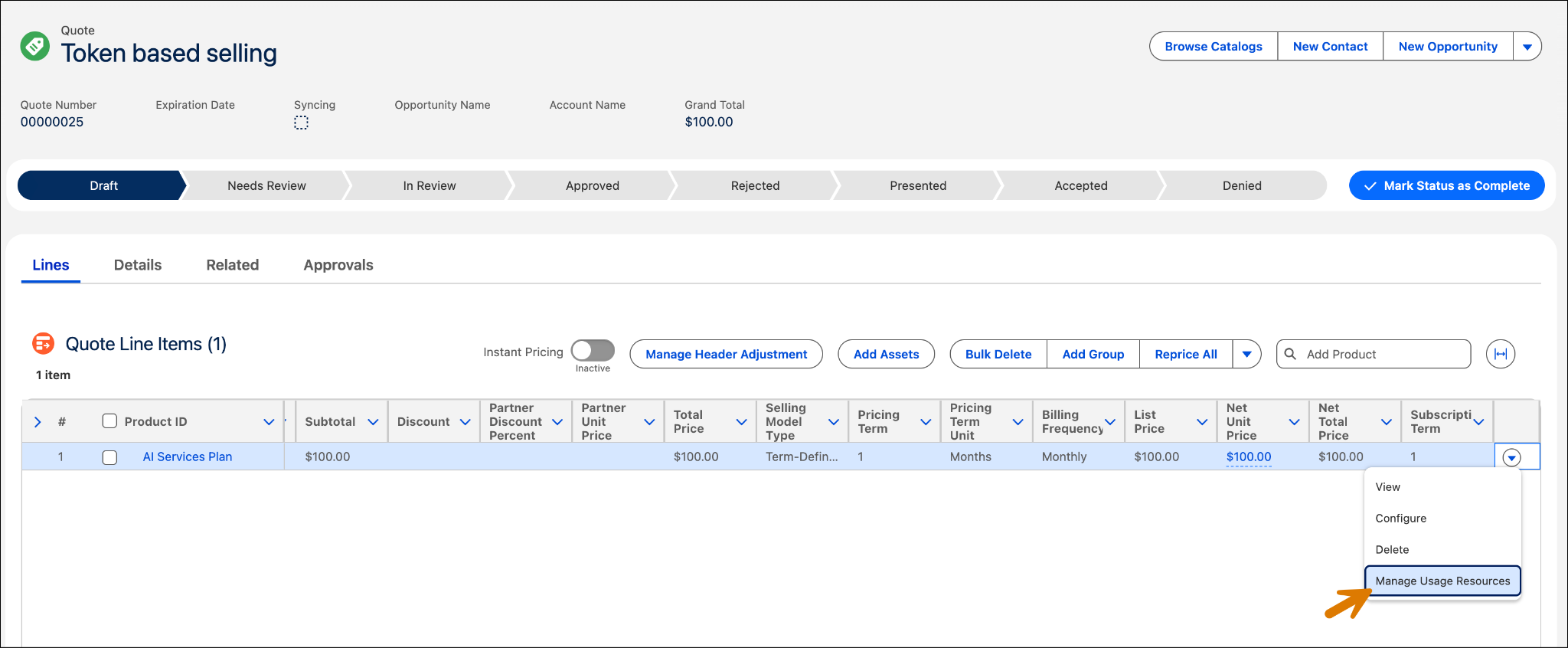
- On the Manage Usage Resources page, review the usage resources and their grant quantities. Also, check the Applicable Rate for overage pricing for these resources. These rates are pulled directly from the Base Rate Card that you set up in the previous unit.
 Notice how clearly the Manage Usage Resources page displays your token economy. Sales reps can see the 1,000 included credits, understand that each AI Agent Interaction costs 2 credits, and know that additional credit costs $1 each.
- Click Cancel to return to the quote page.
Next, create an order.
Create and Submit Order
- On the Token based selling quote page, select Accepted from the approval flow.
- Click Mark as Current Status.

- In the quote header, click
 , and select Create Order.
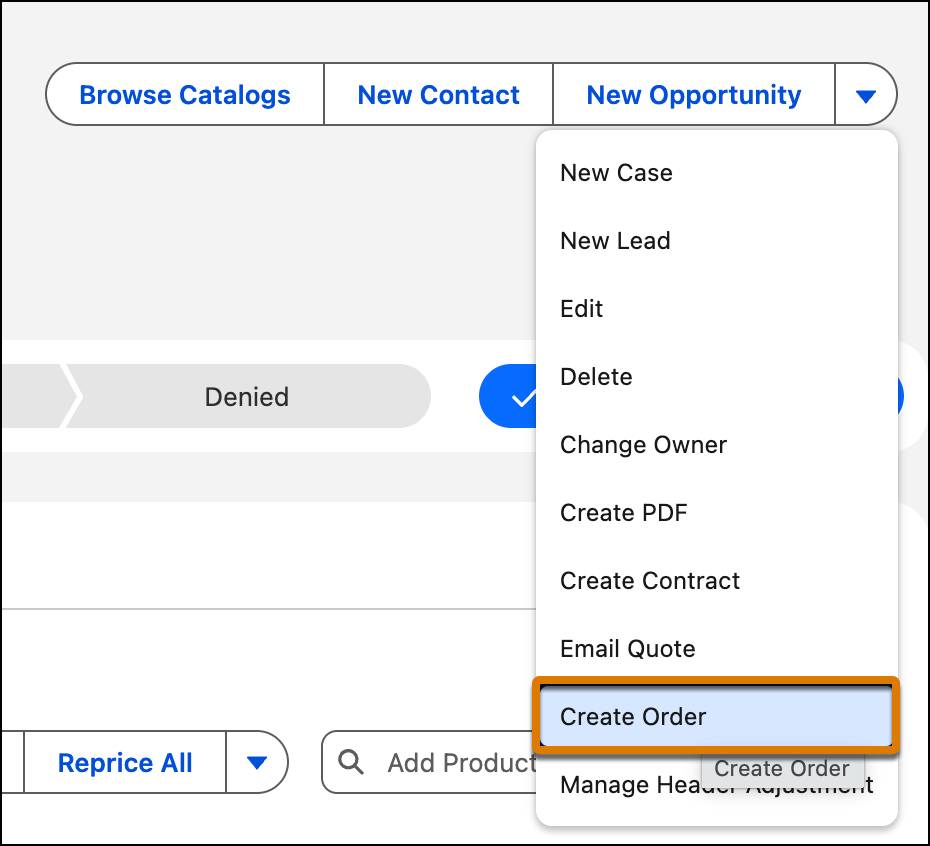
- In the Create Order window, select Create Single Order.
- Click Finish. It can take a few seconds for your order to be generated.
- Navigate to the Related tab.
- Under Orders, select the newly created order number.

- On the order page, navigate to the Details tab.
- For Billing Address, Shipping Address and Bill To Contact fields, click
 , and add these details.
- Billing Street:
312 Constitution Place
- Billing City:
Austin - Billing State/Province:
TX - Shipping Street:
312 Constitution Place
- Shipping City:
Austin - Shipping State/Province:
TX - Bill To Contact: Sean Forbes
- Save your changes.
- In the order approval flow, select Activated.
- Click Mark as Current Status.

Your order is now active and an asset is created for the AI Service Plan under the EdgeMX account.
Next Up
You've successfully implemented a token-based selling model for the AI Services Plan. Customers can purchase the product, receive 1,000 credits, and use them for AI Agent Interactions.
But what if InfinitraBytes wants to sweeten the deal? Imagine rewarding customers who commit to spending a certain amount on tokens with exclusive discounts. That's exactly what token commitments enable. In the next unit, you design commitment products that boost customer loyalty while driving predictable revenue. Don’t go anywhere!
To pass the challenge and move on to the next unit, click Check Challenge to Earn Points.