Set Up Search Dictionaries
Learning Objectives
After completing this unit, you’ll be able to:
- List three standard search features in Agentforce Commerce for B2C.
- List the five standard search dictionaries.
- Describe three ways Agentforce Commerce for B2C can sort search results.
- List the three general steps you must take to configure Search Dictionaries.

Your storefront search capabilities are critical to your online business success. When shoppers find what they’re looking for quickly, your site experiences higher conversion rates, increased average order values, reduced cart abandonment, and improved brand loyalty.
In this unit, you learn about Agentforce Commerce for B2C search features and how Einstein Search can improve the shopper search experience–and build brand loyalty.
Engage Shoppers with Agentforce Commerce for B2C Storefront Search
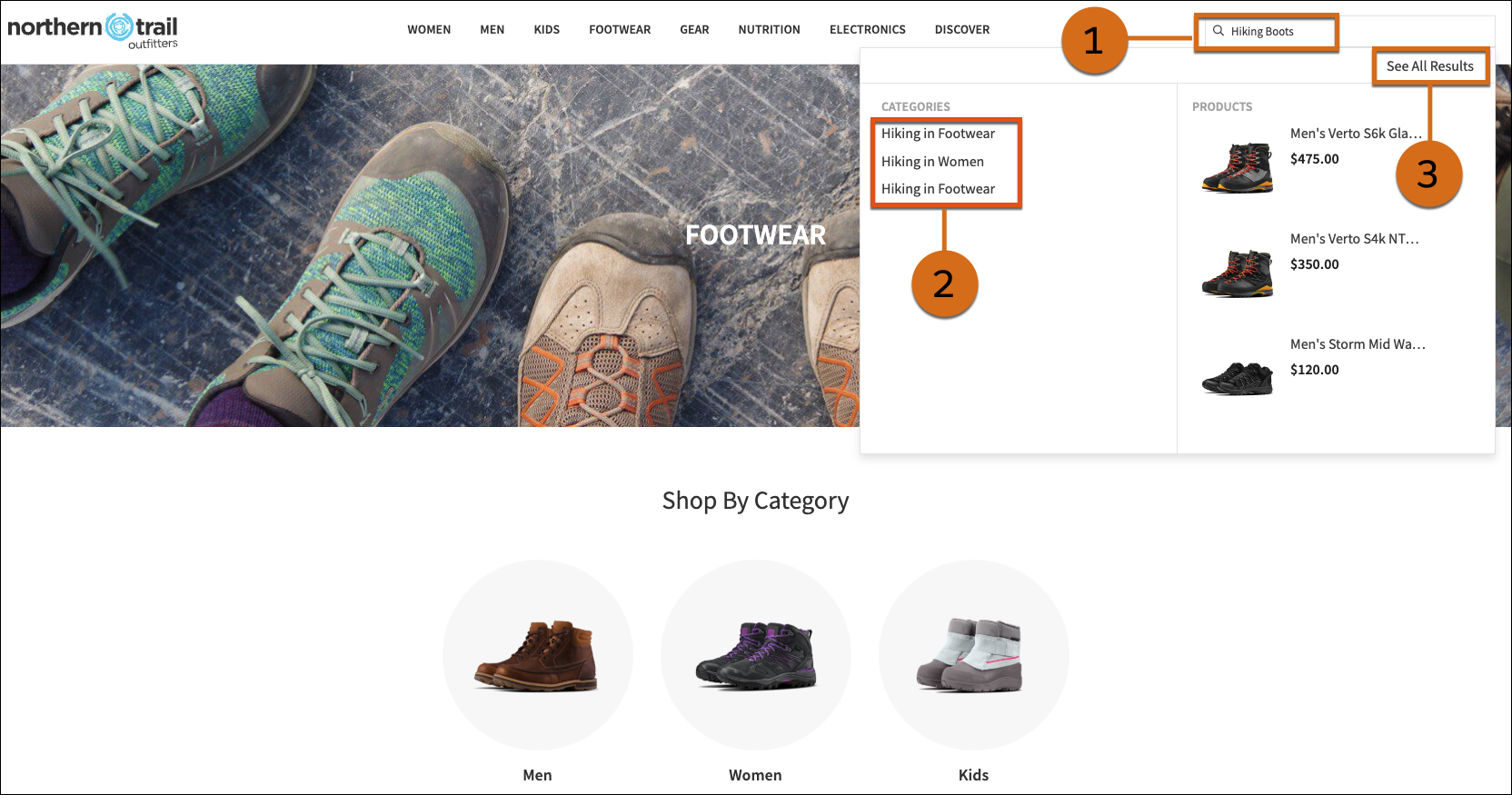
Built-in B2C search features include:
-
Keyword search: The shopper enters a search term and the results display on the storefront (1).
-
Search suggestions: As the shopper types, the storefront displays a list of possible results. At the same time, the software tries to complete the search term and automatically corrects spelling (2).
-
Search results sorting: Shoppers select how they want their results to sort (3).
These built-in B2C search options provide a solid foundation for delivering relevant search results within your digital storefront. The options are designed to enhance the customer experience with efficient product discovery through structured search capabilities.
You can further enhance this functionality with Einstein Search, our AI-powered semantic search. This feature uses natural language processing (NLP) to interpret user queries more effectively, reducing the likelihood of “no results found” pages. Let’s take a closer look.
Add Value with Einstein Search
Agentforce Commerce Einstein Search improves the results of each of these search features.
Feature |
Standard Agentforce Commerce for B2C |
Agentforce Commerce Einstein |
Einstein Feature |
|---|---|---|---|
Keyword Search |
Dictionaries that you manually create based on your own specific data |
Data that Einstein pulls from live searches and search results from many merchants and adds to existing dictionaries |
Search Dictionaries |
Search Suggestions |
Basic search-as-you-type with advanced features: spelling correction and search term completion |
Algorithms that add:
|
Search Recommendations |
Search Results |
Configured search result settings for:
|
As Agentforce Commerce Einstein collects data, Predictive Sort learns about each shopper and increases the personalized sorting experience for them. This feature also enhances search results and suggestions. |
Predictive Sort |
Keyword Search
Shoppers want to find what they’re looking for now or they look elsewhere. With standard B2C keyword search, you create your search dictionaries manually. For example, you add the term “high-top sneaker” to a list of compound words. Creating dictionaries this way is a manual effort that requires a deep understanding of your products and the locales you sell to.
The Einstein Search dictionary pulls data automatically from live searches and search results. It automatically detects relationships between search terms. You can review and add this data to your existing dictionaries quickly and easily.
Search Recommendations
Search recommendations begin as soon as a shopper starts typing into the search field. Agentforce Commerce for B2C comes with a basic search-as-you-type feature. You can manage automatic spell-correction and search term completion with custom code.
Einstein Search Recommendations applies algorithms to Agentforce Commerce for B2C data to identify the most relevant search results per shopper, even before the shopper types all the text. By using various data points, Einstein Search identifies recent user search phrases, popular and trending search phrases, and personalized auto-correction and term-completion.
Search Results Sorting
You use Business Manager to configure how you want Agentforce Commerce for B2C to sort search results. You can show a dropdown so shoppers can sort the results themselves, and you can perform behind-the-scenes sorting to promote certain types of products for:
- Keyword searches
- Category navigation
- Dynamic attributes, such as availability, or configured keyword groups
With Predictive Sort, you can deliver more tailored and relevant search results by incorporating multiple data points from:
- Catalogs and products
- Order history
Based on a shopper's behavior and affinity to products, Einstein Search saves a cookie on the shopper’s device that includes the shopper’s assignment to specific products. This assignment can change within a session and works for registered and unknown shoppers. As Einstein collects data, Predictive Sort learns about each shopper and increases the personalization of search results sorting. Predictive Sort works with every type of behind-the-scenes sorting.
Search Dictionaries
To start with, the search dictionaries, enabled by default in Agentforce Commerce for B2C, uses only the site’s data. Once you accept the Einstein Data Privacy Agreement, you have access to community data and your search dictionaries are combined with data from the other contributing Agentforce Commerce for B2C merchants.
When enabled, Einstein Search Dictionaries consumes all site searches and search-related settings and identifies terms that shoppers search for but that are not in a dictionary. Using artificial intelligence (AI), it automatically detects relationships between search terms, recommends which synonym list to assign them to, and then creates new recommendations.
With Einstein Search Dictionaries, you can:
- View new Einstein Search Dictionaries recommendations.
- Accept or reject suggestions.
- Blocklist specific terms.
- Create new dictionary word stems with the Stemming Exceptions option.
Improve Search Results with Search Dictionaries
Agentforce Commerce for B2C uses search dictionaries to provide search results. The better your search dictionaries are, the more likely your shoppers can find what they’re looking for in their search results. Dictionaries include:
-
Synonyms: Words that mean the same thing.
-
Hypernyms: Term for a group of products. For example, the word top is a hypernym that contains the hyponyms tunic, shirt, and blouse. When a shopper searches for top, Agentforce Commerce for B2C returns products that contain top, tunic, shirt, and blouse.
-
Hyponyms: Term for an item in the group of products that a hypernym describes. For example, blouse is a hyponym of the hypernym top. When the shopper searches for blouse, Agentforce Commerce for B2C only returns products that contain blouse.
-
Common phrases: Word combinations that Agentforce Commerce for B2C must find together.
-
Compound words: Words that Agentforce Commerce for B2C splits into separate terms, based on a configuration rule that you set. For example, if you configure foot-*, a search for footstool returns results for foot and stool.
-
Stop words: Words that Agentforce Commerce for B2C ignores, such as “an” or “the.” Stop words keep the index more compact so that results show faster and you avoid search noise.
After Agentforce Commerce for B2C checks its dictionaries and potentially enhances the search result set, it sorts the results on the storefront. Agentforce Commerce for B2C sorts results based on the merchant or shopper-driven sorting rules that you configure in Business Manager.
Einstein Search Dictionaries, turned on by default, use only the site’s data. Make sure that Region (the primary location of your shoppers) is set to Americas, APAC, or EU at Administration | Operations | Einstein Status Dashboard | "Site" in your Staging instance.
Einstein Search Dictionaries
Einstein Search Dictionaries reviews all site searches and search-related settings and identifies terms that shoppers search for but that aren’t in a search dictionary. Einstein Search Dictionaries then generates a list of missing search terms and suggests which synonym list to assign them to. A better populated search dictionary improves the search experience for your shoppers.
It’s important to note that these Einstein Search Dictionary recommendations are distinct from the search recommendations that shoppers see directly on your site. You use the Einstein Search Dictionary recommendations to improve your search dictionaries.
With Einstein Search Dictionaries, you can:
- View new search dictionaries recommendations.
- Accept or reject suggestions to add additional terms to the search dictionaries.
Broaden Search Dictionary Data Access
To get the full benefit of search dictionaries, you can share anonymized search-related, non-PII, data with other merchants. As you learned, you can increase the amount of data your site can access by accepting the Einstein Data Privacy Agreement. The agreement gives you access to community data and updates your search dictionaries with data from the other contributing Agentforce Commerce for B2C merchants.
By accepting the privacy agreement, you give your company’s consent to contribute its search dictionary data to a shared database. The agreement provides recommendations to other merchants who have also consented to contribute to the shared database. Salesforce represents and warrants that it doesn’t disclose a merchant’s search dictionary data to any other customer in any identifiable form.
With the agreement, your company agrees that Salesforce can access the search dictionary data submitted to Agentforce Commerce for B2C. Salesforce uses this data to train and improve the Einstein Search Dictionary and other current or future similar features.
Here’s how you accept the Einstein Data Privacy Agreement’s terms and conditions.
- In Business Manager, click App Launcher and select Administration | Global Preferences | Einstein Search Dictionaries Opt-In.
- Select I accept these terms and conditions.
- Click Save.
Configure Search Dictionaries
To configure Einstein Search Dictionaries, you’ll need to:
- Set the Region to the primary shopper location (Americas, APAC, or EU) in your Staging instance (mandatory).
- Add the email addresses of people who plan to manage search dictionaries (optional).
Here’s how.
- In Business Manager, click App Launcher and select Merchant Tools | Site | Site Preferences | Search Preferences.
- Select Notification Settings for Search Dictionary.
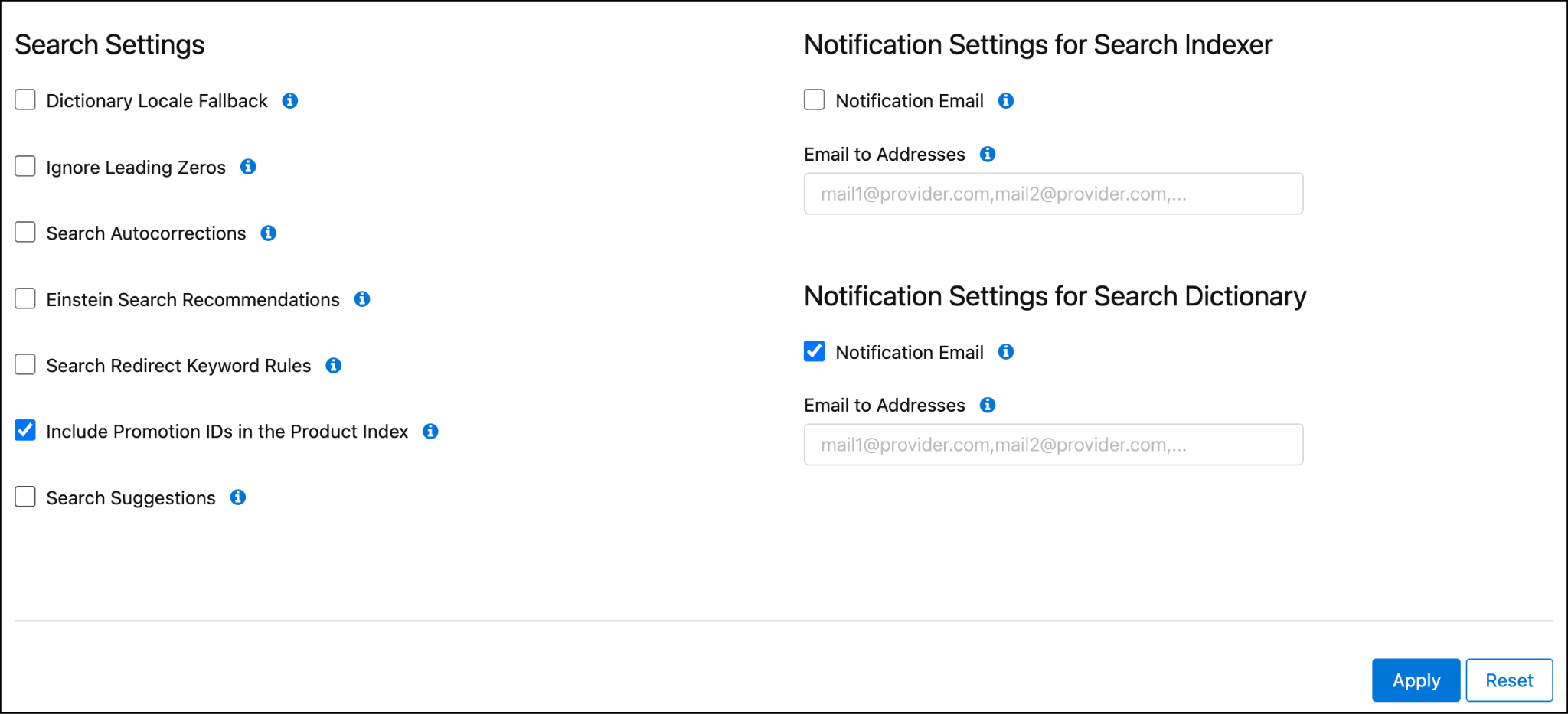
- Add the emails.
- Click Apply.
If the site has multiple locales:
- In Business Manager, click App Launcher and select Merchant Tools | Site | Site Preferences | Search Preferences.
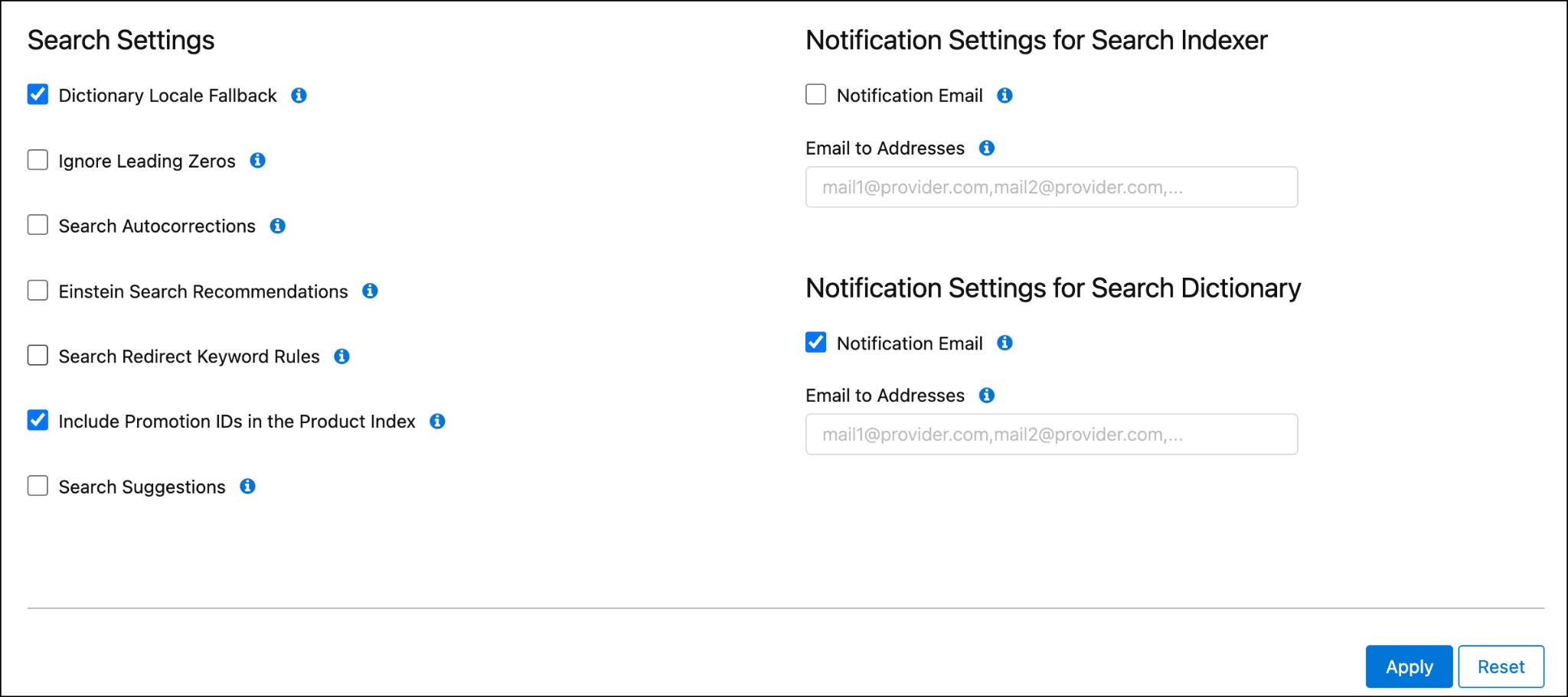
- Select Search Settings.
- Select Dictionary Locale Fallback to allow language level settings to update the regions.
Rebuild the Search Index
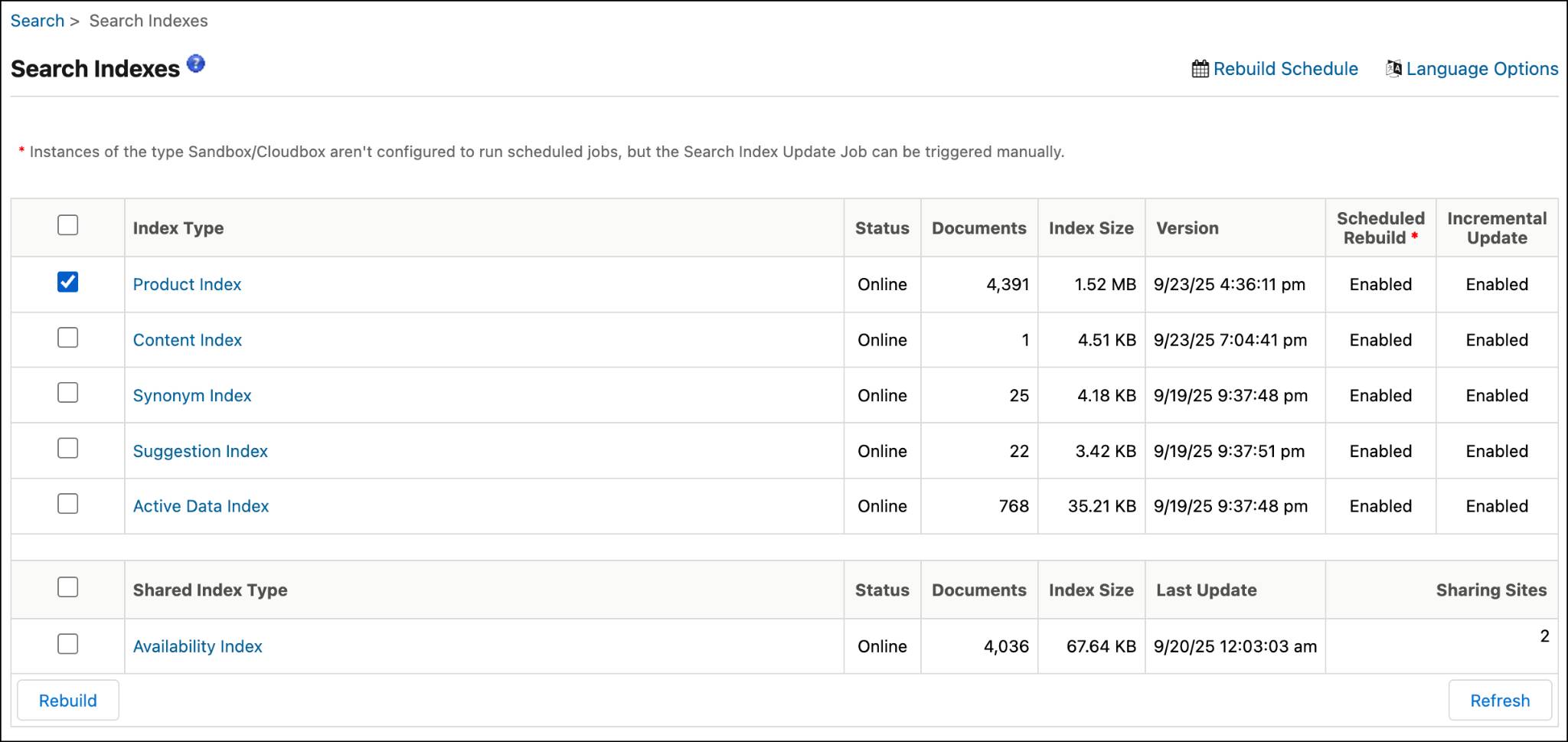
- In Business Manager, click App Launcher and select Merchant Tools | Site | Search | Search Indexes.
- Select the checkbox for the relevant indexes.
- Click Rebuild.
Add and Edit a Search Dictionary
Here’s how you use Search Dictionaries.
- In Business Manager, click App Launcher and select Merchant Tools | Site | Search Dictionaries.
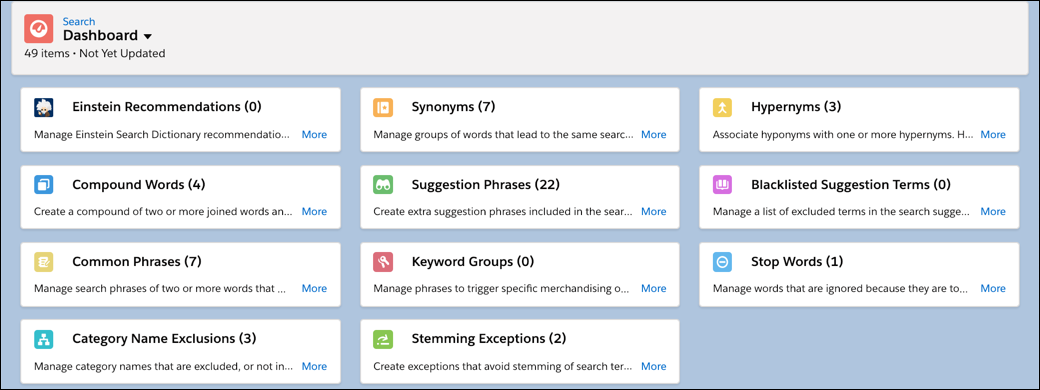
- Click or select a dictionary type, for example, Compound Words.
- Click New to create a new dictionary entry. Required fields are indicated by a red dot. The type is already selected: Compound Word.
- Select the locale.
- Enter the dictionary entry as a value, for example: high-top.
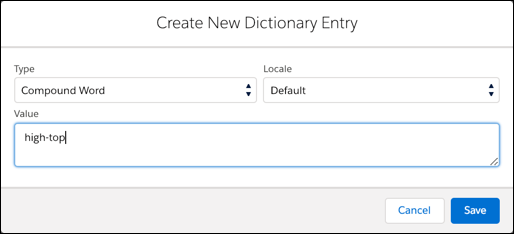
- Click Save.
To edit an entry you can search or filter to find it.
- Click Search Dictionary to search for an entry across dictionaries.
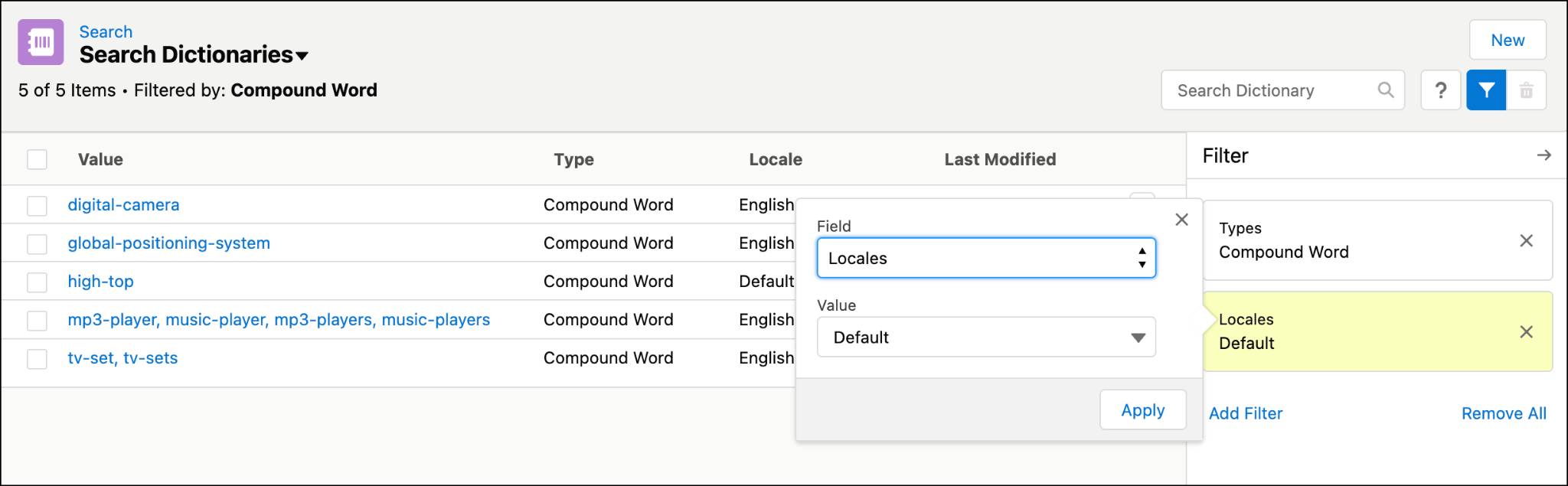
- You can filter the search by type and locale. If no filters are applied, search includes all dictionaries.
- Click the filter icon to add a new filter.
- Click Add Filter.
- Select a field and a value.
- Click Apply.
- Click Add Filter.
- Click Edit List Filters to edit an existing filter.
Stemming Exceptions
Stemming is a linguistic technique used to reduce words to their root or base form. It enables broader search results. For example, a search for “running” might also return results for “run” or “runner.” However, there are cases where stemming might lead to irrelevant results. In such cases, you use stemming exceptions to exclude specific terms for the stemming process.
Imagine you have a product catalog with the brand name QuickRun. Without stemming exceptions, a search for “QuickRun” might return results for “quick” or “run,” which could be irrelevant. By configuring “QuickRun” as a stemming exception, you ensure that searches for “QuickRun” return only the relevant brand-specific results.
Here’s how to create a stemming exception.
- In Business Manager, click Apps Launcher and select Merchant Tools | Search | Search Dictionaries.
- Click Stemming Exceptions.
- Click New.
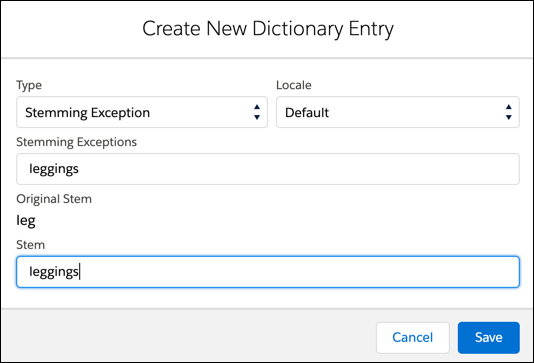
- Enter the same term for Stemming Exceptions and Stem.
- Click Save.
To push these changes to the production instance, your system admin replicates from the staging to the development instance for testing, and then from staging to production.
Next Up
In this unit, you learned how Commerce Cloud Einstein can make search smarter on your Agentforce Commerce for B2C storefront. You explored search dictionaries and learned how to configure and use Einstein Search Dictionaries to improve shopper search results. Next, learn how to implement Agentforce Commerce Einstein Search Recommendations.