Test Your Agent
Now that your new Pipeline Management agent is ready to test, let’s go ahead and get started. To test the agent we are going to select an opportunity.
Opportunity Noted
First, we need to create a note on an opportunity.
- Click
 to open the App Launcher, then search for and select Sales.
- In the global search box, enter and select the Grand Hotels Guest Portable Generators opportunity.
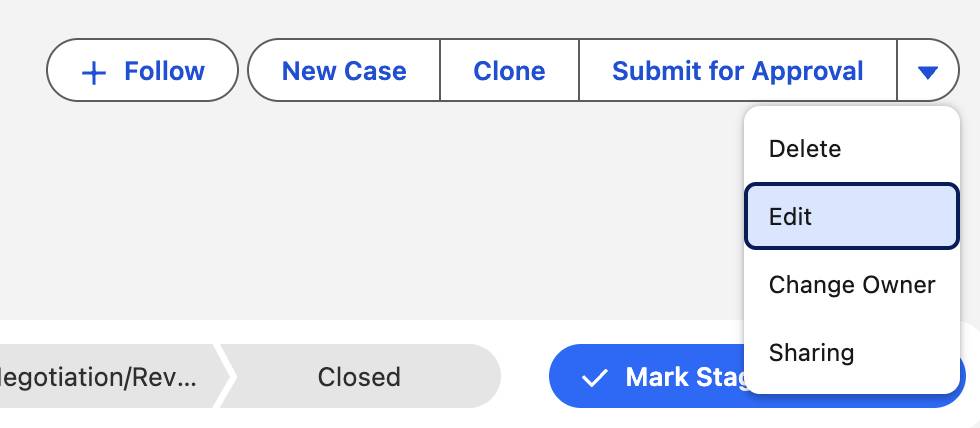
- Click the down arrow in the upper right corner and click Edit.
- Update the close date to the end of the current month.
- Click Save.
- In the Related section of the opportunity, click the down arrow next to Notes and select New.
- For Title enter
Zoom video call.
- Copy and paste the following into the note text field:
Welo Sales Rep:
John, thanks for taking the time today. We’ve been reaching out to hotels and resorts focused on sustainability and operational efficiency, and Grand Hotels & Resorts stood out as a clear leader. What prompted your interest in exploring Welo?
John Bond:
We’re looking to improve energy efficiency and reduce our overall operational footprint across both IT and energy operations. Our infrastructure supports millions of daily guests worldwide, so energy consumption has become a strategic priority. Leadership has specifically asked my team to evaluate solutions that can help us meet our carbon-reduction goals while improving system performance.
Welo Sales Rep:
That’s right in Welo’s wheelhouse. Our generators and software give enterprise teams real-time visibility into energy usage, automate sustainability reporting, and apply predictive analytics to optimize performance without downtime. Based on what you’ve shared, GHR’s goals sound highly aligned with what our tool Welo delivers.
John Bond:
That’s what caught my attention. We have a modernization budget set aside this fiscal year, and part of it’s earmarked for sustainability and infrastructure upgrades. I oversee our global property procurement, so I’m responsible for identifying vendors that can support those initiatives.
Welo Sales Rep:
That’s great to hear. Why don’t we set up a deeper qualification session with your team so we can map your energy-efficiency goals to specific Welo capabilities? I can bring a solutions consultant to walk through potential use cases and ROI scenarios.
John Bond:
That makes sense. How about Thursday at 10 a.m.? I can loop in our Director of Operations and Finance Lead so we can review the technical and financial aspects together.
Welo Sales Rep:
Thursday at 10 a.m. works perfectly. I’ll send a calendar invite and include a short agenda and demo overview in advance so your team has context. Appreciate you making the time—looking forward to the discussion.
John Bond:
Likewise. Thanks for reaching out. This should give us a good sense of fit and next steps.
- Click Done.
Next, adjust the start of the flow to trigger the agent.
- Navigate to the Process Field Update Suggestion browser tab. Note: If you previously closed the flow tab, go to Setup > Flows > Process Field Update Suggestion.
- Click Edit next to Flow Starts.
- Click into the Start Date Field and select today. Set the start time to 2 minutes in the future. Note: You can manually enter the time you want the flow to start.
- Click Save As New Flow.
- Enter
Testing Zoom Callas the Flow Label.
- Click Save and then click Activate.
Note: Do not close this tab just yet.
Now we will test the agent within the opportunity.
- Navigate back to the Opportunities browser tab.
- Click the Opportunities tab.
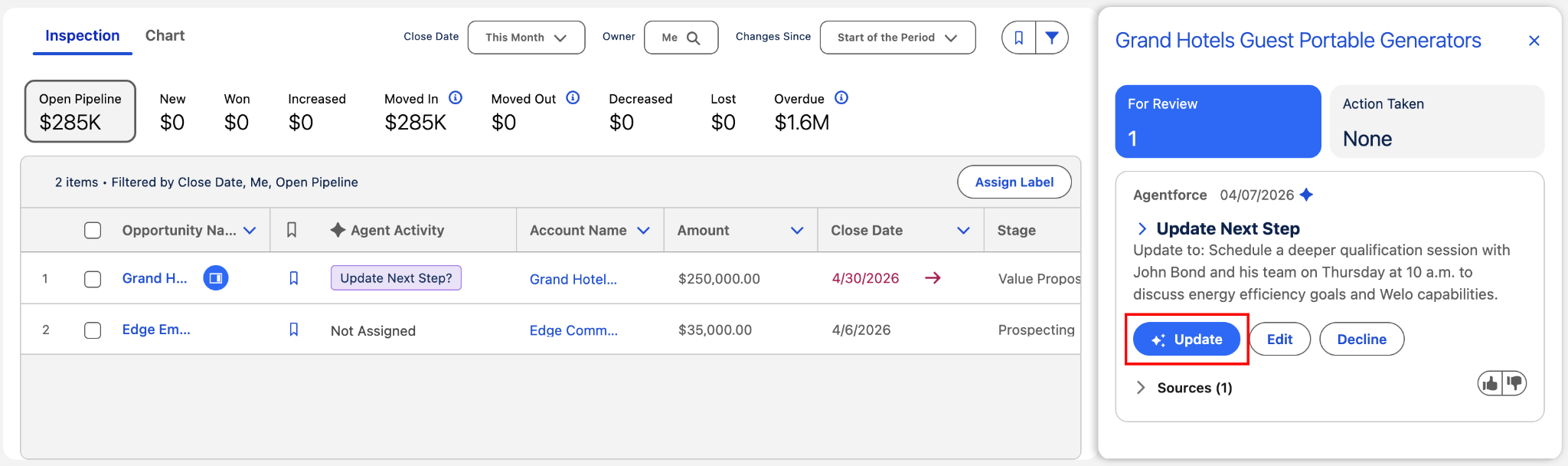
- With the Inspection subtab opened, hover over the note in the Agent Activity column and click Review.

Note: If you don’t see any entries under Agent Activity, refresh the page. Also, make sure the previous flow has been activated and that the flow start time has elapsed.
- Click Update in the Next Step section to update to the next step.
Test Autonomous Updating
- Click
 and click Setup. The Setup page opens in a new tab. Keep both tabs open.
- In the Setup Quick Find, search for and select Salesforce Go.
- In the Search features… text box, search for and select Agentforce for Sales.
- Expand the Pipeline Management section.
- Set the Update Fields Autonomously toggle to Active.
- Navigate back to the Opportunities Pipeline tab.
- In the global search box enter and select the GenePoint Lab Generators opportunity.
- Click the down arrow in the upper right corner and click Edit. Change the close date to the end of the current month.
- Click Save.
- Click the arrow next to Notes and select New.
- Enter
Onsite Meetingfor the Title.
- Copy and paste the following into the note text field:
Attendees: Welo: Account Executive Edward Stamos, GenePoint Lab Generators: Edna Frank, VP of Technology
Opportunity Stage: Qualification
Summary of Discussion: I met onsite with GenePoint, a mid-sized manufacturer specializing in precision components and custom-engineered solutions. With 680 employees and $1.8M in annual revenue, GenePoint is focused on operational efficiency and steady growth. The team expressed strong interest in Welo’s ability to streamline operations and enhance reporting. They are eager to move forward with an evaluation and requested that we provide supporting resources and schedule a demo to dive deeper into how Welo can help optimize procurement and production processes.
Key Takeaways
Primary Need: Improve operational efficiency and visibility into procurement and production workflows.
Value Proposition: Welo’s automation and analytics capabilities align with GenePoint’s goals of reducing complexity, controlling costs, and driving efficiency.
Decision Makers: Edward Stamos (CEO) and Edna Frank (VP of Technology).
Next Steps: Share tailored resources, send a follow-up email with a demo agenda, and schedule the demo.
- Click Done.
We have one more note to create to help with testing the agent.
- Navigate back to the Opportunities tab.
- In the global search bar, search for and select Edge Emergency Generator.
- Update the close date to the end of the current month.
- Click the arrow next to Notes and click New.
- For the Title enter
Subject Request for Proposal & Pricing-Urgent Next Steps.
- Copy and paste the following text:
Hi Sarah,
Thank you again for the outstanding demo. It was clear, relevant, and resonated strongly with Edge Emergency Generator’s priorities. Our decision timeline has moved up, so we’ll need to review initial pricing and a proposal as soon as possible.
Please share a ballpark quote that covers the core modules we saw (sustainability analytics, ESG reporting, and predictive optimization), along with any available bundling or multi-year options. A simple pilot vs. phased rollout comparison would also help us accelerate internal alignment.
We’re eager to keep momentum and move quickly toward next steps.
Best regards,
Sean Forbes
Chief Financial Officer, Edge Emergency Generators, Inc.
Rose Gonzalez
SVP Procurement, Edge Emergency Generators, Inc.
- Click Done.
Next, we need to trigger the flow to start again.
- Navigate to the Process Field Update Suggestion browser tab. Note: If you previously closed the flow tab, go to Setup > Flows > Process Field Update Suggestion.
- Click Edit next to Flow Starts.
- Click into the Start Date Field and select today. Set the start time to 2 minutes in the future.
- Click Save as New Version and then click Save.
- Click Activate.
Time to see the autonomous updating in action.
- Click the Opportunities tab on the navigation menu.
- Confirm that you have the Inspection subtab open.
Note: If you don’t see any entries under Agent Activity, refresh the page. Also, make sure the flow has been activated and that the flow start time has elapsed.
- Hover over Stage Updated or Next Step Updated in the Agent Activity column for each new opportunity added.
- Click Review to see the details for these opportunities.
That’s it! Now you can go through previous opportunities and summarize your deals in various stages.
Great job! In this badge you set up your new Pipeline Management agent and tested it by creating notes, and then started using it to quickly adjust the stage of the opportunity or summarize your deal. Now you are ready to begin managing your sales pipeline with ease.