Build and Configure Storefront Pages
Learning Objectives
After completing this unit, you’ll be able to:
- Identify how pages, components, and regions structure the Page Designer canvas.
- Describe how to create a page in Page Designer and assign it a layout.
- Explain how to add, arrange, and remove UI components by using the drag-and-drop canvas.
- Identify the Attribute Editor panel and explain how to configure component properties, such as images, text, links, and asset selections.
- List the steps to preview a page before publishing.
Set the Stage for the Summer Sale
The summer sale kicks off Friday night. You have the hero image, the headline copy, and the product selections ready to go. Your developer uploaded the component types to Business Manager last week. The Page Designer canvas is yours.
In this unit, you follow the full authoring workflow. You learn how to:
- Create the page.
- Build out the layout with components.
- Configure their content in the Attribute Editor.
- Preview the result before it goes live.
Map the Page, Component, and Region Hierarchy
Every Page Designer page follows the same structural pattern.
You create a page based on a page type that your developer uploaded. The page type defines the layout structure, including its regions.
Here’s the hierarchy.
- A page contains one or more regions.
- A region is a defined area where you place components. Regions can contain other regions.
- A component sits inside a region and uses the layout defined by its component type.
- Some components contain regions, so you can nest components inside other components.
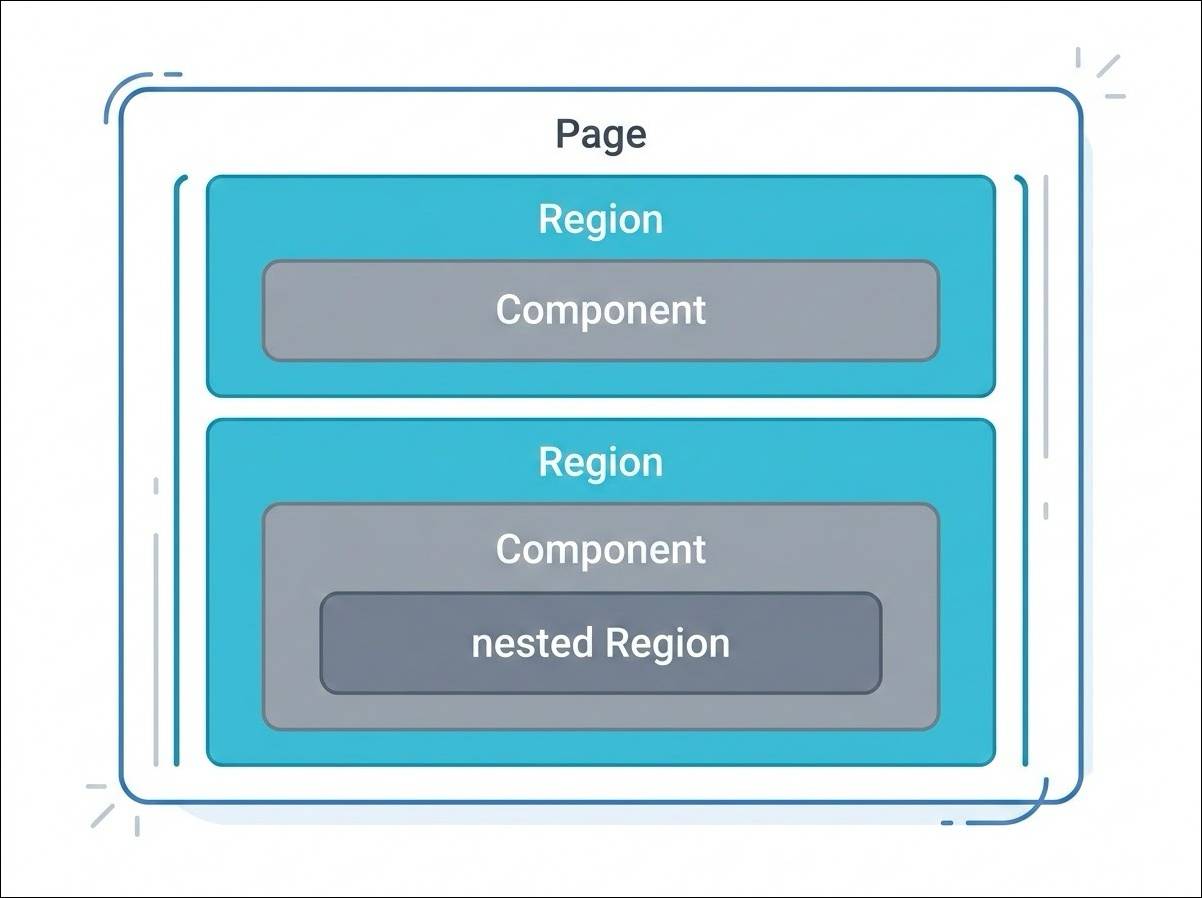
A region can hold more than one component at the same time. The developer sets a maximum number of components that can be visible in a region at one time, but the region can contain several components, each with its own visibility rules. Visibility rules let you swap a winter banner for a summer one without touching the page layout.
Create and Lay Out a Page
Create a Page
- In Business Manager, select App Launcher and then select Merchant Tools | Content | Page Designer.
- Select New.
- Select a page layout.
- If using a dynamic layout, select how you want to use the page.
- For Product List or Product Detail pages, select categories to assign (or skip and assign later in Page Settings).
- Select a page language. Create the page in your base language. Page Designer creates a variation for each locale in the fallback hierarchy.
- Enter a name and ID.
- (Optional) Enter a description.
- Review the information. To change anything, select Edit.
- Select Save & Create.
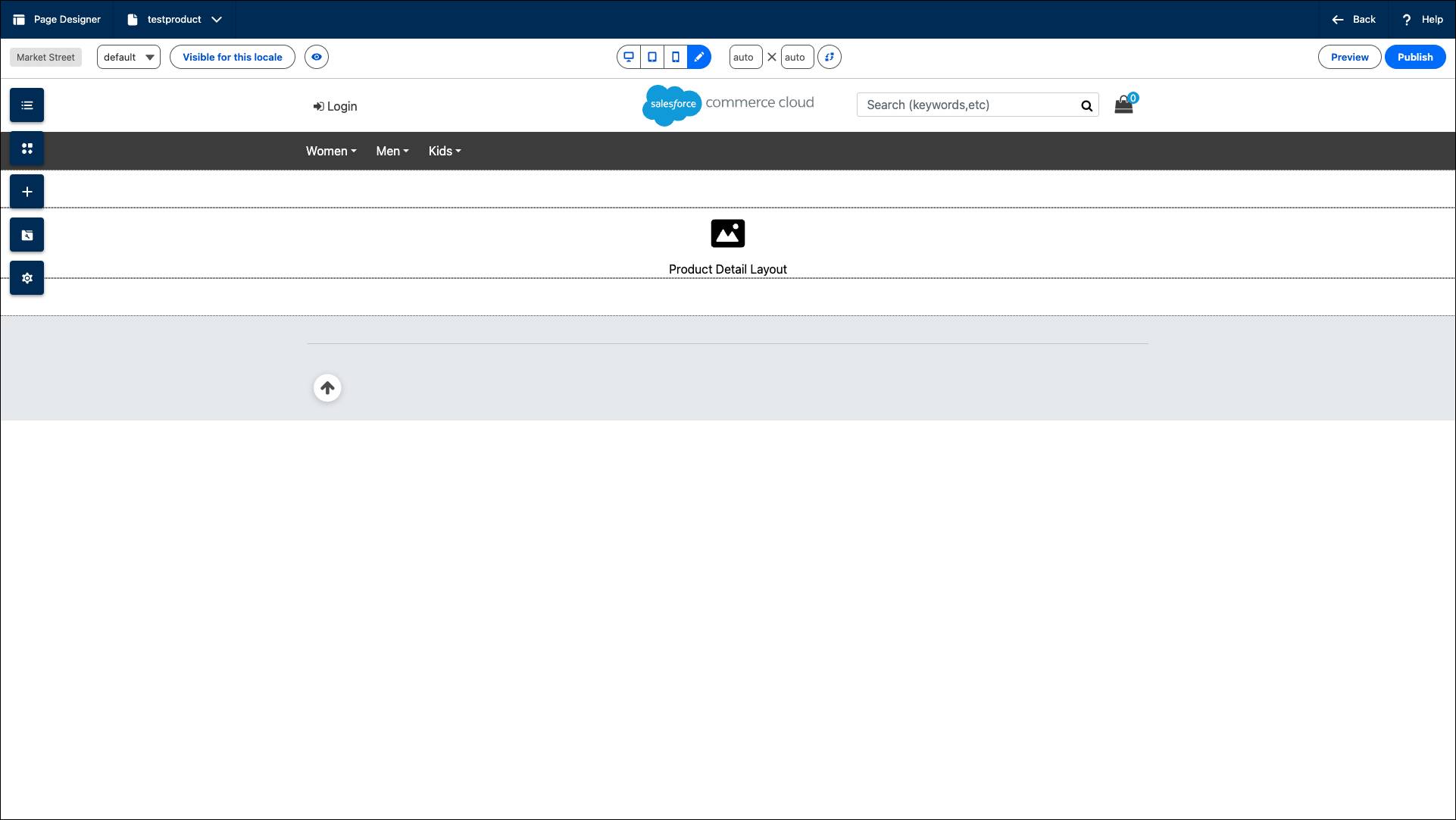
For dynamic pages:
- Select the Preview Settings icon.
- Select a category or enter a product SKU for Dynamic Attributes.
- Select Apply.
Add Components
- Select the Components icon to open the component menu.
- Drag a component type into a region. The component appears with no attributes configured.
You can add one or more components to every region. Some regions only accept specific component types. Your developer defines which types each region accepts.
Copy Components
You can copy up to 10 components at a time.
- Select a component.
- Select Copy Component.
- Open a page and select the Page Structure icon.
- Select the Plus Sign icon for the target region.
- Select the copied component from COPIED COMPONENTS.
Configure Component Attributes
After you place components on the canvas, you configure their attributes to control what content appears on the storefront. Component attributes are the properties that your developer defined for each component type. These attributes determine what the component displays: the text that appears in a headline, the image that shows in a hero banner, the URL that a button links to, or the products that appear in a grid.
To access and configure component attributes:
- Select the component on the canvas.
- In the Attribute Editor panel, adjust the component attribute settings as needed.
Add Text Content
- Select any text field in the Attribute Editor to add headlines, body copy, or button labels.
- When you use the rich text editor, format text using Heading1, Heading2, Heading3, Heading4, and Paragraph tags. The text’s formatting corresponds to the styles in the browser’s CSS.
- To open a larger editing window, select the Expand icon.
Select Images from the Media Manager
- Use the content picker grid in the Attribute Editor to select images.
- To upload and manage files, select the Media Manager icon in the visual editor.
- Expand directories to see contents.
- Right-click directory names to delete, rename, or create subdirectories.
- Select Upload Files or drag files into the window. Select Finished to exit.
Bind Component Attributes to Content Assets
When Page Designer Data Binding is activated for Page Designer, components support content asset data binding. You can bind component attributes to content asset attributes instead of entering content directly. When you bind a component attribute to a content asset attribute, the component displays the content asset’s data at runtime. Update the content asset once, and changes appear automatically wherever you use the component. To learn more about Data Binding, check out Content Asset Data Binding in Page Designer.
To bind a component to a content asset:
- Select a component.
- Select Select Content Asset. Search for or browse to the content asset.
- Select the content asset, and then select Apply.
- (Optional) To bind a specific attribute, select the data binding icon next to the component attribute. Select the content asset attribute from the dropdown. The dropdown shows only compatible attributes from the content asset’s Content section.
- Save your work.
The component displays content from the content asset. The attribute becomes read-only. To change the content asset:
- Select Change Selection.
- To remove the binding, select Unassign Content Asset Attribute.
- To edit the content asset, select the content asset name.
Enter Links and Override Dynamic Attributes
Understand Dynamic Attributes
Dynamic pages like Product List pages and Product Detail pages display content that changes based on which category or product a shopper is viewing. When you build these pages, some components have dynamic attributes that automatically pull content from the category or product being rendered on the storefront.
This dynamic behavior happens automatically on the live storefront. But when you build the page in the visual editor, you need to see a preview with actual content. That’s where the Preview Settings come in.
- Select the Preview Settings icon at the top of the page.
- Select a category or enter a product SKU for Dynamic Attributes.
- Select Apply.
Images and text specific to the category or product you selected appear on the page so you can see how the components look with real content.
Override Dynamic Attributes
Sometimes, you want a component to display content from a specific category or product instead of using whatever the shopper is viewing.
To override the category or product passed to the page:
- Select the Edit icon next to Value assigned to the page.
- Select a different category.
The component now displays content from the category you selected instead of the category being rendered.
Create Reusable Content with Content Blocks
Content blocks are modular, reusable compositions of one or more components that appear on multiple pages from a single source. When you update a content block, the change propagates to every page where it’s used.
Set Up a Content Block
- Open a page in Page Designer.
- Select a component, and select Save as New Content Block.
- Enter a name, and select Apply.
The component becomes a content block with a purple highlight border and special icon.
Add a Content Block to a Page
- Select the Content Blocks icon in the toolbar, or open the Page Structure panel and select the plus sign where you want to add it.
- Drag the content block to the page or into a component region.
- Save your work.
Future edits automatically appear on all pages where it’s used.
Assign a Content Block to a Region
You can assign a content block to named storefront regions. For example, page regions, sitewide regions, or embedded regions.
- In Business Manager, select App Launcher.
- Select Merchant Tools | Content | Content Blocks.
- Select the content block.
- Select the Assignment tab.
- Select Add Region, and select a region from the list.
- Save your work.
The content block appears on the storefront in that location.
Save Configured Components as Content Blocks
After you configure each component, you save the configuration. You can also save a component as a reusable content block.
To create a content block from a component:
- Select the component.
- Select Save as New Content Block.
- Enter a name and select Apply.
The component becomes a content block with a purple highlight border and special icon. The block appears in the Content Blocks menu for use on other pages. You can assess content blocks in Business Manager | Merchant Tools | Content | Content Blocks.
Preview the Page
Before you publish, preview the page to confirm it looks the way you want.
- Select the Preview icon at the top of the canvas.
- Select customer groups and dates. For dynamic pages, select a value for the dynamic attribute. Select Apply. A small green circle appears next to the preview icon when preview settings are active.
- Select the Viewport icon to check how the page renders across device types.
- Select the Rotate icon to switch between portrait and landscape.
- To adjust dimensions, select the Edit icon and enter width and height in pixels. To automatically calculate pixel values, select the Edit icon again.
- Select Back to Edit View when done.

Publish the Page
When you’re satisfied with how the page looks, select Publish to make the page available online.
Up Next
In this unit, you explored how Page Designer structures pages, components, and regions. You learned how to create a page, place components, configure attributes, bind to content assets, create content blocks, and preview across device types.
In the next unit, you schedule the page to go live at the right time and target the right customers.