Troubleshoot Replication
Learning Objectives
After completing this unit, you’ll be able to:
- List three types of problems you can encounter with replications.
- List three steps you can take when troubleshooting a failed replication.
- Explain how a replication roll back works.
- List the types of logs that can help with replication troubleshooting.
- Describe three approaches that you can take to troubleshoot a hung replication.
Address Replication Failures
Replication failures can happen. When they do, it’s best to find out why and then make a plan to address the failure. Usually, you can undo the replication and start over.
If you experience a replication failure, the best place to start troubleshooting is to review the replication status.
To review the replication status.
- In Business Manager, click App Launcher, and then select Administration | Replication | Data (or Code) Replication.
- View the list of replication processes and their status.
- If you find a failed or stuck replication, the next step is to review the replication logs.
Review Replication Logs
You can review the replication logs on the staging and target instances for error messages. Entries that include "failed" or "ORA-" give you clues.
- If the replication logs fail to provide helpful data, check the error logs.
- If the replication includes multiple tasks, try to isolate the task that caused the problem by running tests with and without each task.
- If the replication of multiple objects fails, try replicating individual objects to narrow the cause.
- If a scheduled replication fails to run, try to run it manually.
Undo a Replication
If the data or code fails to transfer properly or is incomplete, you run an undo. You log into a PIG instance to run or access a replication. Run another replication process with the replication type set to Undo. This rollback restores the target instance to its previous state. However, you only roll back the most recent data or code replication.
Data and code replications don’t affect each other's rollbacks. For example, if you run a data replication and then a code replication, you can undo both replications.

Reverse a Data Replication
You can roll back the most recent transfer and publishing or publishing data replication process. When you undo a data replication process, you enter a description, configure an email notification, and prevent the target instance page cache from refreshing. If you prefer to skip those steps, simply click Undo next to a replication process. Follow these steps.
- In Business Manager, click App Launcher, and select Administration | Replication |Data Replication.
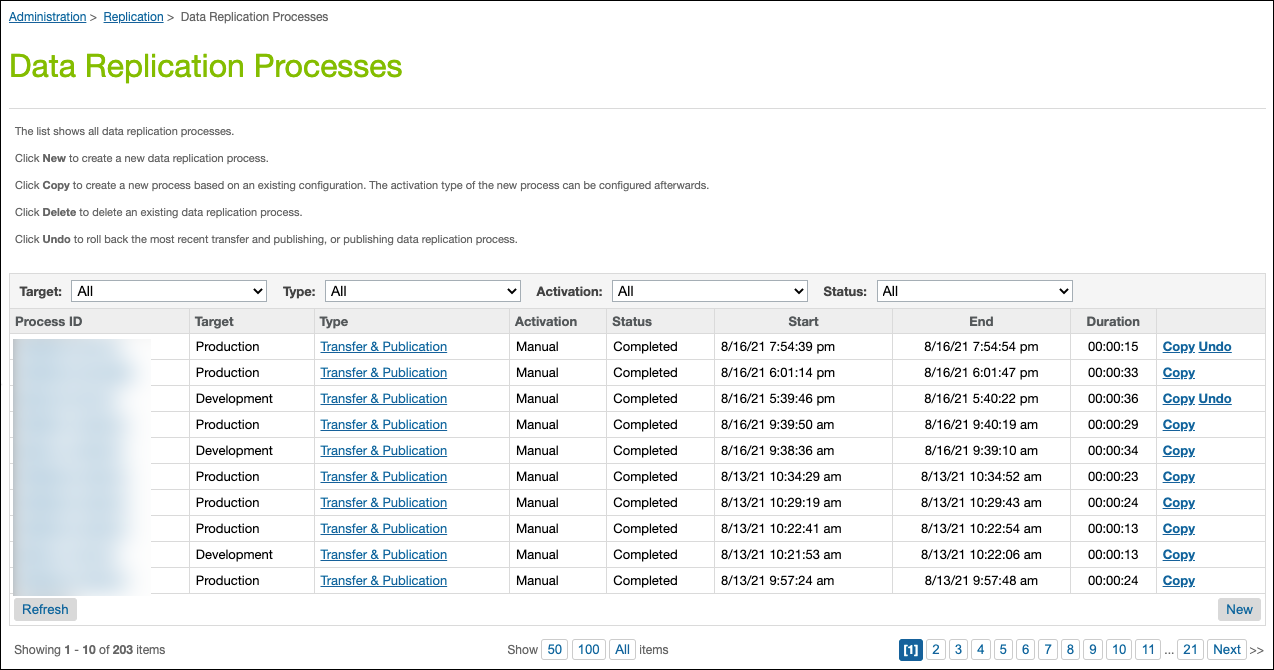
- Click Undo next to the process. You can only undo the last process run on an instance.
- Select a target instance.
- Enter a description.
- Select the Activation Type: Manual
- Select a notification email trigger: When Process Ends.
- You can enter multiple target email addresses separated by commas. The email notifications contain the start and end time of the process, the target system, the replication type, and the included replication tasks. If the replication fails, the notification includes the error code. Each process in a recurring series sends its own notification.
- You can enter multiple target email addresses separated by commas. The email notifications contain the start and end time of the process, the target system, the replication type, and the included replication tasks. If the replication fails, the notification includes the error code. Each process in a recurring series sends its own notification.
- Click Next.
- Select the replication type: Undo
- Click Next and review the process details.
- Click Create.
- Find the process in the list and click Start.
Reverse a Code Replication
You can roll back the most recent transfer and activation or activation code replication process. When you undo a code replication, the target instance reverts to the previously active code version. You only undo the most recent code activation or code transfer and activation process for the target instance. Follow these steps.
- In Business Manager, click App Launcher, and select Administration | Replication | Code Replication.
- Click Undo next to the process.
- Select a target instance.
- Enter a description.
- Select the Activation Type: Manual
- Select a notification email trigger: When Process Ends
- You enter multiple target email addresses separated by commas. The email notifications contain the start and end time of the process, the target system, the replication type, and the included replication tasks. If the replication fails, the notification includes the error code. Each process in a recurring series sends its own notification.
- You enter multiple target email addresses separated by commas. The email notifications contain the start and end time of the process, the target system, the replication type, and the included replication tasks. If the replication fails, the notification includes the error code. Each process in a recurring series sends its own notification.
- Click Next.
- Select the replication type: Undo
- Click Next and review the process details.
- Click Create.
- Find the process in the list and click Start.
Locate and Read Replication Logs
The Salesforce B2C Commerce records replication process creates log files on both the source and target systems. These logs are separate from the regular error logs. They exist in: https://instance_address/on/demandware.servlet/webdav/Sites/Logs/, with file names such as staging-blade_name-appserver-yyyymmdd.log.
You can monitor status on the staging instance. If a process fails, review the staging logs. A single log contains several days’ worth of events, so look for a log dated at the beginning of the replication process. The log file has a timestamp similar to the data replication task. All the log file names contain staging, regardless of the instance type. Here’s how you review the logs.
- In Business Manager, click App Launcher, and select Administration | Site Development | Development Setup.
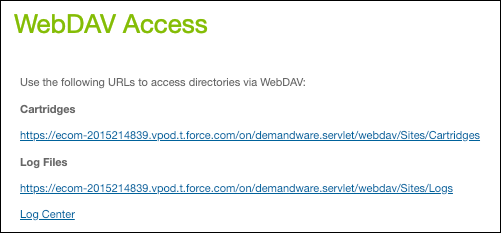
- Click the Log Files link.
- Look for the staging logs.
Here’s an example of a log entry: [2007-01-15 21:17:12.848 GMT] ISH-CORE-2250: New replication task "1168895828901" in domain "Sites-Site" successfully created.
When reviewing the log file, focus on certain items.
- Scroll through the log file, which contains the steps of the process, looking for errors.
- The final step on the staging instance is a hand-off to the target server. The staging log should have a line similar to this. [2019-01-15 21:27:09.783 GMT] Staging pipeline in live system successfully called.
- If the success message is missing, look for an error similar to this. ISH-CORE-2491: Setting state of process with uuid='dC8KAANna1111EOTN9h9md4' from 'StartingStagingProcess' to 'ErrorAcquiringEditingLocks
- If this staging error occurs, log into Control Center, and then stop and restart the instance. Then run the same replication again. Control Center is a Agentforce Commerce for B2C tool that lets you monitor the state of Agentforce Commerce for B2C instances and take appropriate action. If the staging instance log doesn’t have errors, look at the staging log on the target instance. https://[target_instance_name]/on/demandware.servlet/webdav/Sites/Logs
- The target instance staging logs start with a message like this. 2019-01-15 20:29:30.321 GMT] Copy staging process with uuid=bcFvkiaalTMxM444667bVYFqBX[2007-01-15 20:29:32.347 GMT] Starting StagingResources-Acquire@Sites-Site
- Depending on which data you replicated, the log has an entry for the start of the database copy. Check for errors.
- After the replication, review the entire log for errors. If the process finishes successfully, the following message appears at the end of the logs: [2019-01-15 21:31:17.434 GMT] ReplicationPublication process finished with state 'StagingProcessCompleted'.
Resolve a Stuck Replication
Some database transactions, especially those involving catalog data, take a while to complete. When data replication stays in the running state for longer than you expect, check to see if it’s stuck. Stuck means that the replication is no longer running, or has made limited or no progress. Find out if it’s stuck and why, so you run it successfully.
Inspect the Staging Instance
To check the most recent replication log on the staging instance, follow these steps.
- Confirm that it contains the line, "Staging pipeline in live system successfully called." If it doesn't, there’s a problem.
- Check to see if it includes an entry that a state is set to ErrorAcquiringEditingLocks. If so, resource locks from a previous replication process possibly remain unreleased, which hangs the replication.
Inspect the Target Instance
Check the most recent replication log on the target instance and scroll to the end.
- Refresh the view a few times to see if new entries are being added. If no new entries appear after a while, it’s likely that the replication is stuck.
- Check for an entry indicating the state is set to
ErrorAcquiringLivelocs.This entry suggests that blocking the replication are unreleased resource locks from a previous replication process.
- If the last log entry is a database action, such as INSERT or ALTER INDEX, check previous logs to see how long the action took and what the next entry was.
- If the last log entry starts with Rsync, the delay is possibly due to several changed static content files. Files moved to a different folder are included, even if their content is the same. If the Rsync is stuck, contact Customer Support to check its status.
- If the log shows the state
ErrorLiveStagingProcessKilled, check for a concurrent deployment or an instance restart, which can hold up the replication.
Compare Both Instances
Sometimes, you work with both instances.
- If either log contains a line similar to resource busy and acquire with NOWAIT specified, open a ticket with Customer Support and provide the troubleshooting steps that you tried.
- If the replication process shows Completed on the target instance but its status is still waiting or in progress on the staging instance, the staging instance was possibly down when the replication finished. Restart the staging instance and check the status again.
If you determine that the replication is stuck, use Control Center to restart the staging instance. Make sure the hung replication stops by verifying that its status on the staging instance is Failed. When it stops, rerun the replication.
If the replication hangs again, try to restart the target and source instances and rerun the replication. Restarting the target instance disrupts all running jobs, returns errors for all storefront requests, and clears all caches. Restart a production instance only as a last resort.
If the replication still hangs, open a Customer Support ticket and provide the troubleshooting steps that you tried.
Troubleshoot Cache Clearing
When you have issues with the page cache, consider these tips.
- To make sure that the problem isn’t local to your system, close the browser and clear the local cache. Then, manually clear the cache in Business Manager.
- To clear the cache on the embedded CDN (production and development instances) manually, click Invalidate for the Entire Page Cache for Site. You can skip clearing the static cache.
- If you don’t see an expected change, look for a pattern that indicates a more specific problem. For example, are images not refreshing? If so, the image provider is possibly having an issue. If a content asset is causing a problem, make sure that it was deployed.
Sum It Up
In this unit, you learned how to run and troubleshoot B2C Commerce replication processes. You learned how to undo a replication, review replication logs, handle a stuck replication, and troubleshoot cache clearing.
This badge showed you how to run and troubleshoot Agentforce Commerce for B2C replication processes.
Resources