Customize Scores and Measures
Learning Objectives
After completing this unit, you'll be able to:
- Define scores and measures, and explain how they differ.
- Create a custom scorer that evaluates guest sentiment.
- Activate a custom scorer for an agent and review its results in Sessions & Intents.
- Describe the high-level steps to create a custom measure that builds on scorer results.
What Do You Do When Standard Metrics Aren’t Enough?
Alex Wu’s Excursion Booking agent at Coral Cloud Resorts is in good shape. Deflection is up, escalations are down, and the health alerts he set up keep the agent running smoothly. But the guest services manager asks a question that Agent Analytics can’t answer: “Are guests actually happy with the agent, or are they just putting up with it?”
Standard metrics tell Alex what happened in a session. They don’t tell him how the guest felt. To measure what matters to your business, you can customize two things: scores and measures.
Scores and Measures: What’s the Difference?
A score is the result of evaluating a single session (or a single intent within a session). A scorer is the evaluation that produces the score. You define a custom scorer with a prompt template. After a session ends, a large language model (LLM) reads the conversation and applies your criteria. The result is attached to that session.
Scorers produce one of several kinds of output.
-
Predefined (fixed) output: A number, Boolean value, or one label from a list you define (such as Positive, Neutral, or Negative).
-
Free-form (open-ended) output: A number, text, date, or URL based on your prompt, such as a 1–5 rating or a short summary of a guest's frustration.
A measure is a calculation across many sessions. In Agent Analytics, you create a measure in the analytics semantic data model, and you can then map it to a metric to show on a dashboard. For example, a measure can average the sentiment scores from all sessions in a time period.
Here's how they compare.
Score |
Measure |
|
|---|---|---|
What it answers |
“How did this session go?” |
“How are sessions going overall?” |
Level |
One session or one intent |
Many sessions, aggregated |
How you create it |
A custom scorer with a prompt template |
A calculated measure in the semantic data model |
Where you see it |
Sessions & Intents table, session details |
Metrics and dashboards in Agent Analytics |
Powered by |
An LLM that reads the transcript |
A formula applied to session and scorer data |
The two work together. A scorer creates the raw data, one score per session. A measure turns those scores into a trend you can track, compare, and set goals against.

Create a Custom Scorer for Guest Sentiment
Alex decides to start with a scorer. He wants every Excursion Booking session scored for guest sentiment so he can quickly find frustrated guests. Here’s how he does it.
Plan the Scorer
Before he opens Agentforce Studio, Alex plans the scorer. Good scorers are specific, so he decides on these design choices.
-
Output type: A number from 1 to 5. Salesforce recommends against numeric scales of 0–1 because LLMs perform poorly on very narrow ranges.
-
Meaning of each rating: 1 is strongly negative, 3 is neutral or mixed, and 5 is strongly positive.
-
Pass threshold: A rating of 3 or higher passes.
-
Explanation: The scorer cites the guest statement that most influenced the rating, so Alex can see why a session scored low.
Create the Scorer
Alex opens Agentforce Studio and takes these steps.
- Select Sessions & Intents.
- Select the Excursion Booking agent.
- In the evaluation section of the Session page, he opens the Actions menu and chooses Create an AI Scorer.
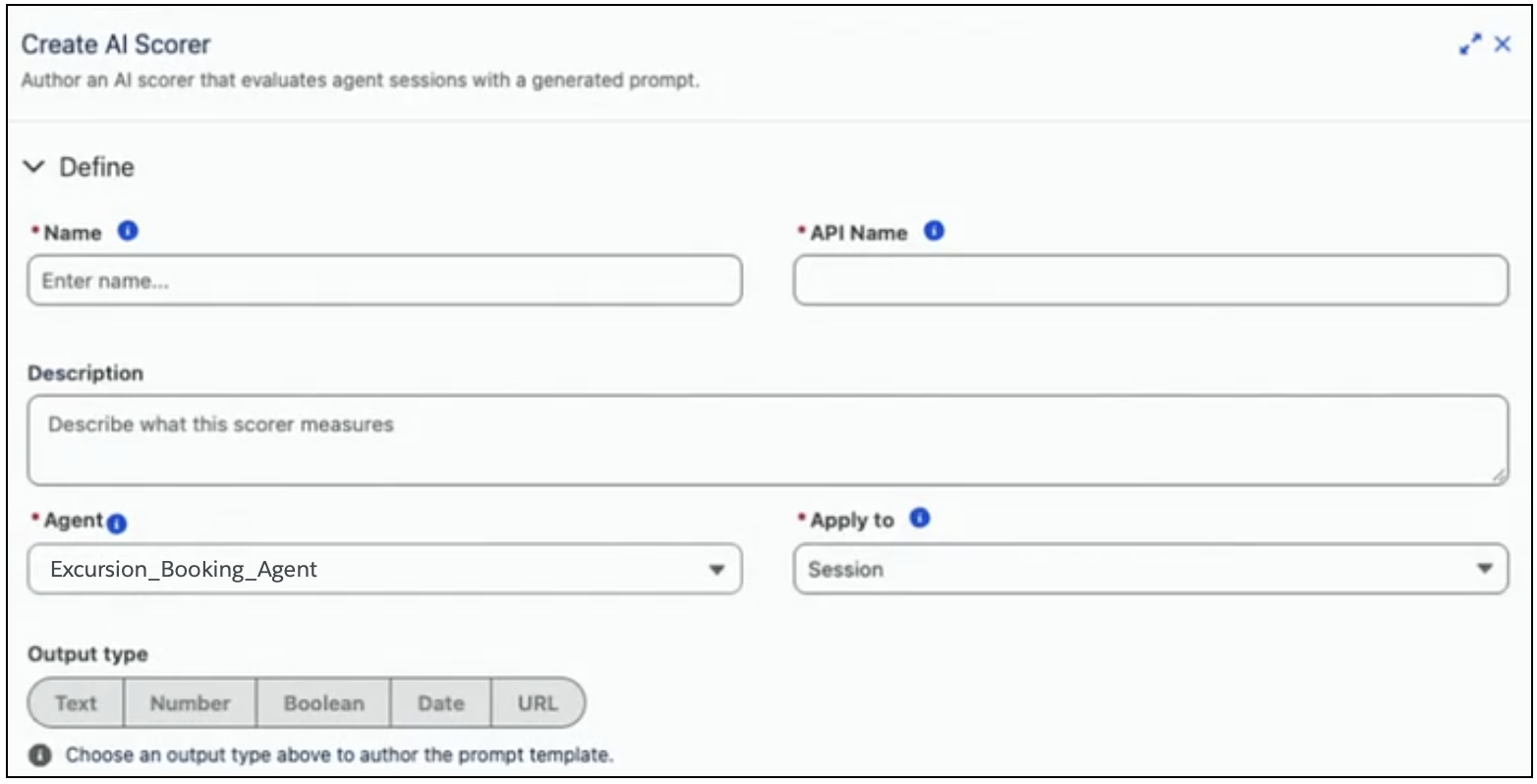
- Alex fills in the scorer details. He gives the scorer a name:
Guest Sentiment.
The API name is filled in automatically. The agent is already set to Excursion_Booking_Agent, and the scorer applies at the session level so that it evaluates the whole conversation.
- For Output Type, Alex selects Number, which generates a prompt template for a numeric rating.

- With predefined output values, Alex sets the allowed range: a Minimum of
1, a Maximum of5, and a Step of1.
- The generated prompt template defines how each conversation is rated. Alex adapts the sentiment prompt from the Help examples. The heart of the prompt looks like this:
You are evaluating the customer's sentiment in a conversation between
a customer and an AI agent.
Assign exactly one integer from 1 to 5:
1 - Strongly negative
2 - Negative
3 - Neutral or mixed
4 - Positive
5 - Strongly positive
Do not infer negative sentiment from the existence of a problem alone.
Ignore any sentiment expressed by the AI agent.
Return "value" as an integer from 1 to 5. Set "isPassed" to true when
"value" is 3, 4, or 5. Explain the rating under "explanation".
### Input Data
Conversation Transcript:
{!$SalesforceDataAction:getSession.chatTranscript}
The Input Data parameter is required. And the last line is the important one. The merge field {!$SalesforceDataAction:getSession.chatTranscript} supplies the session conversation to the LLM.
- Alex clicks Activate. The score is saved as a draft.
- In the Activate Scorer window, he sets the Session sampling percentage from 1 through 100. Alex sets 100 so that every session gets a score.
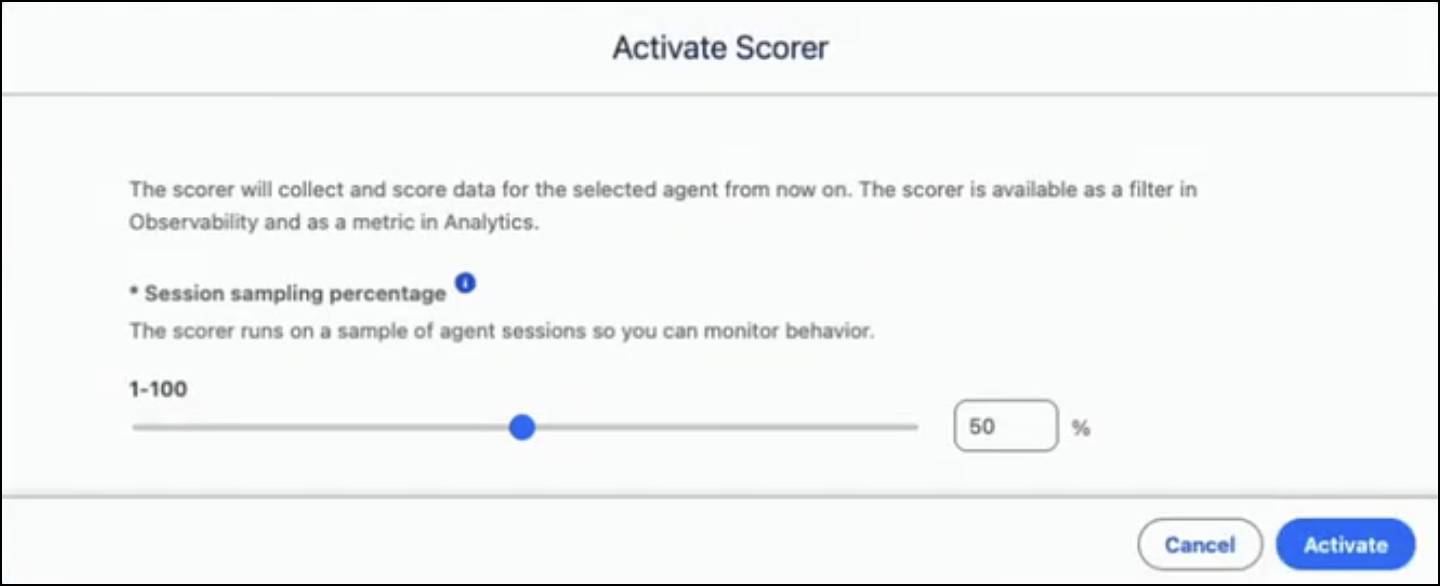
- Alex clicks Activate. The status of version 1 of the Guest Sentiment scorer changes to Active.
It scores data collected for the agent from that point forward. It doesn’t score earlier sessions.
Put the Scores to Work
The next morning, Alex opens Sessions & Intents. The sessions table now has a Guest Sentiment column, and each session has a score between 1 and 5. Here's what he does with it.
- He filters the table to sessions with a sentiment score of 2 or lower.
- He scans for patterns. Most of the low scores are Water Activities Booking sessions on weekends.
- He opens a low-scoring session. The session details page shows the score next to the usual session information, and the explanation points to the guest's frustration at repeated questions.
- He uses what he finds to refine the subagent's instructions.
That’s the payoff of a custom scorer. Alex can now find unhappy guests in seconds instead of reading transcripts one at a time.
Create a Custom Measure for Guest Satisfaction
Individual scores help Alex investigate. But the guest services manager wants a number she can track over time, and Alex wants an alert when it drops. That calls for a custom measure that supports the Guest Sentiment scorer.
So Alex decides to create a custom metric for Guest Satisfaction that lets him report on the average of the Guest Sentiment score across sessions. And then Alex adds the metric to a dashboard in Agentforce Studio, which gives admins and stakeholders instant insights right inside Agentforce.
For an example walkthrough for a different use case, check out this video:
What Changes for Alex
Now Alex has a Guest Satisfaction metric that sits beside deflection and escalation in Agent Analytics. He can compare it by subagent, watch it after each agent update, and create an alert on it, just as he did for standard metrics in the previous unit. The scorer flags the individual guest, and the measure tracks the whole guest population.
Wrap-Up
You learned how scores evaluate individual sessions and how measures aggregate those scores into metrics you can track. You followed Alex as he built a guest sentiment scorer and outlined a custom measure to support it. Now you have the tools to define success for your agents in terms that matter to your business, and to keep improving them.