Set Up Delivery Estimation in Business Manager
Learning Objectives
After completing this unit, you'll be able to:
- Describe how to configure Commerce Account Manager with the required role, instance, and scope for Delivery Estimation.
- Identify the custom ProductLineItem attributes required to store delivery estimate data returned from Commerce Delivery Service.
- Identify the required site preference attributes needed to connect B2C Commerce to the Commerce Delivery Service.
- Describe how to create custom site preference attributes and set their values in Business Manager.
- Explain the admin-developer collaboration required to implement the delivery estimate API integration.

Connect Order Management with B2C Commerce
The B2C Commerce connection establishes the authentication path between your B2C Commerce storefront and the Commerce Delivery Service (CDS). This connection enables your storefront to send delivery estimate requests to CDS by linking your B2C Commerce realm instance to your OMS org. Without this connection, your storefront can’t communicate with CDS to retrieve delivery dates, even if all other configuration is complete.
This process requires a valid B2C Commerce Instance ID. Here’s how an admin sets it up.
- From Setup, in the Quick Find box, enter B2C Commerce Connections, and then select B2C Commerce Connections.
- In the Tenant Connections section, select New Connection.
- In the Connection Name field, enter Delivery Estimation Connection, which is a descriptive name for the connection.
- Enter your B2C Commerce realm instance ID. To get your instance ID, log in to B2C Commerce Business Manager and go to Administration | Global Preferences | Salesforce Order Management Configuration. The Tenant ID is the instance ID.
- Select Save.
- Move Commerce Delivery Service to the Selected Connection Type list.
- Select Save.
This connection establishes the communication path between B2C Commerce and CDS so that the storefront can request delivery estimates.
Enable Buy Online Pick Up In Store (Optional)
Businesses that operate both online and brick-and-mortar stores can take advantage of the Buy Online, Pick Up In Store (BOPIS) feature in Order Management. BOPIS increases flexibility and gives shoppers an option to get orders sooner.
To turn on BOPIS for one or more locations:
- In Order Fulfillment Setup, open the Location Assignments tab.
- To turn on BOPIS for a single location, open the action menu for your location and select Edit location. To turn on BOPIS for multiple locations, select your locations, open the Bulk Actions menu, and select Edit locations.
- Select Turn on Buy Online, Pick Up in Store.
- Set a processing time and unit.
- Optionally, turn on custom pickup times and set an earliest customer pickup time and a latest customer pickup time. The unit for pickup times is hours. Pickup time is calculated as hours after business hours start and hours before business hours end. For example, your business hours start at 9 AM, and you set the earliest pickup time to 1 hour. The earliest pickup time is 10 AM.
- Select Save.
The B2C Commerce Configuration Side
In Unit 3, you completed the Order Management configuration. Now you switch to B2C Commerce Business Manager to configure the storefront side of Delivery Estimation. As the B2C Commerce admin, you’re responsible for the Business Manager configuration that enables your storefront to connect to the Commerce Delivery Service. Your development team uses your configuration to implement the API integration in the storefront code.
Configure Commerce Account Manager
Commerce Account Manager handles authentication between B2C Commerce and the Commerce Delivery Service. You configure the permissions that allow your storefront to call the Commerce Delivery Service (CDS) API.
- In Commerce Account Manager, select Account Manager | API Client.
- Add the Salesforce Commerce API role and its associated instances.
- Add the sfcc.commercedeliveryservice.shopper allowed scope.
This scope grants token-based authentication for CDS API calls. When your storefront requests a delivery estimate, it first calls Account Manager to receive a bearer token using these credentials. The bearer token authenticates each request to the CDS.
Record these credential values. Your development team needs them to implement the API call.
-
The Client ID: (UUID) from Account Manager
-
The Client Secret: (password) associated with the UUID
Create Custom Product Line Item Attributes
The CDS returns delivery estimate data in its API response. To store this data in B2C Commerce, you create three custom attributes on the ProductLineItem object. Your storefront code writes the API response data to these attributes, and your product detail page (PDP) templates read from these attributes to display the delivery estimate to shoppers.

- In Business Manager, select App Launcher and then select Administration | Site Development | System Object Types.
- Select ProductLineItem.
- On the Attribute Definitions tab, select New and create these attributes.
Attribute Name
Value Type
Purpose
EarliestEstimatedDeliveryDateTime
Date+Time
Stores the earliest (minimum) estimated delivery date returned by CDS
LatestEstimatedDeliveryDateTime
Date+Time
Stores the latest (maximum) estimated delivery date returned by CDS
EstimatedDeliveryReference
String
Stores the unique reference ID for the delivery estimate
- Record the attribute names. Your development team uses these exact names when writing API response data to the ProductLineItem object.
To organize these attributes in Business Manager, add them to a group.
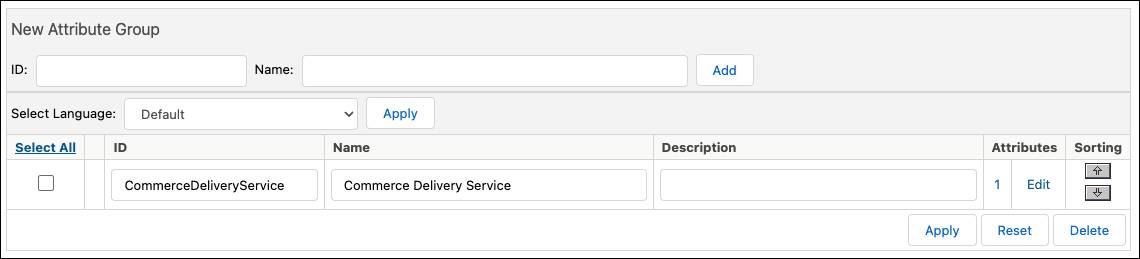
- On the Attribute Grouping tab, add a group named Commerce Delivery Service.
- Edit the group and add the attributes you created.
Grouping the attributes makes them easier to locate in Business Manager but doesn’t affect their function.
Create Custom Site Preference Attributes
Site preferences store connection information that your storefront code uses to authenticate with Account Manager, and call the CDS API. You create the site preference attributes as custom fields in the SitePreferences object.

- In Business Manager, select Administration | Site Development | System Object Types | SitePreferences.
- On the Attribute Definitions tab, select New and create these attributes.
Attribute Name
Value Type
Description
accountManager
Enum of Strings
Account Manager endpoint. Value =
account.demandware.com; Display Value =ProdcdsClientId
String
The Client ID (UUID) from Account Manager
cdsPassword
String
The Client Secret (password) associated with the UUID
realmInstanceId
String
Your B2C Commerce realm instance identifier
- Group these site preferences under Commerce Delivery Service for easier management. Follow the same grouping process you used for ProductLineItem attributes.
Set Custom Site Preferences
After creating the site preference attributes, set their values for your storefront. These values connect your B2C site to the CDS.
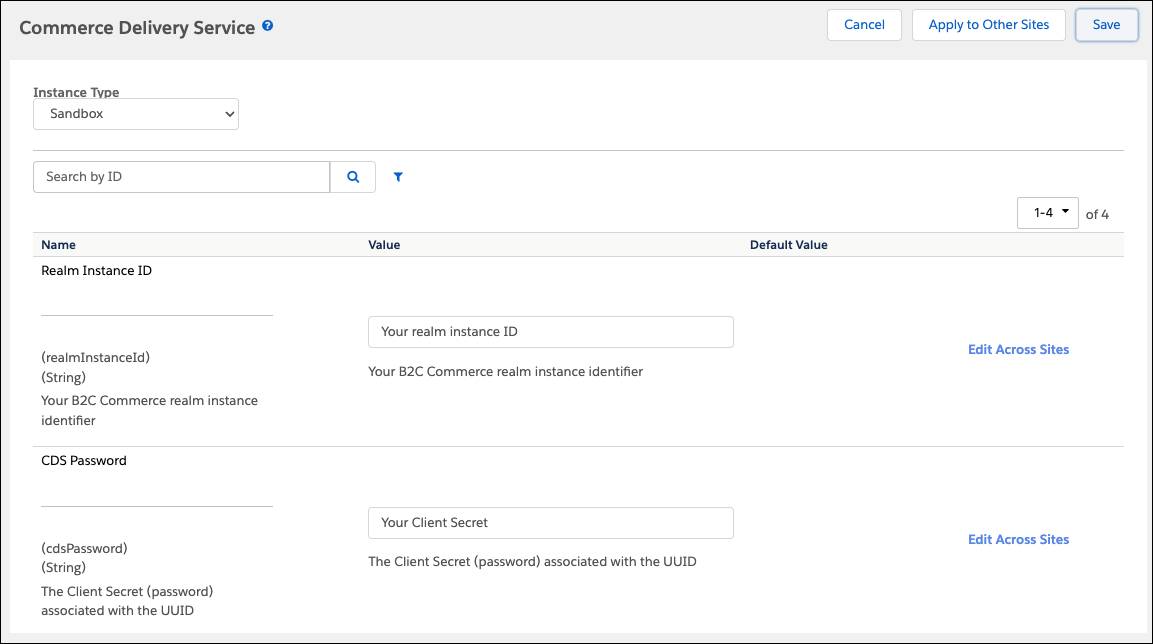
- In Business Manager, select Merchant Tools | Site Preferences | Site Custom Preferences.
- For Commerce Delivery Service, select ID Link.
- Create these values.
Attribute
Value
Where to Find It
accountManager
account.demandware.comStandard Account Manager endpoint for production
cdsClientId
Your Client ID (UUID)
In Account Manager under API Client
cdsPassword
Your Client Secret
In Account Manager under API Client
realmInstanceId
Your realm instance ID
In Business Manager: **Administration
- Select Save.
Your site preferences are now configured. Your development team references these values in the storefront code to authenticate with the Account Manager and call the Commerce Delivery Service API.
Create Service Credentials and Service Configuration
B2C Commerce uses a service configuration to define how to connect to external APIs. You create a service credential with the CDS API endpoint and a service configuration that your storefront code calls.
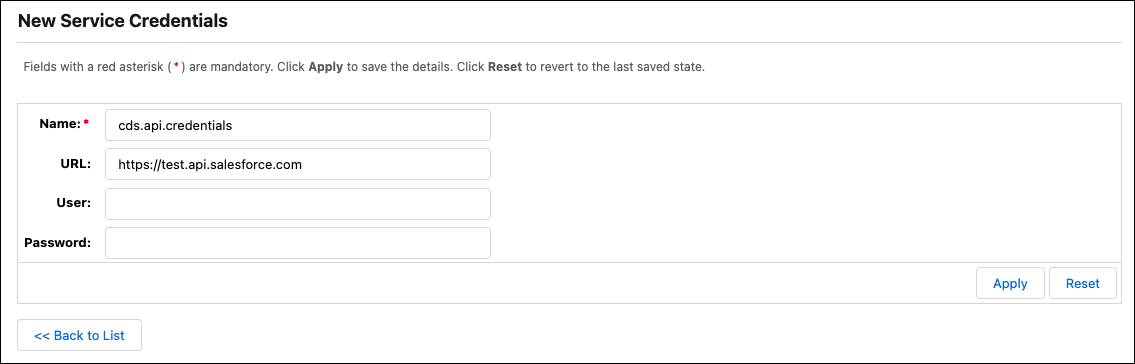
Create the Service Credential
- In Business Manager, go to Administration | Operations | Services | Credentials.
- Select New and enter these values.
- Name:
cds.api.credentials(or your naming convention)
- URL - Sandbox:
https://test.api.salesforce.com - URL - Production:
https://api.salesforce.com - User: Leave blank (authentication uses the Account Manager bearer token)
- Password: Leave blank
- Name:
- Select Save.
Create the Service Configuration
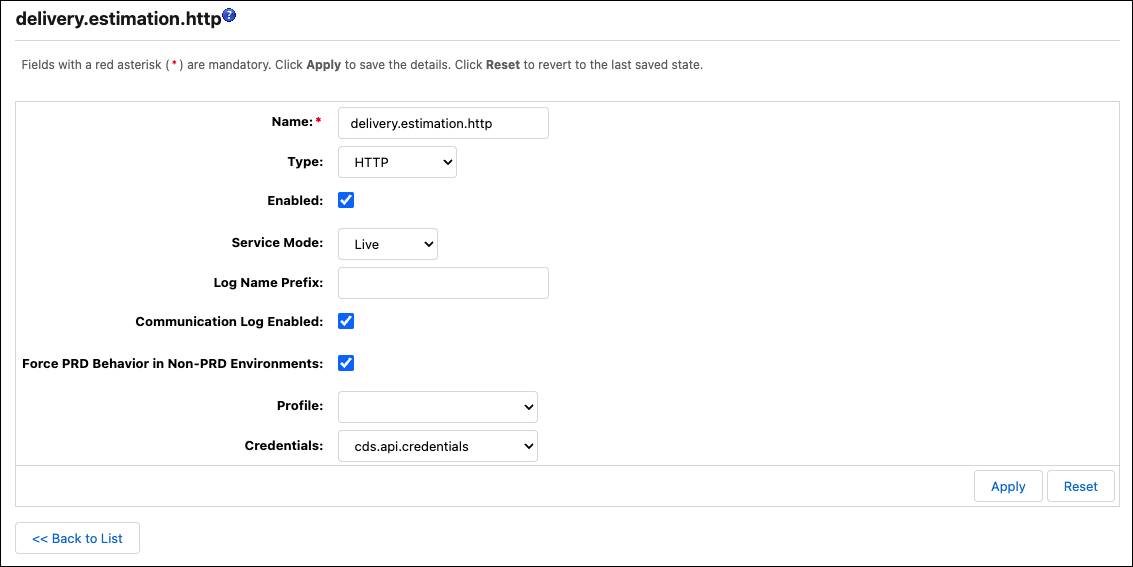
- In Business Manager, go to Administration | Operations | Services | Services.
- Select New and enter these values.
- Name:
delivery.estimation.http(must be exactly this name for the API integration to work correctly)
- Type: HTTP
- Select Enabled
- Service Mode: Live
- Log Name Prefix
- Select Communication Log Enabled
- Select Force PRD Behavior in Non-PRD Environments
- Credential: Select the credential you created (
cds.api.credentials)
- Name:
- Select Save.
This service configuration enables your storefront code to call the Commerce Delivery Service API using the credentials and endpoint you configured.
Coordinate API Integration with Your Developer
You’ve completed the Business Manager configuration. Now your developer takes over to implement the API integration in your storefront code. This collaboration is critical because the CDS relies on precise identifiers from OMS to calculate accurate estimates.
What Your Developer Implements
-
Authentication: Call Account Manager to receive a bearer token using the credentials you configured in site preferences.
-
Build CDS Request: Construct the API request body.
- deliveryEstimationSetupName (the external reference from your OMS Delivery Estimation Setup record)
- shippingCarrier.methods (array of shipping carrier method IDs that match your OMS external references)
- products (array with stockKeepingUnit and quantity)
- deliveryAddress (shopper's country, state, postalCode, city)
- deliveryEstimationSetupName (the external reference from your OMS Delivery Estimation Setup record)
-
Call CDS API: Send the request to the Commerce Delivery Service endpoint using the bearer token for authentication.
-
Parse Response: Extract delivery dates from the CDS response.
- estimatedDeliveryReference (unique ID for the estimate)
- deliveryEstimates array containing min/max dates for each shipping method
- estimatedDeliveryReference (unique ID for the estimate)
-
Store in ProductLineItem: Write the response data to the custom attributes you created.
-
Update PDP Template: Modify .isml templates to display the delivery estimate on the product detail page.
Collaboration Points
Coordinate with your developer prior to starting the configuration for Order Management and B2C Commerce. Effective pre-planning at these critical milestones helps prevent bugs and minimizes the need for rework.
Before Development
- Confirm all external references match exactly between OMS and the API request.
- Verify the service credential endpoint matches your environment (sandbox vs. production).
- Review the custom attribute names to ensure developers use the exact names you created.
During Development
- If developers encounter API authentication errors, verify the Account Manager credentials in site preferences.
- If the API returns no results, check that external references align across OMS, CDS, and B2C Commerce.
- If delivery estimates don't appear on the PDP, confirm the custom ProductLineItem attributes are correctly named and accessible.
After Development
- Test the end-to-end flow together.
- Review error handling for scenarios like no inventory, no carrier coverage, or API timeouts.
Next
You've completed the B2C Commerce Business Manager configuration for Delivery Estimation. You configured Account Manager authentication, created custom ProductLineItem and SitePreferences attributes, set site preference values, created the service credential and service configuration, and provided your development team with the information they need to implement the API integration. Next, turn on the delivery estimation service and test the service.