Build and Shape Your Business Data Relationship Structure
Learning Objectives
After completing this unit, you’ll be able to:
- Create a hierarchy instance, add first-level nodes, and define child records and relationship attribute values.
- Assign a record to a hierarchy node and move records within and between hierarchies.
- Remove a record from a hierarchy and delete a hierarchy instance that is no longer needed.
Introduction
It’s quarter-end at NovaBridge Procurement, and the sourcing team is reviewing its supplier network. The procurement director asks Maria to map out the relationship between Walter and Sons and its subsupplier, Adams Inc, plus a contact who manages each account. The hierarchy also includes Bogan - Swift, another root-level supplier in the same hierarchy. Until now, this information existed only in spreadsheets. Maria’s task: Build this structure in Supplier 360 SaaS so the whole team has a live, accurate view of how these records connect—and so changes are tracked going forward.
Create a Hierarchy Instance
To create a hierarchy instance in the Supplier 360, Maria follows these steps.
- Navigate to New | Hierarchy from the navigation pane.
- Select the Supplier Hierarchy model and click Create.
- Enter the name
Walter and Sons Supply Chainand click Create again to confirm.
The hierarchy page opens in draft mode. Maria can see it’s empty—just a blank canvas waiting for records.

Add First-Level Nodes
First-level nodes are the root records—the top of the parent-child tree. Maria performs the following steps.
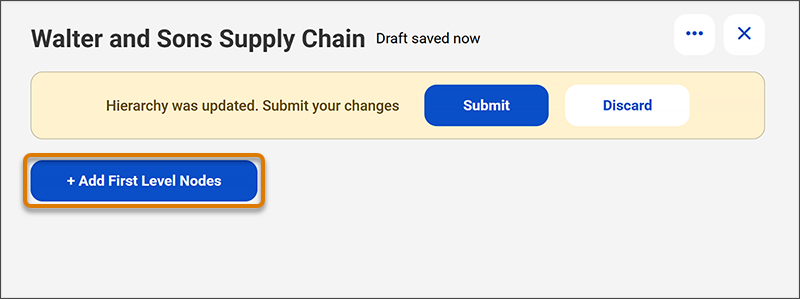
- Click Add First Level Nodes on the hierarchy page.
- Search for Walter and Sons, select the record, and click Add.
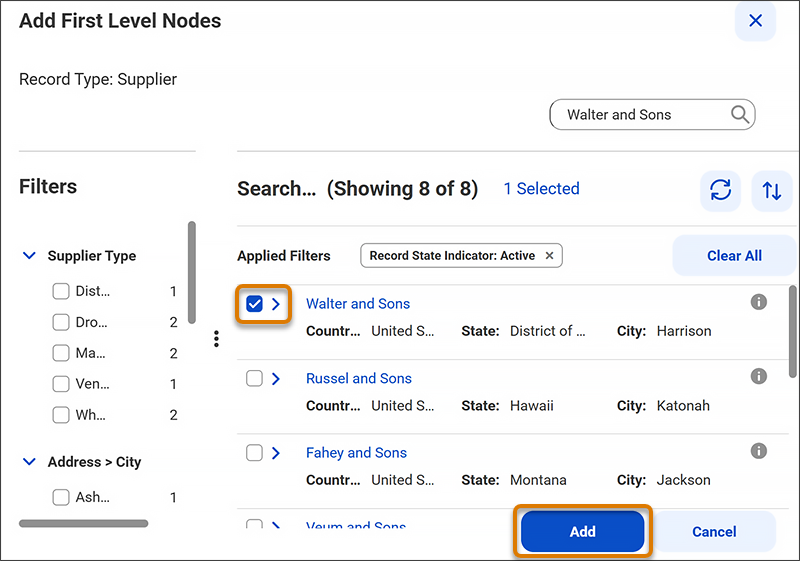
Walter and Sons now appears as the first-level node. The hierarchy has its anchor point.
Add Child Records and Define Relationship Attributes
To add Adams Inc as a subsupplier under Walter and Sons, Maria follows these steps.
- Hover over the Walter and Sons node and click Add. The Add Child Record wizard opens.
- Select Supplier as the record type.
- Select Supplier to Supplier as the relationship type.
- Search for Adams Inc and select it, and then click Add.
Adams Inc appears as a child node under Walter and Sons.
Next, to add Donald Wagner as the account manager contact for Walter and Sons, Maria follows these steps.
- Hover over Walter and Sons again, and click Add.
- Select Contact as the record type.
- Select Supplier to Contact as the relationship type.
- Find Donald Wagner and add the record.
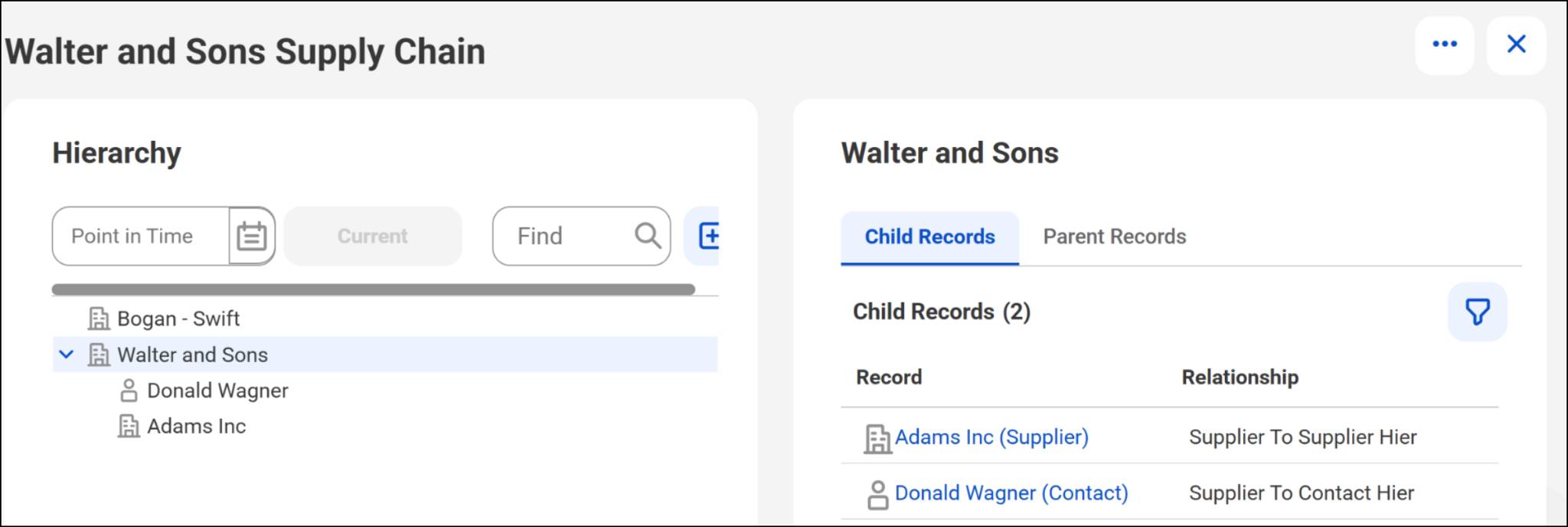
The hierarchy now has a two-level structure: Walter and Sons at the root (the first-level node), with Adams Inc and Donald Wagner as children.
Next, Maria adds Bogan - Swift as a second root-level supplier in the same hierarchy. She clicks Add First Level Nodes again, searches for Bogan - Swift, selects the record, and clicks Add. At the end, she submits the hierarchy draft.
The complete hierarchy structure looks like this.
Manage Records Within and Between Hierarchies
A few months later, Adams Inc restructures. Instead of reporting to Walter and Sons, it now reports directly to another root-level supplier, Bogan - Swift, in the same hierarchy.
Maria needs to move Adams Inc within the same hierarchy. She opens the Walter and Sons Supply Chain hierarchy and then drags the Adams Inc node from its current position under Walter and Sons and drops it under Bogan - Swift. Hierarchy attribute values are retained during this move.

Remove a Record from a Hierarchy
After a supplier review, NovaBridge ends its relationship with Donald Wagner as Walter and Sons’s account manager. Maria needs to remove Donald from the hierarchy.
She opens the Walter and Sons Supply Chain hierarchy, hovers over Donald Wagner, and clicks Remove. The Remove Records dialog box appears. Because Donald has no child records, she simply confirms the action. Donald Wagner is removed and becomes an independent record. The relationship is severed, but the record itself isn’t deleted.
When removing a record that has child records, Maria chooses between:
-
Remove the record only: The record is removed from the hierarchy, but its child record associations remain.
-
Remove the record and all its child records and relationships: The record and every directly or indirectly associated child records are removed and become independent records.
Delete a Hierarchy Instance
When a hierarchy becomes obsolete—for example, when NovaBridge fully offboards a supplier network—Maria can delete the entire hierarchy instance.
She goes to the Hierarchies page, expands the Supplier Hierarchy model, and selects the instance she wants to remove. She clicks the three-dot menu and selects Delete. The Delete Hierarchy dialog box appears. She clicks Delete to confirm, and the hierarchy is permanently removed.
Create a Hierarchy Instance: See How It Works
Follow along as this demo guides you through each step to create a hierarchy instance.
Wrap It Up
In this unit, Maria built a hierarchy instance from scratch for NovaBridge Procurement. She added Walter and Sons as a first-level node, added child records with specific relationship types, and set relationship attribute values to capture richer context. She moved records within and between hierarchies, removed records with options to preserve or sever child associations, and deleted a hierarchy that was no longer needed. In the next unit, you explore these connections visually using relationship graphs.