Manage Business Clients
Learning Objectives
After completing this unit, you’ll be able to:
- Describe how business accounts are used to track business clients in Agentforce Financial Services.
- Create a business account.
- Relate a person account to a business account.
How Business Accounts Work
In Agentforce Financial Services, business accounts track business clients. The data model supports more than simple organization tracking, though, with features that can help you identify key stakeholders and complex ownership structures.
You use account-contact relationships with the appropriate roles to relate person accounts to businesses, and account-account relationships to connect two related businesses. This helps you track employees, executives, and board members, plus subsidiaries and controlling companies.
You can use this information with the Business Client Engagement features to take a precise, data-driven approach to working with business stakeholders. With features like actionable relationship center (ARC) graph templates, you can see how business client entities connect to each other and other accounts in an interactive chart.
The business client data model also works with the Know Your Customer (KYC) data model to onboard and track data about business clients for compliance. The KYC data model, along with the Integrated Onboarding data model, helps you capture details such as beneficial owners, controlling parties, and the business structure. See Know Your Customers in Salesforce Help for details.
This combination of business accounts, relationship objects, Business Client Engagement features, and the KYC data model helps FSC track and manage business clients and their complex structures.
In this unit, though, you start with the basics of creating a business account record and connecting one person to that record.
Create a Business Account
Remember Abigail Moss from earlier in this module? She’s a board member of her family’s landscaping supply business, which is also a prospective business client. Create an account to track her business.
- From the App Launcher (
 ), find and select Commercial Banking.
- Select Accounts from the navigation menu.
- Select New.
- Select Business and click Next.
- Specify these details.
- Account Name:
Moss Nurseries - Type: Prospect
- Industry: Agriculture
- Account Name:
- Save your work.
Now, from the business account, you can add Abigail as a related contact.
Relate a Person or Business Account to a Business Account
To relate a person account to a business account, your users can create an account-contact relationship using the Related Contacts related list. This page component includes the Add Relationship option to create an account-contact relationship.
First, add the Related Contacts related list to the page layout.
- From Setup, select Edit Object.
- Select Page Layouts.
- Select Account Layout.
- In the palette, select Related Lists then drag Related Contacts onto the Related Lists section of the page layout.
- Save your work.
- Go back to the Moss Nurseries account page.
Now add the relationship.
- On the Moss Nurseries account page, select Related.
- Find the Related Contacts related list, click Add Relationship.
- The business account is already in the Account field. To create a relationship to this account, make these additional selections:
- Find and select Abigail Moss in the Contact field.
- In Roles, select Decision Maker and click
 to move those selections to Chosen.
- In Roles, select Executive Sponsor and click
 to move those selections to Available.
- Find and select Abigail Moss in the Contact field.
- Save your work.
Abigail is now connected as a related contact.
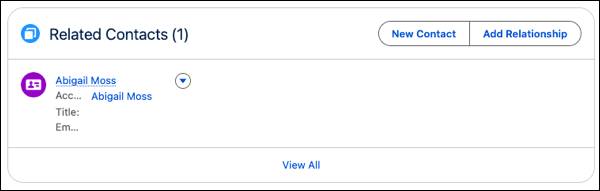
You can relate businesses to a business account using account-account relationships. Those relationships can include subsidiaries, controlling companies, or business relationships with other financial institutions and suppliers. Set up party role relationships to map the different types of business-to-business relationships you want to define.
Visualize Business Relationships
No matter the business’s relationships, you can visualize them using the B2B Account to Account Relationship graph in ARC. This graph template is included with Agentforce Financial Services.
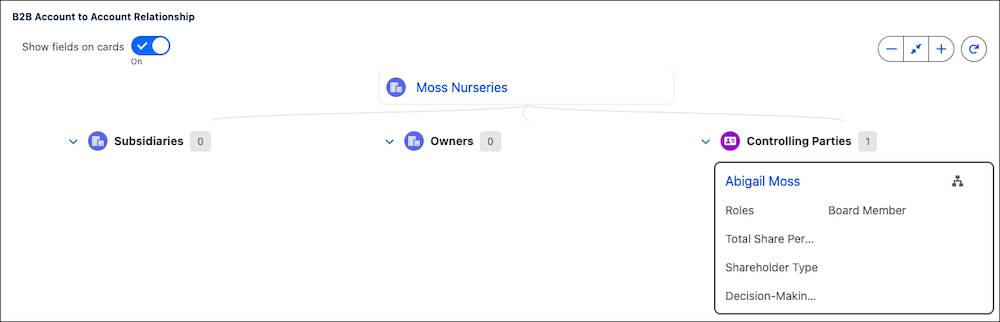
By default, the relationship graph shows a business’s subsidiaries, owners, and controlling parties. For example, on the Moss Nurseries graph Abigail would appear as a controlling party because of her account-contact relationship record.
Use the B2B Account to Account Relationship graph as a starting point and configure it to show the relationships and fields that mean the most to your business.
Wrap Up
In this module, you learned how Agentforce Financial Services manages client relationships.
You started by learning about the differences between person accounts and business accounts for business clients and households. You explored the Account Contact Relationship, Contact Contact Relationship, and Party Role Relationship objects. These relationships are important for defining connections between clients. You also learned how to set up households using Party Relationship Groups.
You learned how to create and manage person accounts, set up Account Contact Roles, and define party role relationships to map complex relationships. You used the New Group guided flow to create many household records at one time. You also created a business account, linked a person as a related contact, and learned how to show personal and business connections using ARC graphs.
You now understand how Agentforce Financial Services helps financial institutions track client data in depth. With this knowledge, you can now manage and track client relationships in your Salesforce organization.
How will you implement this data model for your users at your organization?