Manage Common Admin Requests
Learning Objectives:
After completing this unit, you’ll be able to:
- List critical data points that should be captured in request forms.
- Apply best practices for triaging channels and access requests.
Explore Admin Process Basics
Admin processes are established by the governance team or person and based on the client's policies and settings. Here are some common ones and best practices on how to handle them.
Manage General Channel Requests
Effective channel and guest access management is crucial for maintaining security and organization in Slack. In the previous unit, we call out the example #plz-admins channel and workflows to handle common admin requests regarding channels.
General Channel Management
While working in Slack, end users may need admin assistance to complete certain general channel actions that may be locked down in policies and settings such as:
- Making a public channel private
- Unarchiving a channel
- Restricting posting permissions in a channel
- Creating or modifying a user group
Build a Workflow to Support Channel Management Requests
The #plz-admins channel can be set up with workflow requests for users to submit the required information for these actions.
What recommendations would you make to a customer in a highly regulated industry?
- Post a welcome message in #plz-admins with guidance on how to use the channel.
- Build workflows for the following requests, providing forms for users to fill out with the necessary information to accomplish tasks mentioned above.

Manage Slack Connect Channels for Guest Access
Slack Connect allows an organization’s employees to work securely with outside organizations and partners in channels and DMs. While this can be disabled, the default setting for Slack Connect requires approval from Org Admins and Org Owners to create a shared channel with an external organization.
By managing these approval requests in Slack, admins can track the data and details of each request in a single place. Creating a workflow to manage Slack Connect channel requests can help minimize admin overhead, increase the focus on security/control, and automate enablement of users on Slack Connect.
To get your client set up with a Slack Connect channel request and review process, they’ll have to first make a few key decisions and take action on items in the Slack Connect Checklist.
Build a Workflow to Support Guest Access Requests
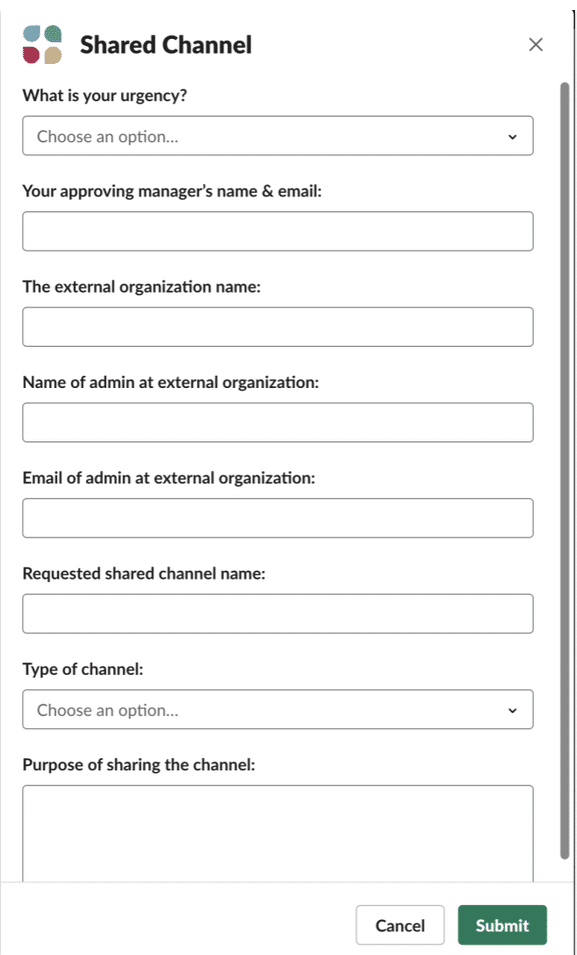
The #plz-admins or #plz-slack-connect channel can include a workflow form for users to submit Slack Connect channel requests. Such requests should collect the following information:
- Level of urgency
- Approving manager’s name
- External organization’s name
- Workspace name
- Slack domain URL of the external organization
- Name and email of admin at external organization
- Requested channel name
- Purpose of channel
Standardizing the request details through a workflow in the channel makes the admin’s job much more straightforward. Once the admins have the details needed to process the request, there’s typically coordination that needs to take place around how to assign and distribute the work. It’s imperative to help your client create a standardized back-end review process where admins can discuss requests in private channels.
The primary goal of using workflows to manage requests is to create standard request processes so your client always gets the info they need to deliver results faster.
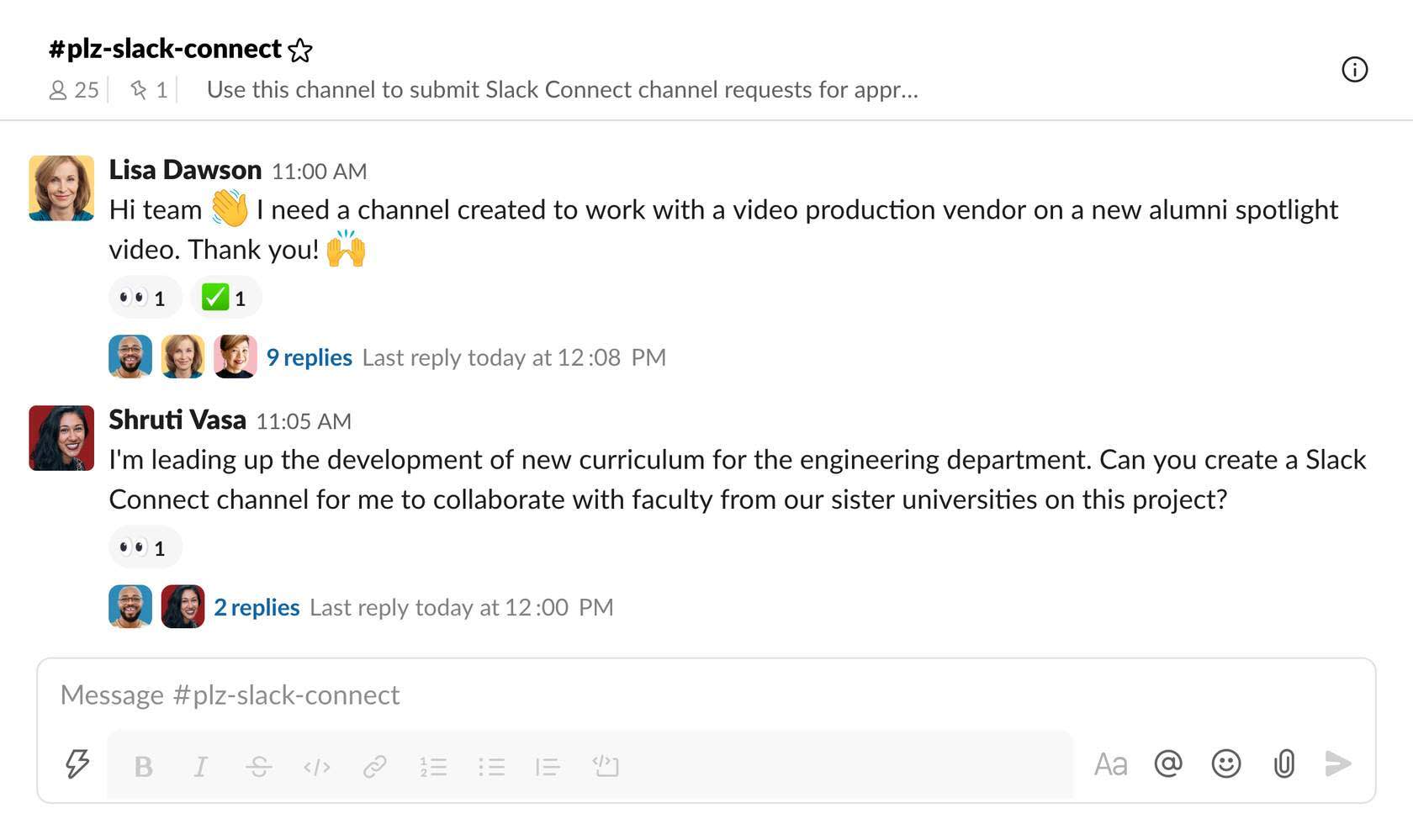
Once someone makes a request, it can trigger a workflow that opens up a form.
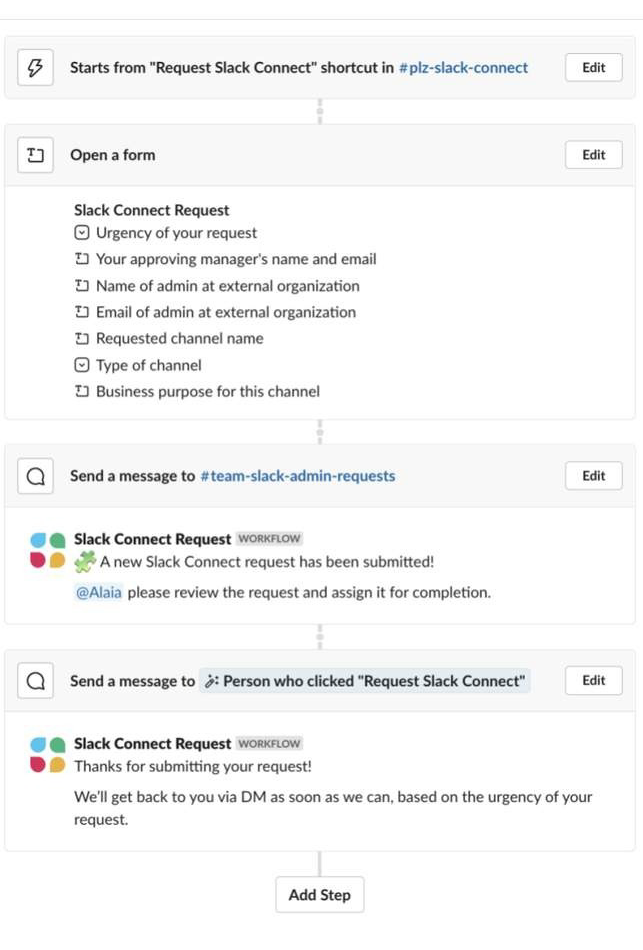
On the back-end, once that form fill is complete, other steps are triggered based on the information that was submitted.
Guest Access Management
Based on an organization’s settings, users can invite guests such as contractors or interns to collaborate in Slack channels. Due to security concerns, this action usually requires admin review and permission. Admins can review the guest management information to understand the types of guests and permissions available.
Single-channel guests have access to one Slack channel, multichannel guests can access channels you specify. It’s important to know which to use, as single-channel guests are free and multichannel guests are billed as regular users.
You can manage guest access requests by building a workflow in #plz-admins to manage guest requests. Admins can collect standard request details like:
- Level of urgency
- Approving manager’s name
- Guest’s name
- Channel name for access
- Date to add the guest by
Explore Multi-Workspace Channels
In an Enterprise+ organization, you can add channels to multiple workspaces. Slack’s recommended setting is to limit this permission to Slack owners and admins, which means end users need to submit an admin request to create a multi-workspace channel. A multi-workspace channel allows people across an organization, like those in different departments, to work together in the same channel from their separate workspaces. This allows those working in different Slack workspaces to collaborate on a shared project or have visibility of the same announcements.
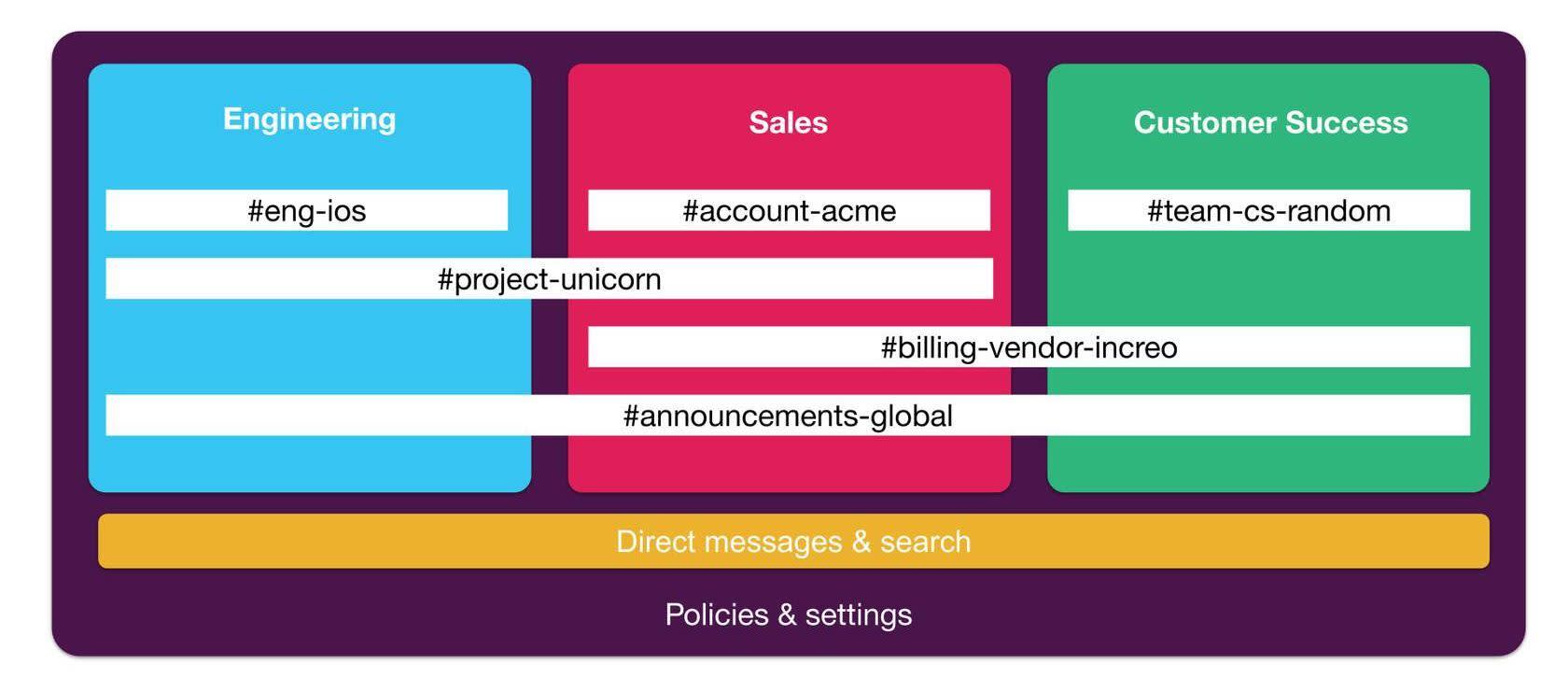
Your role is to suggest a process that will work well for your client to triage requests for multi-workspace channels. Slack’s best practice is for Org Admins to receive and manage requests for multi-workspace channels in the #plz-admins channel.
Build a workflow to Support Multi-Workspace Requests
To create a workflow in #plz-admins that collects standard request details for multi-workspace channels, we recommend including the following information.
- Urgency of the request
- Approving manager’s name
- Name of the channel that you want to share
- Workspace the channel is currently in
- Workspace to share the channel
- Purpose of sharing the channel
Manage Requests for Apps and Onboarding
In this unit, you learned how to maintain security and organization in Slack through effective channel and guest access management, including setting up the #plz-admins channel and workflows for common admin tasks like making public channels private, unarchiving channels, and inviting external guests. In the next unit, you delve into app management and workspace administration.
Resources
- Slack Help: Use channel management tools
- Slack Help: Convert a channel to private or public
- Slack Help: Manage channel posting permissions
- Slack Help: Work with external organizations
- Slack Resource: Slack Connect Checklist
- Slack Help: Slack Connect: Manage channel approval settings and invitation requests
- Slack Help: Manage who can join channels owned by other organizations
- Slack Help: Manage channel invitation settings and permissions