Set Up Milestone Actions and Automate Policy Allotment
Learning Objectives
After completing this unit, you’ll be able to:
- Configure milestone actions for your milestones.
- Activate an SLA policy and link it to an Entitlement.
- Automate SLA policy assignment for cases.
Explore Milestone Actions
Maria has finished designing Ursa Major Solar’s SLA policy for high-priority cases but it’s not quite ready yet. Milestones track time, but without actions, they don’t notify anyone or trigger any activity. That means reps would have no warning when a deadline is approaching
This is where milestone actions come into play. Milestone actions turn the SLA policy from a simple timer into a helpful guide for the support team. These actions can send reminders, fire off emails, update fields, or escalate a case automatically. Actions are tied to key moments in a milestone, such as when half the time has elapsed or when a deadline is at risk. By setting these up, Maria gives her team real-time visibility into approaching deadlines and keeps cases on track.
Set Up Email Alert Actions
To start, Maria focuses on the first milestone, which tracks the initial response time. She wants to make sure reps never miss that early customer touchpoint. She decides to set up an action that sends a warning email if the first response has not gone out within 1.5 hours. This gives reps a helpful nudge before the milestone is missed.
With this plan in mind, Maria heads into the SLA policy to configure her first milestone action. Follow along with her so you can be sure to pass the challenge at the end of this unit.
- From Setup, in the Quick Find box, search for and select SLA Policies.
- Select the Happy Customer SLA policy.
- Click Manage Actions for the First Response to Customer milestone.
- Click New Milestone Action.
- Select Warning from the Trigger Type dropdown.
- In the Time field, enter
30, and in the Unit field, select Minutes.
- Select Email Alert from the Action Type dropdown. A warning message may appear. You can continue on after reviewing.
- Enter the description:
30 Minutes left for first response. It will add a unique name for you based on the description.
- In the Email Template lookup, find and select the email template you want to use. Maria selects the Support: Case Response template that Ursa Major Solar uses.
- Select the Recipient Type as Owner.
- Use the arrow button to add Case Owner as a selected recipient.
- In the From Email Address field, select the Default Workflow User’s email address.
- Click Save.
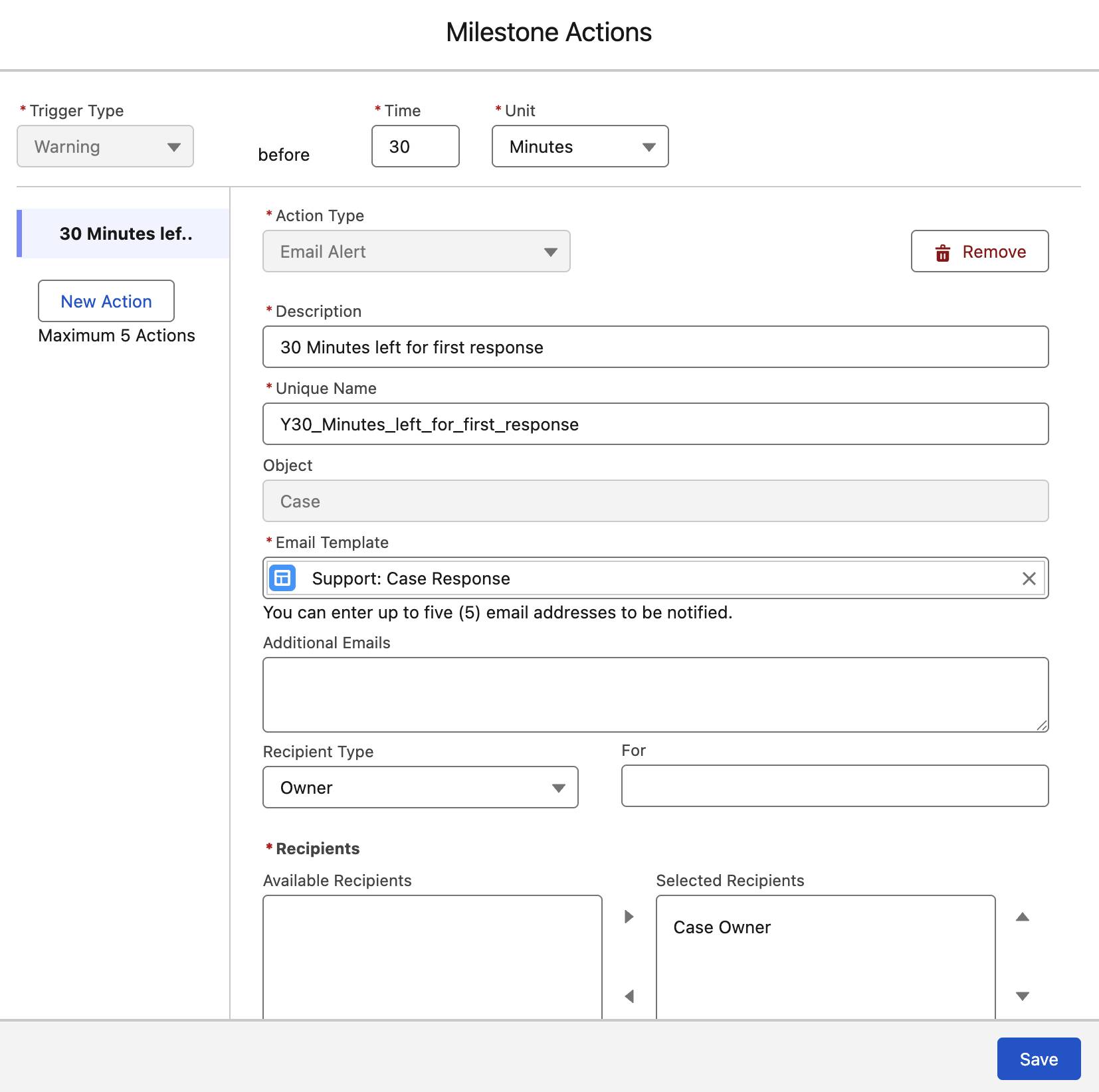
Now, case owners of high-priority cases receive a warning email 30 minutes before the 2-hour first response time limit is reached.
Put Your SLA Policy into Action
With her milestone actions configured, Maria now has a complete SLA policy for Ursa Major Solar. The structure is in place, the timing rules are set, and the alerts are ready to send when deadlines are approaching. The only thing left to do is to make the policy active so her support reps can begin using it for incoming cases.
To do that, follow along with Maria as she completes these steps.
- Open the policy page of Happy Customer SLA.
- In the right corner, toggle the policy status to Active.
- Make sure the checkbox to create a new entitlement is selected.
- Click Activate.
When Maria clicks Activate, something important happens behind the scenes. Salesforce automatically creates an entitlement and links it directly to the SLA policy.
To recap, an entitlement is the level of support a customer should receive. It acts as the connection point between the policy and incoming cases. What this means is that any account (a customer in your org) that has this entitlement is automatically covered by the promises of the new Happy Customer SLA Policy.
With the system doing all the heavy lifting, Maria does not need to set up and link an entitlement with every new SLA policy she creates. The system takes care of it as soon as the policy is activated, so that anytime a case is created from an account with this entitlement, Salesforce knows exactly which milestones to apply.
Auto Allot Entitlements to New Cases
Now that the policy is active, it can start working on real cases. Maria shifts her focus to ensuring it is assigned these cases quickly and correctly. But she runs into a big challenge. Ursa Major Solar’s support team handles a high volume of customer requests every day, and the company’s customer base is growing quickly. Manually assigning entitlements to each case would take too much time and leave plenty of room for mistakes. Maria needs a way to make sure the correct entitlement, and therefore the correct SLA policy, is applied automatically.
Enter the Application Rules feature. This feature lets Maria set up simple rules that decide which entitlement should go on which cases. Once the rules are in place, Salesforce does all the work. Any case that meets the criteria automatically receives the Happy Customer entitlement, which brings the linked SLA policy with it. Follow along to learn how she sets it up.
- From Setup, in the Quick Find box, search for and select SLA Policies.
- In the Application Rules tab, click New.
- Keep the order as 1.
- In the Entitlements field, select Happy Customer SLA.
- Leave the Execute Rule When field as is.
- Select the rule that must be met for the entitlement to auto apply. Since the Happy Customer policy is applicable to all cases regardless of the channel they originate from, Maria selects:
- Field: Case: Case Origin
- Operator: Equals
- Value: Phone, Web, Email (you can select all 3 options)
- Click Save.
Now Maria can be confident that every new case will get the right service without anyone on the team having to lift a finger. Ursa Major Solar now has a reliable, scalable system that supports both its growing customer base and its commitment to great service. Maria’s work has turned the Happy Customer program from an idea into a working process that the whole service team can depend on.