Build Shared Rollup and Rollup by User Data Filters
Learning Objectives
After completing this unit, you’ll be able to:
- Create a Shared Rollup data filter.
- Create a Rollup by User data filter.
Build a Shared Rollup Filter
Data filters typically sort deals that are closed by a single user. You can use rollups to create filters that collect deals closed by specified teams.
In the previous unit, you learned how to commission a team lead using a rollup filter. But what if you want to commission an entire team on a shared pool of closed deals? You use a shared rollup! A shared rollup uses the team structure in Spiff to share deals between reps, whether they're team leads or not.
Imagine you have three teams, and you want to have all team members receive a small commission based on the performance of these three teams. You can see it when you create a new rollup and select Shared Rollup.
In the shared rollup example, each team has a lead and a member. The shared rollup includes all team members and leads together. If you want to exclude team leads, you can do that later. This image shows the team hierarchies in a shared rollup configuration.
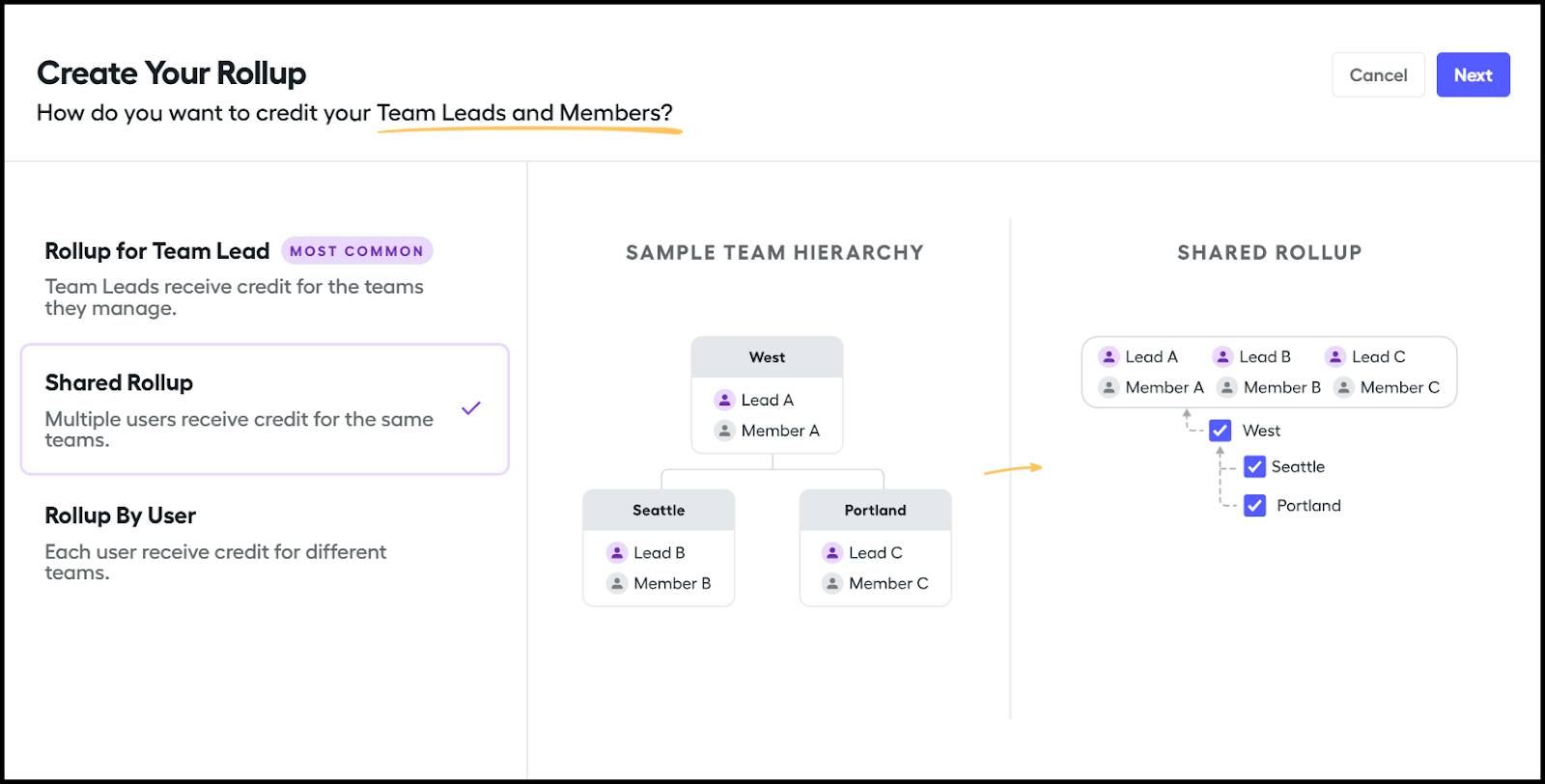
Click Next to continue.
In contrast to a rollup for team leads where one filter works for all team leads, you configure a shared rollup for a specific group of users. On the next page, select which teams and subteams belong to this shared rollup. You can edit this group later, and new reps get added to the rollup dynamically as you use effective dating on your team assignments.
After selecting the appropriate teams, save your work.
With your new rollup data filter selected, edit the rollup options in the Setting pane. As with a Rollup for Team Lead, you can:
- Rename the filter.
- Include or exclude team lead deals.
- Match opportunities typically by user, and match the OwnerId field to the Id field.
- Set your timeframe to rolling 2 years. You can use other time-based filters to further refine this timeframe. Set your date field to verify your opportunities.
Your shared rollup data filter is ready to go. Use it with other filters to set up a list of shared teams for everyone included.
Build a Rollup by User Filter
The Rollup by User filter helps you create a rollup for any rep, regardless of the team lead status or team membership. This setup is helpful when you want a user to receive credit for deals closed by particular teams or users, but don’t want to grant that user visibility to any statements or quotas. Assigning a user as a team lead opens up these visibility options. The Rollup by User filter can create a team rollup filter without a team lead assigned.
Select Rollup by User, and check out the example illustration as shown in this screenshot. Individual rollups are created for each team lead and team member.

Click Next to continue.
On the next screen, select Edit Your Rollup by User. Here, you can configure individual user rollups for one rep or all reps, but you have to configure each one individually.
Select your user, then select the appropriate teams for your rollup. If you want every new team to be included, turn on the option to automatically include new teams in this rollup. This option is useful if you have a rollup for the entire company up to one person or a group, such as the vice president.
Save your work to continue.
With your new Rollup by User data filter selected, edit the rollup options in the Settings pane. As with the Rollup for Team Lead filter, you can use a Rollup by User filter to:
- Rename the filter.
- Match opportunities typically by user, and match the OwnerId field to the Id field.
- Set your timeframe to rolling 2 years. You can use other time-based filters to further refine this timeframe. Set your date field to verify your opportunities.
You’ve done it! You're an all-star creator of rollup data filters. Regular data filters typically collect deals by a single user, but now you have the power to collect deals from multiple users and give credit where credit is due. Good luck putting them to use at your company.