Create and Use a Referral Intake Form
Learning Objectives
After completing this unit, you'll be able to:
- Identify the building blocks of a referral intake form.
- Describe how a referrer submits a referral.
Explore Intelligent Referral Management in Action
In the previous unit, you learned the basics of Intelligent Referral Management. Now, explore how it’s used by following an example.
Cumulus Cloud Corporation is a large financial institution with several divisions, including retail banking, wealth management, and B2B financial services. Referrals are a critical part of the institution’s entire business, and it thrives on referrals from many sources, including:
- Current customers
- External centers of influence such as accountants and attorneys
- Employees from different business lines
In this unit, you learn how Salesforce admins for Cumulus Wealth, the bank's wealth management division, build an intake form. As a business analyst, this understanding helps you set requirements.
Finally, you follow a wealth advisor who uses a form to create a referral that's routed to a colleague.
Build the Intake Form
A key benefit of Intelligent Referral Management is the ability to create dynamic, guided intake forms. Admins can build these forms declaratively, with no code, by using Referral Intake Configuration in Setup.
There, admins use these three building blocks to create a form: steps, sections, and fields.
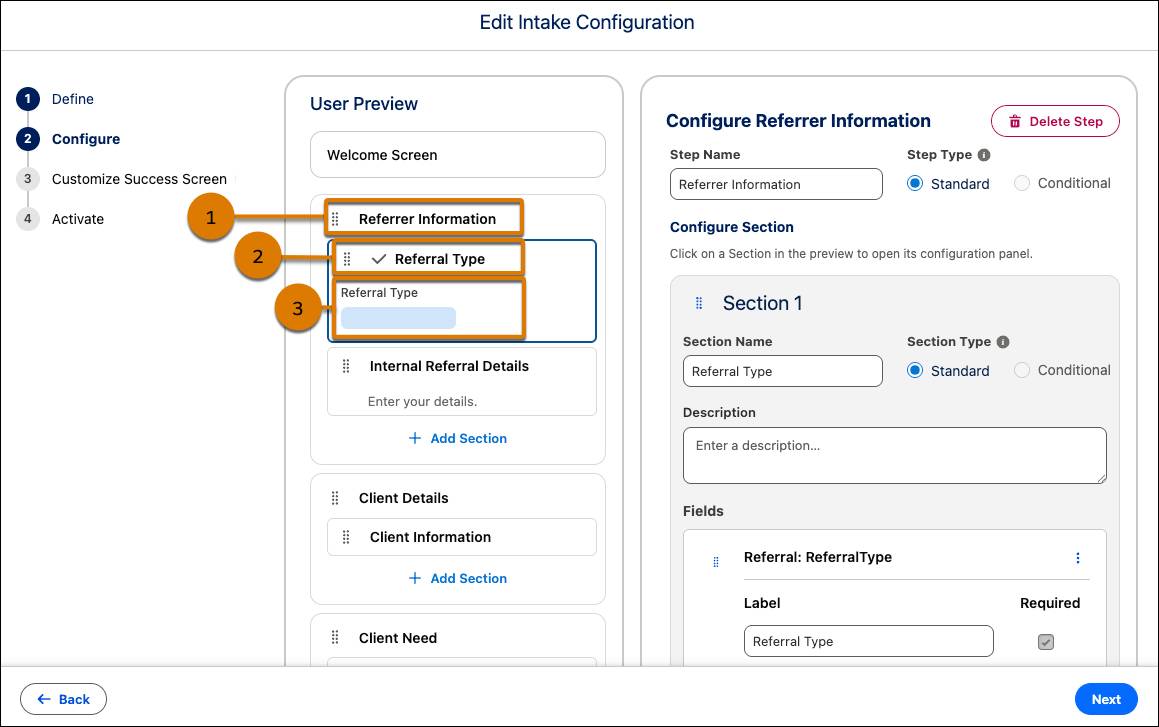
Here’s what each building block does.
-
Step (1): Steps are the top-level pages of the form, presented one at a time in sequence. Each configuration supports up to five steps. For example, Cumulus Wealth’s form has three steps: Referrer Information, Client Details, and Client Need.
-
Section (2): Sections organize related fields within a step, so that each step stays scannable instead of turning into one long list. Each form supports up to 10 sections across all steps. Admin-defined rules determine whether to show or hide a section based on form entries and other information, so referrers see only the fields relevant to their situation. Each section supports up to 10 conditional visibility rules.
On Cumulus Wealth's form, the Client Need step has a consistent financial need section and a conditional section for existing portfolios that shows only for existing clients.
-
Field (3): Fields are the individual data-capture elements within a section, selected so referrers see only what’s relevant to a referral. Each section supports up to 25 fields, and each form supports up to 75 fields in total. Aim for far fewer fields than the maximum, though. Keep a form to 20 or fewer required fields and 30 or fewer total fields to improve completion rates and keep the form easy to complete on a mobile device.
The Cumulus Wealth form keeps the first step simple with two fields. Later steps only show relevant fields, so no referrer has to complete more than 15 fields.
In addition to steps, sections, and fields, admins can add a welcome page at the beginning of the form to show instructions or compliance notices for regulated lines of business. For example, Cumulus Wealth opens its form with a page that gives the referrer context and instructions on what to include.
Admins can also configure a customized success page with a tailored message about the next steps.
An org supports up to 10 referral intake form configurations. However, only one configuration can be active at a time, so any profile-dependent differences come from conditional sections within the active form.
At Cumulus Wealth, the admin activates their form to make it live. Users can directly access it only after the admin turns on the Dynamic Referral Creation Form setting. Turning on that setting replaces the default New Referral window with the dynamic form. To ensure users can create referrals, be sure that you have one active form configuration before you turn on Dynamic Referral Creation Form.
Submit a Referral
Cumulus Wealth’s referral intake form is ready to collect referrals, and the timing works perfectly, because Wealth Advisor Ryan Dobson wants to create a referral.
Ryan works with a client with a family trust, and that client wants to diversify the trust’s investments into niche private equity. That need is outside of Ryan's expertise, but he has colleagues who specialize in these types of alternative investments.
Ryan selects New Referral in the wealth management app in his Salesforce org, and the dynamic form appears with a welcome screen. Ryan reads it and advances to the next step.
In the referrer information step, Ryan selects Internal as the referral type. Another section appears so he selects his username for attribution.
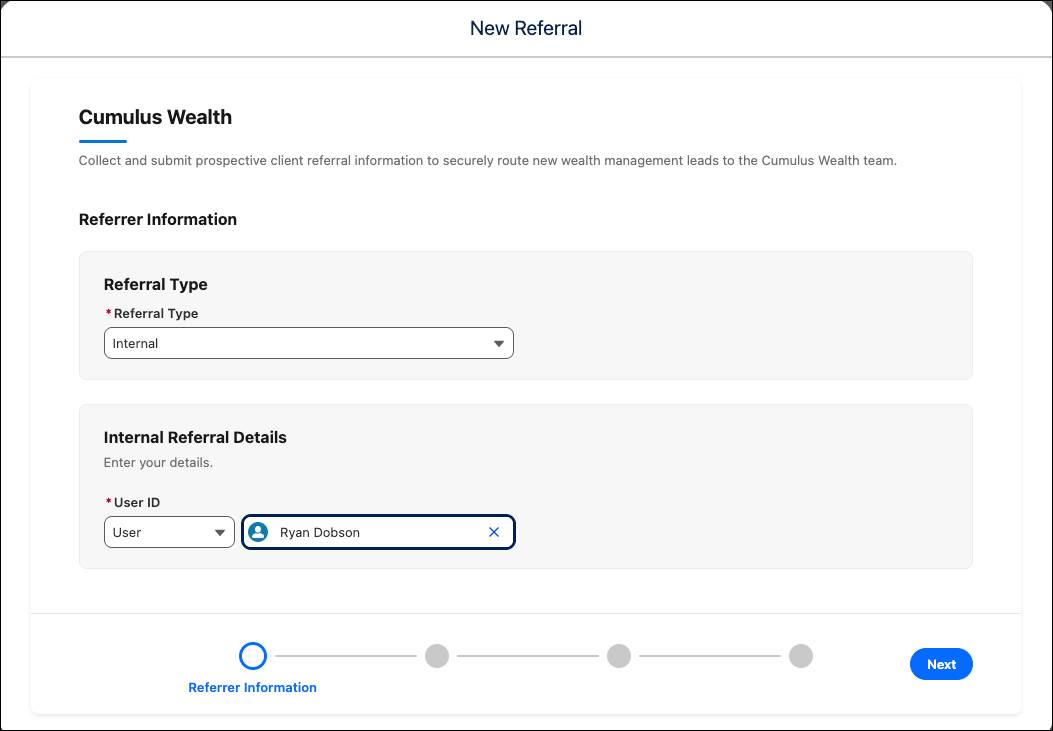
In the client details step, Ryan selects the client's account record, and client details populate from existing data in Salesforce and Data 360.
Finally, in the client need step, Ryan selects the appropriate interests and products for this referral. For example, he selects an alternative investment interest. The sections update so that he can add details about the client’s interest in niche private equity, possible allocations, total assets under management, and other details. This information helps determine how to route the referral to the best specialist.

When Ryan submits the referral, the system shows him a confirmation message.
Depending on your configuration and where the referral routes, the message that shows here can describe what happens next. For example, you can describe whether the referral goes to a specific user, a queue, or an automated flow. This message can also specify whether the referrer must take any further action.
What’s Next
In this unit, you learned how admins configure a referral intake form, and how a referrer uses that form to create a referral. Now that the referral exists, Intelligent Referral Management routes it to the relevant user, queue, or digital journey.
In the next unit, you learn how that routing works.