Search for Technical and Business Assets
Learning Objectives
After completing this unit, you’ll be able to:
- Differentiate technical assets and business assets.
- Use the search box to find assets by keyword.
- Apply filters to narrow results by asset type, lifecycle, and catalog source.
Get Familiar with Asset Types in the Catalog
Managing data at scale is tough—finding the right asset among millions can feel impossible without the right tools. That’s where Informatica Cloud Data Governance and Catalog (CDGC) comes in. CDGC organizes everything into three clear categories—Technical Assets, Business Assets, and Data Access Assets—so you always know where to find what you need.
For example, Infiwave business analyst Angela Duran’s team just received a new request—find all the data related to customer orders, understand what it means, and make sure it’s governed properly. Simple enough—except Infiwave has millions of data assets spread across Oracle databases, Amazon S3, and a dozen other systems. Angela opens CDGC and immediately has a structured, searchable catalog at her fingertips. In this badge, you follow Angela’s journey and learn how to use all three asset categories to do the same.
Technical Assets
Technical Assets are extracted from source systems via Metadata Command Center. They represent the raw building blocks of your data—the actual tables, columns, schemas, and source connections that live in your systems. Examples include:
- Data elements include columns, files, and fields.
- Technical data sets represent tables.
- Data containers encompass schemas and databases.
- Catalog sources are the actual source systems, such as Oracle and Amazon S3.
Business Assets
Business Assets add context and meaning to technical data. In this badge, you work with these common business asset types.
-
Glossary Business Term: Provides a standardized definition for a data concept
-
Policy: Captures the rules and guidelines that govern how to use, access, and manage data, including compliance with regulatory requirements
-
Glossary Domains and Glossary Subdomains: Hierarchical groupings that organize glossary content
-
Data Set: Represents a logical business grouping of data
-
Process: Documents a data workflow or operation
Back at her desk, Angela pulls up the customer_orders table in Oracle—that’s a technical asset, extracted automatically from the source system. She then finds the glossary term Customer Order, which explains what that table means to the business—that’s a business asset. Together, they give Angela and her team the full picture—where the data lives and what it means.

Data Access Assets
Data Access Assets are actionable policies and rules that control who can access, filter, or de-identify data in your source systems. They are managed on the Data Access Management page in CDGC and include three policy types.
-
Data Access Control Policies: Grant read, write, or delete access to specific technical assets for defined users or roles.
-
Data Filter Policies: Restrict which rows or columns a user can access based on defined conditions.
-
Data De-identification Policies: Mask or transform sensitive data values—such as personally identifiable information (PII)—while keeping the data usable.
Data Access Assets also include Precedence Tiers, which define the order in which conflicting policies are applied.
Search for Assets with a Keyword
Angela starts her day with a simple task—find all assets related to “customer revenue” so she can check what data is available for an upcoming analysis. You can search for assets using three search methods. For this task, Angela uses the search bar in CDGC.
Keyword search lets you search for assets using a keyword or phrase that might exist in the name, alias name, business name, description, or ref ID of an asset. As you start entering text, CDGC lists search suggestions to help you discover assets. The system returns exact matches and also assets that contain a fuzzy match for the keyword.
Query search lets you progressively build a complex search query, a phrase or combination of search terms, that provides a more precise set of results.
Adaptive search lets the system determine the most appropriate search method based on your input. The search engine dynamically suggests the most relevant assets at the top of search suggestions.
To perform a keyword search:
- Select the inside of the search bar on any page.
- Enter a keyword such as
revenue.
- Review the suggestions in the results as you enter a keyword.
- Select Enter to review all results, or select a suggestion to go directly to that asset or asset type.

Filter Search Results
Angela gets hundreds of results for “revenue.” She needs to narrow them down.
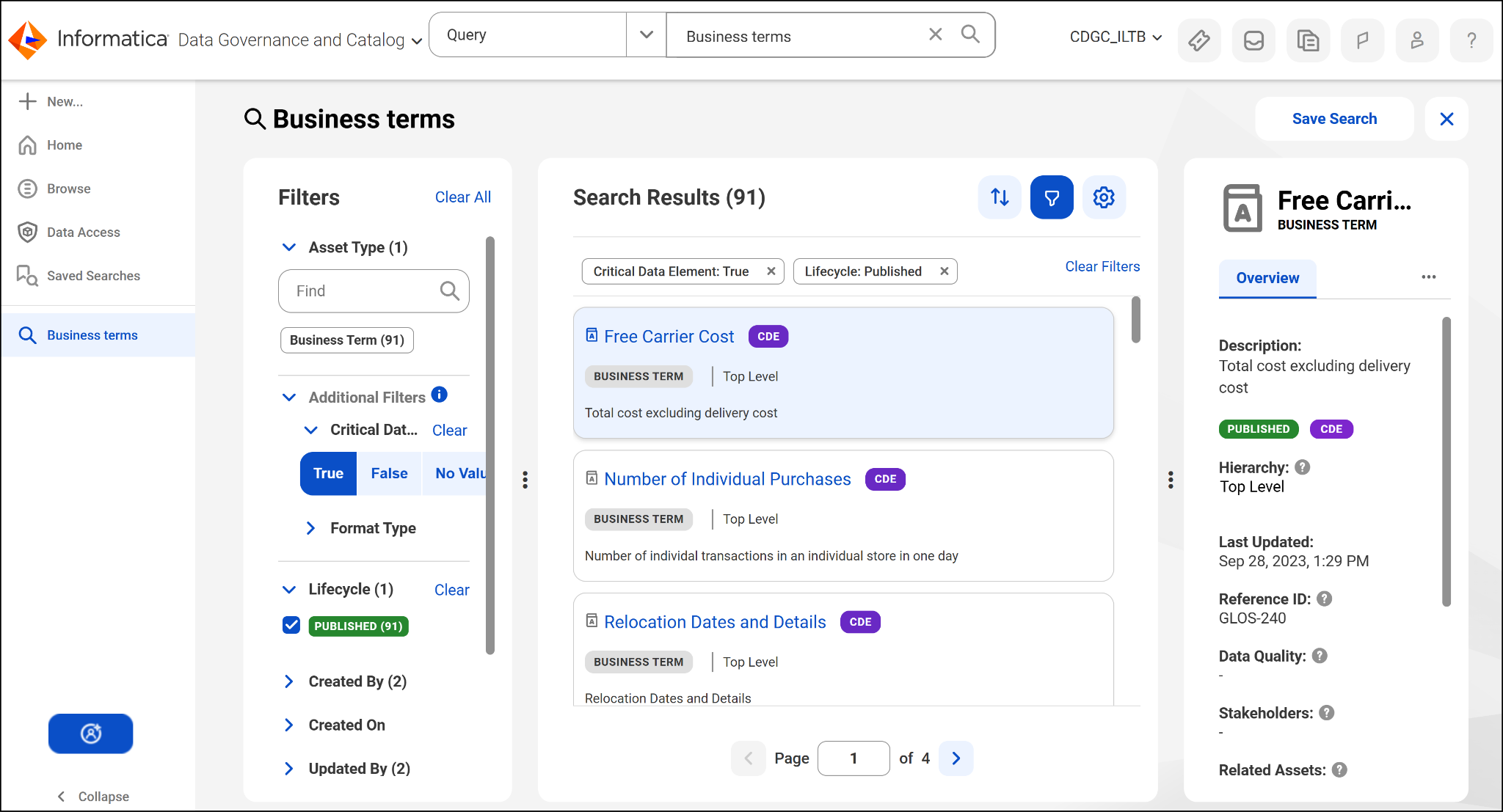
If your search results include more assets than you need, you can use the Filters pane to narrow results down. Filters let you narrow results by:
-
Asset type: Include only tables, glossary terms, policies, and so on
-
Asset lifecycle: Include assets in a specific stage, such as Draft or Published
-
Catalog source: Include assets from a specific source system, such as Snowflake or Oracle
-
Created and updated date: Include assets created or modified within a date range
The Filters pane displays the total number of matched asset types for your keyword. When you expand an asset type, you can review how many matched assets exist for each type. If your search results contain at least one asset type, the pane dynamically displays additional filters based on the assets in your results.
For example, if your results include Business Terms, the Filters pane might include Critical Data Element as an additional filter option. Angela applies the Business Term asset type filter and the Published lifecycle filter. Her results immediately narrow to the glossary terms her team maintains—exactly what she needs.
Resources
- Informatica Documentation: Asset Types (login required)
- Informatica Documentation: Search for Assets (login required)
- Informatica Documentation: Browse for Assets (login required)
- Informatica Documentation: Getting Started | Home Page (login required)