Manage Incidents
Learning Objectives
After completing this unit, you’ll be able to:
- Describe how to create, evaluate, and manage incident records in Agentforce IT Service.
- Explain how to escalate an incident and how to create a new problem from an incident.
- List operational efficiency and collaboration features that help expedite incident resolution.
Trace the Incident Lifecycle by Personas
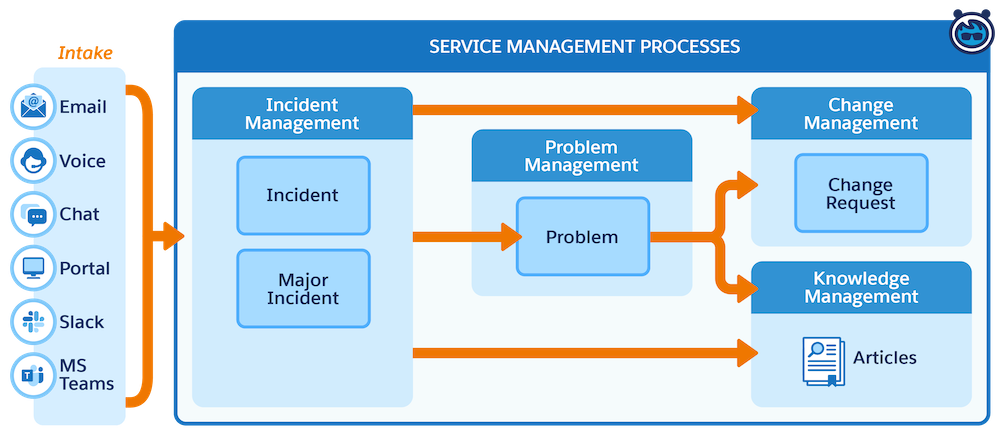
In the previous unit, you learned that incident management usually involves speed—getting services back online so that your employees can get back to work. In Agentforce IT Service, the incident lifecycle often follows a structured flow from intake to resolution.
-
Intake: Employees can use many forms of intake, such as email, voice, chat, portal, Slack, and Microsoft Teams.
-
Service management processes:
- Incident management: Detect, report, and resolve service interruptions to minimize their impact.
- Problem management: Identify and manage the root cause analysis of recurring incidents to prevent future interruptions.
- Change management: Control and implement modifications to critical systems to minimize risk and maintain stability.
- Knowledge management: Capture, organize, and share critical information to enable faster support and self-service.
- Incident management: Detect, report, and resolve service interruptions to minimize their impact.
Let’s take a look to understand how employees, incident fulfillers, and incident managers interact at each stage of the process.
Persona |
Responsibilities |
Example Usage |
|---|---|---|
Employee |
The end user who experiences a disruption. They need a simple way to report issues and get back to work. |
Logs into the portal to report a broken laptop, or uses email or Slack to request a password reset. |
Incident fulfiller |
The IT agent on the front lines. They focus on the speed of resolution to restore service for the individual. |
Triages new tickets, troubleshoots errors, and proposes major incidents when widespread issues are spotted. |
Incident manager |
The team leader with a bird's-eye view. They focus on team performance, service health, and critical escalations. |
Monitors ticket volume in dashboards, approves major incident promotions, and identifies resource bottlenecks. |
Here’s a visual of what that looks like in action. The diagram features a dedicated swimlane for each persona to highlight the typical handoffs as the incident plays out.
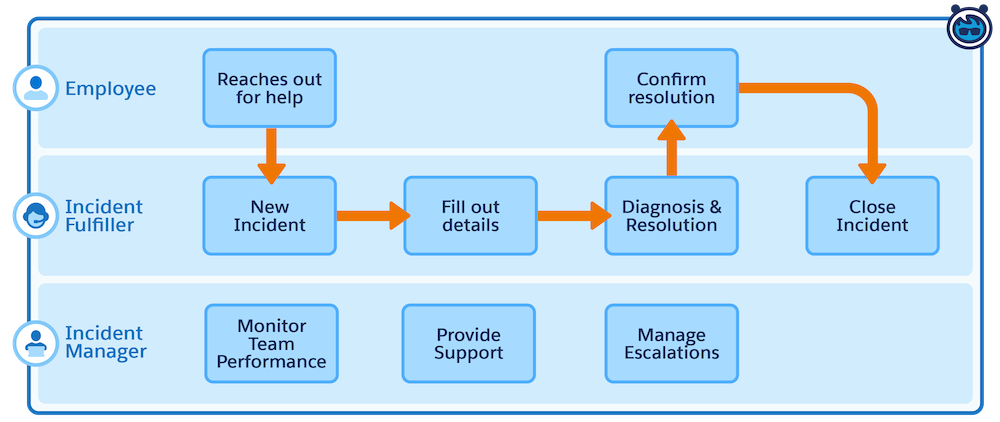
An employee reports a service disruption via one of several supported intake methods, such as email, Slack, or a web portal. From there, the workflow activates across the three personas.
-
Incident fulfiller: Creates the new incident (if not automated), fills out the details (Category, Priority), and performs the diagnosis and resolution.
-
Employee: Validates the fix and confirms resolution.
-
Incident manager: Works in parallel to monitor team performance and manage critical escalations, such as promoting a Major Incident or creating a Problem.
Now that you understand who touches the incident, let's look at where the incident fits into the broader service lifecycle.
View, Triage, and Create Incidents
As an incident fulfiller or incident manager, it’s super simple to launch the app, view existing incidents, and understand key fields at a glance.
- From the App Launcher (
 ), find and select Incidents.
- The All Incidents list view displays by default (or the Recently Viewed list view, which is often pinned).
If you know the Salesforce user interface (UI), the Agentforce IT Service list views will be familiar to you and just as easy to use. For example, you can search, sort, refresh, or pin a list. Agentforce IT Service list views show you fields to help you triage incidents at a glance.
-
Priority: Low, Moderate, High, Critical
-
Status: New, Open, Under Progress, Resolved, Completed, Problem Created, Closed, Blocked on Vendor
-
Major Incident: Approved, or left blank (not major)
-
Milestone Remaining Time: Time left before the next milestone is reached (tied to a Service Level Agreement (SLA))
From the Incidents tab you can create a new incident or drill down into an existing incident by clicking the incident number. From the incident record, you can see many more details and have additional functionality at your fingertips.
Now that you know the basics of finding, viewing and creating a new incident, let’s look at how to work the incident toward resolution.
Work the Incident
Once an incident is created, fulfillers and managers have additional details and powerful features available to them.

Here are some of the fields on the Details tab of an incident record. Notice that several fields are tied to ownership and can differ in a subtle way.
Field |
Description |
|---|---|
Created By |
User who created the incident (user name of the employee, fulfiller or manager) |
Last Modified By |
User who last modified the incident (can be different than who created the incident) |
Incident Owner |
Specific fulfiller or queue currently assigned to work on the incident |
Reported By |
Employee or user who experienced the issue and initiated the request (usually the same as Created By) |
Assigned User |
Fulfiller that was assigned to resolve the incident |
Investigation often requires updating details or linking records to paint a full picture. From the incident record, you can:
Edit the record and manage the incident
- Edit, Clone, Delete, or Follow the incident.
- Reassign it to a different agent, queue, skill, or workflow.
- Associate it to another incident, problem, change request, or release management. (Either a manual selection from the dropdown or automatic selection from Proactive Assistance.)
- Change the owner to a different incident fulfiller.
- Select Create Problem (button click for fulfillers).
Use AI
- Create Problem with Einstein
- Assign with Einstein. Usually an employee creates the request, a fulfiller is assigned the incident, but this can be reassigned during the workflow based on expertise, workload, or other criteria.
- Proactive Assistance offers a lot of automation (check out the Resources for more information).
Start a Slack Swarm
- Begin, Finish, Reopen, and Add Members to a Slack Swarm session for online collaboration of subject matter experts (SMEs).
Access knowledge management
- Search knowledge articles for a specific topic.
- Create a new article from scratch or let AI help generate it.

Now let’s look at how to escalate an issue that requires deeper investigation and a manager’s eyes on it.
Manage Major Incidents
When is a regular old incident not an incident? When it’s really a major incident. Major incidents are a special type of incident. They usually impact more than one user, more than one business system, or are extra time sensitive.
Depending on your persona (who you log in as) and the permissions tied to that persona, escalating to major incident status can require approval from another human in the loop.
Persona |
Logging an Incident |
Major Incident Proposal/Promotion |
|---|---|---|
Employee |
My Hub (portal) |
Creates a standard incident from the self-service portal. Can’t propose or promote a major incident. |
IT–Incident fulfiller |
Incident management (or portal) |
Propose to major incident. Requires approval from an incident manager to officially become major. Proposed incidents include a banner: This incident is proposed as a major incident. |
IT–Incident manager |
Incident management (or portal) |
Promote to major incident. Given proper permissions to the incident manager account, immediately becomes major. Major incidents include a banner: This incident is declared as a major incident. |
So, in this example, a fulfiller can propose that an incident become major, but escalating it to major requires an incident manager or admin. Of course, they are free to reject the proposal. About 15% of proposed major incidents are actually approved by incident managers (varies depending on organizations’ policies and processes).
Does a user need a new mouse? That’s probably not going to be approved as a major incident. Are they having connectivity issues tied to the corporate VPN? That might not be approved either, unless it impacts other users as well. Is your corporate single sign-on (SSO) failing? That’s a major incident and warrants immediate approval!

Now that you know what qualifies as a major incident, it's time to see it in action. Watch how Agentforce detects widespread IT issues and groups related tickets so your team can easily propose, escalate, and resolve major incidents.
Agentforce not only helps your team coordinate the immediate response, but it can also draft the initial root cause and resolution summaries for you.
You’ve covered the essentials of “firefighting”—navigating the incident lifecycle from the initial intake all the way to major incident escalation. But restoring service is only half the battle. To ensure long-term stability, you need to stop these issues from coming back. Next, you shift gears to problem management to discover how to find the root cause, and “fireproof” your infrastructure.