Build Rollup by Team Lead Data Filters
Learning Objectives
After completing this unit, you’ll be able to:
- Describe rollup data filters and their application in commission payout rules.
- Create rollup data filters for team leads.
Rollups in Spiff
In Spiff, rollup is a term for assigning credit to a user who doesn’t own a deal. Most commonly, rollups give a team lead credit for deals closed by their team members. The team lead’s name isn’t on the deal record, but you can still give them credit.
For example, imagine a team lead who handles two teams: a West team and an East team. The team lead doesn’t close any deals, but helps both teams and receives a commission based on team performance. You can use a rollup to collect all deals closed by the two teams, and calculate a commission for the team lead based on those deals.
Data filters take a large amount of data and reduce it to a collection of records that all match the same criteria. A rollup in Salesforce Spiff is a special kind of data filter. Rollup data filters aren’t just for team leads, though.
There are three types of rollup filters that you can use: Rollup for Team Lead, Shared Rollup, and Rollup by User. In this module, you learn about each one and which situations call for each type. Start with Rollup for Team Lead.
Create a Rollup for Team Lead Data Filter
In this module, we assume you're a Spiff administrator with the proper permissions to take these actions. If you’re not an administrator for Spiff, that’s OK. Read along to learn how your admin would take the steps in a production org. Don't try to follow these steps in your Trailhead Playground. Spiff isn't available in the Trailhead Playground.
To create any rollup data filter, begin the same way.
- Go to Spiff Designer.
- Click the Data tab, and then Filters.
- A list of connected objects appears. Click
 next to the appropriate object and select New Rollup Filter.
Here you see the three rollup options with a visual representation of each.

The Rollup for Team Lead option filters opportunities owned by team members, both direct and sub-team, for team leads. When you select Rollup for Team Lead, the Create Your Rollup window appears with a description and a sample rollup hierarchy for team leads.
In the example, lead A handles the West team, which has two subteams: the Seattle team and the Portland team. Lead B manages the Seattle team, while lead C handles the Portland team. In this structure, lead A’s rollup includes opportunities from all the three teams, while rollups for lead B and lead C only include opportunities from their respective teams. What if you don’t want the West team lead to receive credit for deals from the Seattle or Portland teams? Don’t worry! You can handle this as you continue to build the rollup filter.
Click Next to proceed.
On the next page, you see each of your assigned team leads. Click a team lead to bring up their team hierarchy and a message stating that all of their teams are automatically included in the rollup.
If you don't want the rollup to include all the deals from the teams in the lead’s hierarchy, then designate specific teams. When designating specific teams a warning appears stating that new teams under that team lead are not added to the rollup automatically.
You can turn on this option to automatically add future teams, as well.

Rollup data filters are dynamic. You can create one rollup filter for all team leads without recreating it for each one individually. Each rollup filter dynamically updates when you choose different team leads in the context selector. For example, when you select the team lead for the West team, you see deals closed by their team and sub-teams, but when you switch to the team lead for Seattle, you see records only for the Seattle team.
When you’ve selected the team options, save your work. Your new rollup filter opens.
You have a few more settings to configure.
Spiff automatically names your rollup filter something generic, such as RollupFilter1. Double click the filter and rename it. After you set a descriptive name, there are three more steps to configure. Explore each step next.
Create Rollup
This is already configured for you. If you ever want to adjust the setup you’ve completed in the earlier steps, you can do that here.
Match Opportunities
This is where you configure which deal records to include in your rollup filter.
For the How do you want to match Opportunties? setting, the most common value is By User. If you have a team field in your object data, select By Team. If you select By User, match opportunities to each user by designating the appropriate fields, such as OwnerID. This is the field on Opportunity object that designates which rep owns the deal. Then, match the OwnerID field to the User object field that contains the same rep ID.
In this image, OwnderId is matched to the Id field on the user object.

The final option is a setting to include a team lead’s opportunities in your rollup.
Set Timeframe
This setting tells your data filter how far back to look for matching deals. Options range from a rolling five years to the current period.
We recommend combining rollup filters with other filters for more flexibility. Choose a wider time range than needed and combine this filter with an InPeriod or InQuarter data filter.
For example, imagine you have one team that’s paid monthly, and another paid quarterly. You can set this rollup filter to Current Year, then use it as a part of the two other filters that collect deals for the current period or quarter.
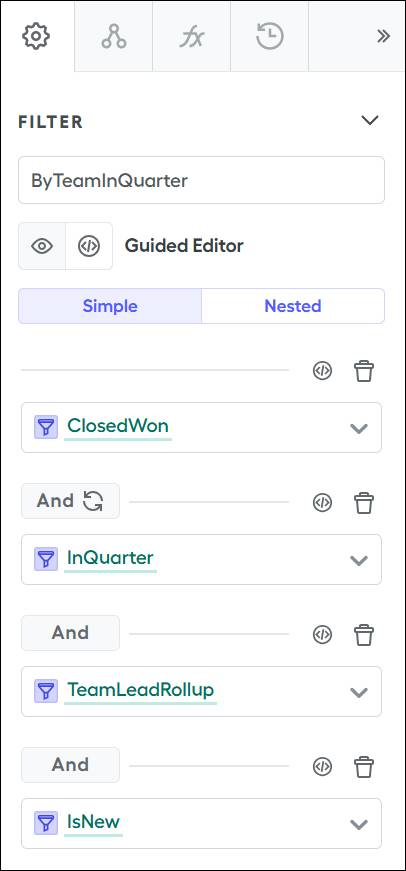
In this image, the ByTeamInQuarter data filter includes a TeamLeadRollup filter that is set to a rolling two-year timeframe, but InQuarter trims it down to deals in the current quarter. The rolling 2-year timeframe is a common and safe choice when you're setting the timeframe of your rollup filter.
Your final option is the date that verifies Opportunities. In other words, the field on your object that verifies that the deal is in the correct time frame. This typically is a field such as CloseDate.
Congratulations! Your rollup filter for team leads is ready. It’s dynamic and you can easily combine with other filters to return the deal information you need to commission your team leads.
Now you’re ready to tackle two more types of rollup filters: Shared Rollup and Rollup by User. You learn about them in the next unit.