Get Started with Platform Encryption for Data 360
Learning Objectives
After completing this unit, you’ll be able to:
- Explain how Data 360 uses Shield Platform Encryption.
- Identify the permissions that admins need to manage Platform Encryption for Data 360.
- Configure Platform Encryption for Data 360.
- Audit the Data 360 encryption to ensure security and compliance.

What Is Platform Encryption for Data 360?
Platform Encryption for Data 360 is an at-rest encryption feature that adds extra security for your sensitive Data 360 data. As soon as you enable it, it starts encrypting all of your Data 360 data. You can use Salesforce-generated keys for encryption.
As a Salesforce admin, you can use Platform Encryption for Data 360 to control data security and meet regulatory standards. Your auditors can access audit trails and encryption statistics to verify compliance. And your customers feel safe knowing that their data is protected.

What Can You Protect with Platform Encryption for Data 360?
Shield Platform Encryption complies with regulations like GDPR, HIPAA, and CCPA. It secures both customer data and metadata in Salesforce Data 360 using AES-256 encryption. Encryption is done using customer-managed keys (CMKs) managed through Shield with integration into AWS Key Management Service (KMS) for added security.
What Permissions Do You Need?
To implement Platform Encryption for Data 360, you must be a Salesforce admin with the following permissions.
-
View Setup and Configuration: This permission enables you to access encryption settings and review the configuration within the Salesforce setup. Admins usually already have this permission.
-
Manage Encryption Keys: This permission lets you create, manage, and rotate encryption keys.
-
Customize Application: This permission lets you modify encryption settings and manage encryption policies within Salesforce.
We recommend that you create a permission set that colocates the Manage Encryption Keys and Customize Application permissions. Then you can assign that permission set to only those admins who will be managing your encryption.
What’s the Process for Implementing Platform Encryption for Data 360?
Implementing Platform Encryption for Data 360 involves the following tasks.
Provision the license: Platform Encryption for Data 360 is an add-on to Data 360. You must also have an active Shield Platform Encryption license.
Assign permissions: Create a permission set with the Manage Encryption Keys and Customize Application permissions and assign it to the admins who will be managing Shield Platform Encryption. This set enables your admins to manage all Shield Platform Encryption features, including Platform Encryption for Data 360.
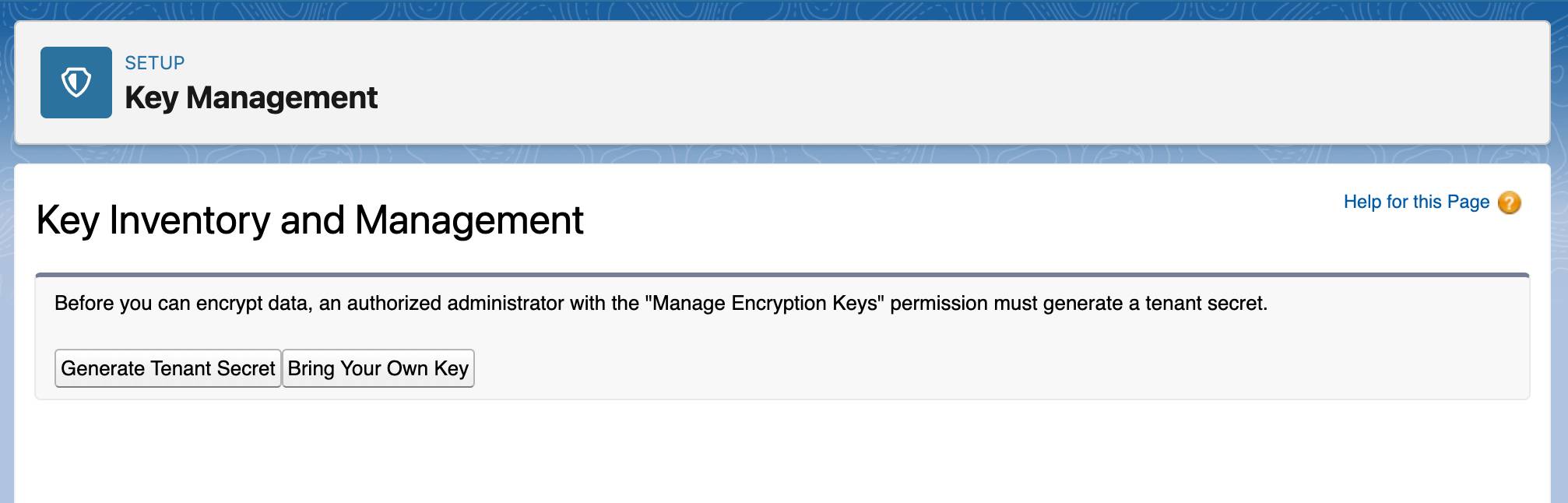
Generate a tenant secret: Make sure your org has at least one tenant secret. If none are listed in Setup on the Key Management page, click Generate Tenant Secret to create one.
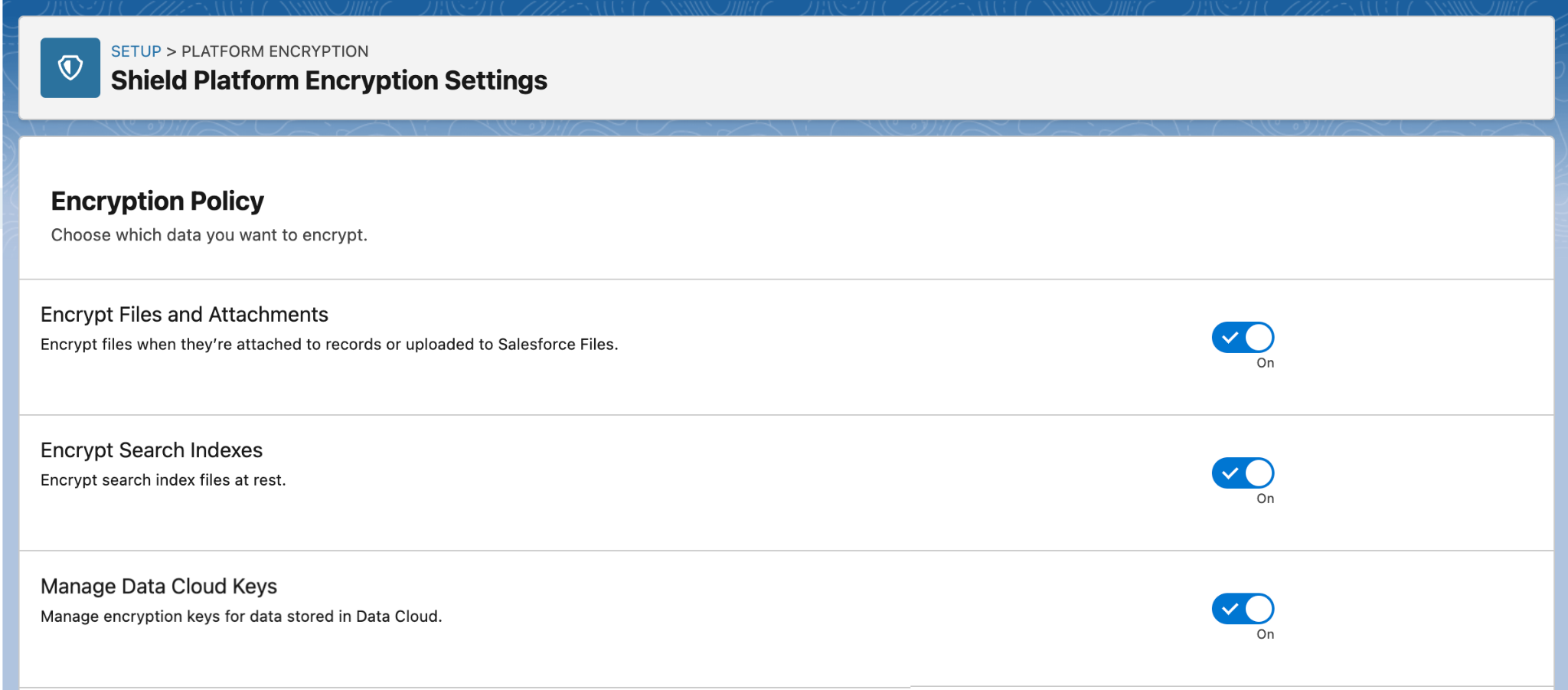
Enable Data 360 encryption: In Setup, find Encryption Settings and turn on Manage Data Cloud Keys. Salesforce creates your first Data 360 root key for you. Encryption for your Data 360 data begins right away.
Establish a key rotation policy: To enhance security, rotate your keys every so often. A typical key rotation schedule is every 12 months. On the Key Management page, you’ll see your active and archived keys.
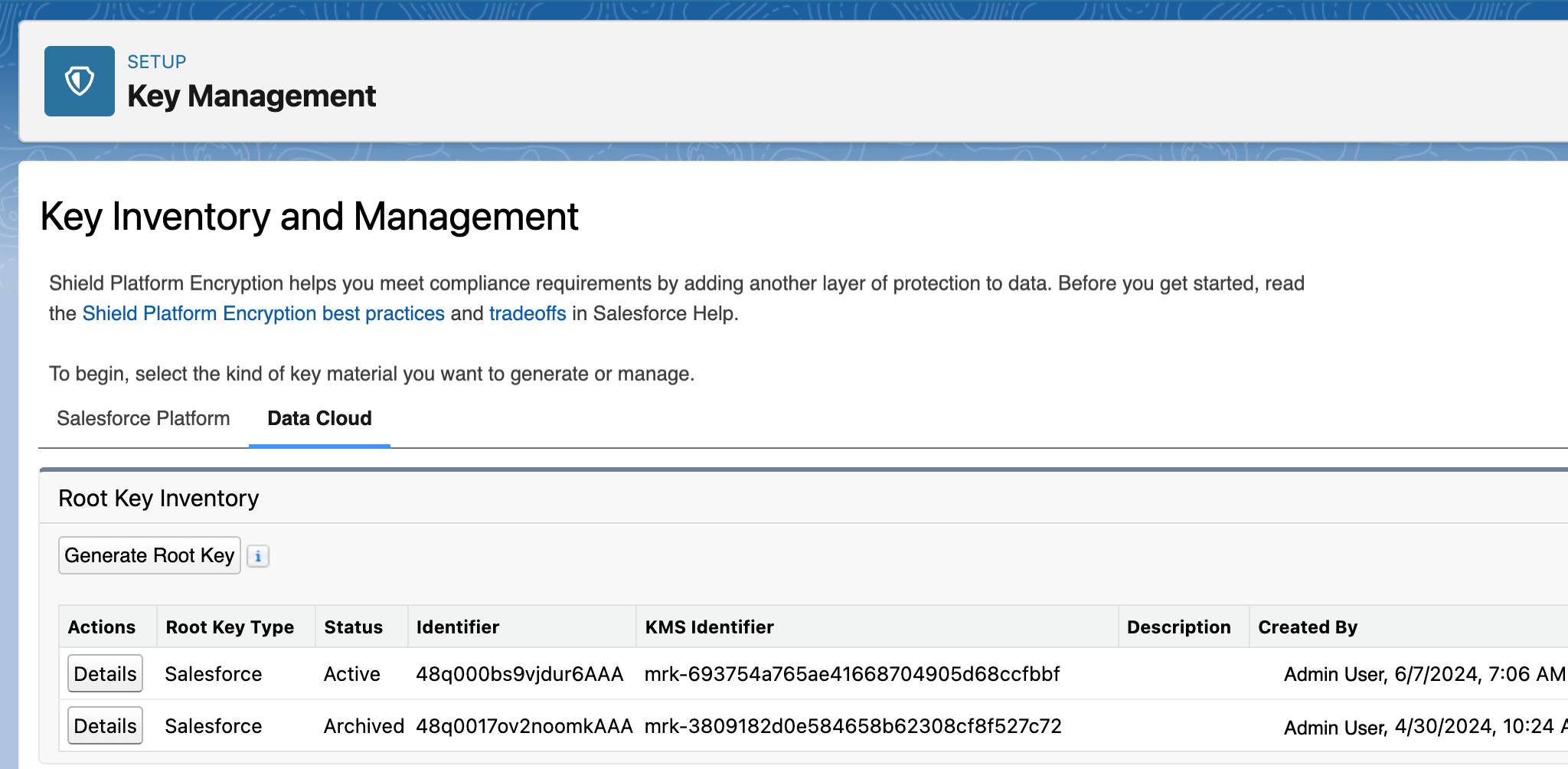
Active root keys are used for encrypting and decrypting new data. They are archived when a new root key is created and used only for decrypting data encrypted by the root key before it was archived.
As you can see, setting up Platform Encryption for Data 360 is a relatively quick process. And the great thing is that as soon as it’s enabled, we create a root key for you and begin encrypting your Data 360 data right away.
Audit Platform Encryption for Data 360
There are three ways to prove that Data 360 is securely encrypting data with Platform Encryption for Data 360.
Review the Key Management Page
The Key Management page shows detailed information about your encryption keys, including their generator, status (Active or Archived), and management options. To access it, type Key Management in the Quick Find box, and select Key Management.
Use Setup Audit Trail
You can use Setup Audit Trail to verify when Data 360 encryption was enabled. To find it, in Setup, type View Setup Audit Trail in the Quick Find box and select View Setup Audit Trail. This audit trail provides a detailed log of when encryption settings were toggled and helps you confirm that encryption has been consistently applied.
Analyze Encryption Statistics
The Encryption Statistics page in Setup summarizes the encryption status of your data stores, including Data 360. Use it to verify encryption coverage and spot any discrepancies. Access it by typing Platform Encryption in the Quick Find box and selecting Encryption Statistics.
But Wait, There’s More!
Shield Platform Encryption offers comprehensive features for encrypting other Salesforce data at rest. Check out the Shield Platform Encryption module to learn more.
Resources
- Salesforce Help: Which User Permissions Does Shield Platform Encryption Require?
- Trailhead: Shield Platform Encryption
- Salesforce Help: Monitor Setup Changes with Setup Audit Trail
- Salesforce Developer: Get Statistics About Your Encryption Coverage
- Trailhead: Data 360 Setup
- External: The Importance of Key Rotation for Data Security
- Video: Tighten Your Security with Salesforce Shield Platform Encryption