Configure Taxes
Learning Objectives
After completing this unit, you’ll be able to:
- Explain how to configure tax policies with a tax engine that’s implemented the tax interface.
- Create tax policy and tax treatment records.
- Define a default tax treatment for Billing.
- Update product records with billing and tax policies.
Define Tax Policy
They say that one of life’s certainties is taxes.
So, here you are. Ready to define tax policy in Billing.
You have a few options for calculating taxes on invoices. You can integrate with a partner's tax engine, create your own tax engine, export data to import tax calculations, or even calculate taxes based on a flat rate.
For businesses like InfinitraBytes, tax compliance is critical. InfinitraBytes sells across multiple regions, each with its own tax laws, rates, and jurisdictional rules. For example, a sale in India requires a different tax logic than one in the US. Within each country, local rules can vary even further.
Handling this complexity manually would be error-prone and resource-intensive. Mistakes could lead to compliance risks, penalties, or customer disputes.
That’s why Billing connects to partner tax engines that provide real-time rates and apply jurisdiction-specific logic automatically. With this setup, each business unit can tailor taxes for the regions where it sells, while InfinitraBytes avoids the burden of calculating taxes customer by customer.

The Tax Policy and Tax Treatment objects work together to define how tax is calculated on invoices. Here’s the role each object plays.
- A tax policy is related to products, and passes related tax treatments to quote lines, order products, and invoices.
- Each tax policy needs at least one tax treatment. Tax treatments set the criteria to calculate tax for quotes, orders, invoices, and credits.
In this unit, you follow along with Hannah and use a mock tax engine to create a tax policy and tax treatment.
Create Tax Policy
Start here by creating a tax policy.
- From the App Launcher (
 ), find and select Tax Policies.
- Click New.
- Specify these details.
- Tax Policy Name:
Corporate Tax Policy - Status: Draft
- Treatment Selection: Legal Entity
- Tax Policy Name:
- Save your work.
Just as with the billing policy and billing treatment records, this tax policy decides which tax treatment to use based on an order product’s legal entity.
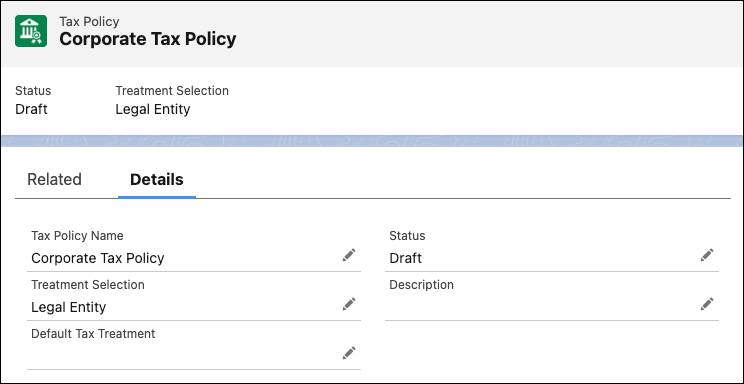
At InfinitraBytes, that means the company can have one tax policy with related treatments for each legal entity, such as its US and Indian business. The legal entity on an order product determines which tax policy is used for a billing schedule and invoice.
The other options for the Treatment field are:
-
Default, which uses the default tax treatment specified in the tax policy.
-
Manual, which uses the tax treatment of the related order product.
The Tax Policy is also in Draft status. You can’t activate a tax policy without a related active tax treatment. You know what that means, right?
Create Tax Treatment
It means we create a tax treatment. Create one for the USA Business legal entity.
- On the Corporate Tax Policy record, click Related.
- Click New on the Tax Treatments related list.
- Specify these details.
- Tax Treatment Name:
USA Tax Treatment - Tax Engine: Mock Tax Engine
- Legal Entity: USA Business
- Is Taxable: Select
- Status: Active
- Tax Treatment Name:
- Save your work.
Here, you selected a legal entity because the parent tax policy uses that value to determine the correct tax treatment to use.
The instructions here skipped a few fields worth mentioning, though. Product Code and Tax Code are specific to your tax provider, and use these codes to find tax rates in their system. Check how your tax provider uses these fields.
Activate Tax Policy
Since Hannah has an active tax treatment, she goes back to her tax policy and activates it.
- On the USA Tax Treatment record, click Corporate Tax Policy in the Tax Policy field.
- Edit the record and specify these details.
- Status: Active
- Default Tax Treatment: USA Tax Treatment
- Status: Active
- Save your changes.
InfinitraBytes’s tax policy is ready to use.
Select Default Tax Treatment
Just as with legal entities and billing treatments, you must set an org-wide default tax treatment for Billing. Hannah does that and replaces the default with InfinitraBytes’s USA Tax Treatment.
- In Setup, enter
Billing Settingsin the Quick Find box, then select it.
- In the Billing Defaults section, select USA Tax Treatment in the Tax Treatment field.
This tax treatment is used for order products without a defined tax treatment. For example, this tax treatment is used when a products’ tax policy Treatment selection is Default or Manual and no tax treatment is selected.
Update Product Settings
With Hannah’s tax policy in place, she can update the billing and tax policies on InfinitraBytes’s products. Adding these policies to product records gives InfinitraBytes cohesive product definitions within the system. These product details can be used automatically in quotes, orders, and invoices.
Hannah links her policies to products. Follow along so you can use these products later in this module.
- From the App Launcher (
 ), find and select Products.
- Switch the list view to All Products.
- Find and select Laptop Basic Bundle.
- Edit the record and specify these details.
- Tax Policy: Corporate Tax Policy
- Billing Policy: Advance Billing Policy
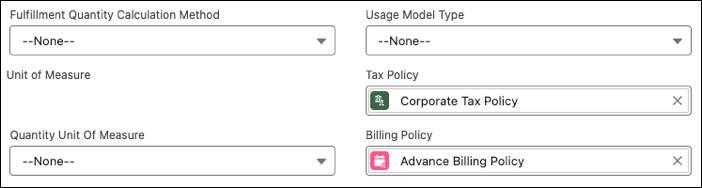
- Tax Policy: Corporate Tax Policy
- Save your changes.
- Repeat these steps to update the Laptop, Antivirus, and Keyboard products with the same Tax Policy and Billing Policy values.
InfinitraBytes benefits from the features of both of these policies. For example, both the billing and tax policies choose billing and tax treatments based on the order product's legal entity. When these products are included in an order, Billing will use the correct treatments based on the order and order product’s selected legal entity.
You can always change the legal entity, billing treatment, and tax treatment on an order product to use something different. You learn how later in this module.
Next Up
In this unit, you followed along with Hannah and learned how to configure tax policies with an external tax engine, then created tax policy and tax treatment records. Finally, you set the default tax treatment for your org and updated the tax and billing policies on products.
InfinitraBytes’s Billing settings are ready.
In the next unit, you put together everything you’ve learned so far and use legal entities, billing policies, tax policies, and all of their related records to generate billing schedules.
To pass the challenge and move on to the next unit, make sure to check the challenge.