Narrow Audiences with Containers and Group, Rank, and Limit
Learning Objectives
- Apply containers and aggregation to qualify records based on specific related data summaries.
- Implement Group, Rank, and Limit rules to prioritize and cap the number of members in a segment.
- Design a multilayered refinement strategy using filters, containers, and Group, Rank, and Limit rules to create a high-precision audience.
Why Refinement Matters
Michele has her segment types, activation targets, and Segment On set up. Now NTO faces a new challenge. Its spring campaign qualifies 50,000 people but can only send a Surprise and Delight gift to 2,000. Who does the team choose? And how do they spread those 2,000 across regions so one city doesn’t get everything?
Filter criteria tell you which records meet the conditions. Containers and aggregation narrow that further using related data. But sometimes you need one more step: among all records that qualify, how many per group get in? That’s where Group, Rank, and Limit (GRL) comes in. Think of it as two stages. First, decide who qualifies. Then, decide who gets in and how many per bucket.
Containers and Aggregation as a Refinement Lever
You use containers to scope criteria to related data—for example, Sales Order—and set conditions on that object. Aggregation on the container—count, sum, average, max, min—qualifies records based on a summary. NTO starts with an Include filter: “purchased in the last 90 days.” The team also adds a container on Sales Order with count of orders greater than or equal to 1, which narrows the scope to everyone who made at least one purchase in that window.
With a single container on Sales Order, NTO filters out anyone who has not purchased recently. That one step cuts noise and keeps the campaign focused on active customers.
For a closer look at containers, aggregation types, operators, and filtering logic, check out Segmentation in Data 360.
Without GRL, all 50,000 go into the segment. With GRL narrowing the scope, Michelle can select the right 2,000 and spread them across geography.
What Is Group, Rank, and Limit?
GRL runs after Include and Exclude criteria. It doesn’t change which records qualify. It works only on records that already passed those conditions. You configure GRL in the Rank and Limit tab with three steps.
-
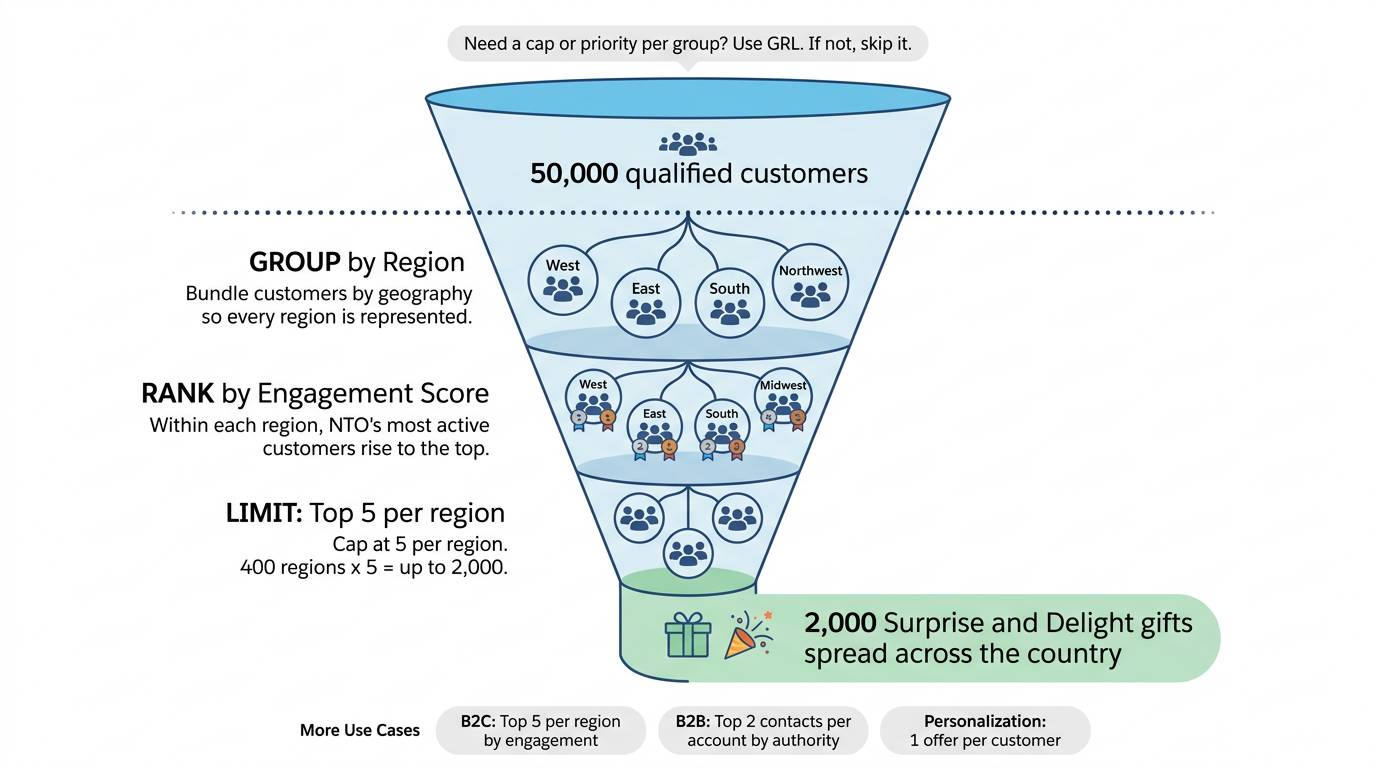
Group: Choose an attribute to bundle records, for example, City or Region. All records in the same group share that value. NTO groups by region, so they spread the gifts across geography instead of pulling the top 2,000 from one area.
-
Rank (Sort By): Within each group, order records by another attribute, for example, engagement score, descending. This sets priority: who gets the gift first in each region. NTO ranks by loyalty engagement score, so the most active customers per region rise to the top.
-
Limit: Set how many records from each group make it in, for example, top 5 per region. With 400 regions, that gives up to 2,000 records. If some regions have fewer than 5 qualified customers, the total is lower. The limit is the cap.
GRL applies only within the qualified population. After getting the qualification step right first, Michelle uses it to further refine the selection for NTO’s Surprise and Delight program.
Where to Configure Group, Rank, and Limit
Open the Rank and Limit tab on the segment canvas. Data 360 creates the first container automatically and locks it to your primary entity. Drag attributes and set Group By, Sort By, or Maximum Records. You can add more rulesets for multiple layers, for example, top 10 accounts per owner, then top 2 contacts per account. Each ruleset can have up to three group rules and three sort rules. You must include a limit rule in each.
Build your Include and Exclude criteria first and save. Then open Rank and Limit and add your rules. If you change the qualification logic later, GRL automatically runs on the new qualified set.
When to Use Group, Rank, and Limit
Use GRL when you need a limited, prioritized set per group. NTO uses it for Surprise and Delight. The program is for the top 5 customers per region, ranked by engagement, so the company spreads the 2,000 gifts across cities instead of sending them all to one place. Additional B2B use cases include targeting the top 2 contacts per account so you don’t email everyone at a company, or personalizing one tailored offer per customer with a limit of 1.
If you don’t need a cap or priority, skip GRL and let everyone who qualifies into the segment.
Keep these constraints in mind.
- GRL is available only for segments on profile DMOs.
- You can use only direct attributes and aggregatable calculated insights for grouping, ranking, and limiting.
- GRL isn’t supported for real-time, rapid, or dynamic segments.
- For waterfall segments, use GRL only on the child segments.
By grouping by region, ranking by engagement, and limiting to 5 per region, NTO turns a 50,000-person list into a 2,000-person gift program that feels personal in every city. No region is left out, and the budget stays on track.
How It All Works Together
Think of it as one toolkit. NTO defines who qualifies by using Include filters and a Sales Order container with count of at least 1. Then adds GRL: group by region, rank by engagement, limit 5 per region. This creates a relevant and manageable segment of roughly 2,000 Surprise and Delight recipients spread across the country.
But Michele’s work is just getting started. In the next unit, you help NTO find customers interested in “hiking and camping” without exact keywords, prioritize loyalty members, and make sure every segment respects email consent.